
Install Apps and Software on Linux Using Binary Packages (.deb, .rpm & .pkg.tar.zst)
Quick Summary
Linux doesn’t use .exe files. Instead, each distro family uses its own native package format: .deb for Debian/Ubuntu, .rpm for Fedora/Red Hat, and .pkg.tar.zst for Arch based distros. This guide shows you how to download, install, and remove all three formats safely using graphical tools and the command line interface.
Main Article
One of the first questions that Windows users ask when switching to GNU/Linux is: “How do I install software on Linux, like I am used to doing on Windows?” Because, even though there are better ways to install programs on GNU/Linux, Windows users are more accustomed to the simple process of - searching the web, downloading an .exe file, double-clicking it, following the instructions, and then being done.
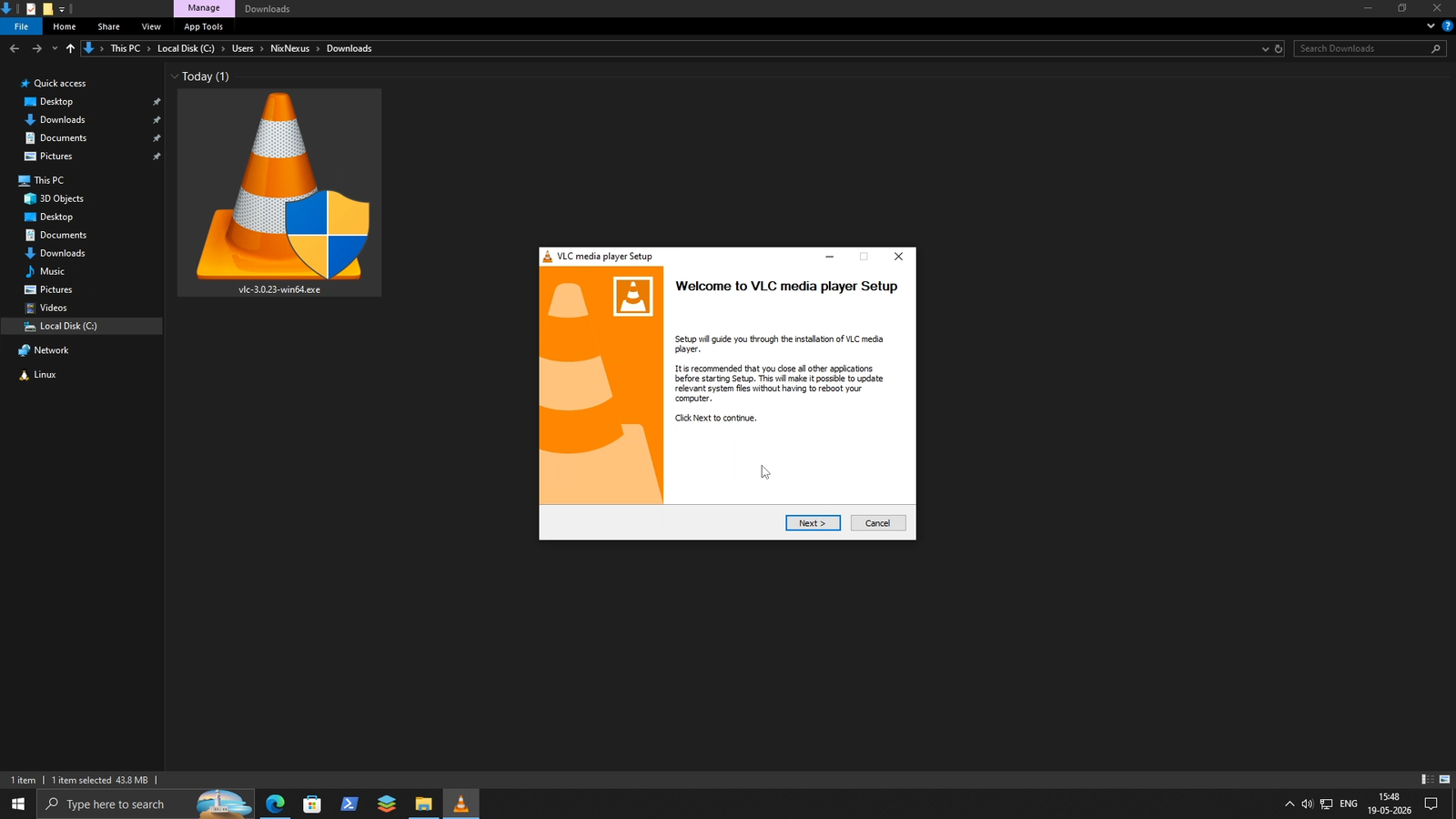
But on Linux, things work a bit differently, and honestly, once you understand why, you will start to appreciate the difference. Therefore, in this guide, I will show you how you can install apps and software on Linux using binary package files, specifically the .deb, .rpm, and .pkg.tar.zst formats.
Understanding Linux Binary Package Installer
To be very clear, Linux natively does not have anything equivalent to the .exe file. What it has instead are binary packages, like .deb , .rpm or .pkg.tar.zst files, which are much closer to the model of a .msi file, which is also used for managing software on Microsoft Windows.
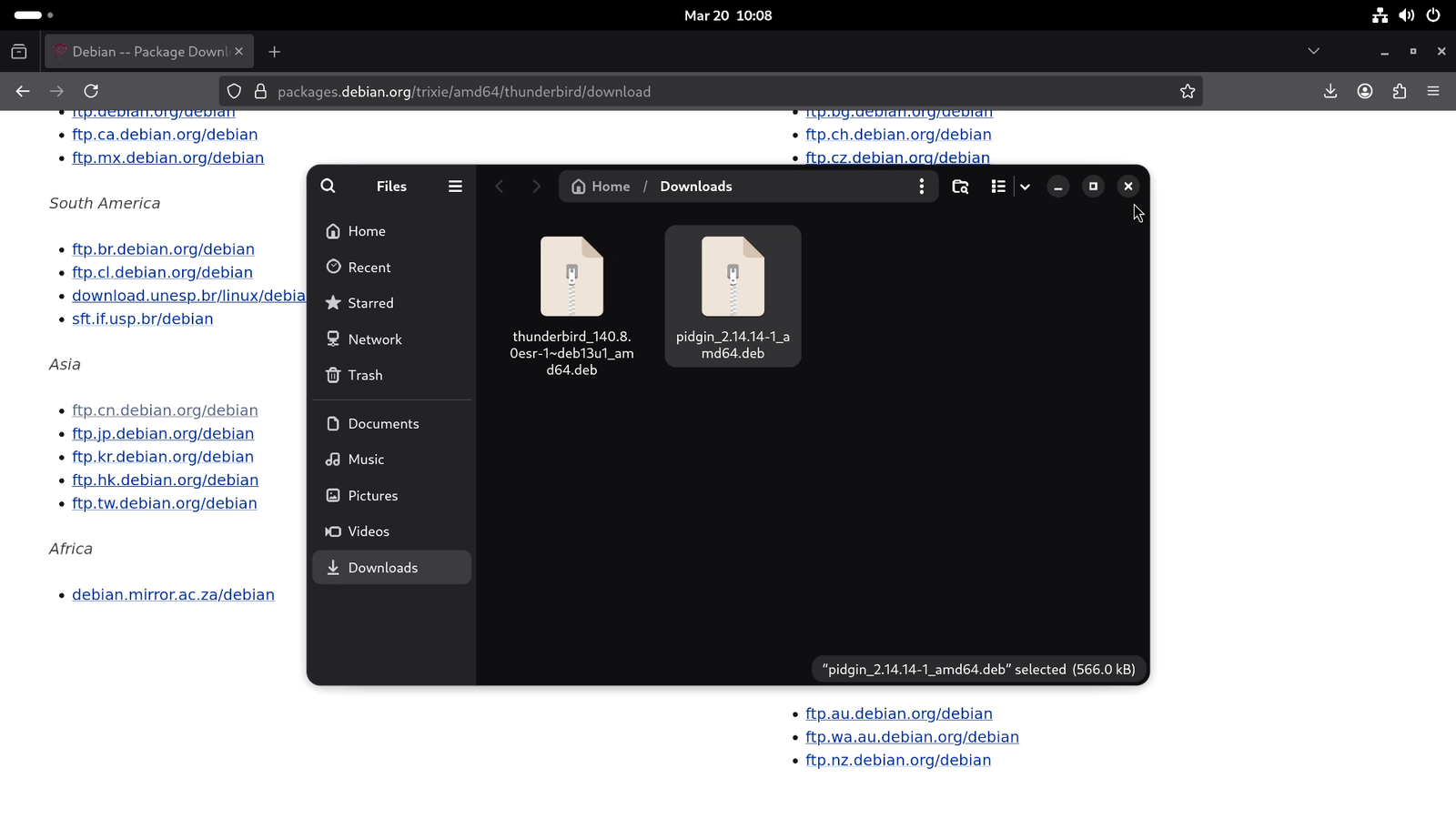
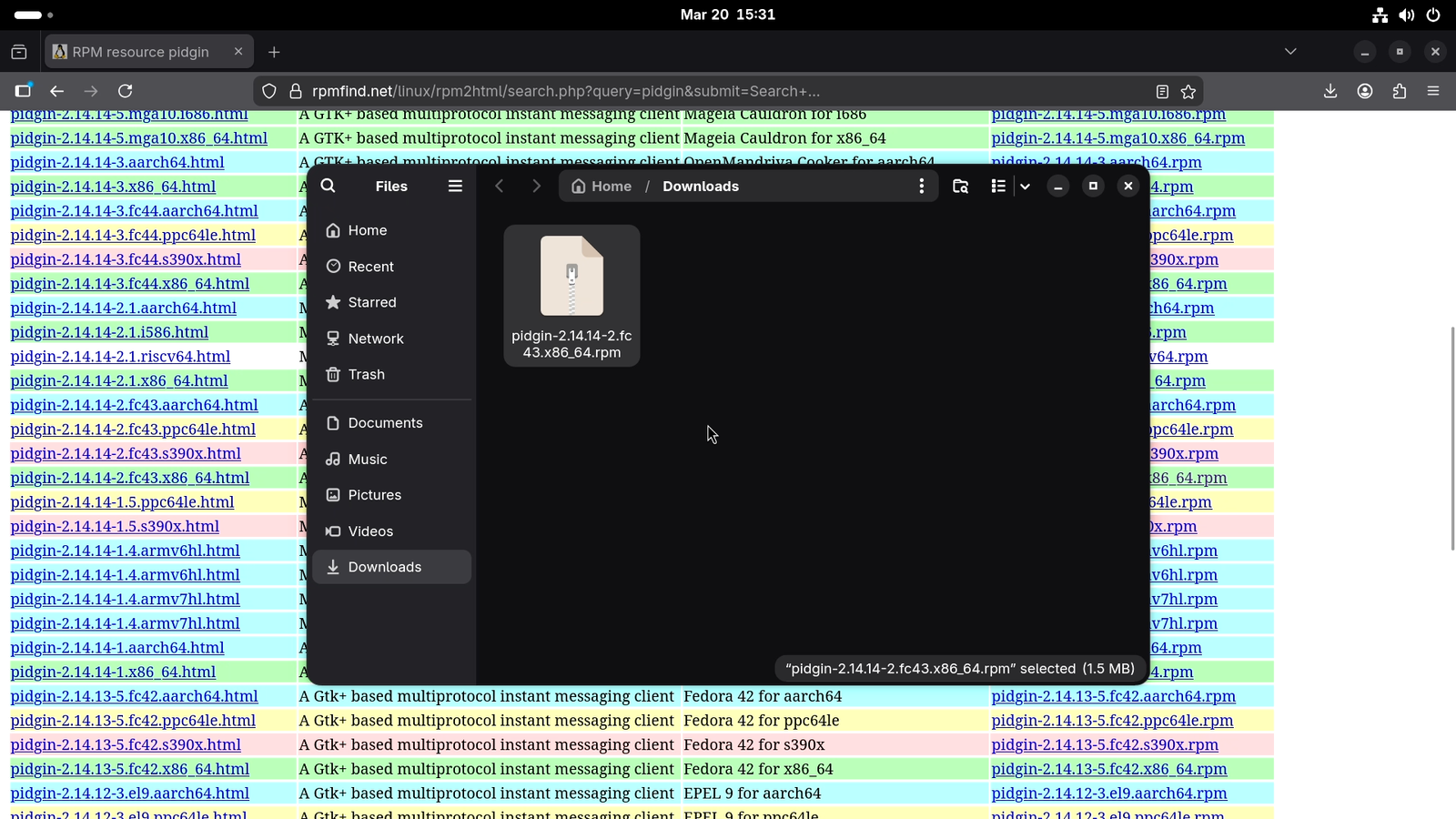
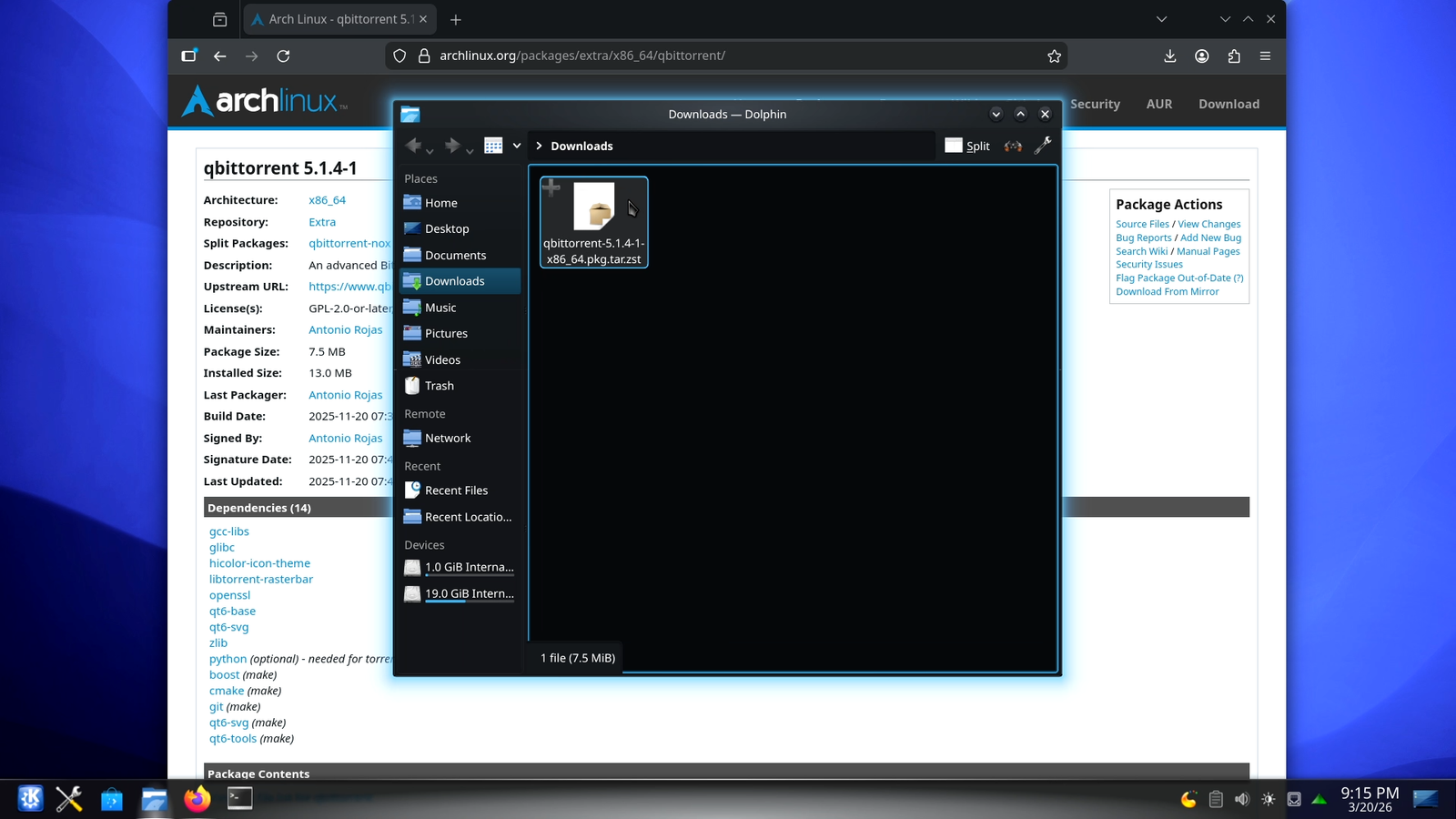
Like the .msi files, Linux binary packages are essentially a form of a structured archive that contains compiled binaries, configuration files, and package metadata. And unlike .exe file, which can only be used to install a package, these archive formats let you do multiple things, like installing, repairing, and removing the software from your system.
But unlike in Windows, where you can use both .exe and .msi files. In Linux, the file formats are not interchangeable across distributions. They can only be used within a branch of distros. For example:
.debfile can only be used on Debian or Ubuntu based distros,.rpmfiles are only used on Fedora or Red-Hat based distros, and.pkg.tar.zstfiles can only be used on Arch Linux based systems.
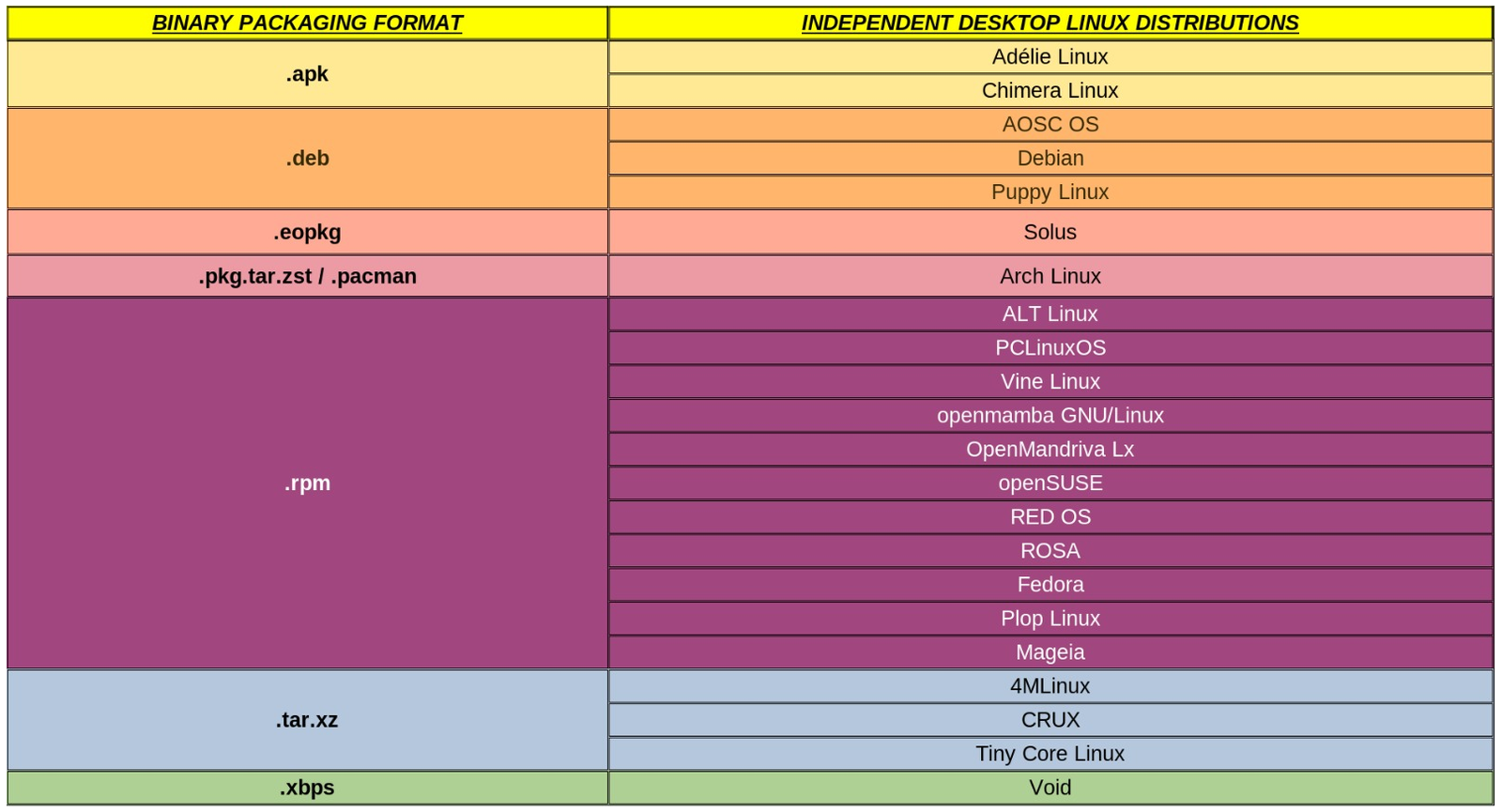
And in GNU/Linux, there are other formats too, but these three cover the vast majority of Linux users, so that’s what we are focusing on here.
Download Binary Packages Only From Trusted Sources
To get software on Microsoft Windows, traditionally, we type its name on a search engine, then go to a listed website, and then download the installer file. But the problem with this process is that you can easily land on a malicious website and end up infecting your system with viruses and malware.
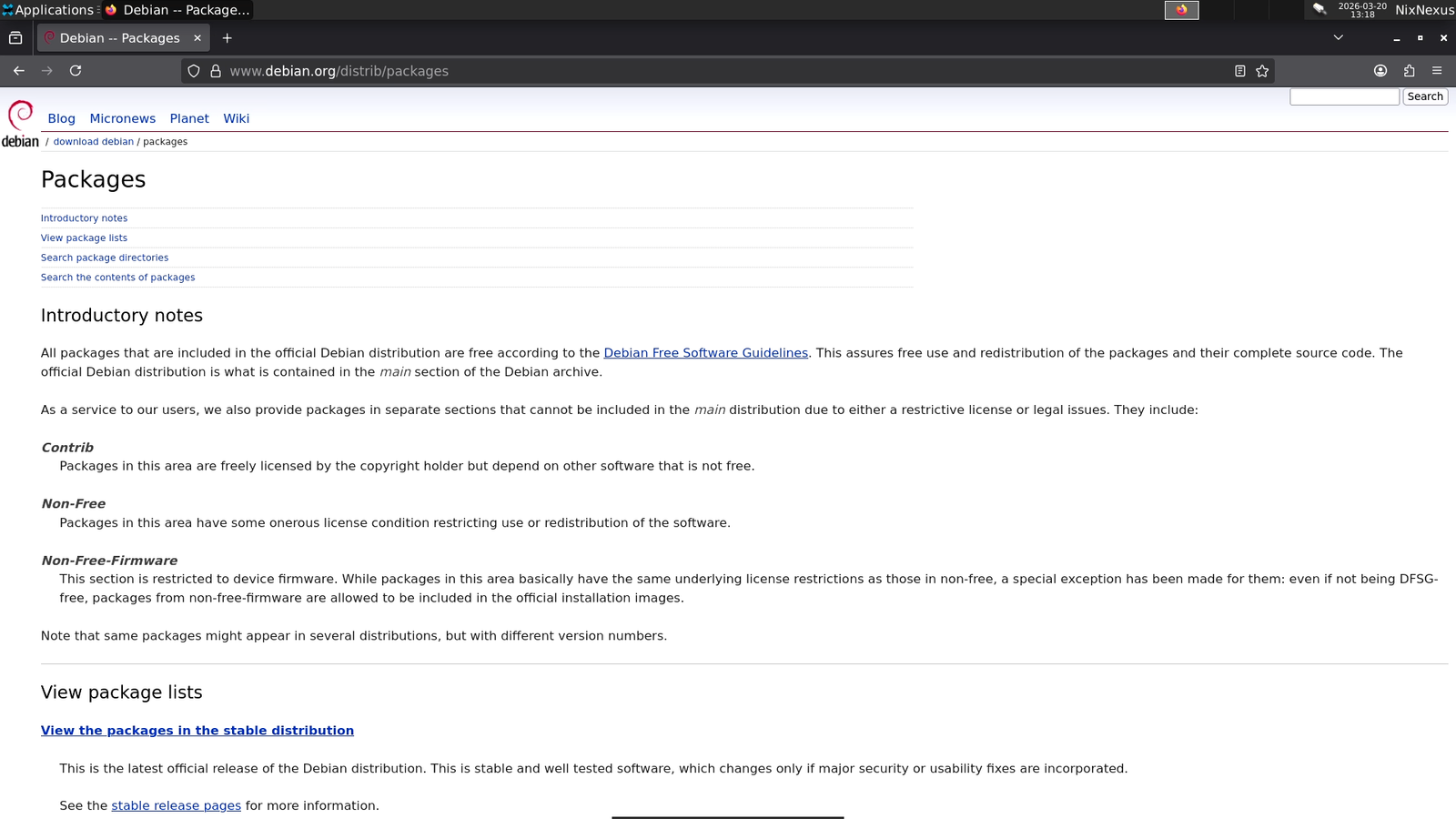
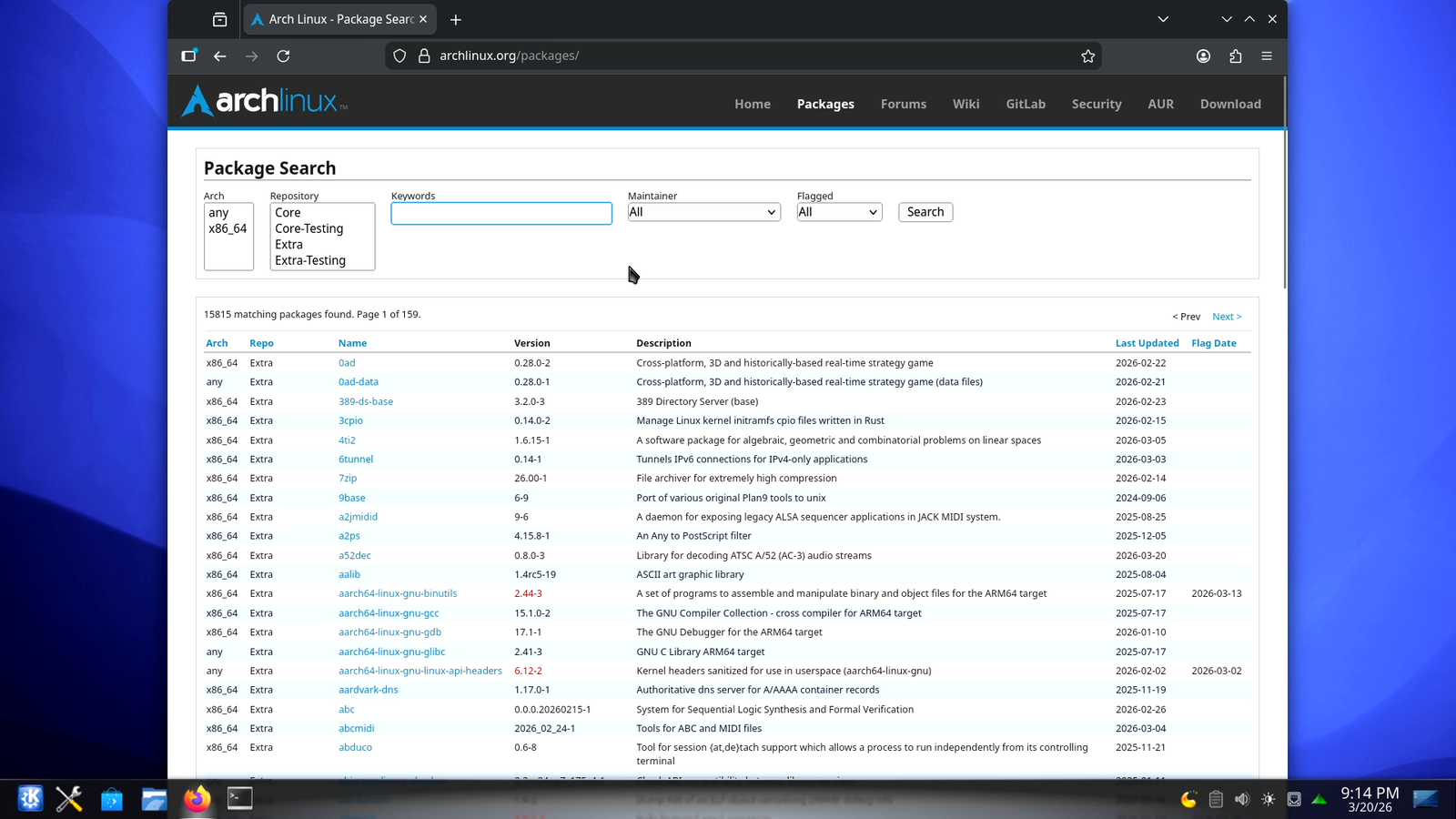
Therefore, to mitigate this risk, in GNU/Linux, all major distributions maintain an official repository or database of their packages. For example, you will find all the .deb Packages on packages.debian.org and .pkg.tar.zst Packages on packages.archlinux.org.
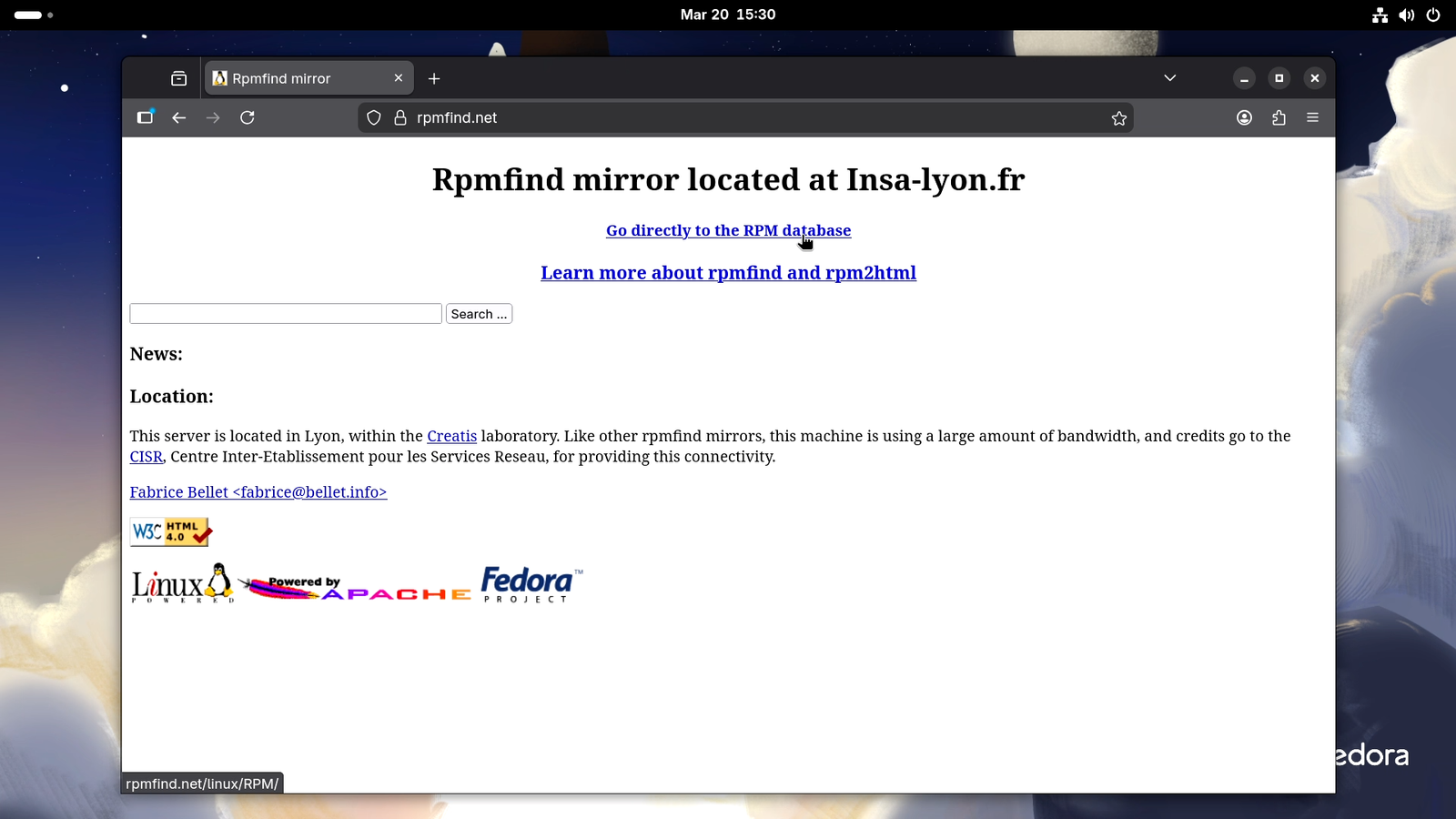
However, RPM Packages are a bit different. As there are lots of independent distros like Fedora, RHEL, openSUSE, or RockyLinux that use .rpm packages out of the box, a package created for one particular distro does not work on the others. And maintaining a single official repository for all these distros is not possible for distro maintainers. So, a trusted third-party repository like rpmfind.net solves the issue. Here you can find all kinds of .rpm packages, and you can even filter them according to your Distribution and system architecture.
.DEB Packages (Debian / Ubuntu / Linux Mint / Etc.)
Downloading .DEB packages
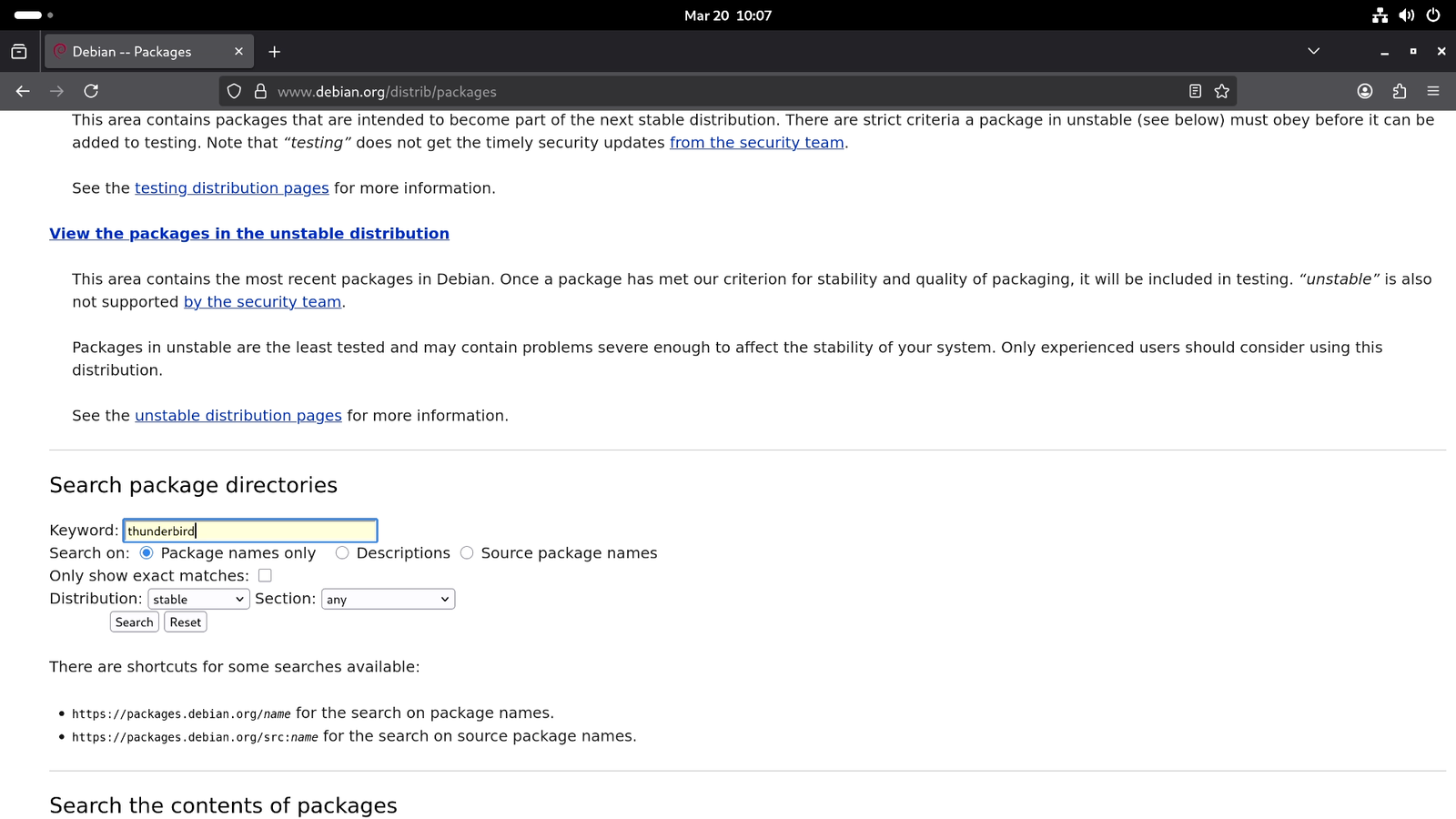
Go to packages.debian.org and start scrolling down until you find the “Search Packages Directory” field. Type the name of the software you want to install, and hit enter.
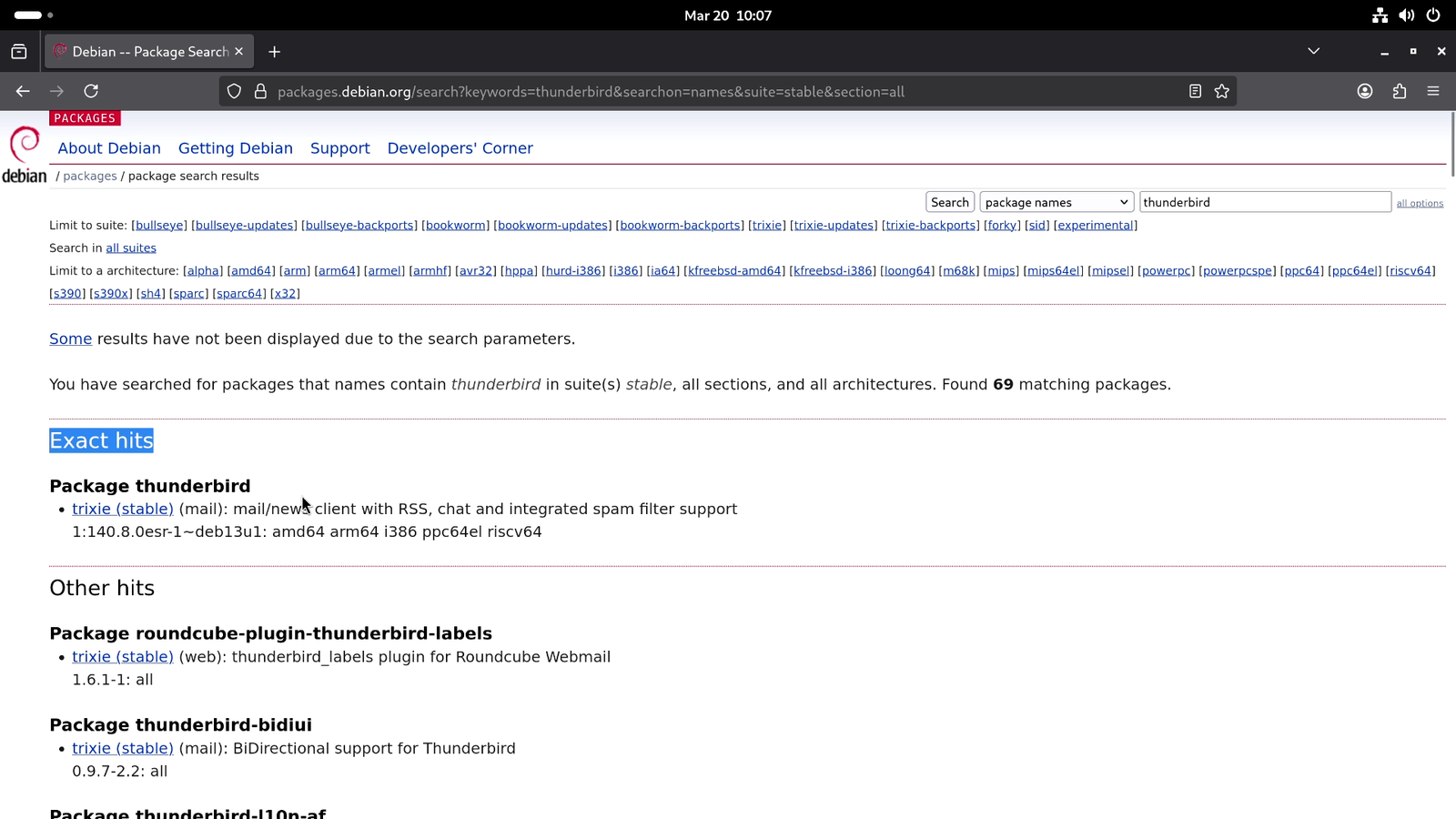
The results page will show two separate sections: the first one is the exact match, and the second one is others, which typically include related plugins, themes, language packs and so on. To proceed, select the exact match option, and it will take you to the main software page.
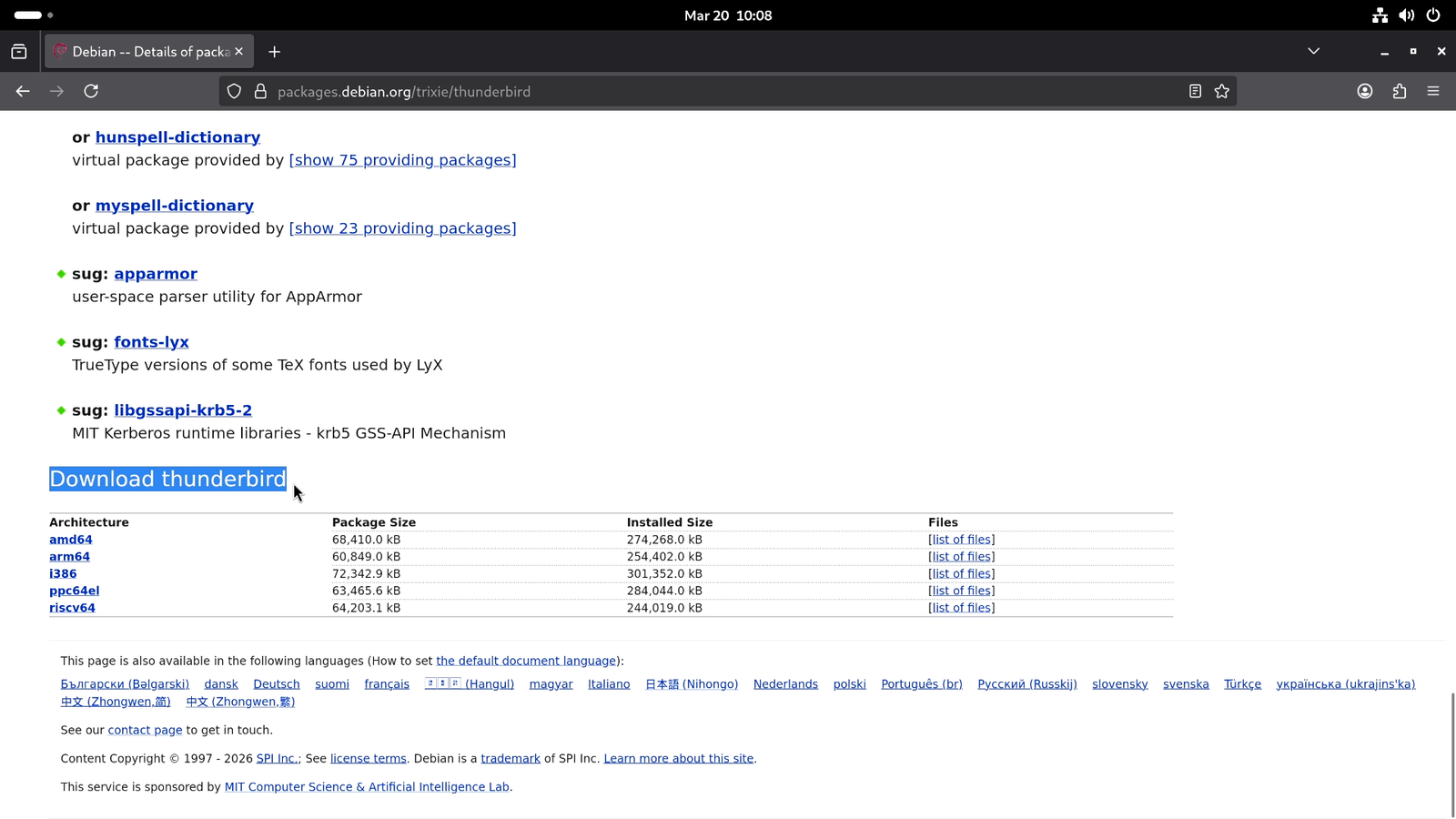
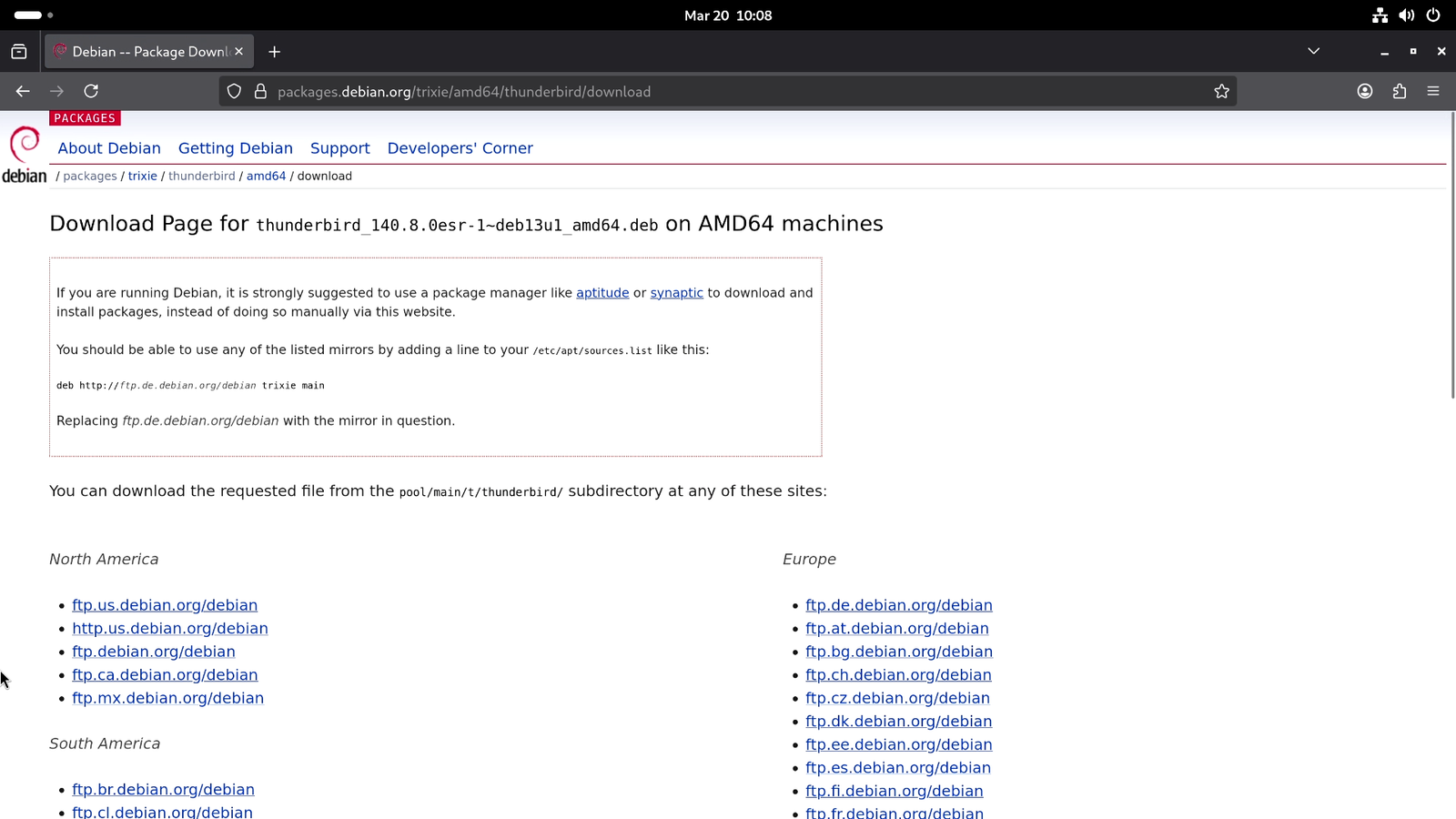
On the software page, again start scrolling down until you find the “Download” option at the bottom of the page. Then select the option that matches your hardware architecture (most modern PCs are amd64), which will lead you to the mirrors page, and here pick the download mirror that is closest to your location, and it will download the .deb package for you.
Note: You might also see a browser warning pop-up about the file type, but there is nothing to worry about as long as you are using the official or trusted sources. So it is safe to allow the download.
Managing .DEB packages On GNOME Desktop Environment
On GNOME Desktop Environment, you can easily install .deb packages with the help of the GNOME Software Center.
- Open the Nautilus file manager, and go to your Downloads directory
- Double-click the
.debfile - GNOME Software opens with the install screen
- Click “Install”
- Enter your password when prompted, and wait for the app to get installed.
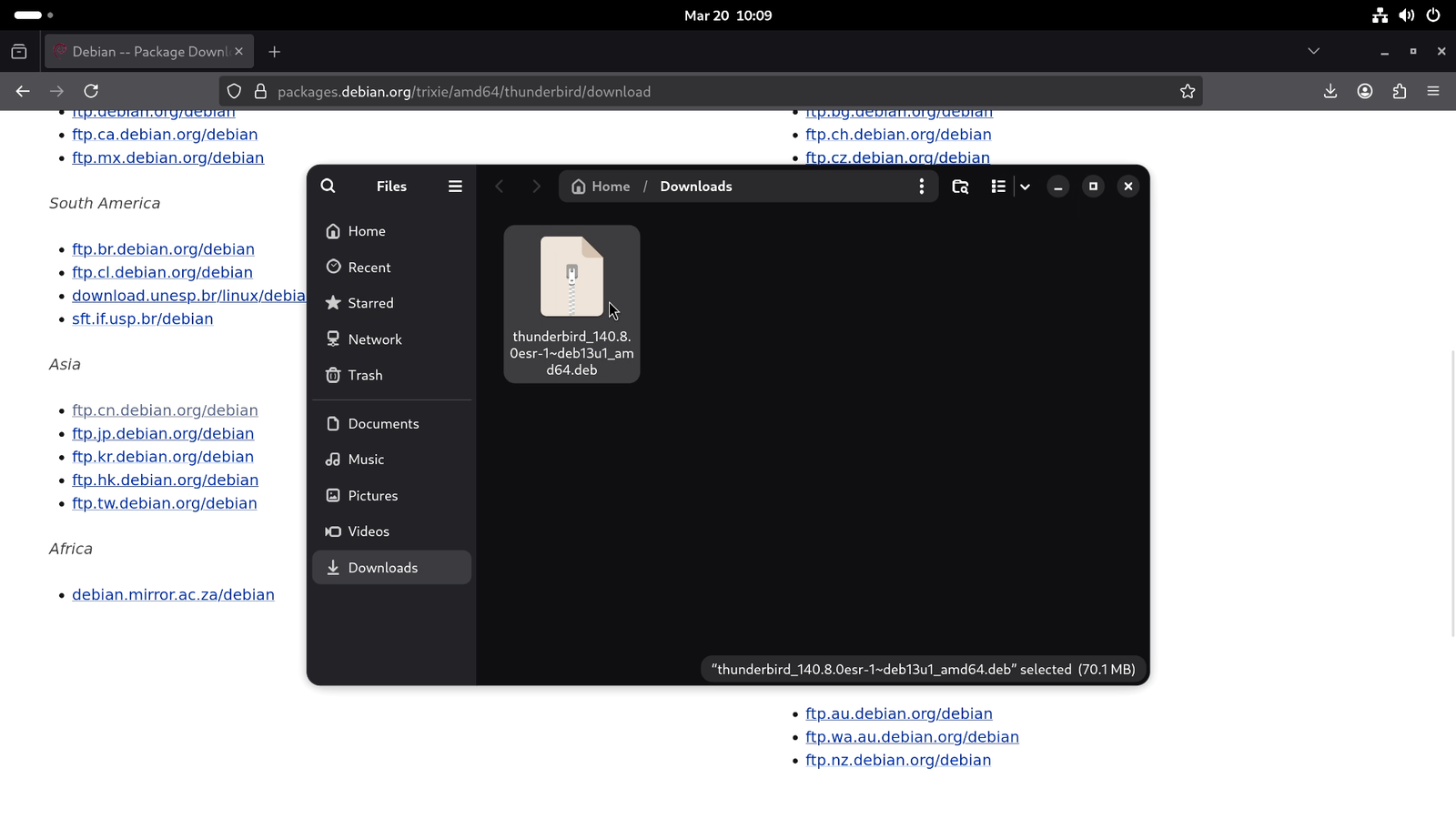
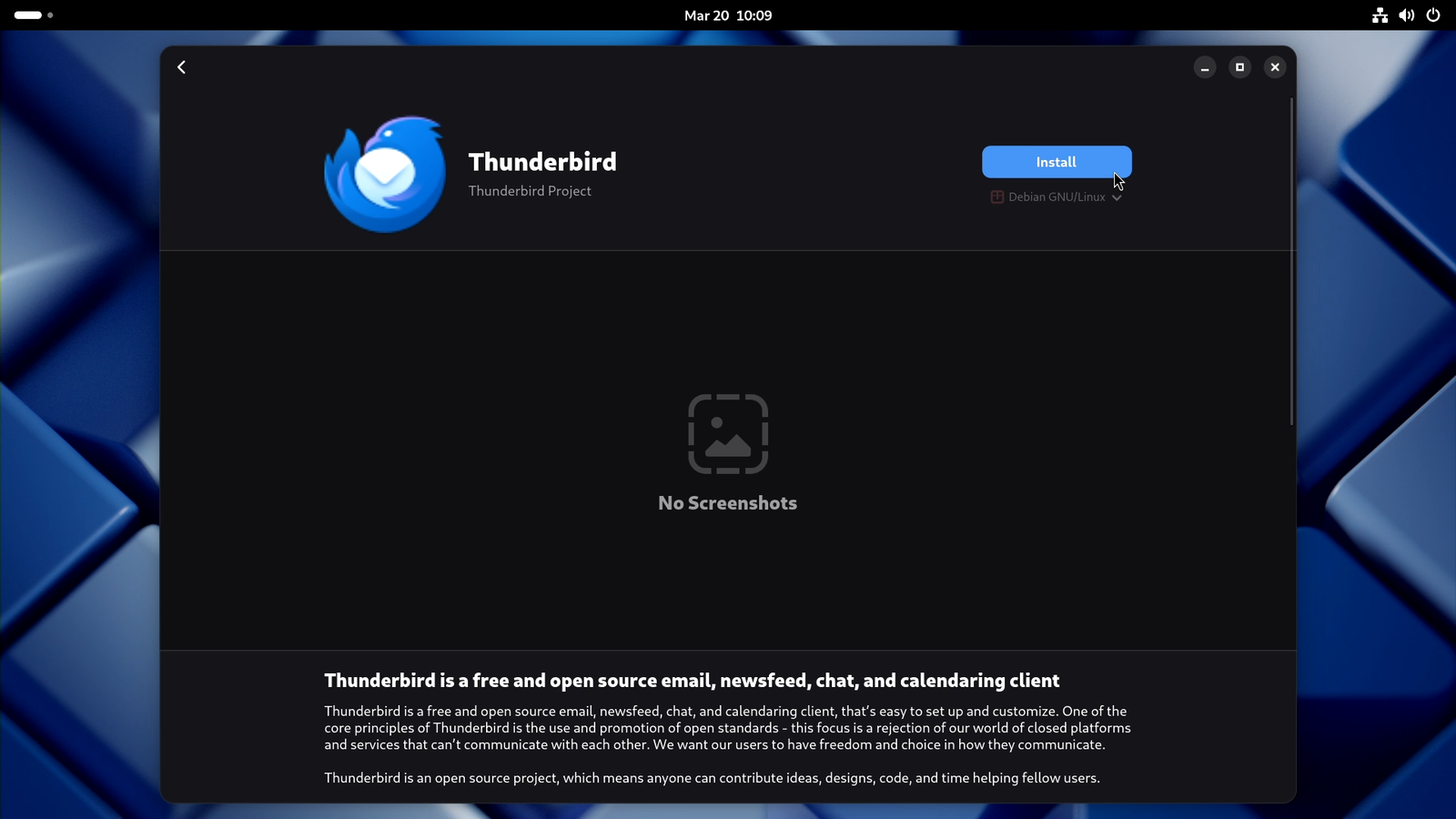
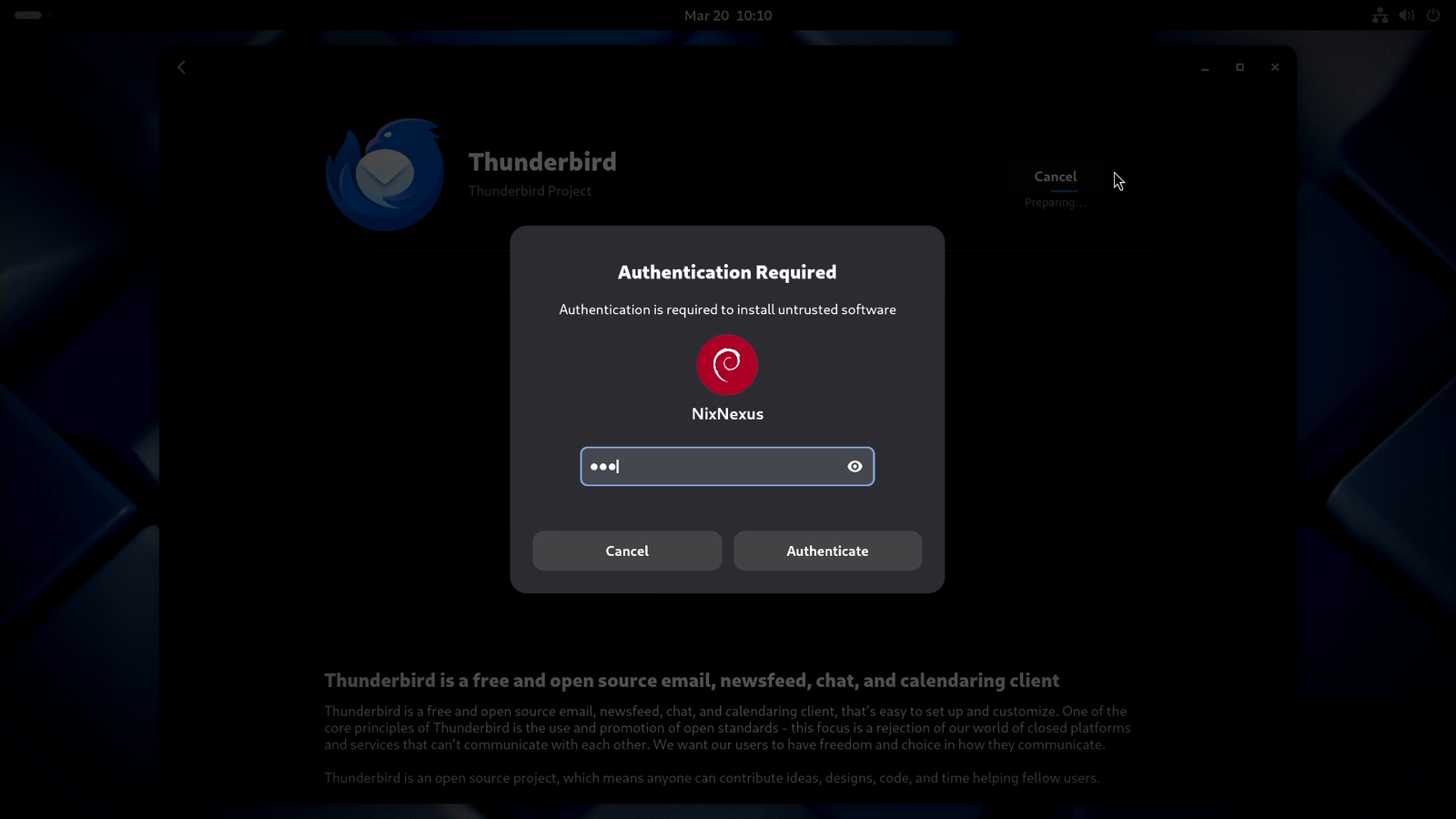
When the installation is completed, the app will show up in your application menu.
However, one thing to note, as of now, graphical removal of manually installed .deb packages is not supported by GNOME Software Center. So, to uninstall the package, open your terminal emulator and use the following terminal commands:
sudo apt remove package-nameManaging .DEB packages On KDE Desktop Environment
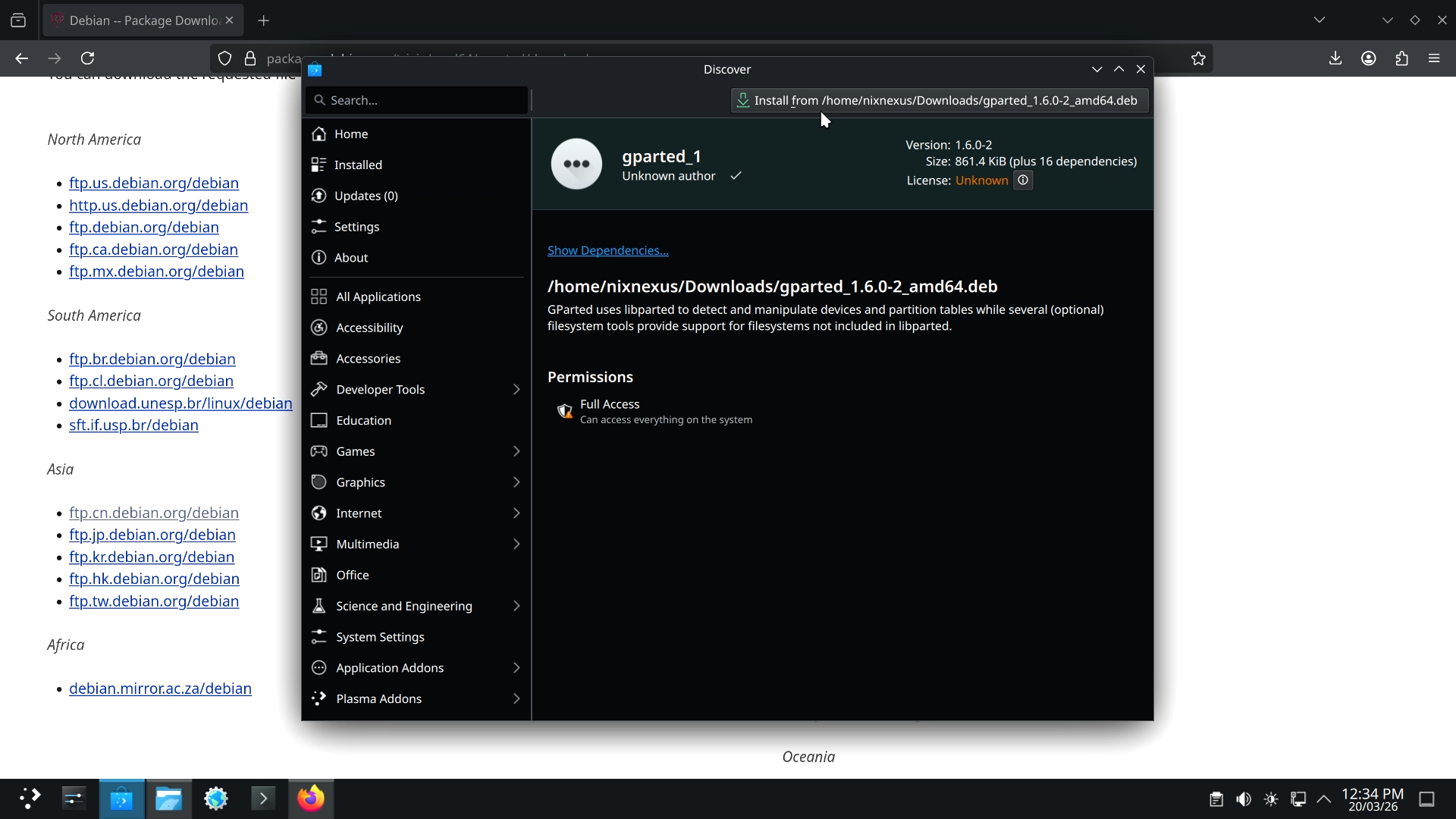
Now, if you are using the KDE Desktop environment, then in that case your experience will be much more pleasant, because KDE supports both graphical installation and removal of .deb packages using the KDE Discover Software Center. So to install:
- Open the Dolphin file manager, and go to your Downloads directory
- Double-click the
.debfile - Wait until the Discover Software Centre checks for the required dependencies
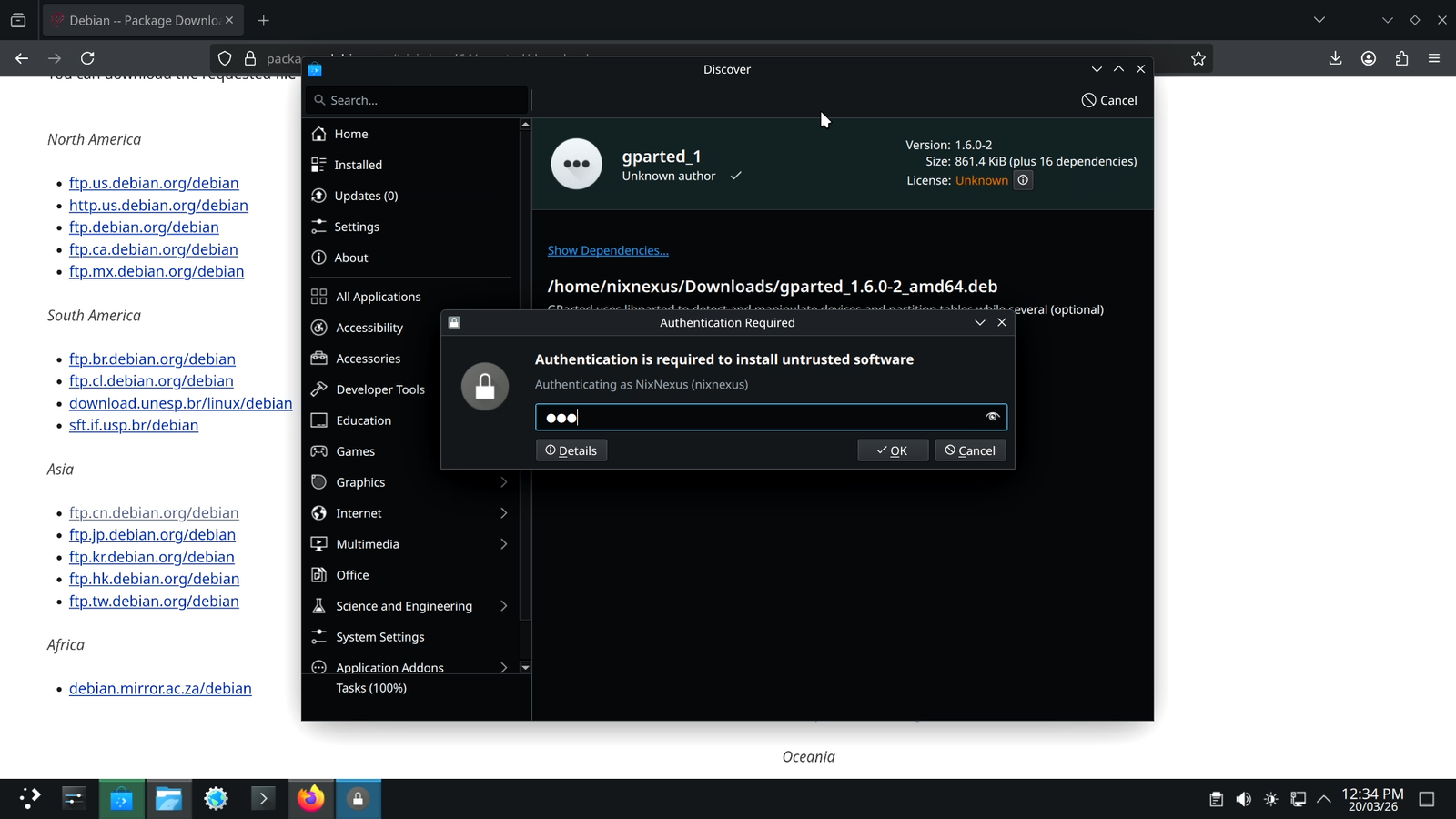
- Click “Install”
- Enter your password, and wait for the app to get installed.
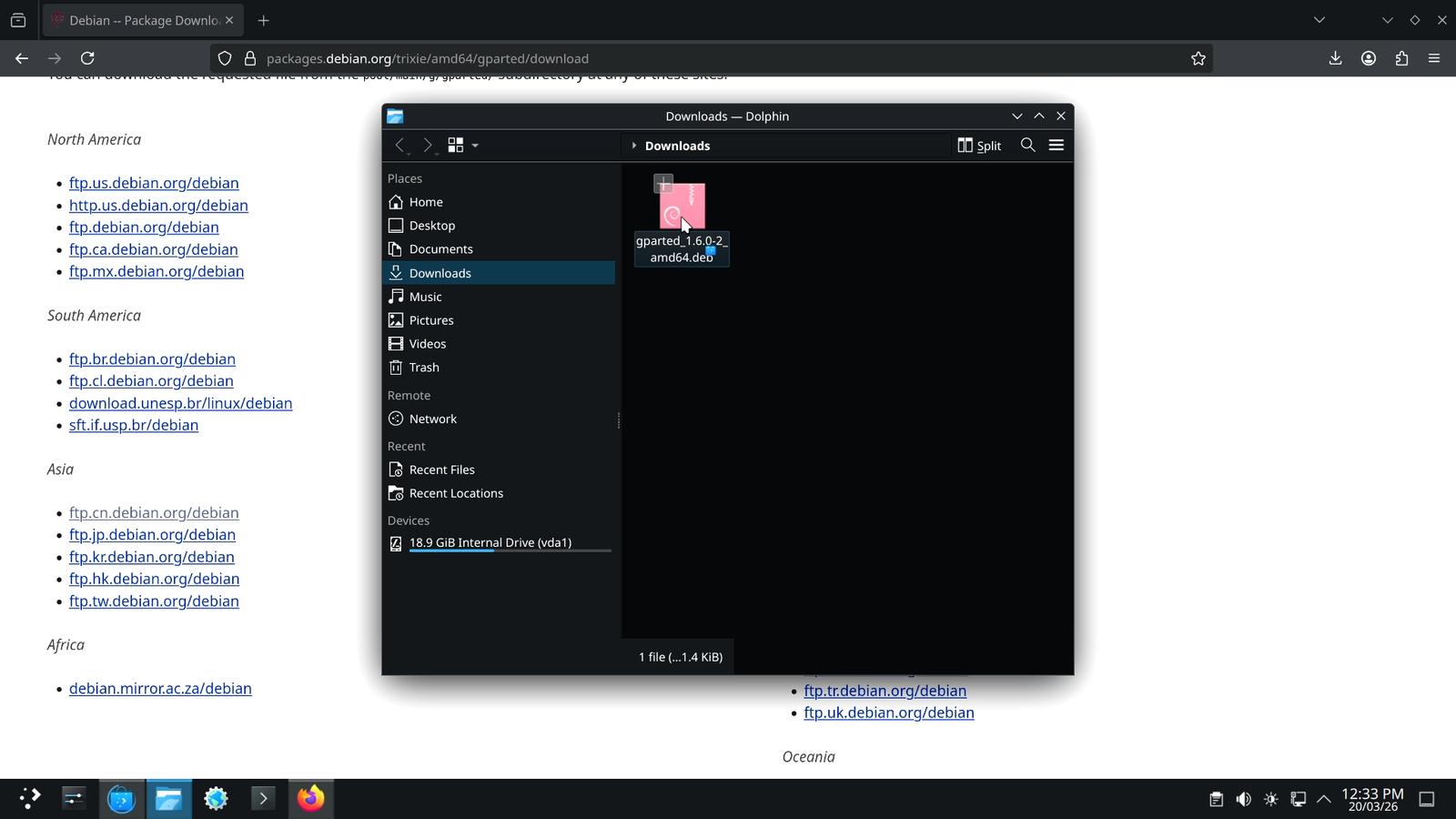
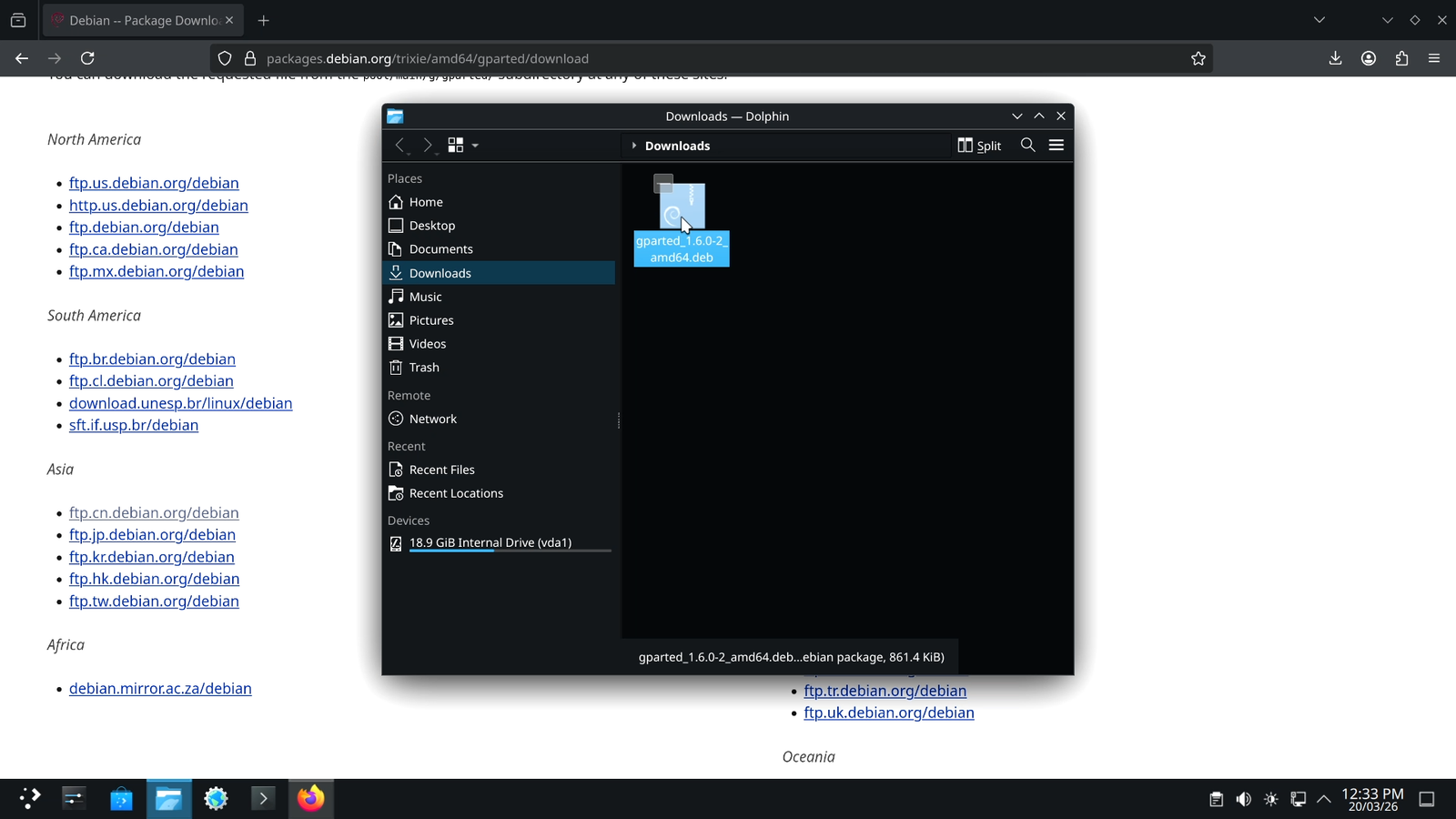
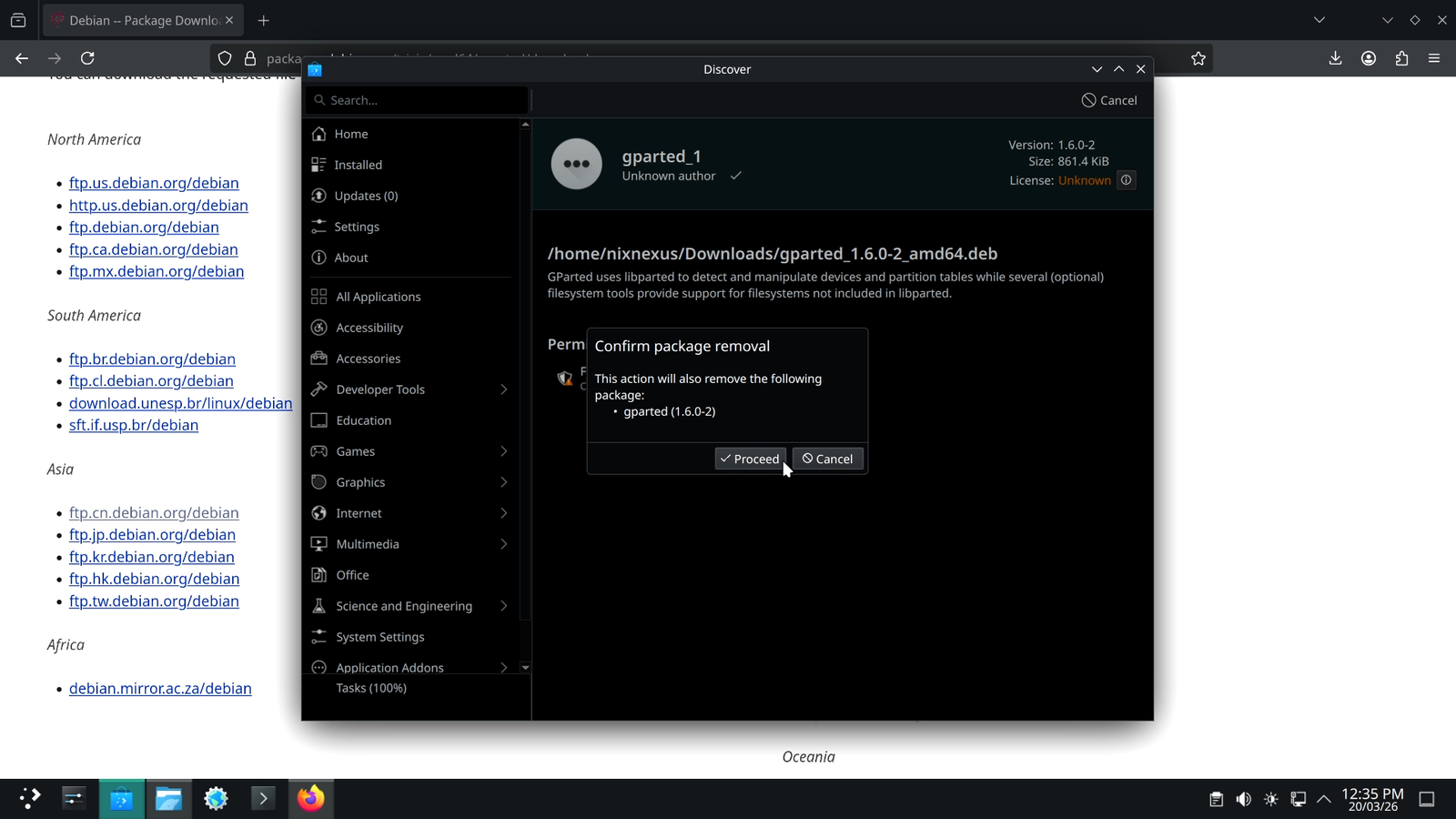
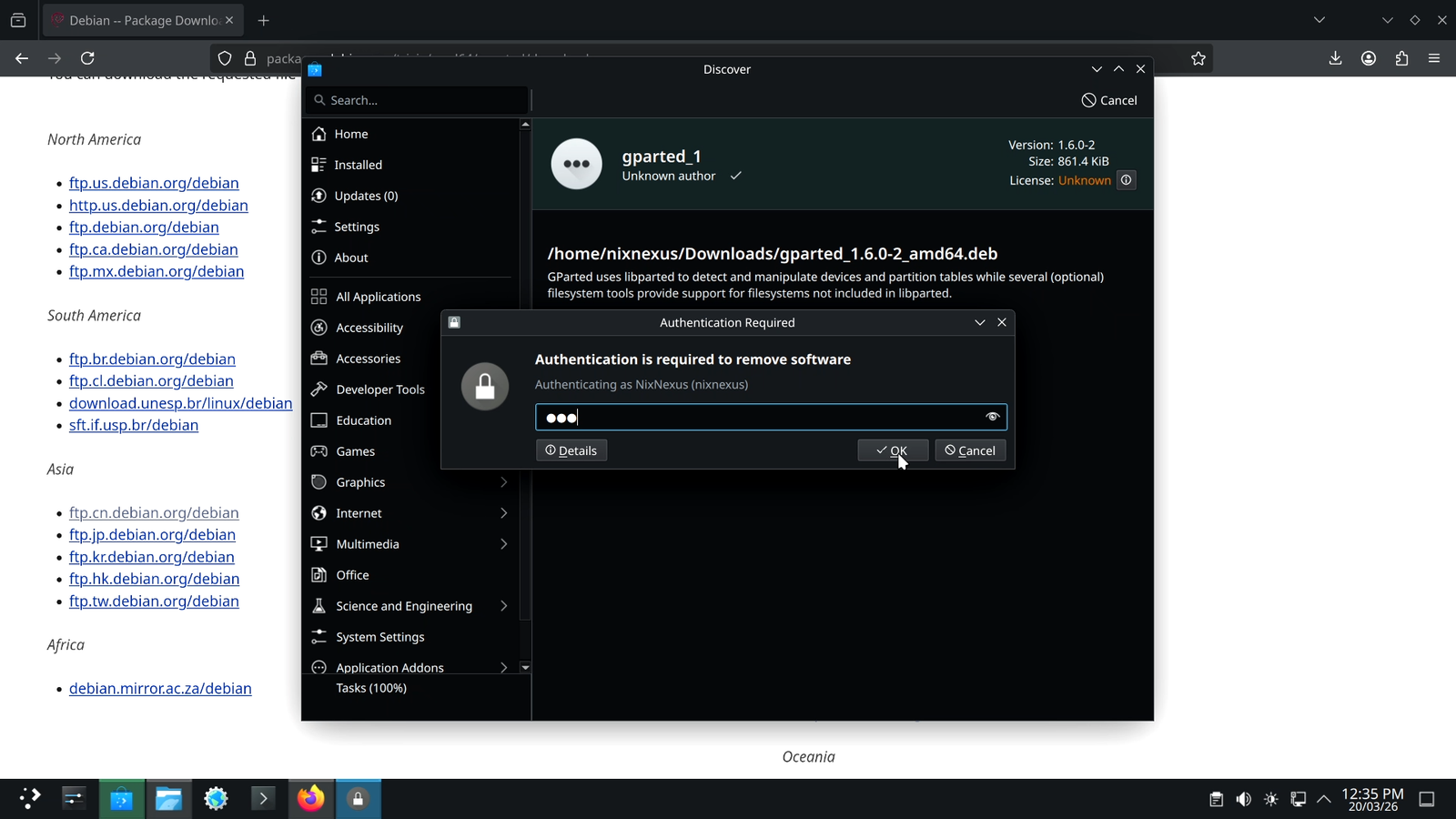
To remove or uninstall the software:
- Double-click the
.debfile - Click “Remove”
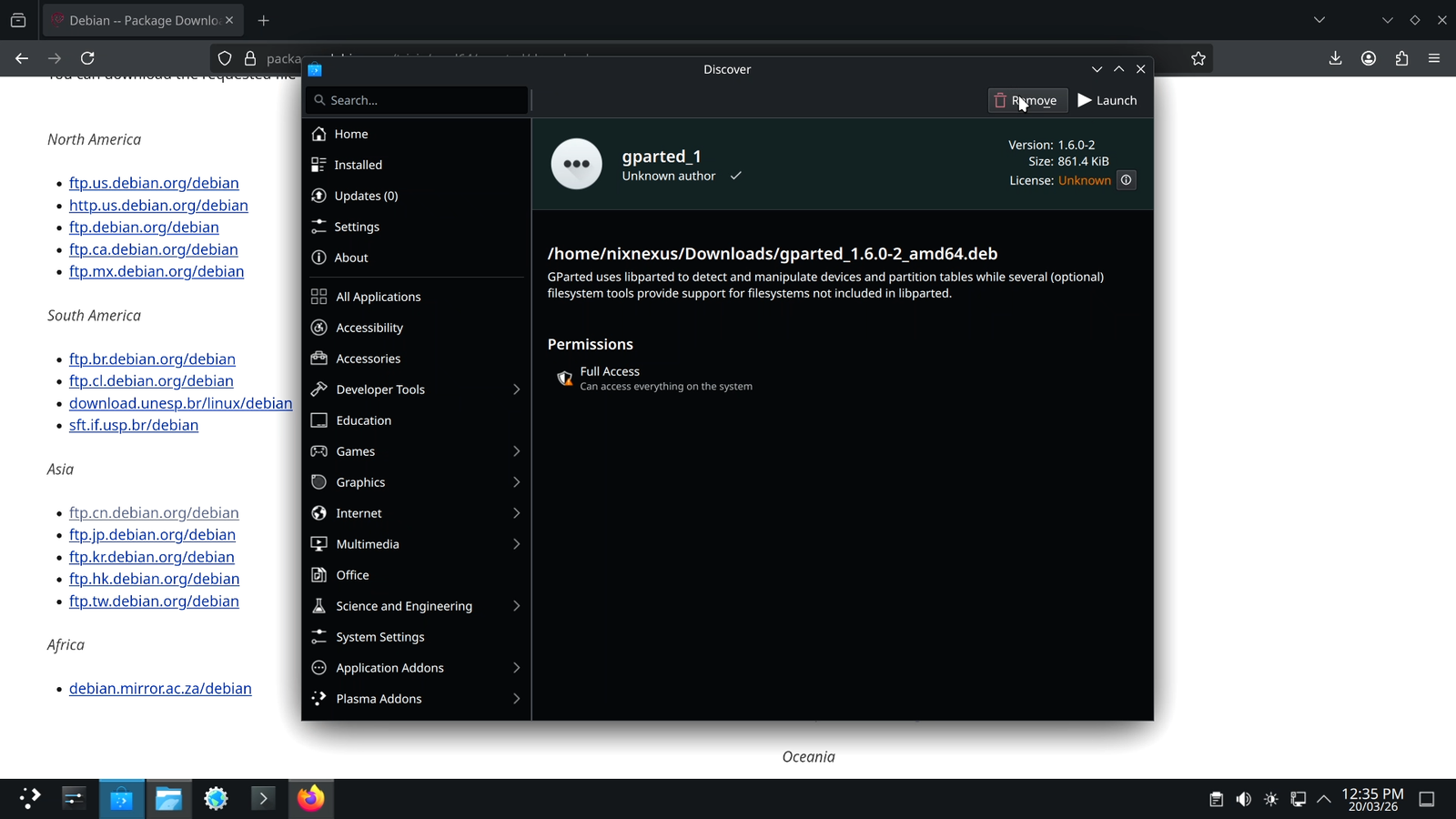
- Reconfirm by selecting “Proceed”
- Enter your password, and the app will be uninstalled within seconds.
Managing .DEB packages Using GDEBI
If you are using a lightweight desktop environment like Xfce, LXDE, or LXQt, which don’t ship with a graphical software center by default, then in that case, you can install GDebi in your system.
GDebi is a standalone GUI installer built specifically to handle .deb packages, and to install it, you can use this terminal command:
sudo apt install gdebi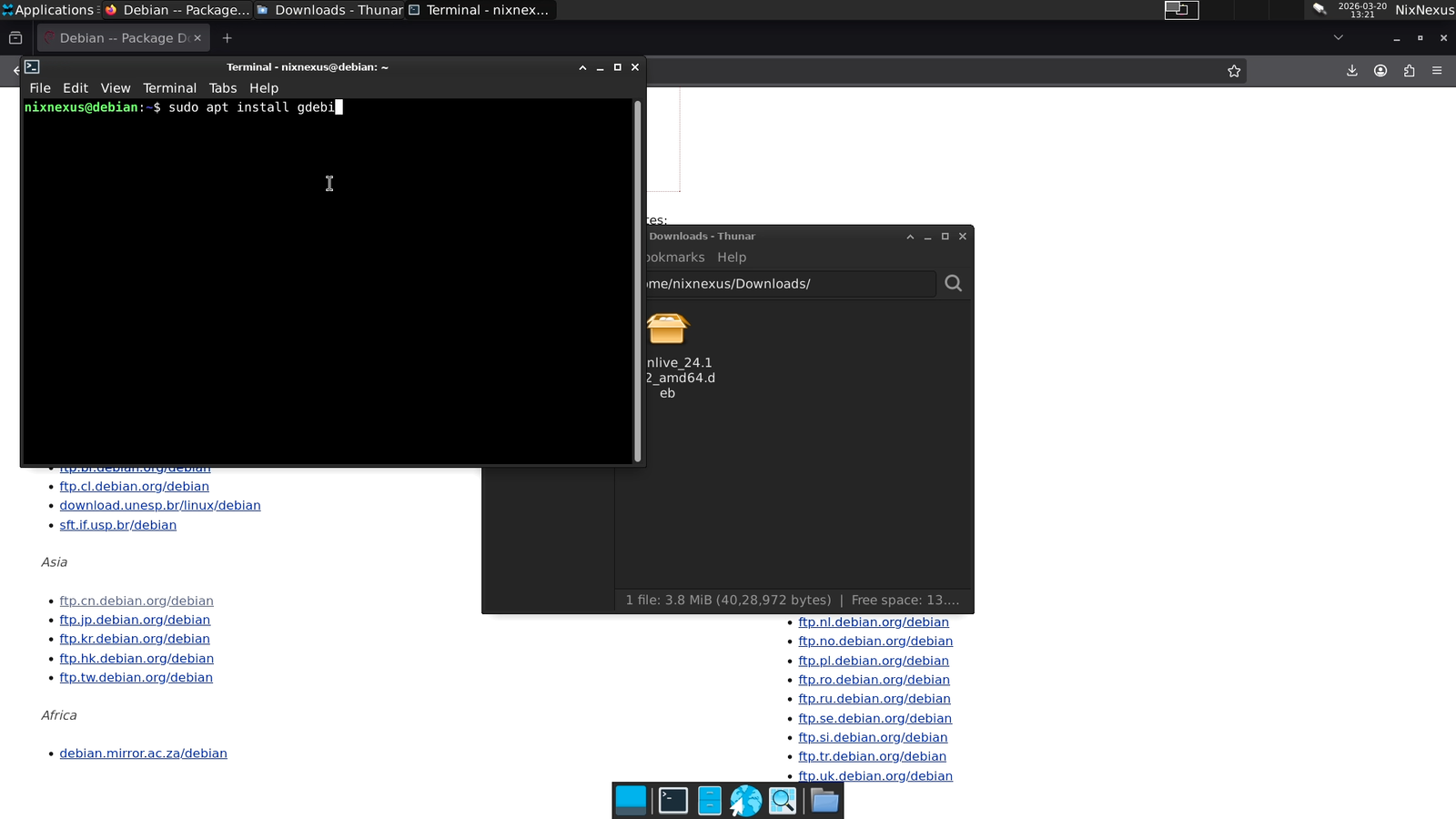
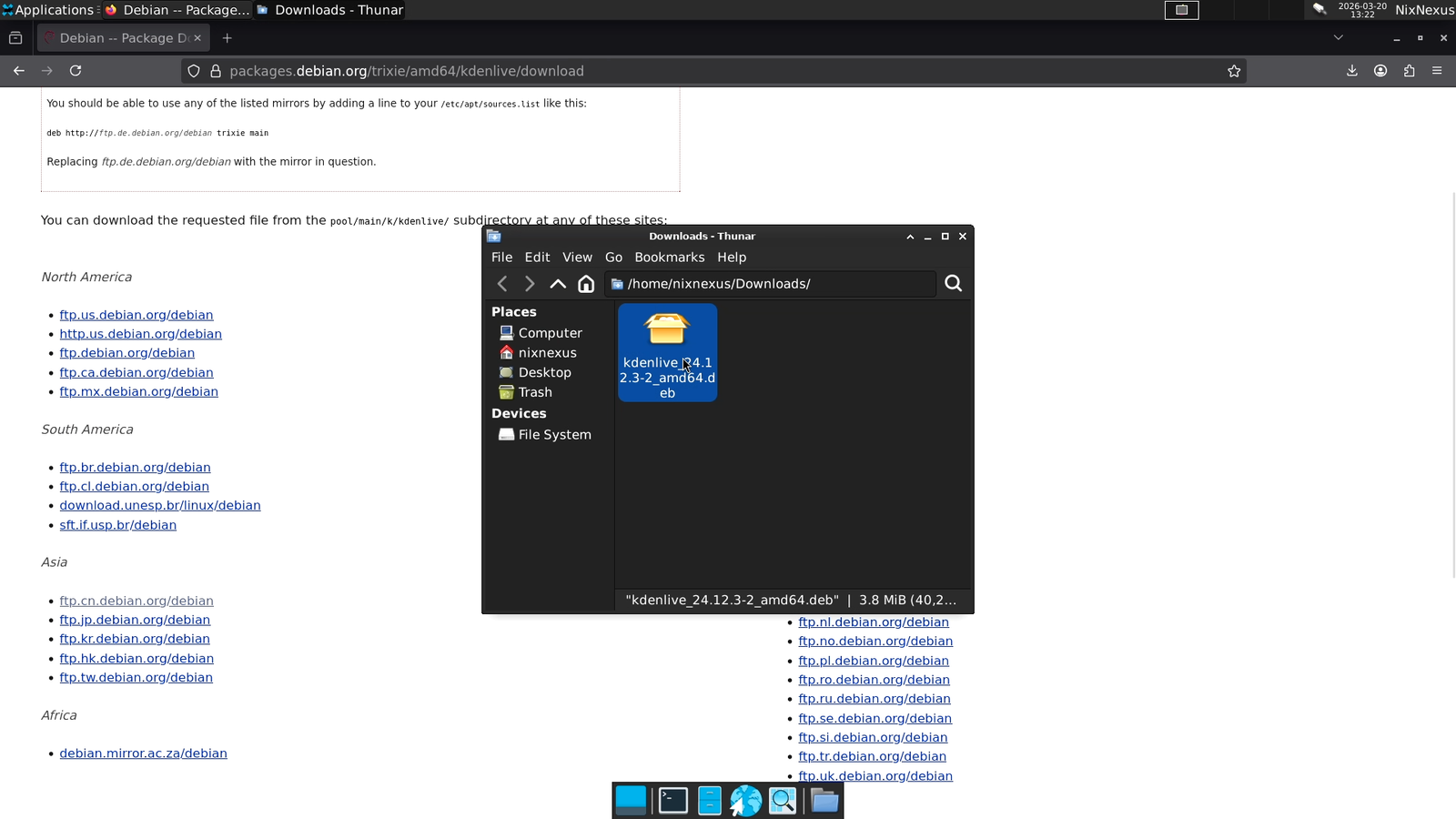
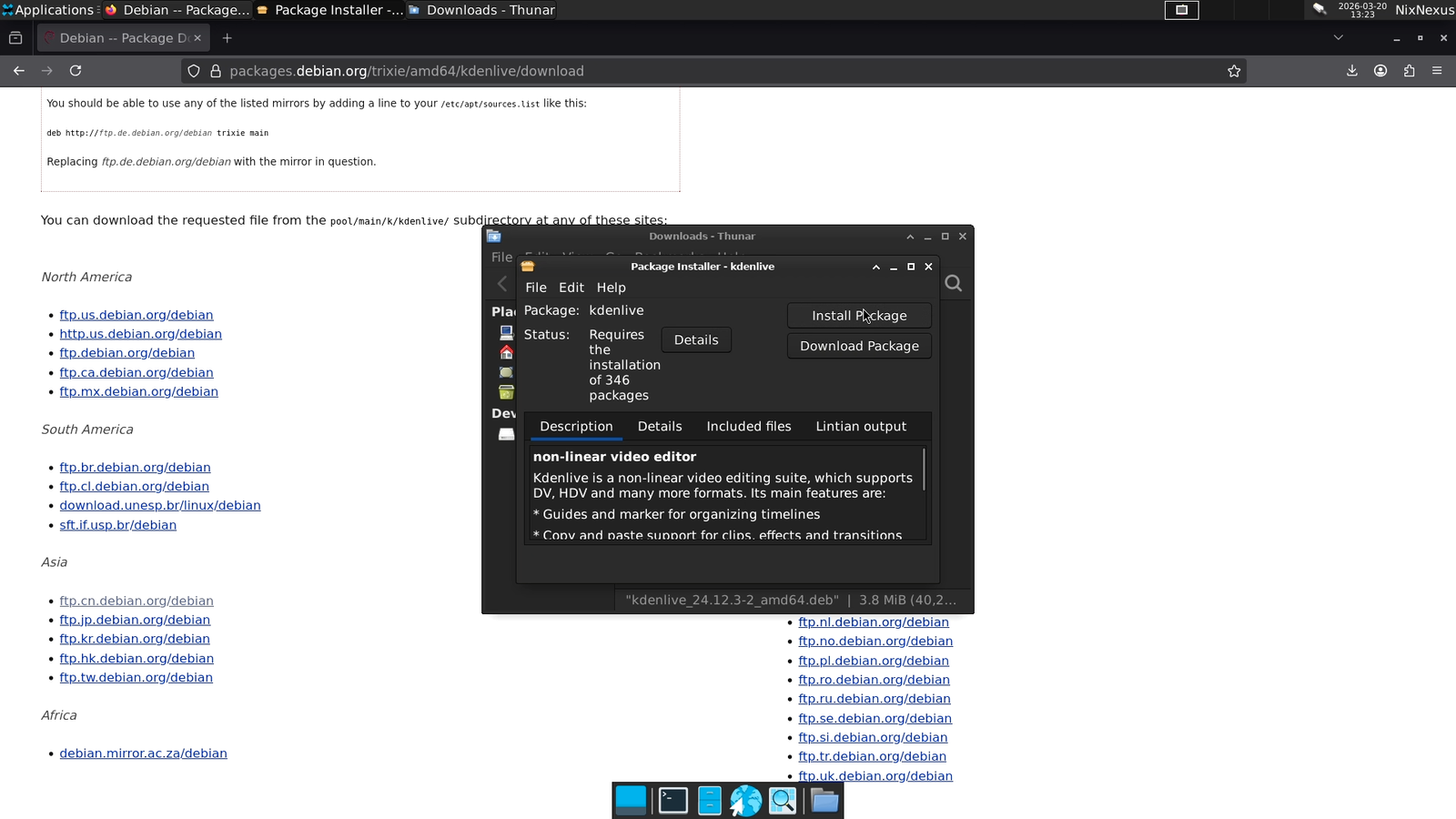
Once GDebi is installed:
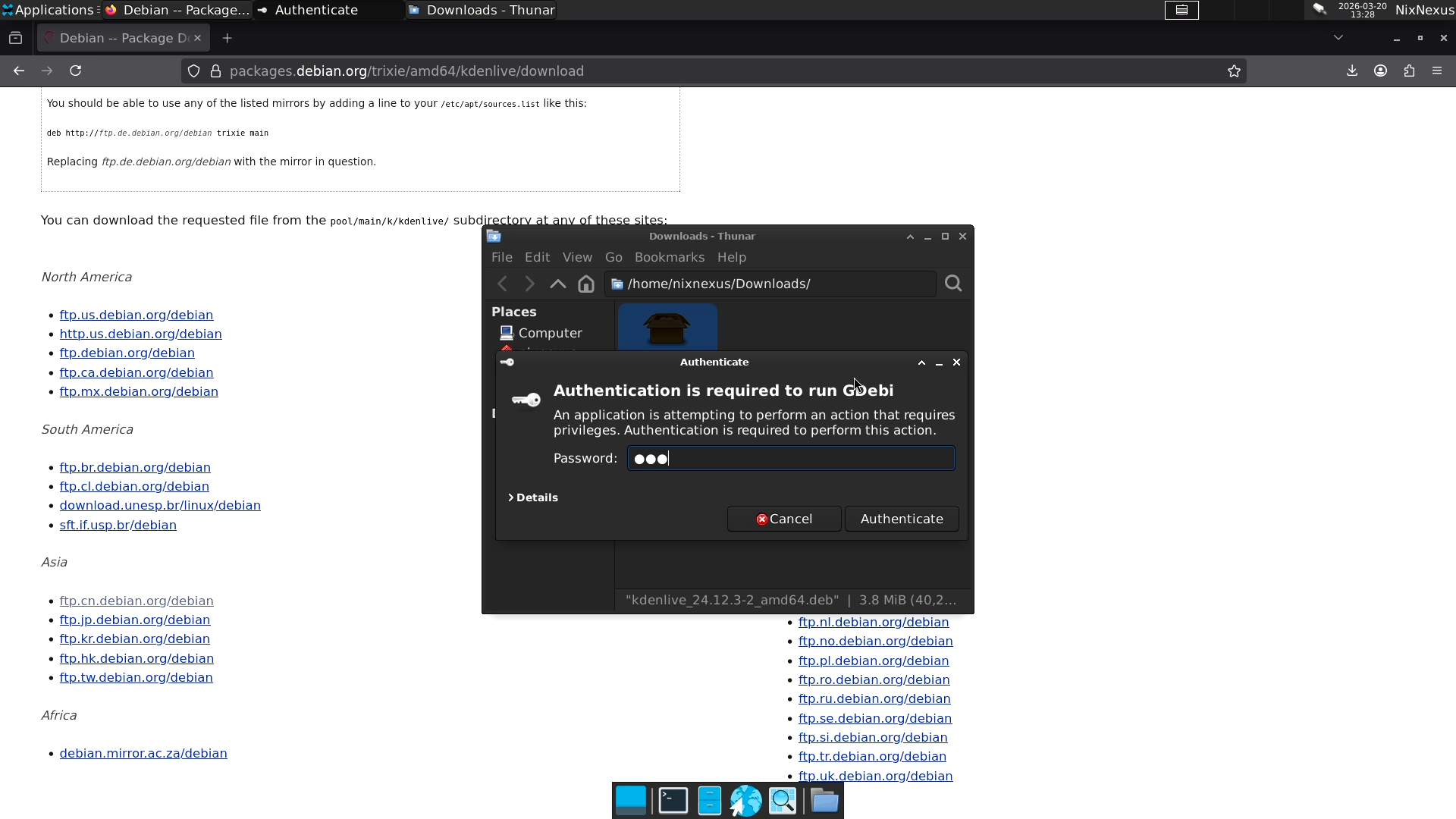
- Double-click the
.debfile - Click “Install Package”
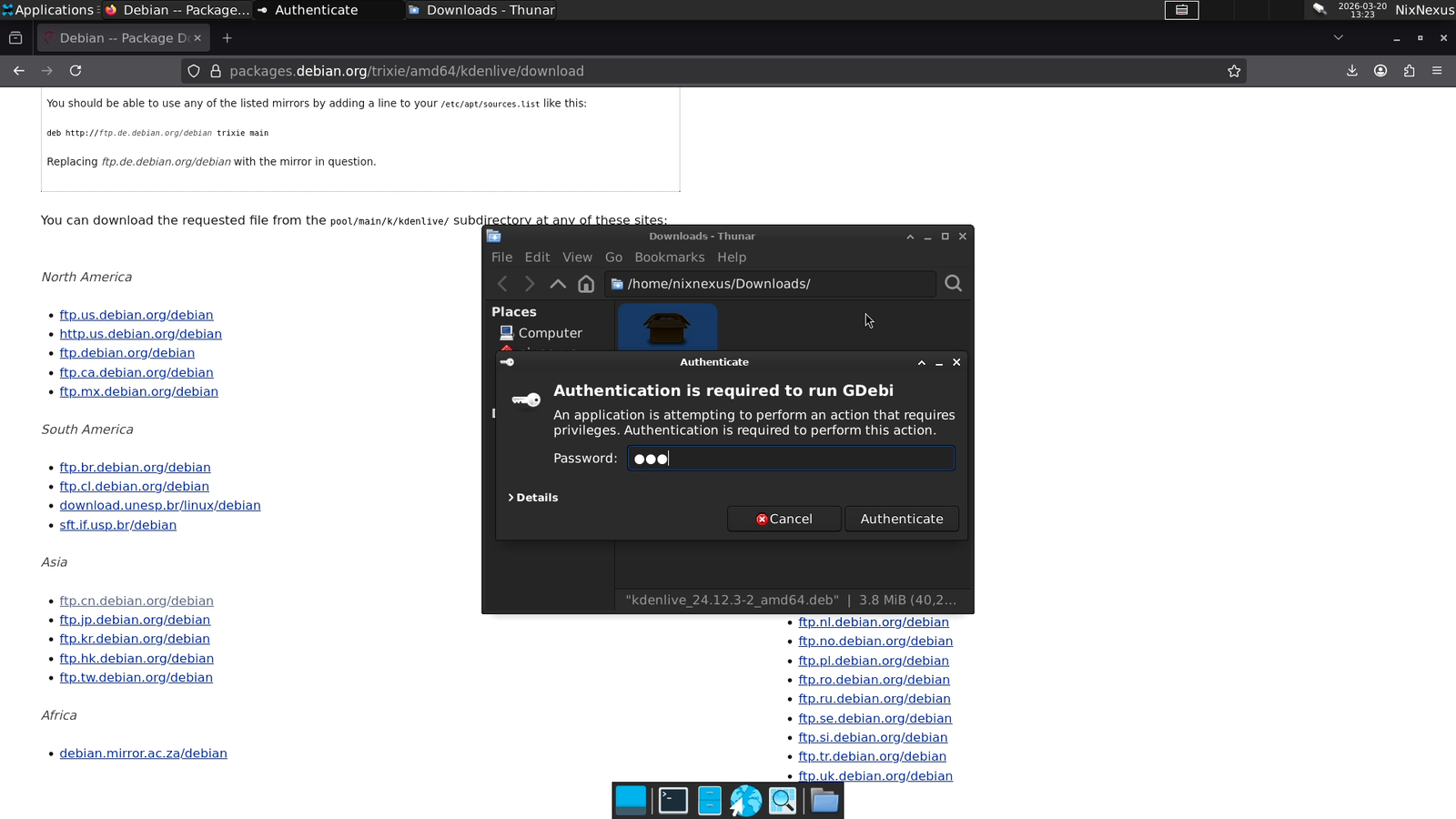
- Authenticate by entering your password and wait for the app to get installed.
And to uninstall the software:
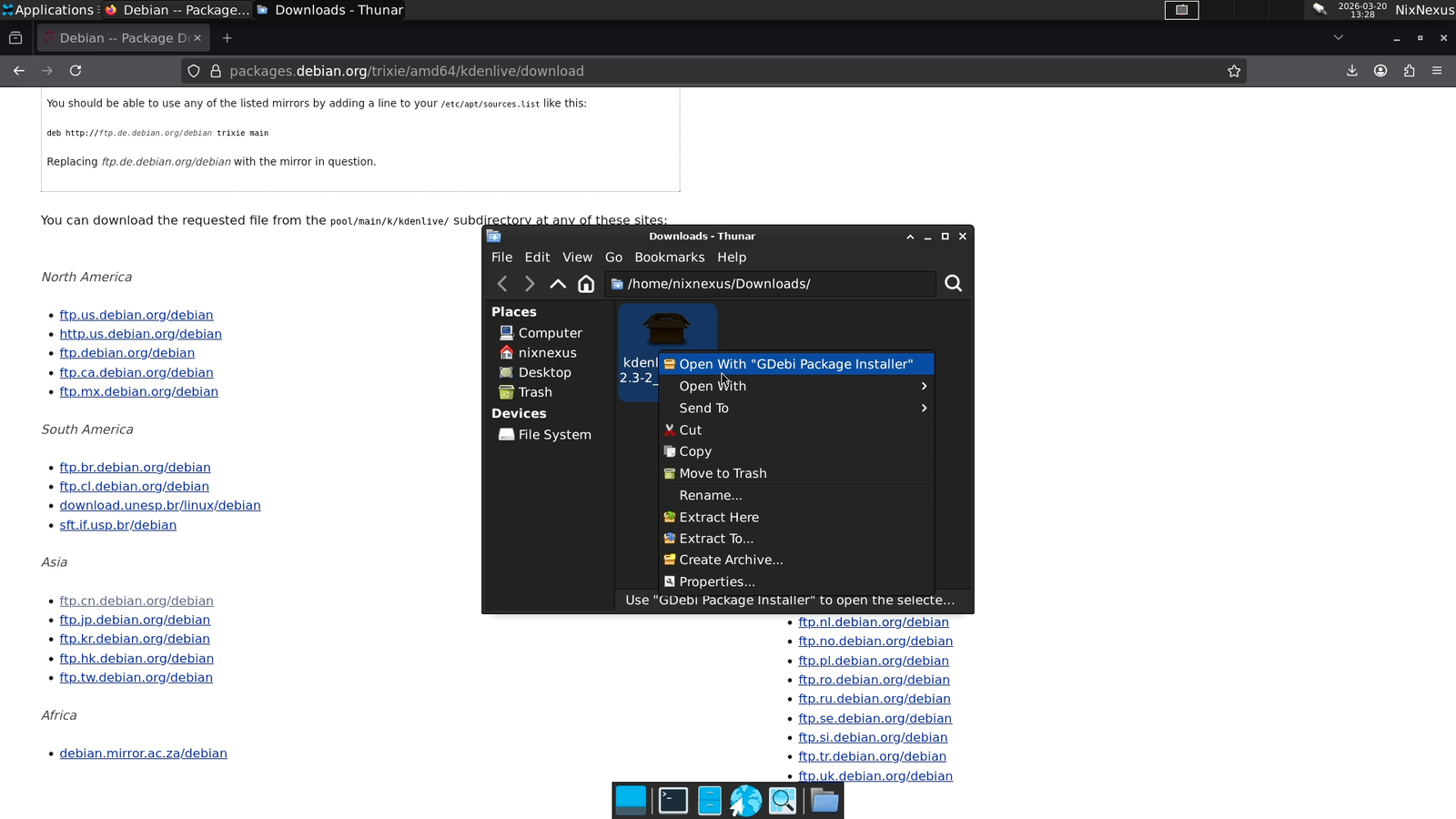
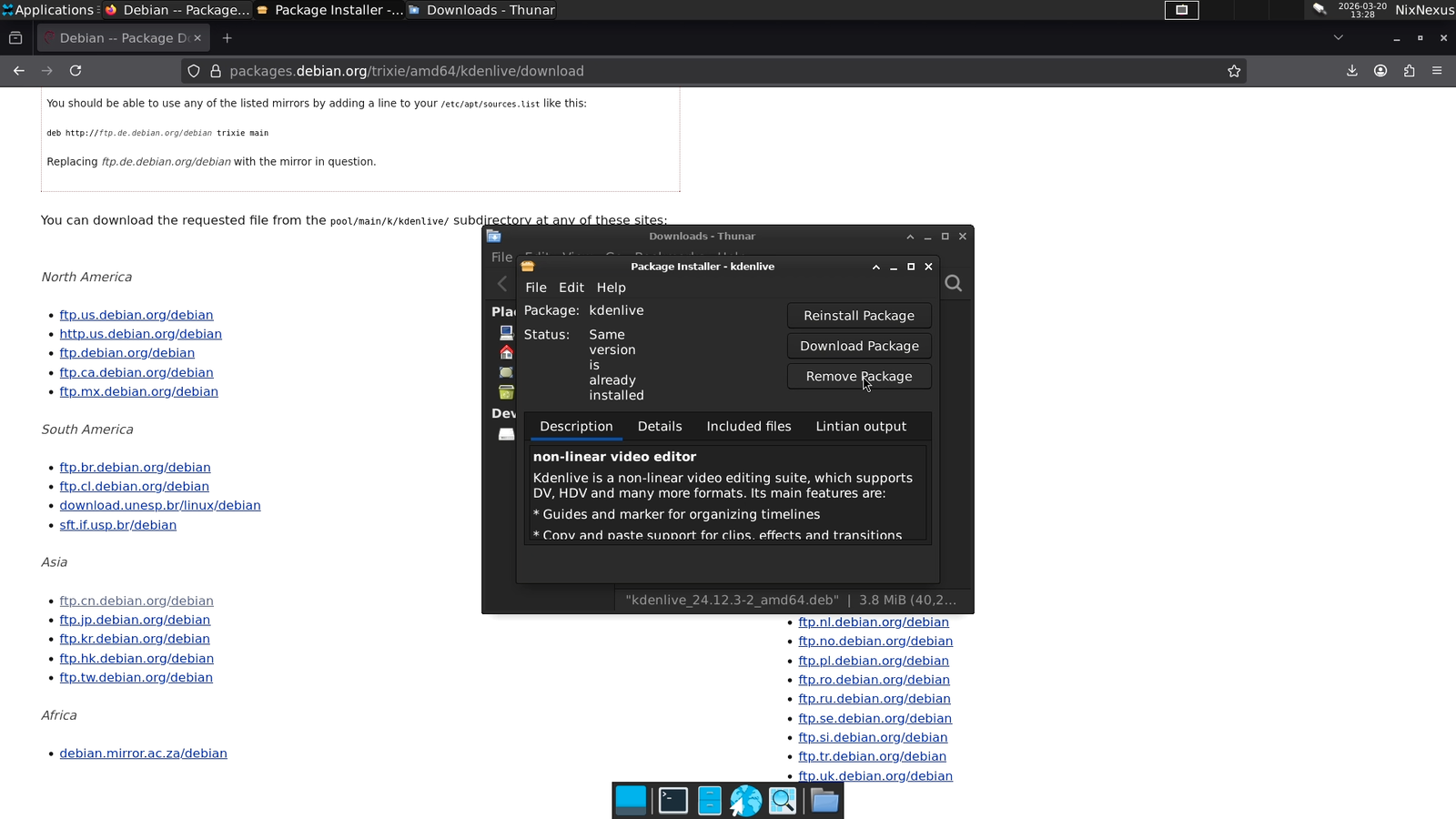
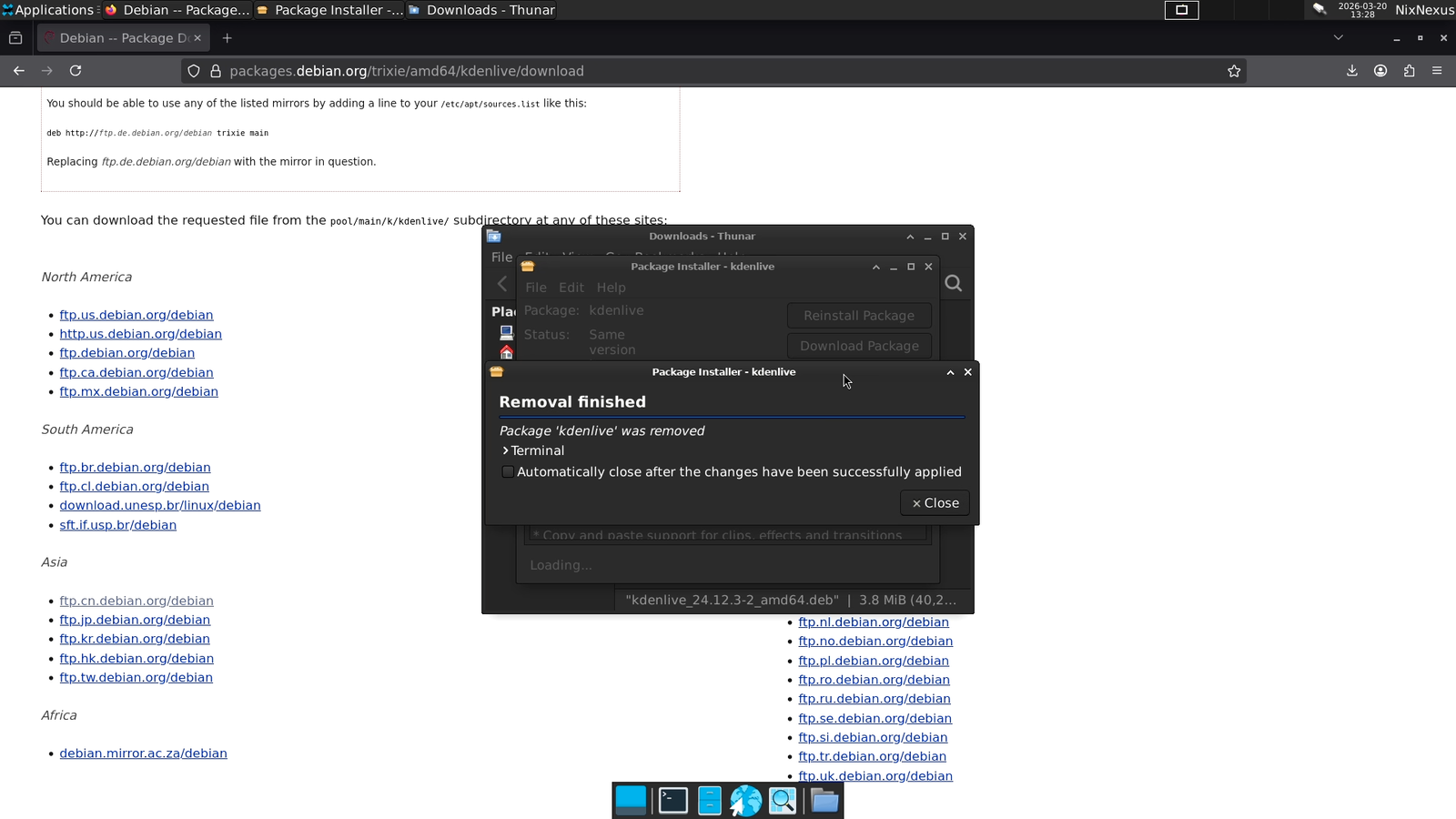
- Double-click the
.debfile, and - Click “Remove Package”.
- Then enter your password, and the app will be uninstalled from your system.
Managing .DEB packages Using Command Line Interface (CLI)
If you want absolute efficiency and reliability, then nothing comes close to the command-line interface. To install .deb packages through the command line,
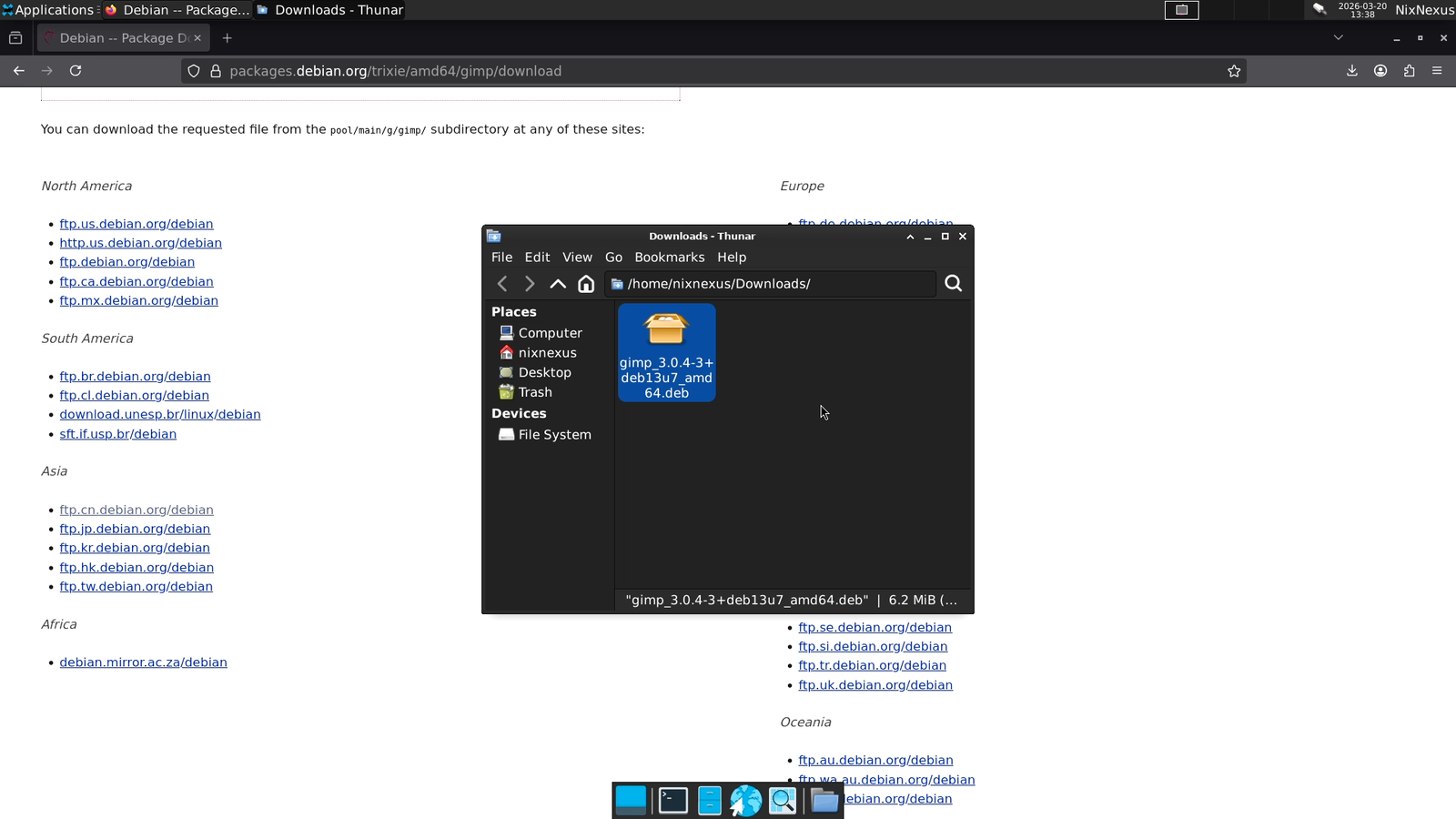
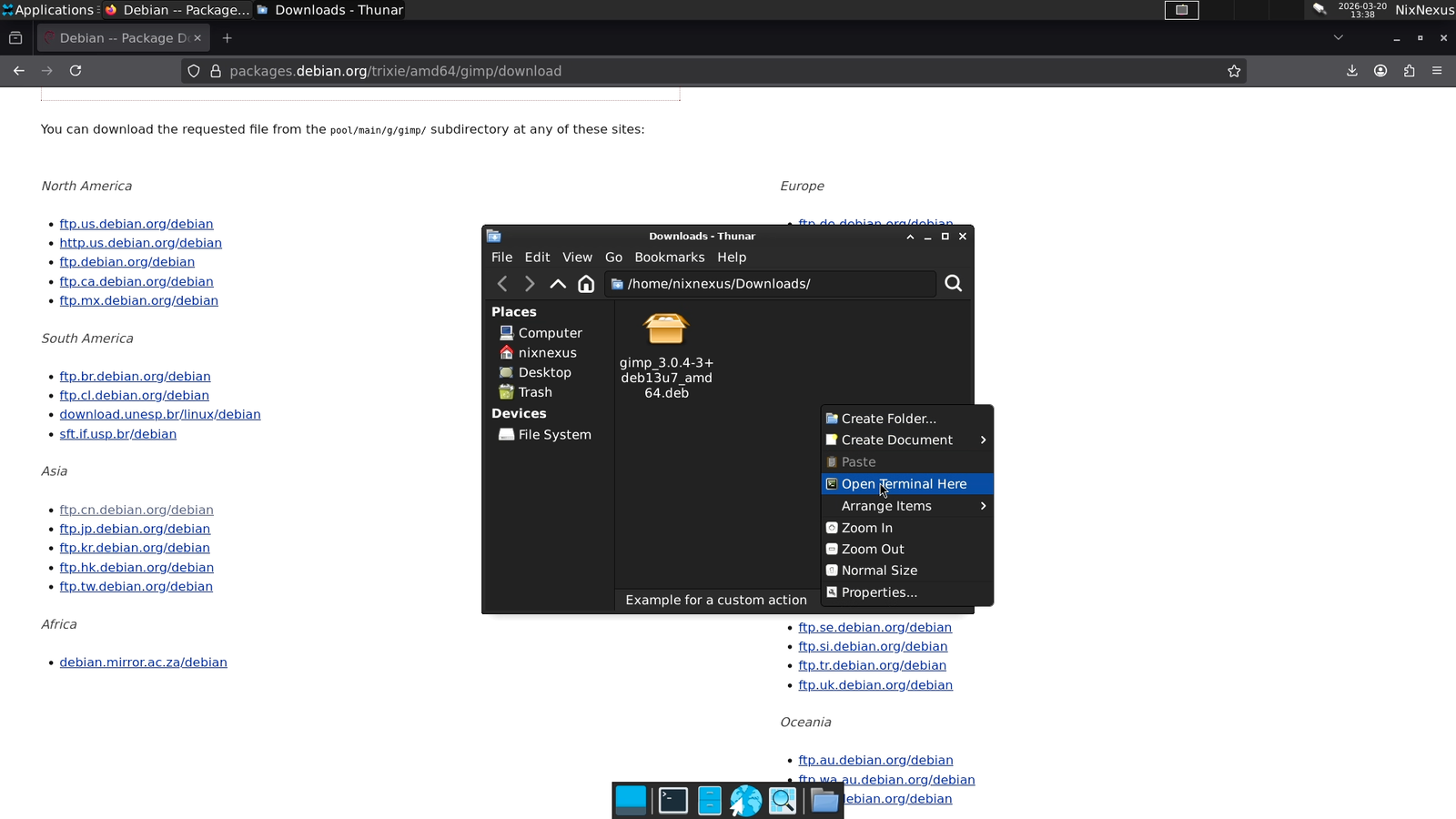
- Open your file manager
- Go to your “Downloads” directory.
- Right-Click and select “Open Terminal Here”.
Alternatively,
- Open your terminal emulator
- Then “cd” to your “/Downloads” directory.
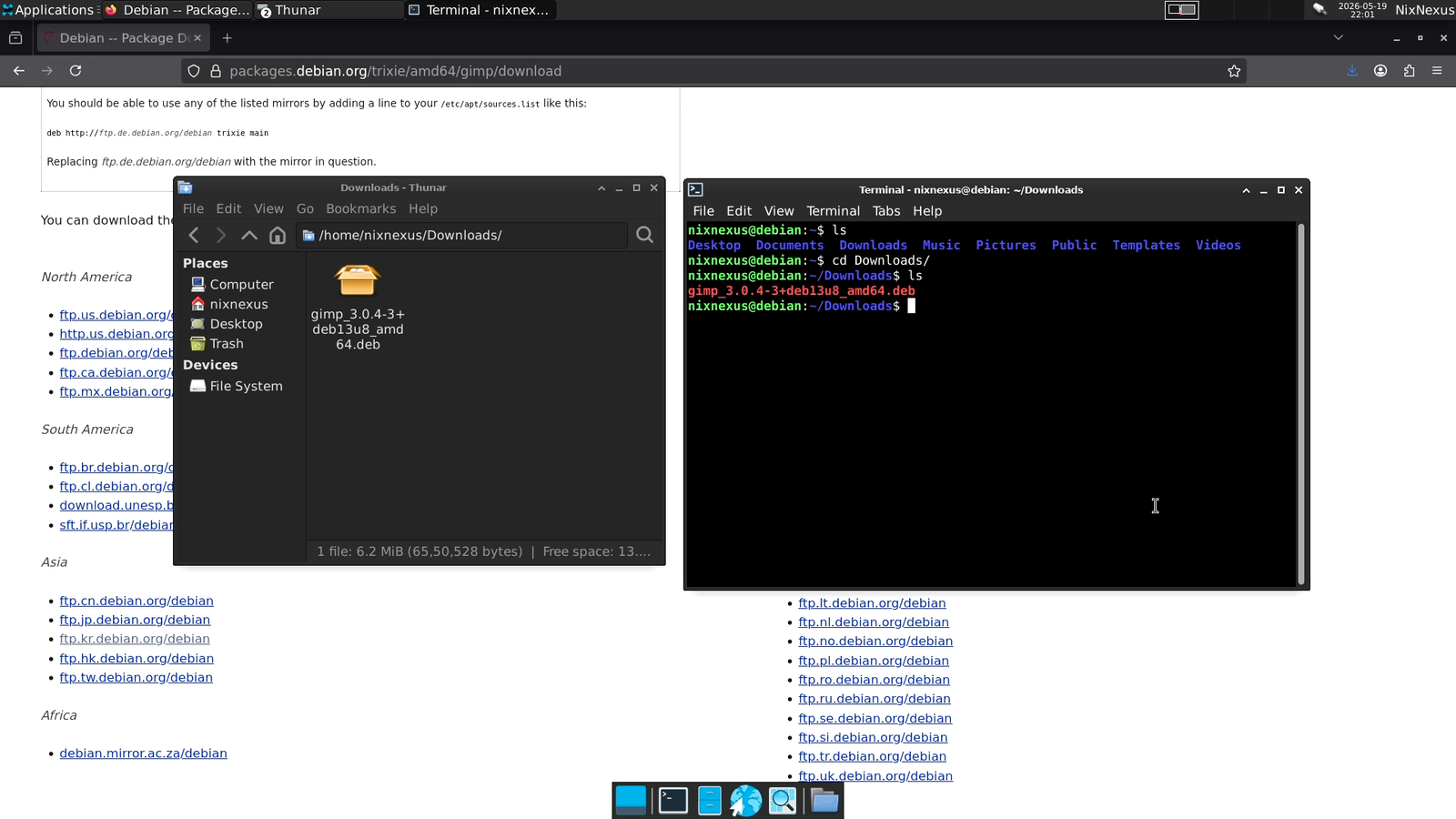
Then use this terminal command to install the .deb file:
sudo apt install ./package-name.deb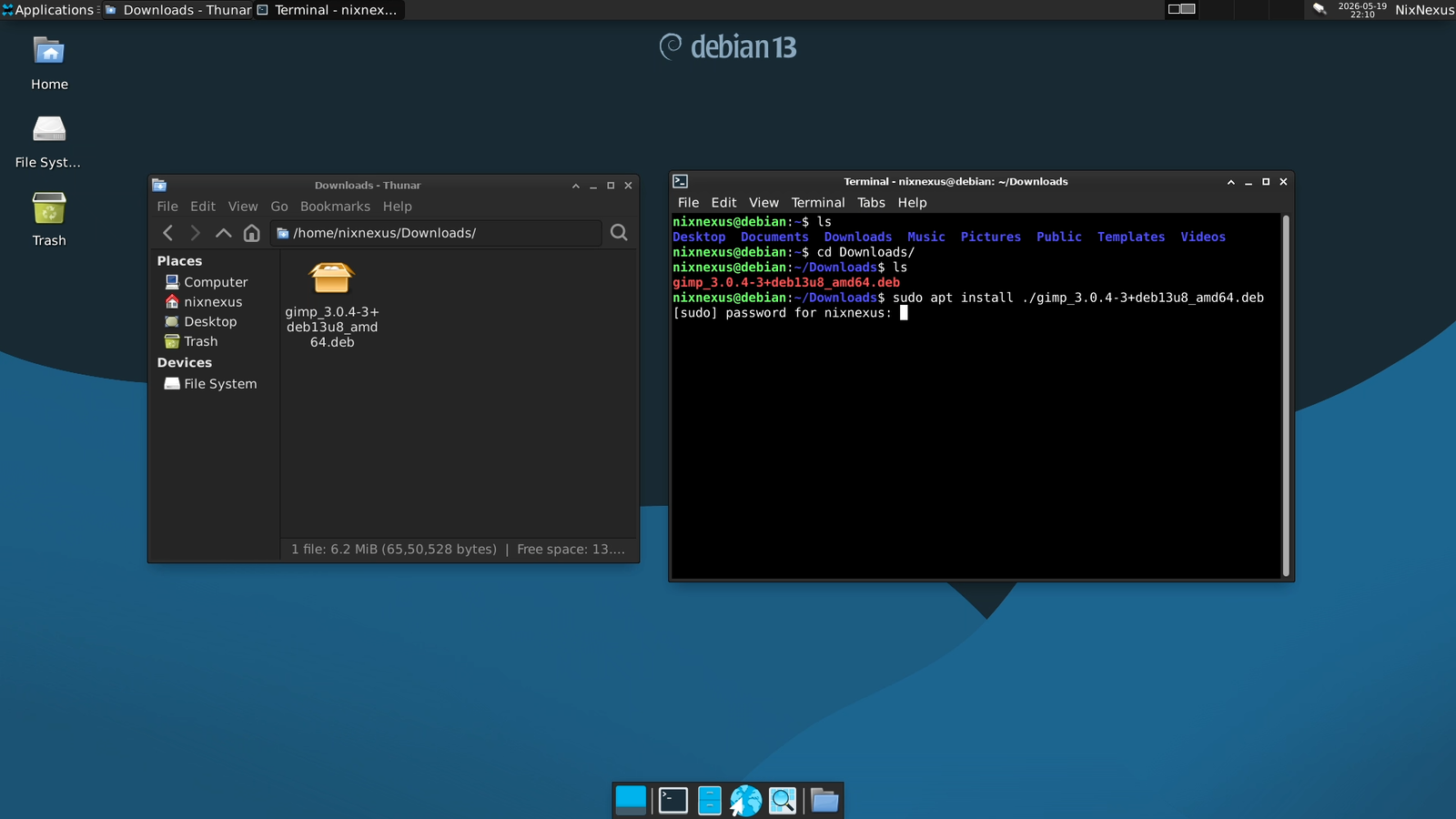
But keep two things in mind:
- The ./ prefix is very important; it tells the apt package manager to look for a local file rather than searching the online repository.
- The package name has to match the name of the downloaded package file exactly, along with its extension. So, to be safe, you can copy the package name and paste it after the forward slash (./). Or else, after the forward slash (./) type the first letter of the package name and hit the “Tab” button, this will auto-complete the name.
And to uninstall a package, use this command:
sudo apt remove package-name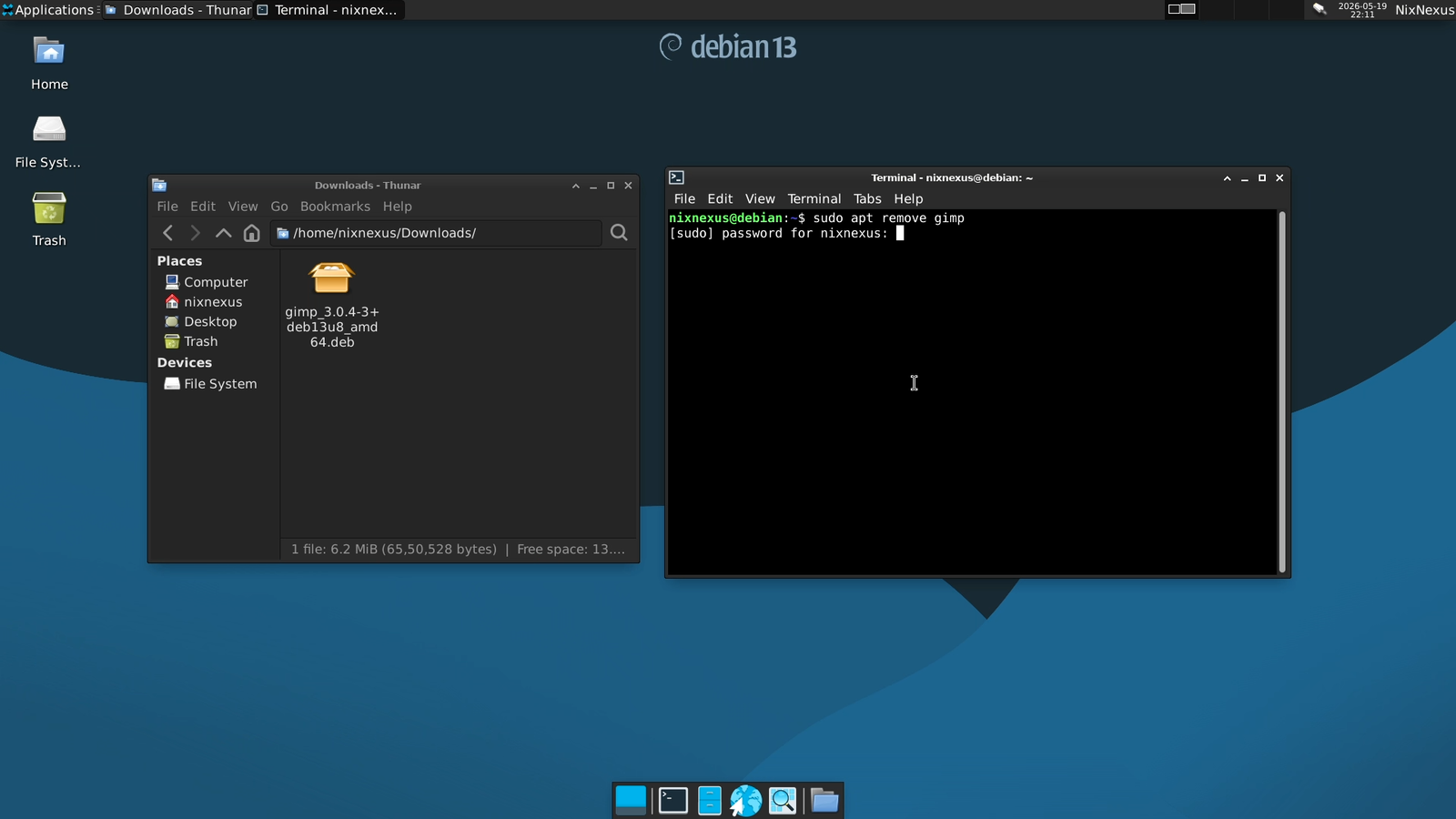
Note: While uninstalling, just type the actual package name without the (.deb) file extension.
.RPM Packages (Fedora / Red Hat / openSUSE / Etc.)
Downloading .RPM packages
Go to rpmfind.net, and then click on the first link that says “Go directly to the RPM database”, which will take you to the RPM repository page. Here, use the “Search” field to find your preferred app.
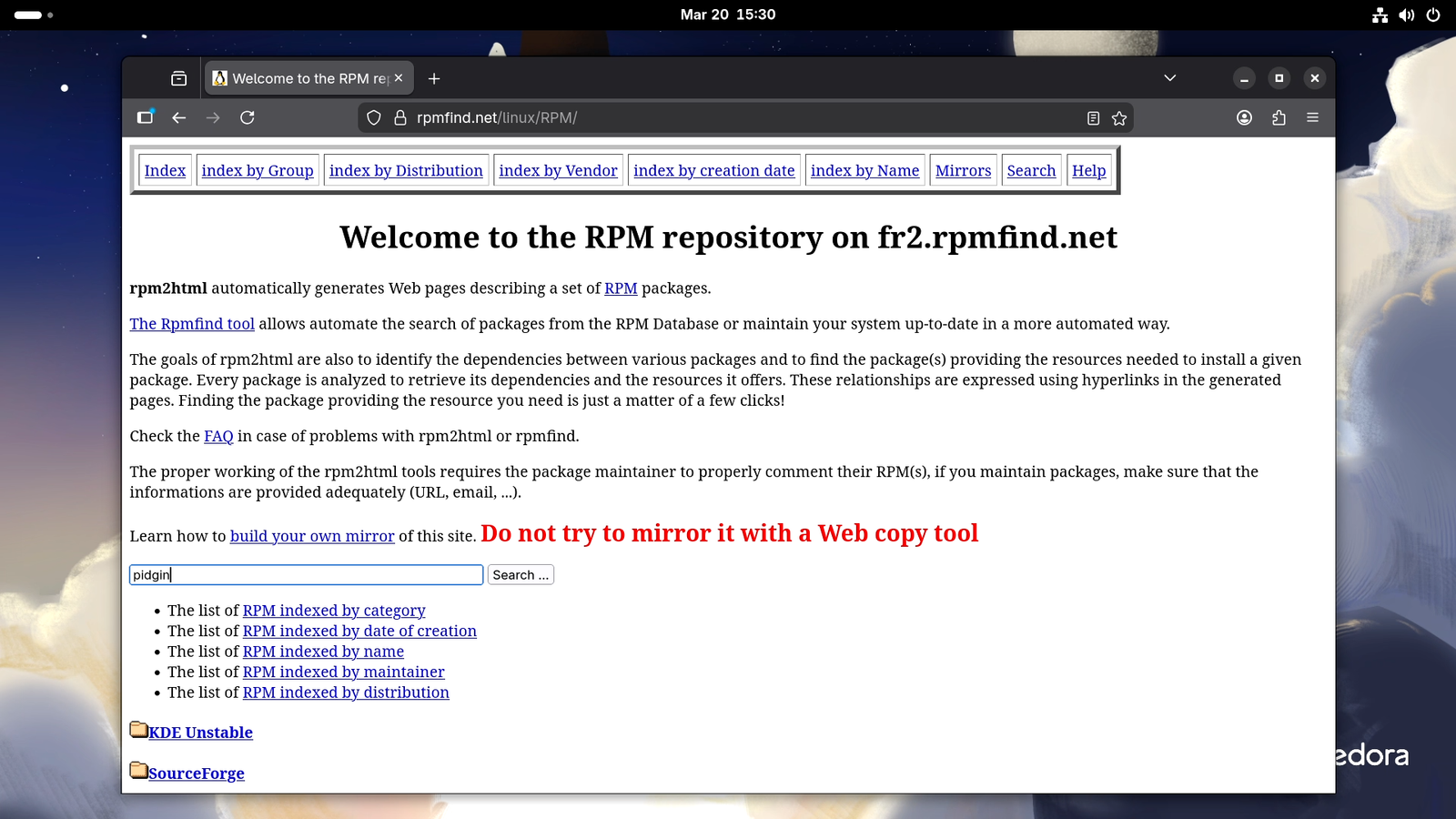
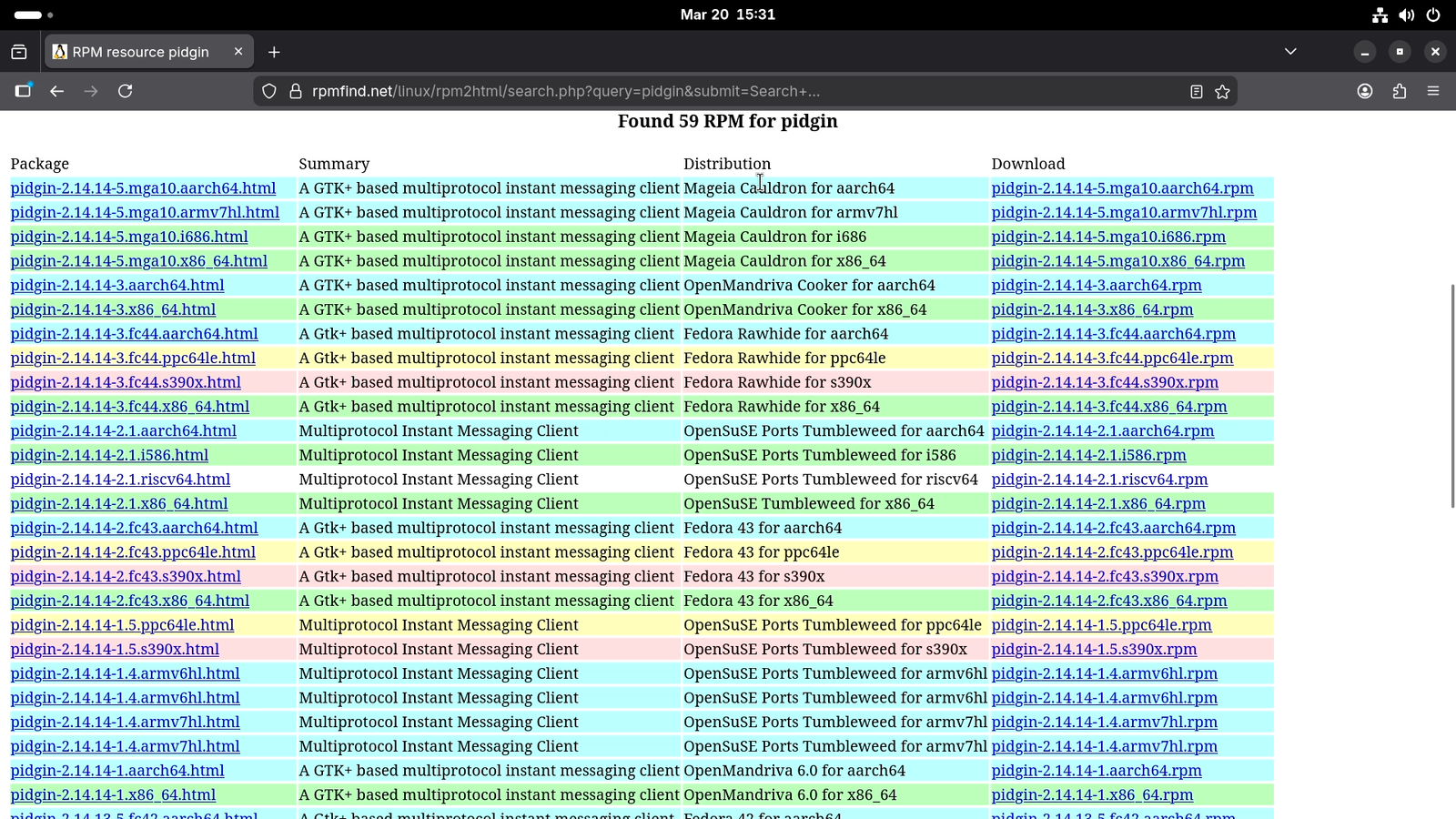
In the results page, you will find that the results are organised by distributions and architectures, so select the option that matches your setup. For instance, for a Fedora system on an Intel or AMD machine, you must go with the “Fedora 43 for x86_64” option. You can also filter the results by entering the operating system and architecture of your choice.
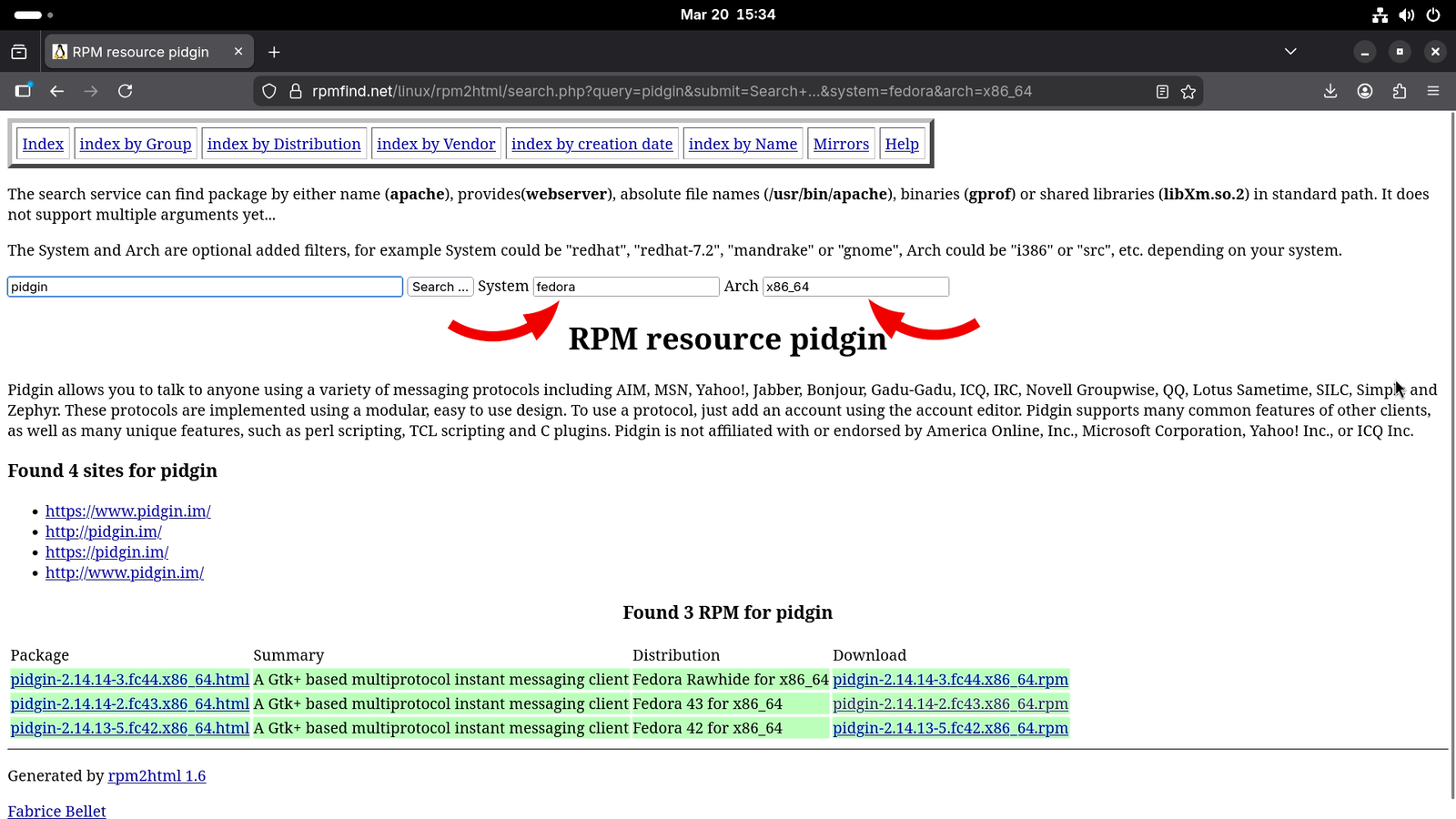
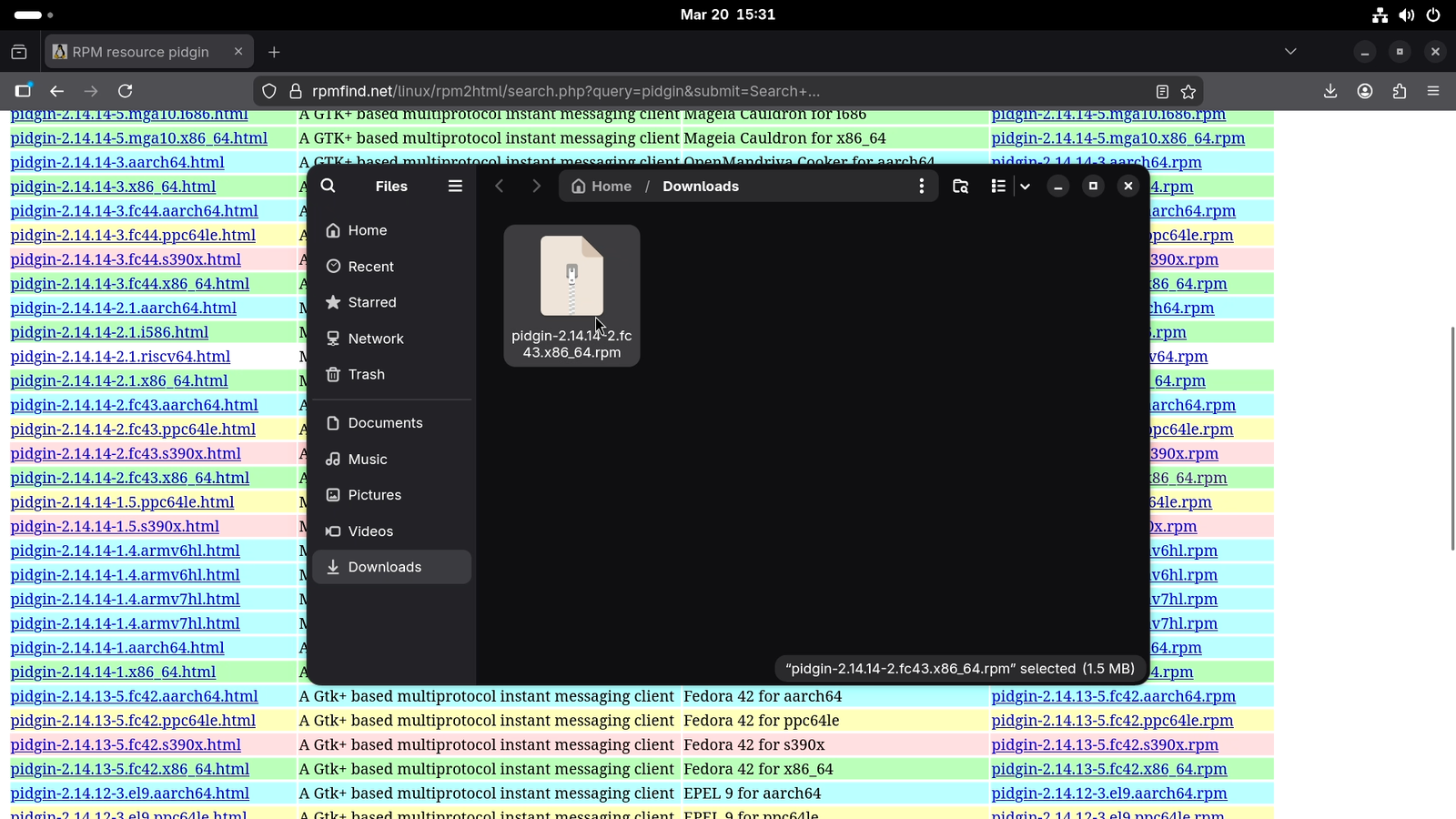
Once you click an option, it will download the .rpm package to your “Downloads” folder.
Managing .RPM packages On GNOME Desktop Environment
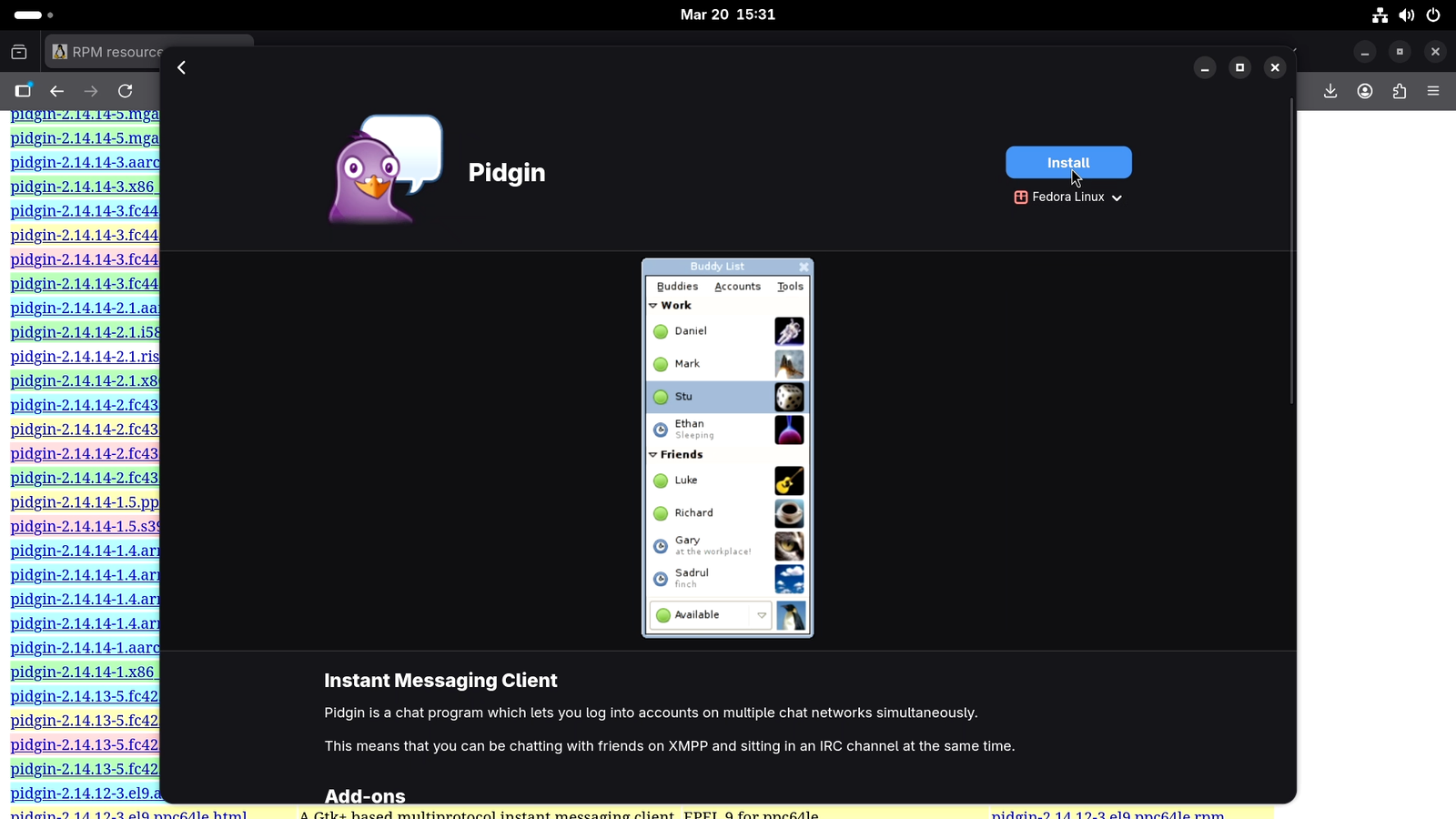
Just like the .deb packages, you can install .rpm packages with the GNOME Software Center very easily.
- Open your file manager, and go to your Downloads directory
- Double-click the
.rpmfile - Click “Install”
- Enter your password, and the app installs.
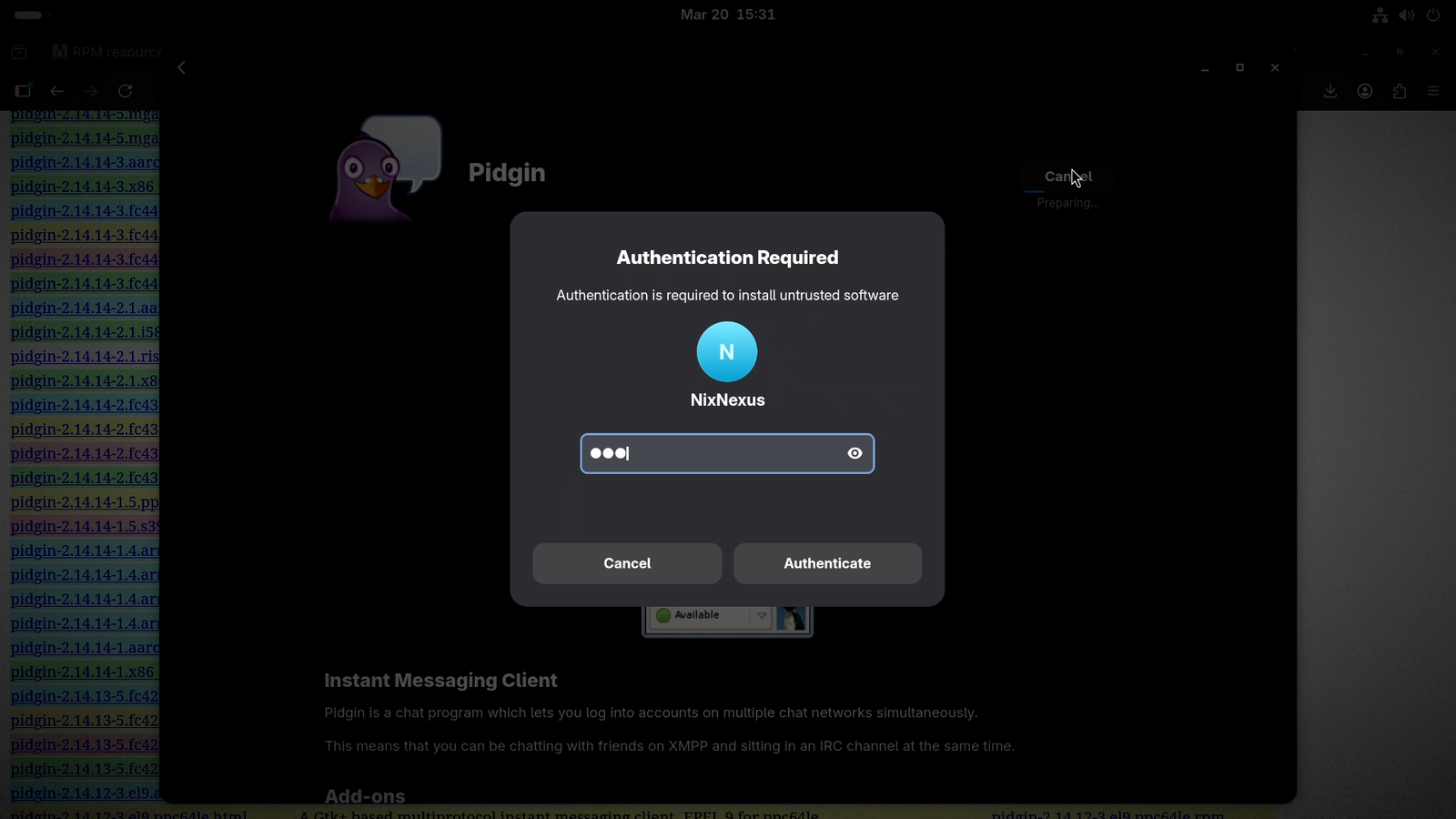
But just like .deb, GNOME Software Center cannot remove .rpm packages which are installed manually. So, to uninstall the package, use the following terminal command:
sudo dnf remove package-nameManaging .RPM packages On KDE Desktop Environment
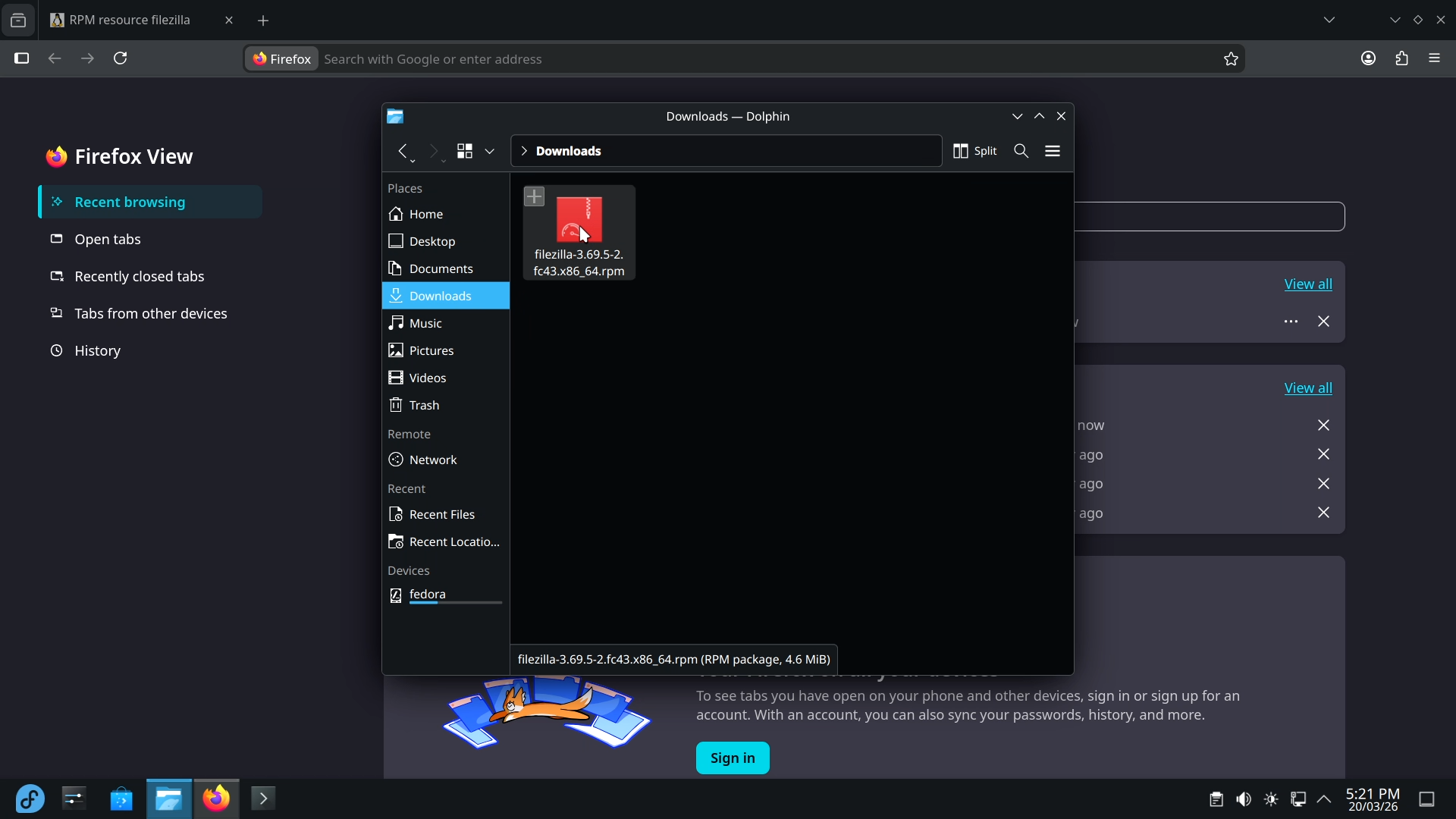
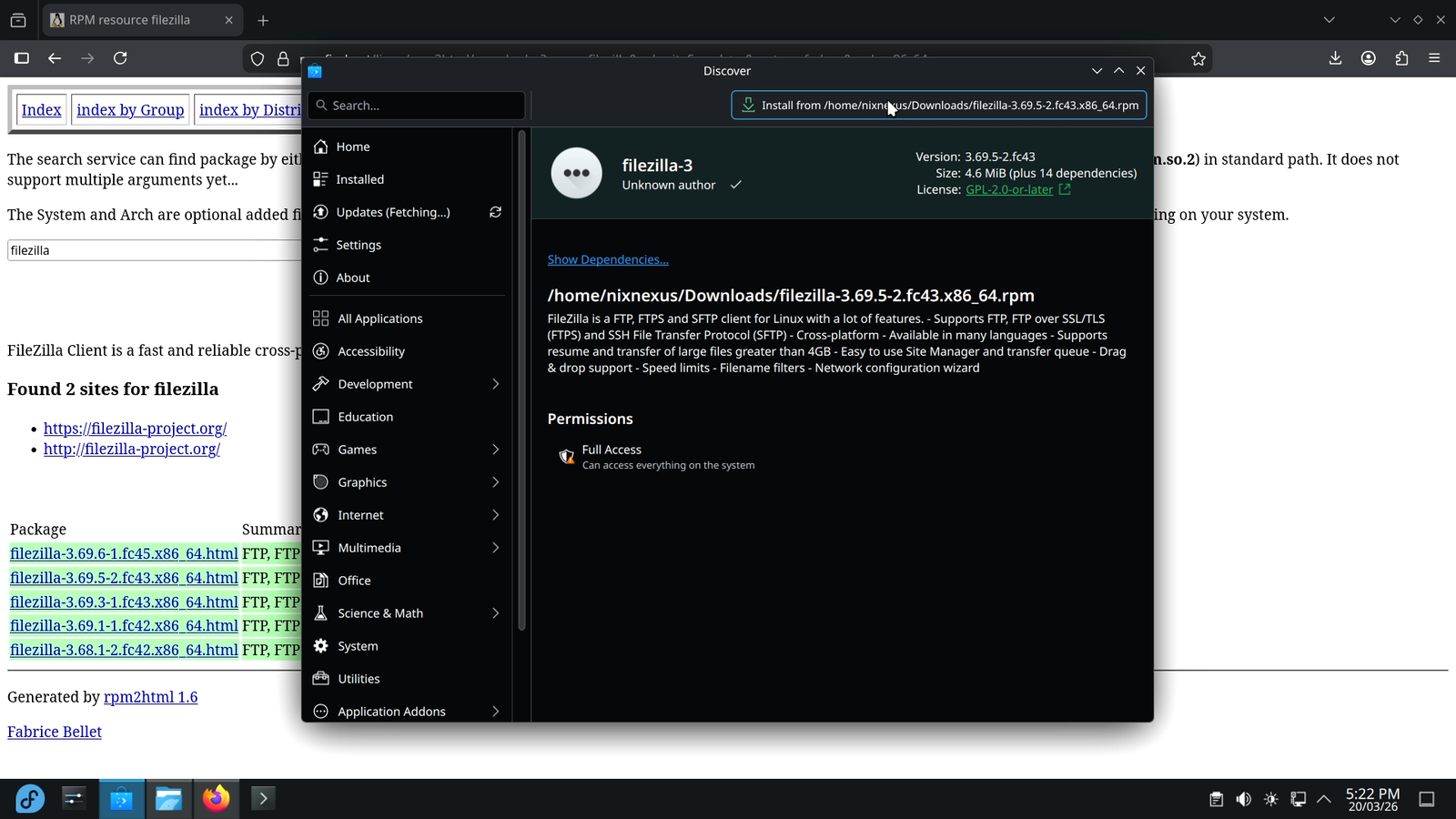
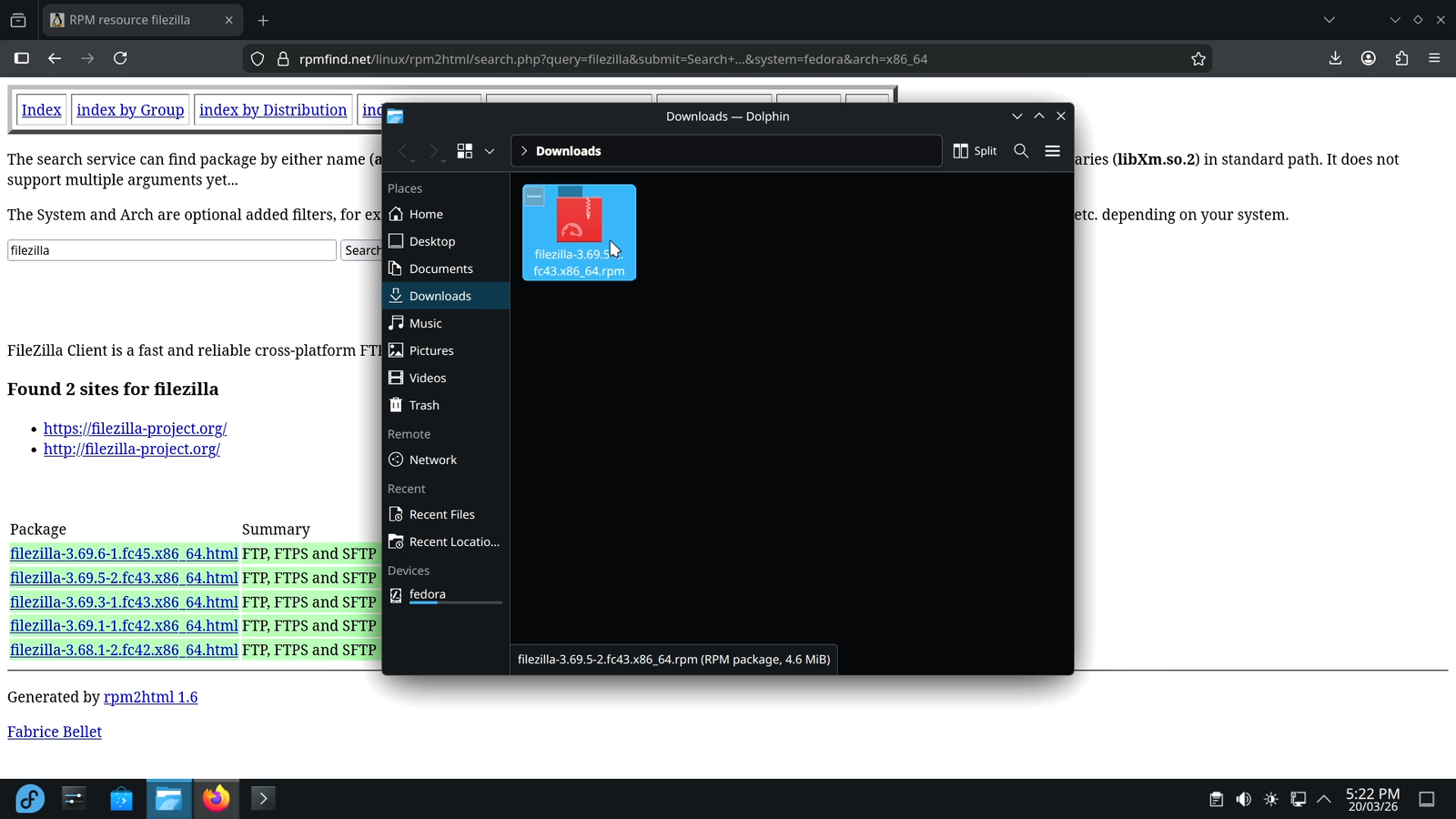
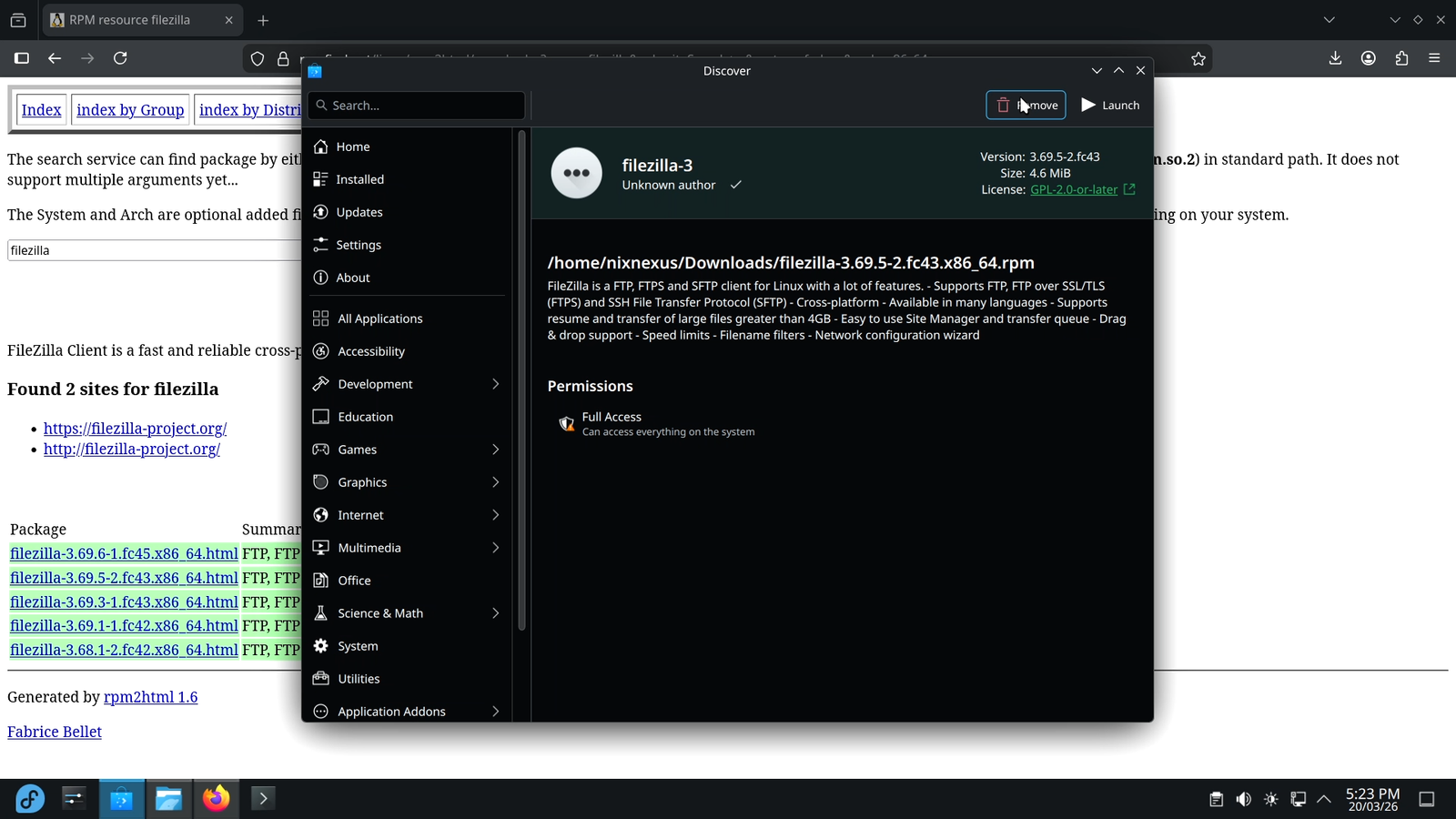
Installing and removing .rpm packages with the KDE Discover Center works the same as it does for .deb packages. So to install the software:
- Open the Dolphin file manager, and go to your Downloads directory
- Double-click the
.debfile - Wait until the Discover Software Center checks for the required dependencies
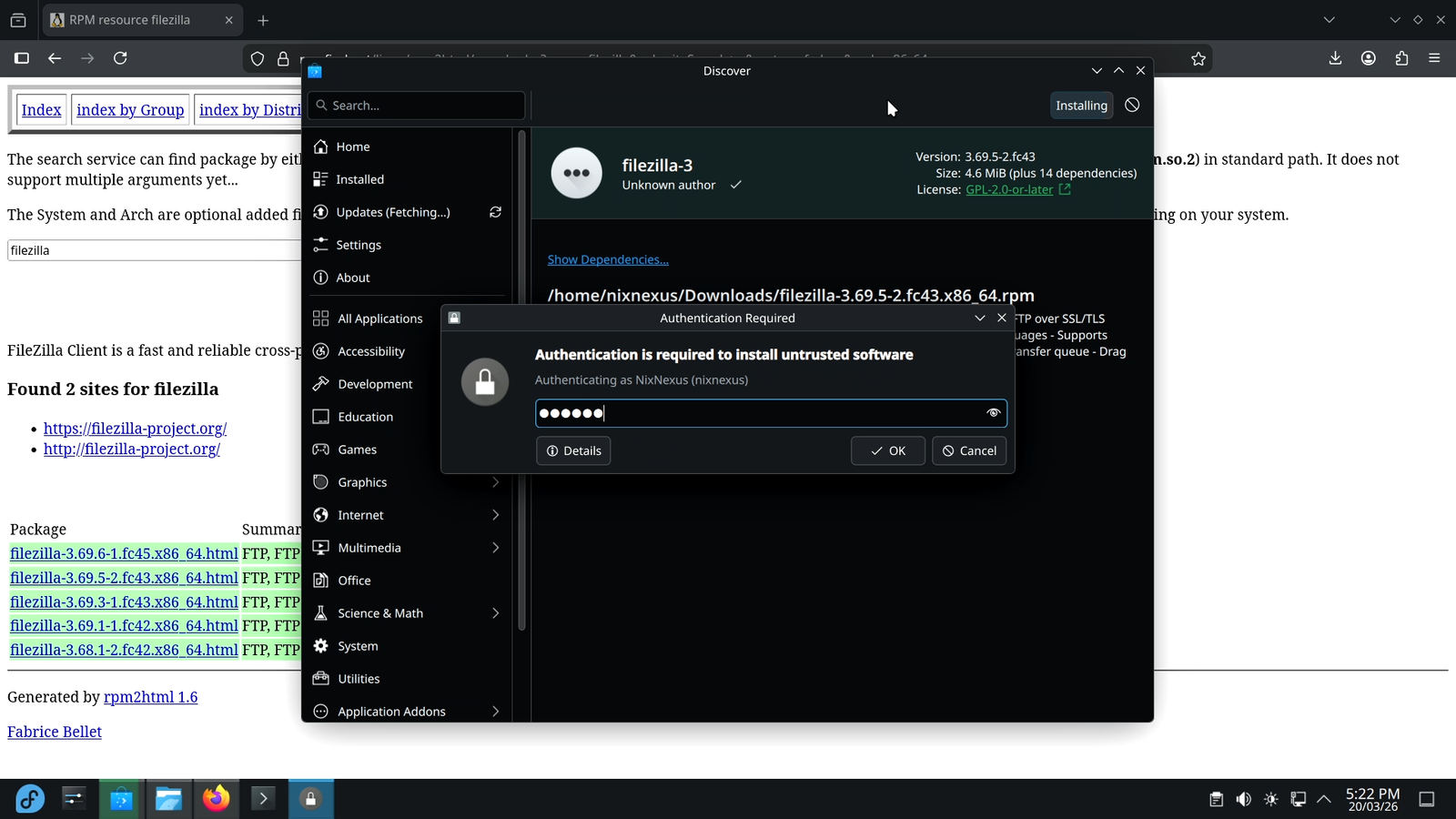
- Click “Install”
- Enter your password, and wait for the app to get installed.
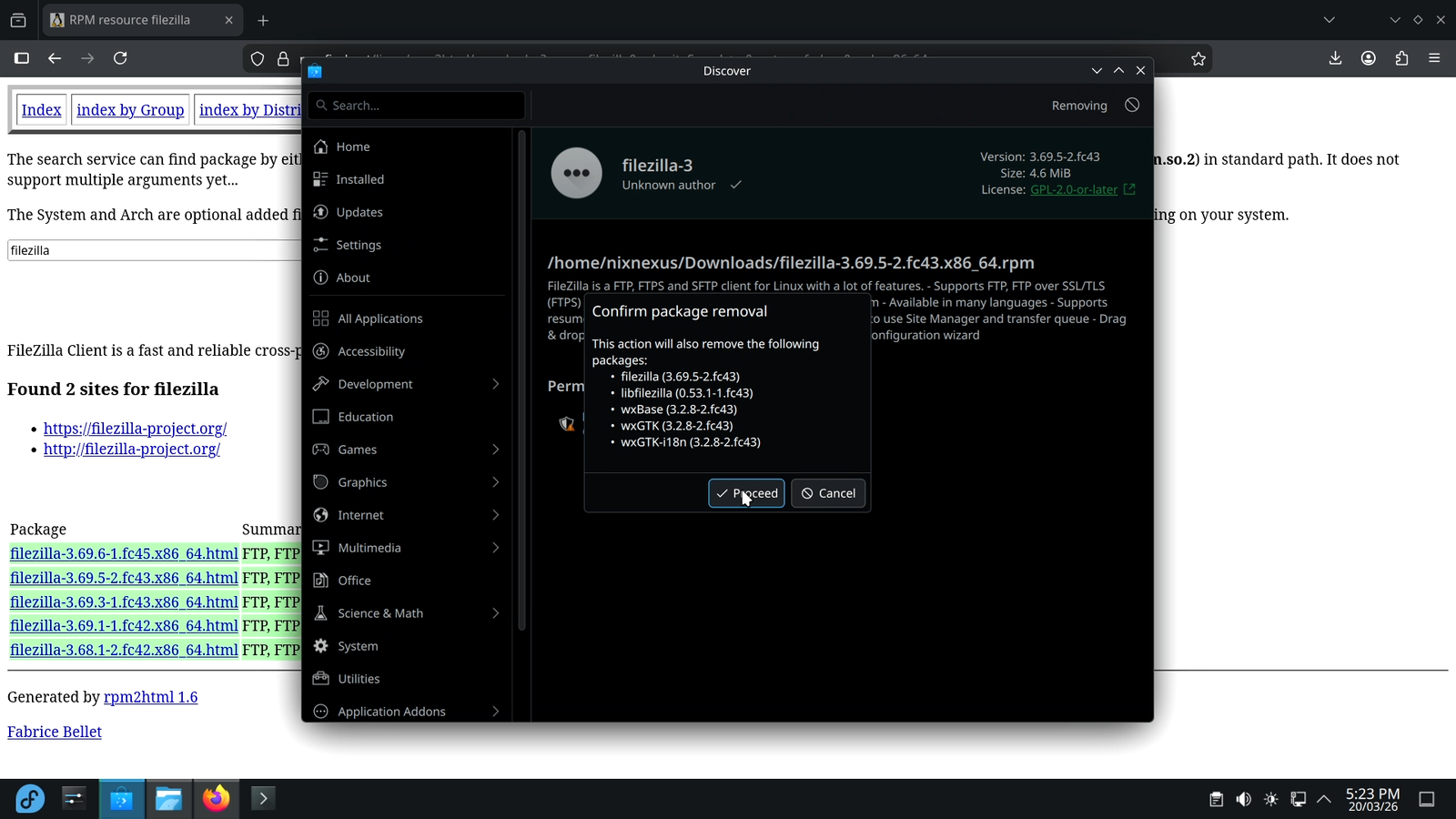
And to remove or uninstall the software:
- Double-click the
.debfile - Click “Remove”
- Reconfirm by selecting “Proceed”
- Enter your password if prompted, and the app will be uninstalled in no time.
Standalone GUI Installer for .RPM packages
Unlike .deb, the .rpm ecosystem does not have a universal Gdebi-equivalent. An application called “dnf-dragora” exists, which comes pre-installed on Fedora’s Xfce, LXDE, and LXQt spins. And in theory, it should work as GDebi does for .deb files, but in practice, it has two major drawbacks:
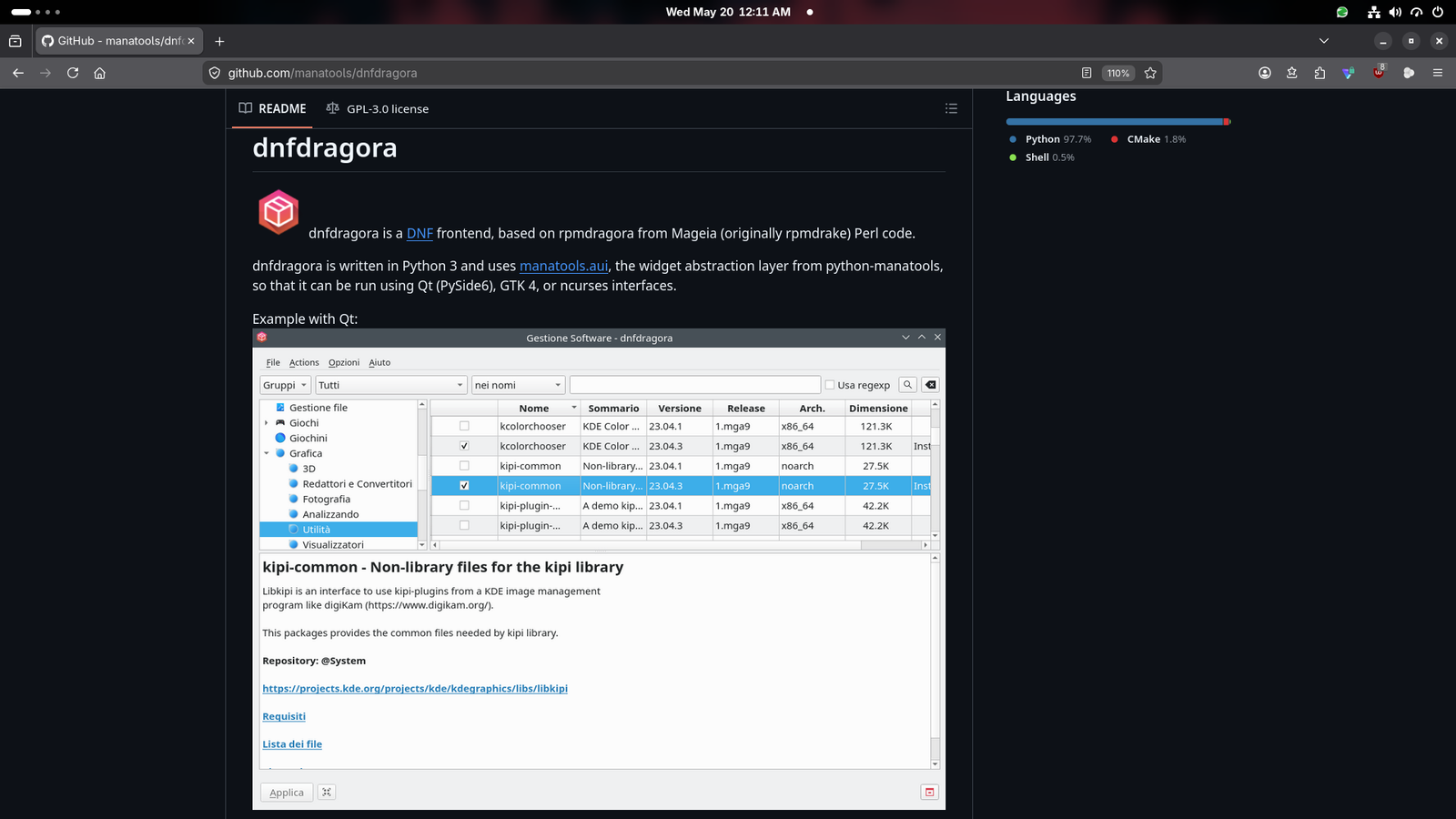
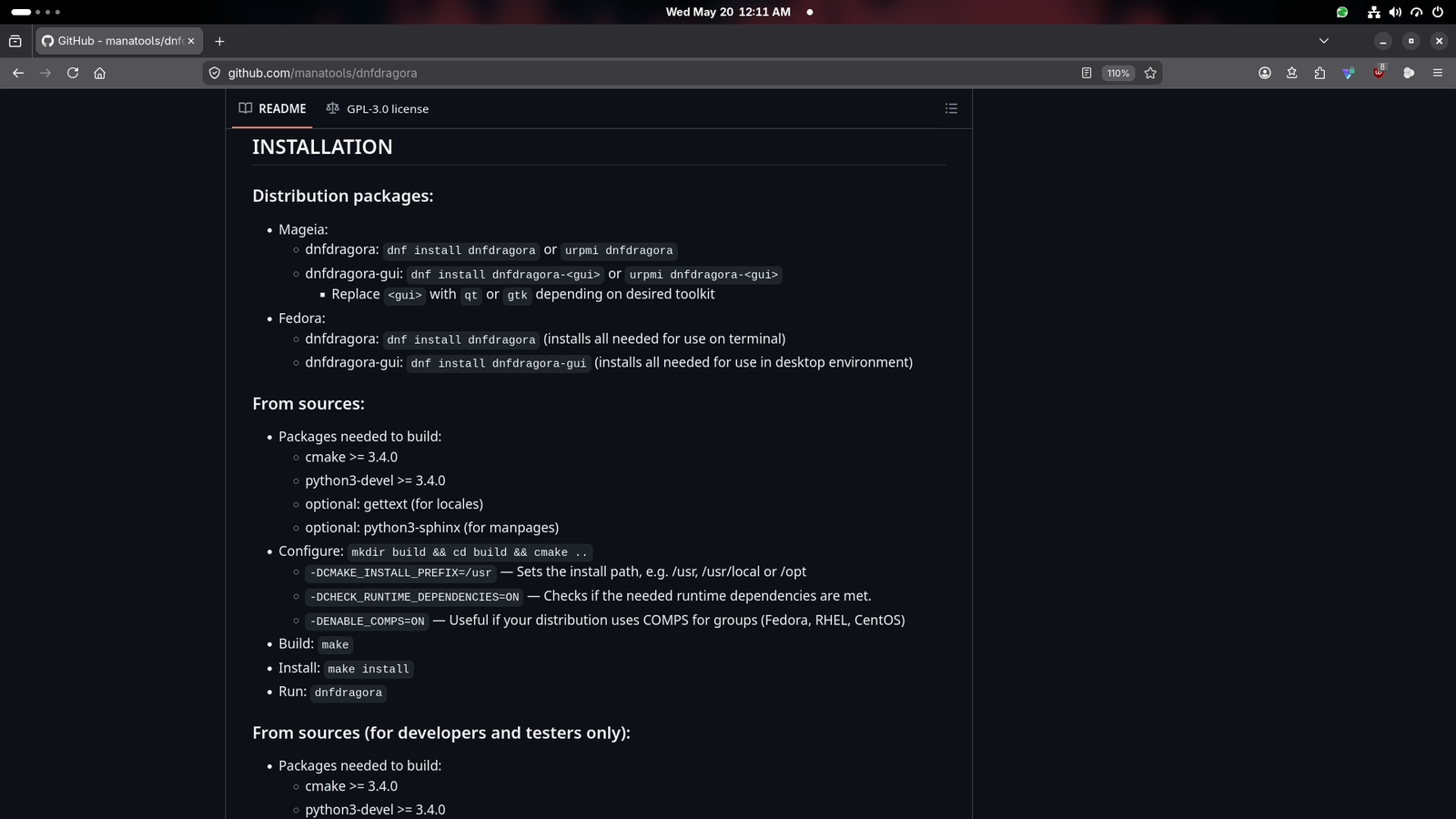
- First of all, it only works on distros that use the DNF package manager, meaning you cannot use it on openSUSE, Rocky Linux or even on Red Hat Enterprise Linux.
- Secondly, in my testing, it consistently froze the system. So I could not get it to work reliably, and I gave up on it.
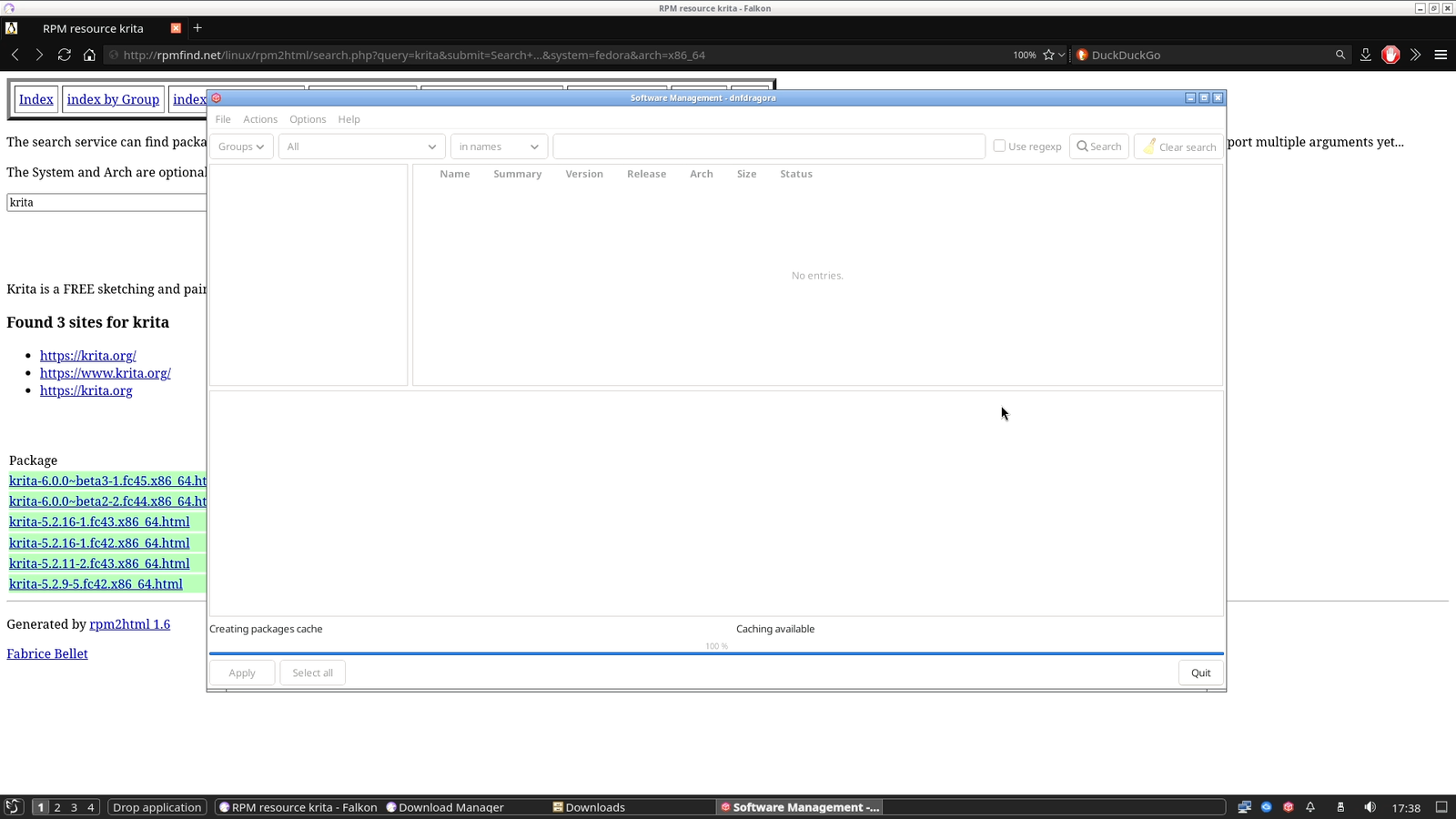
If you have had success with “dnf-dragora”, I would genuinely like to know how. Drop a comment on any of our social media pages, and I will share it with the community.
Managing .RPM packages Using Command Line Interface (CLI)
No matter what happens, in GNU/Linux, you can always rely on the good old command line interface. To install .rpm packages through the command line:
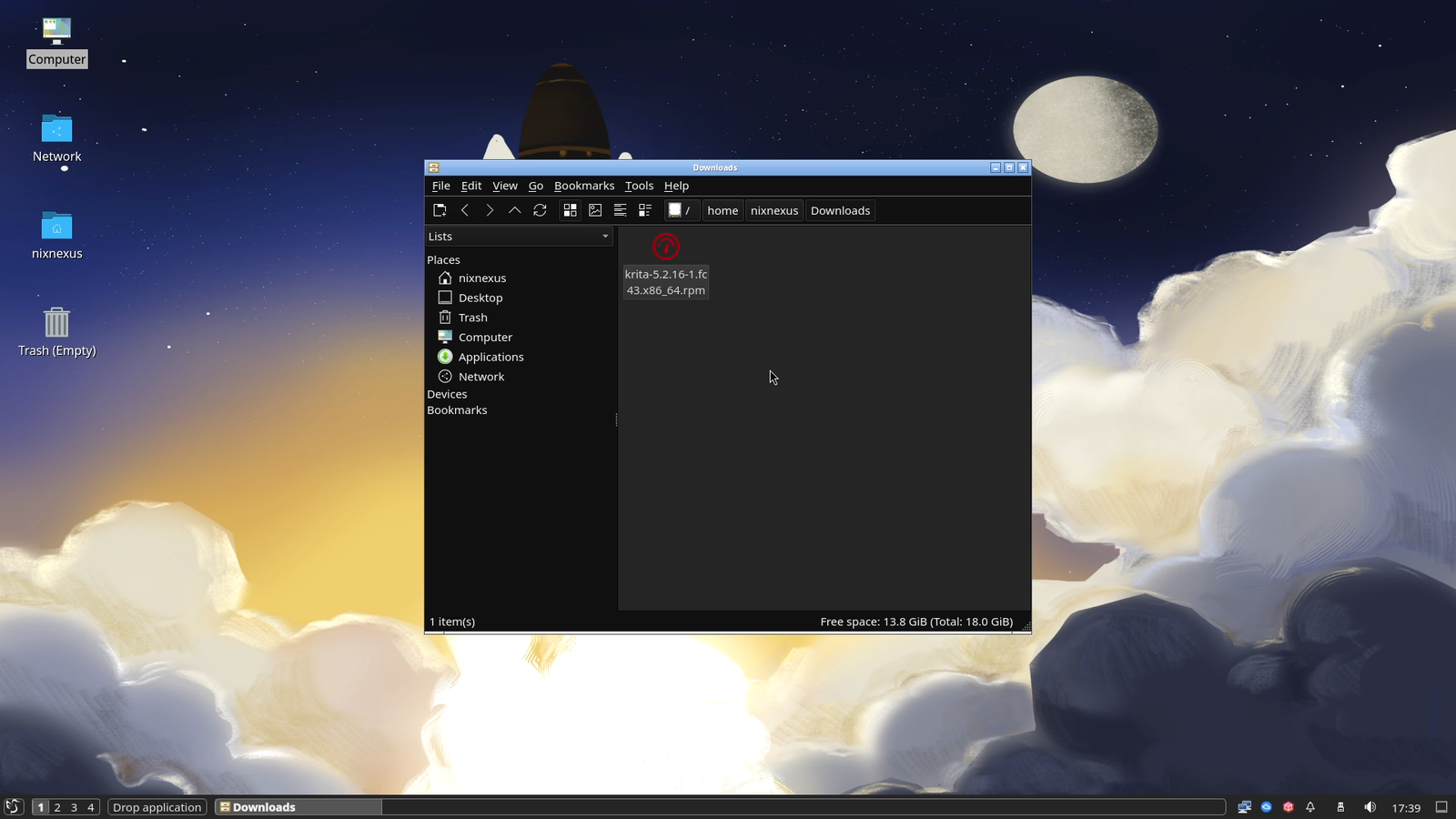
- First, open your terminal emulator, then
- “cd” to your “/Downloads” directory.
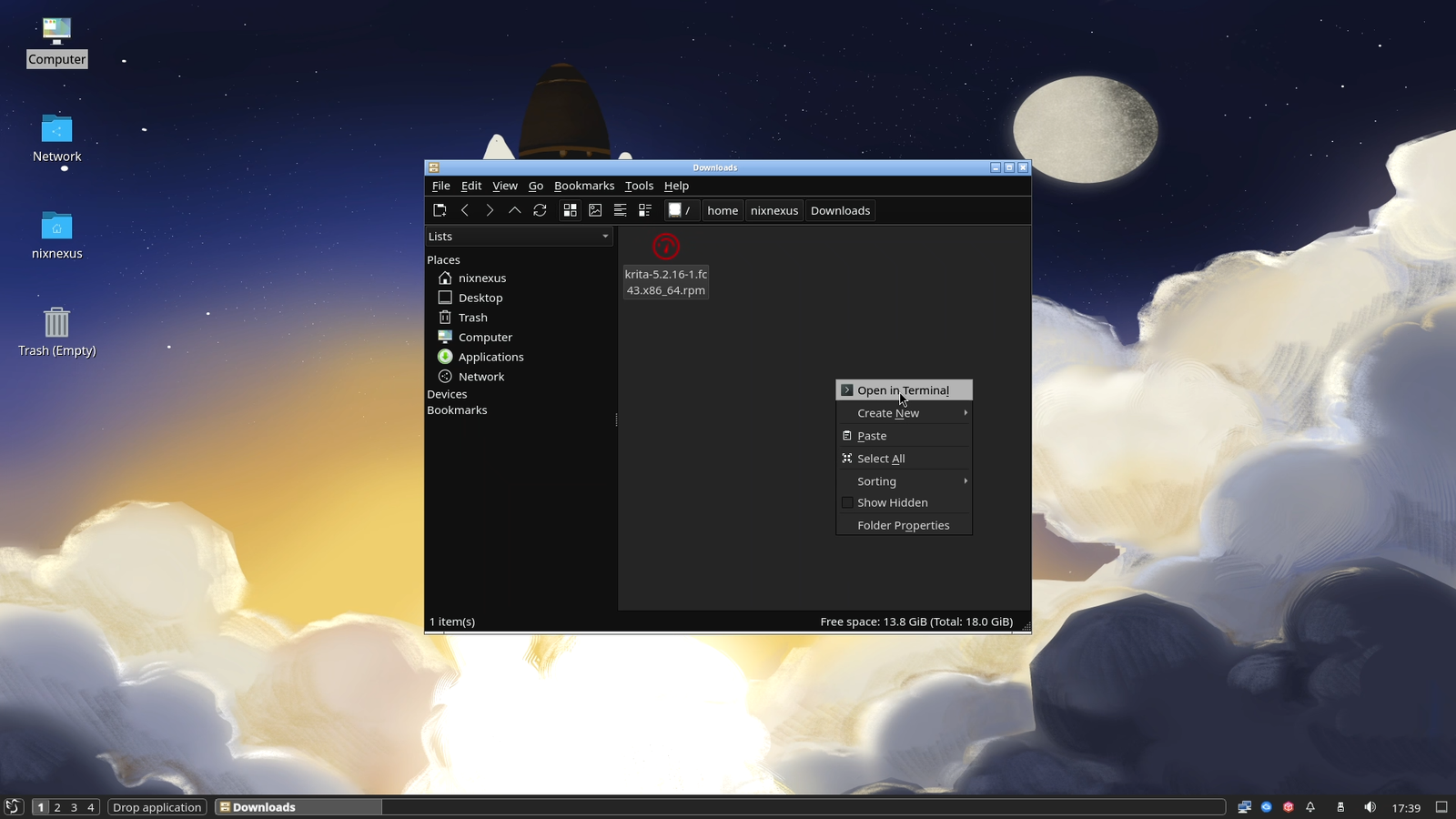
Alternatively,
- Open your file manager
- Go to your “Downloads” directory.
- Right-Click and select “Open Terminal Here”.
Then use the following terminal command to install the package:
sudo dnf install ./package-name.rpm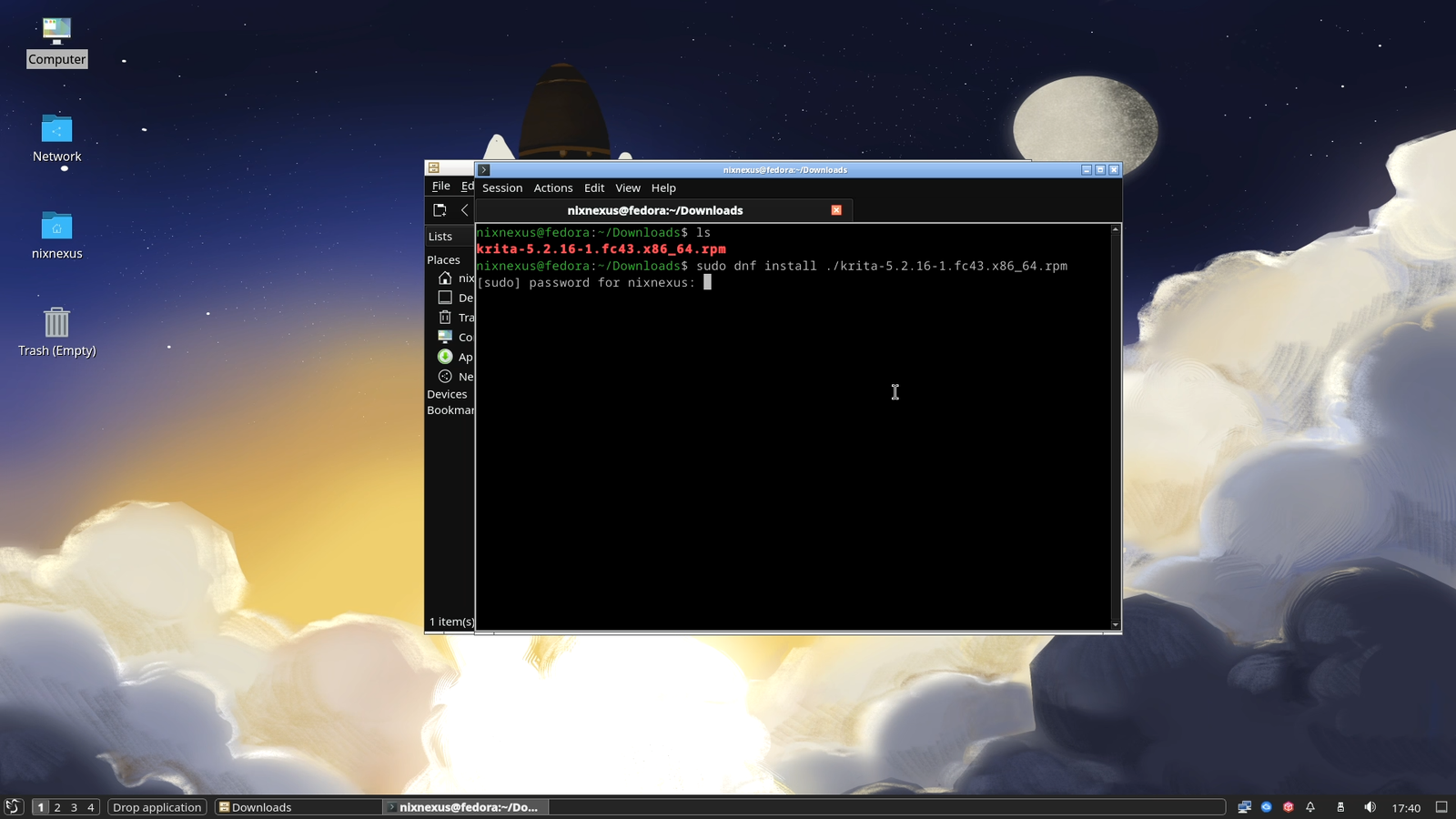
And to uninstall the package, use this one:
sudo dnf remove package-name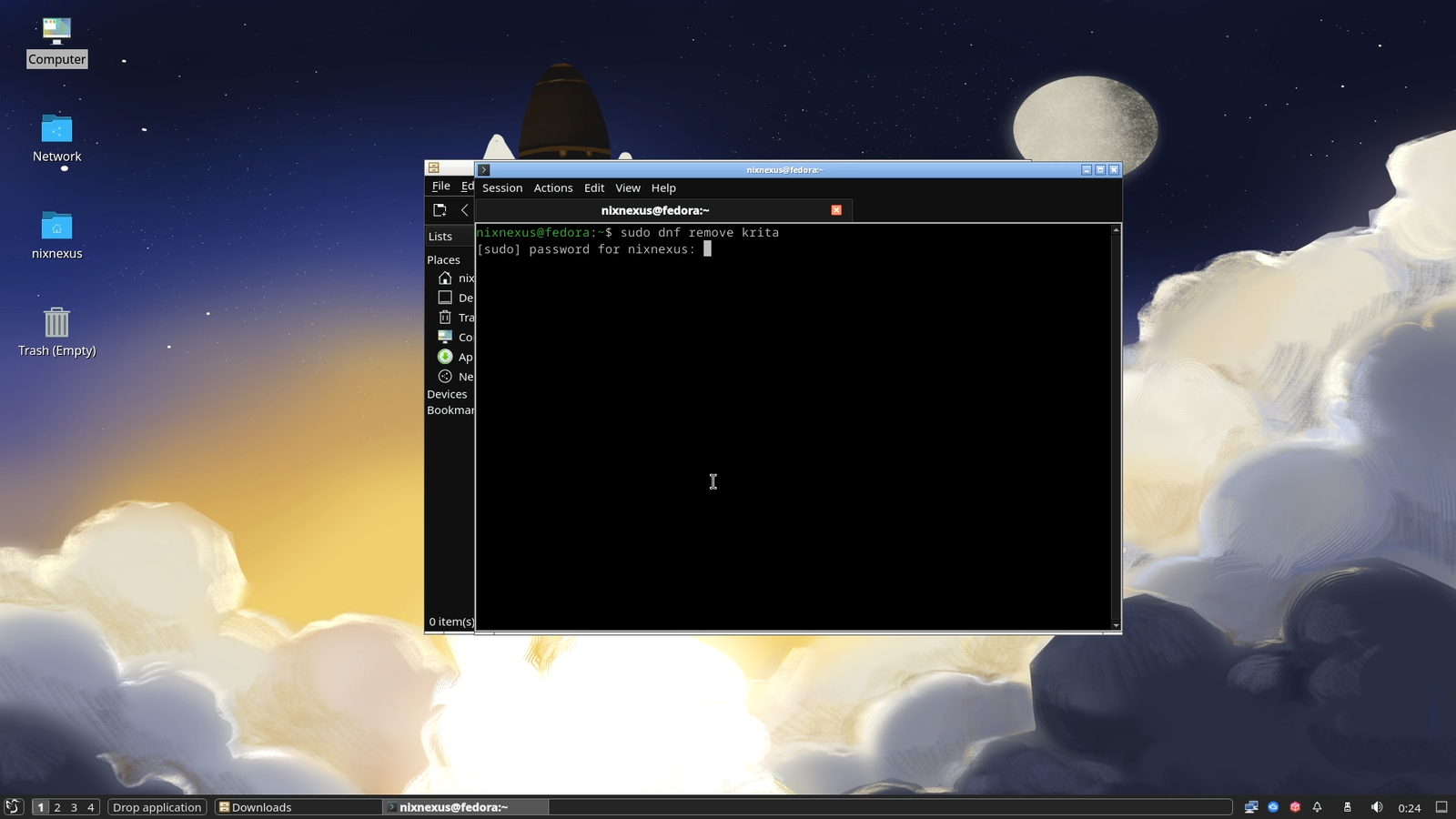
Note: The same rule applies here, too. While installing, the package name has to match the name of the downloaded package file exactly, along with its extension. But during uninstallation, just type the actual package name (without the extension), and that will do the job.
.PKG.TAR.ZST Packages (Arch Linux / CachyOS / Etc.)
Downloading .PKG.TAR.ZST packages
Go to packages.archlinux.org, and use the “Search / Keyword” field at the top to search for the software you want to install, and then hit enter.
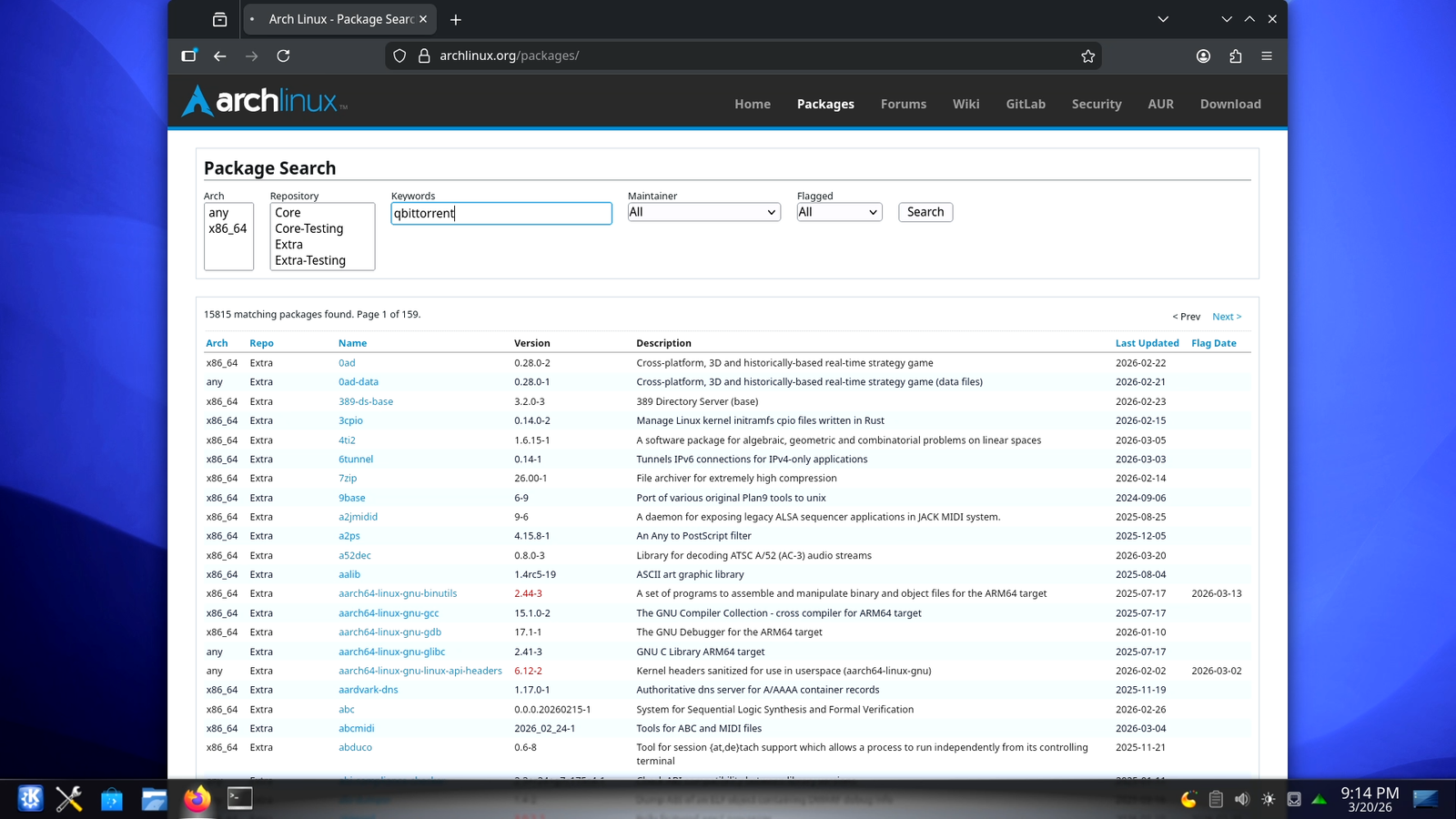
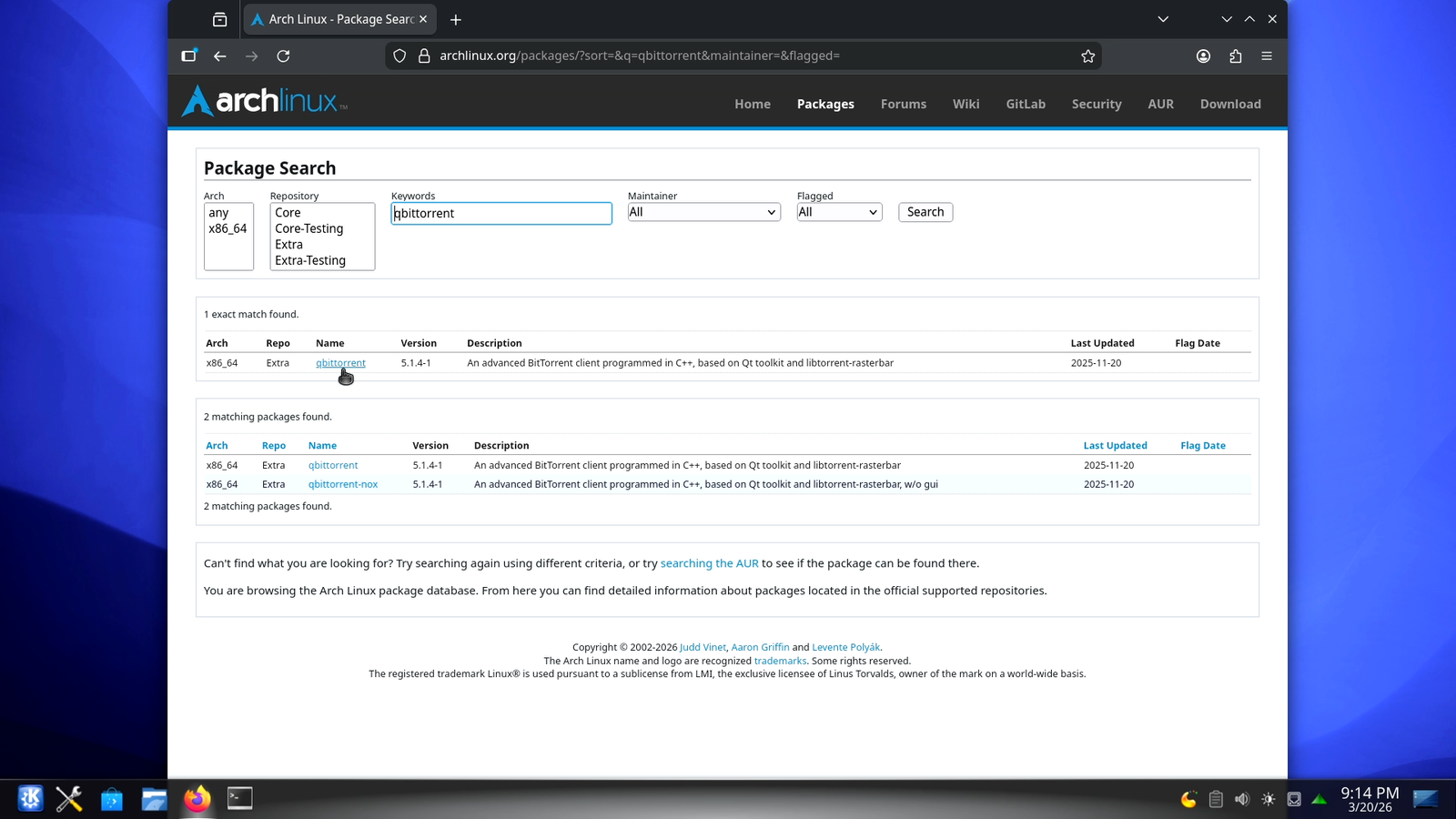
Like the Debian database, options in the results page will be divided into two separate sections. The first block is the exact match, and below that are matching packages, which include related plugins, language packs and so on. To proceed ahead select the option from the exact match section, and it will take you to the main download page.
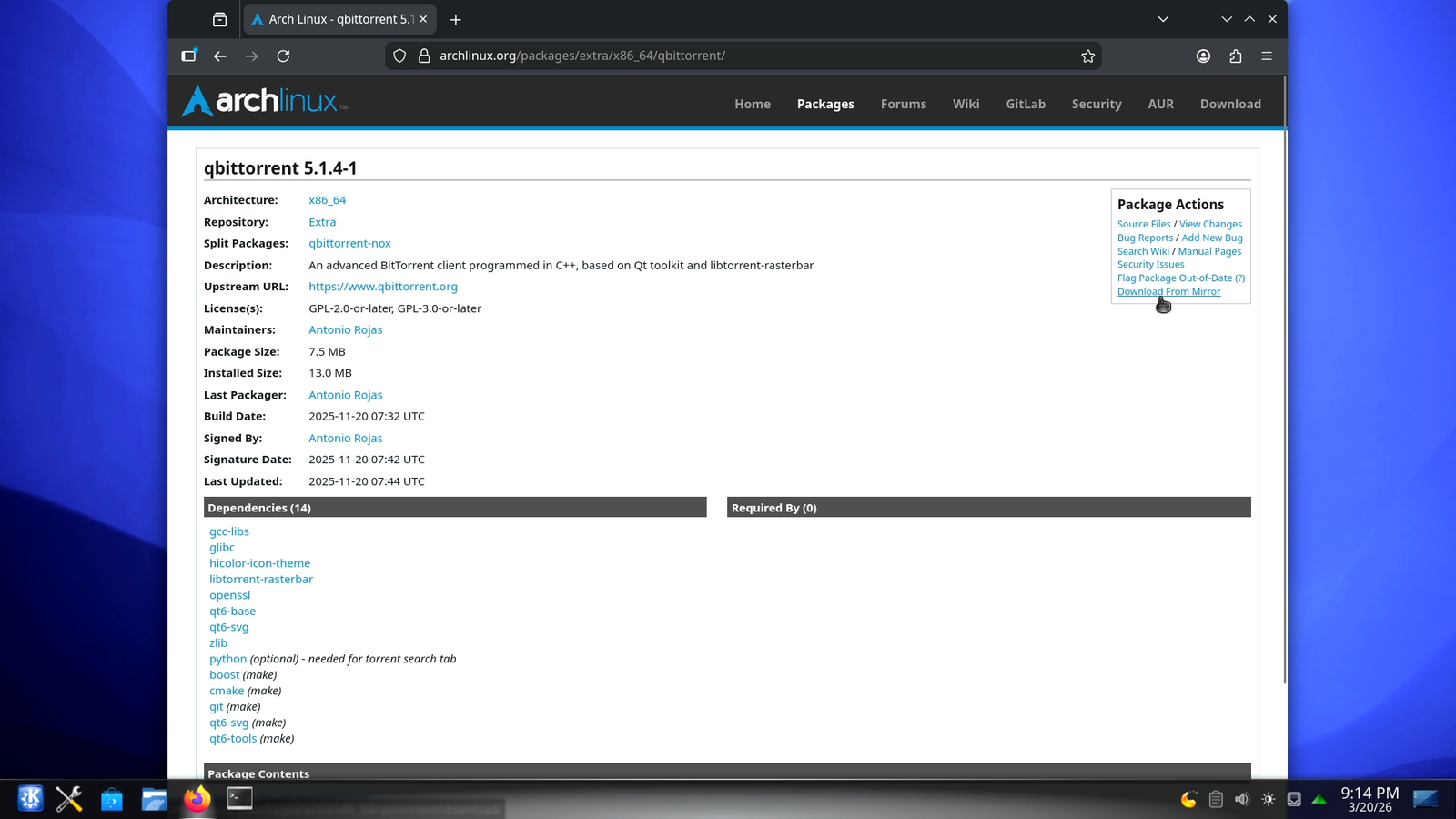
In the download page, look for the “Package Actions” box in the top-right corner of the page. And there, click the last option “Download from mirror”, and it will download the .pkg.tar.zst package for you.
Graphical Installation of .PKG.TAR.ZST packages
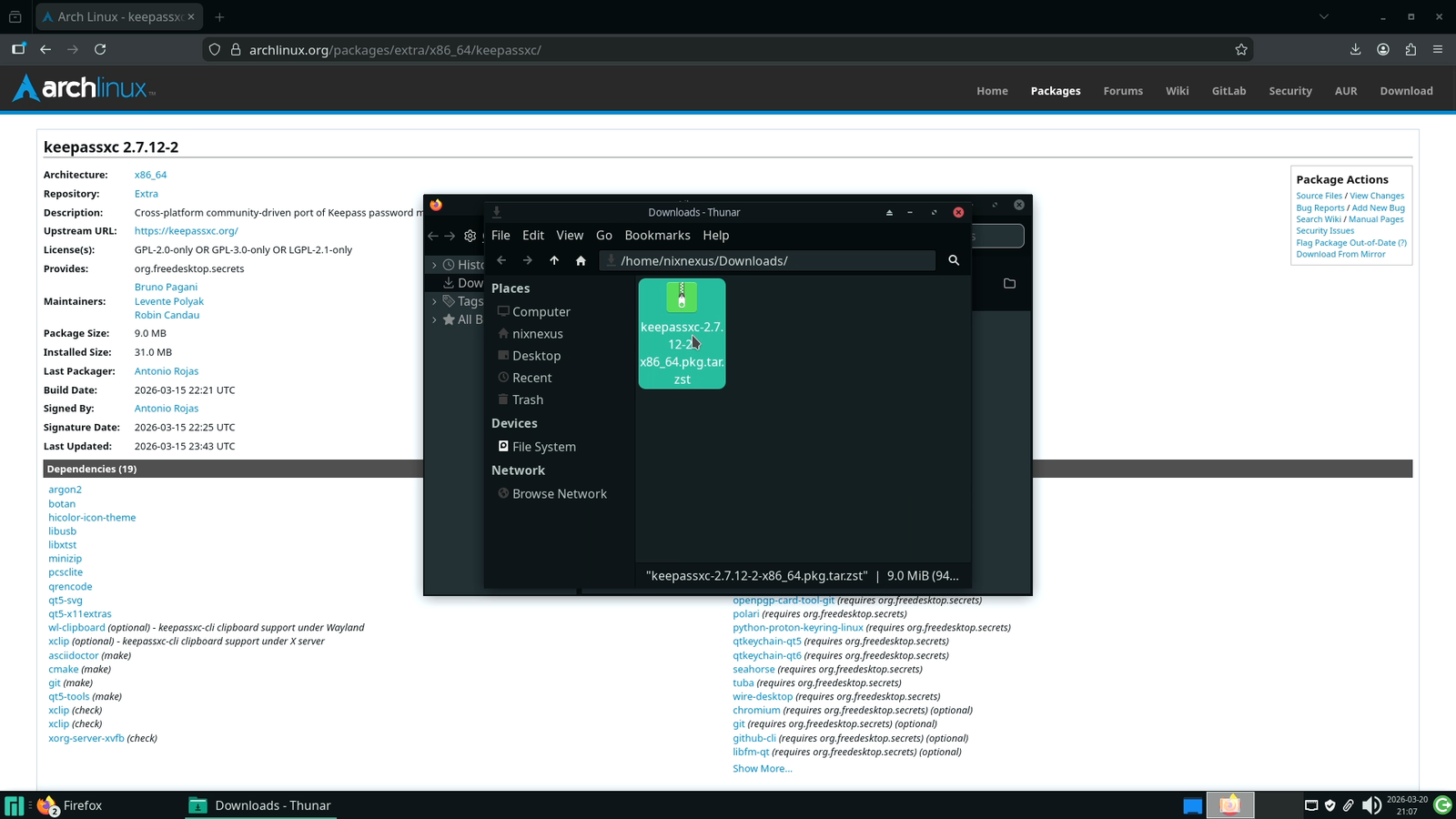
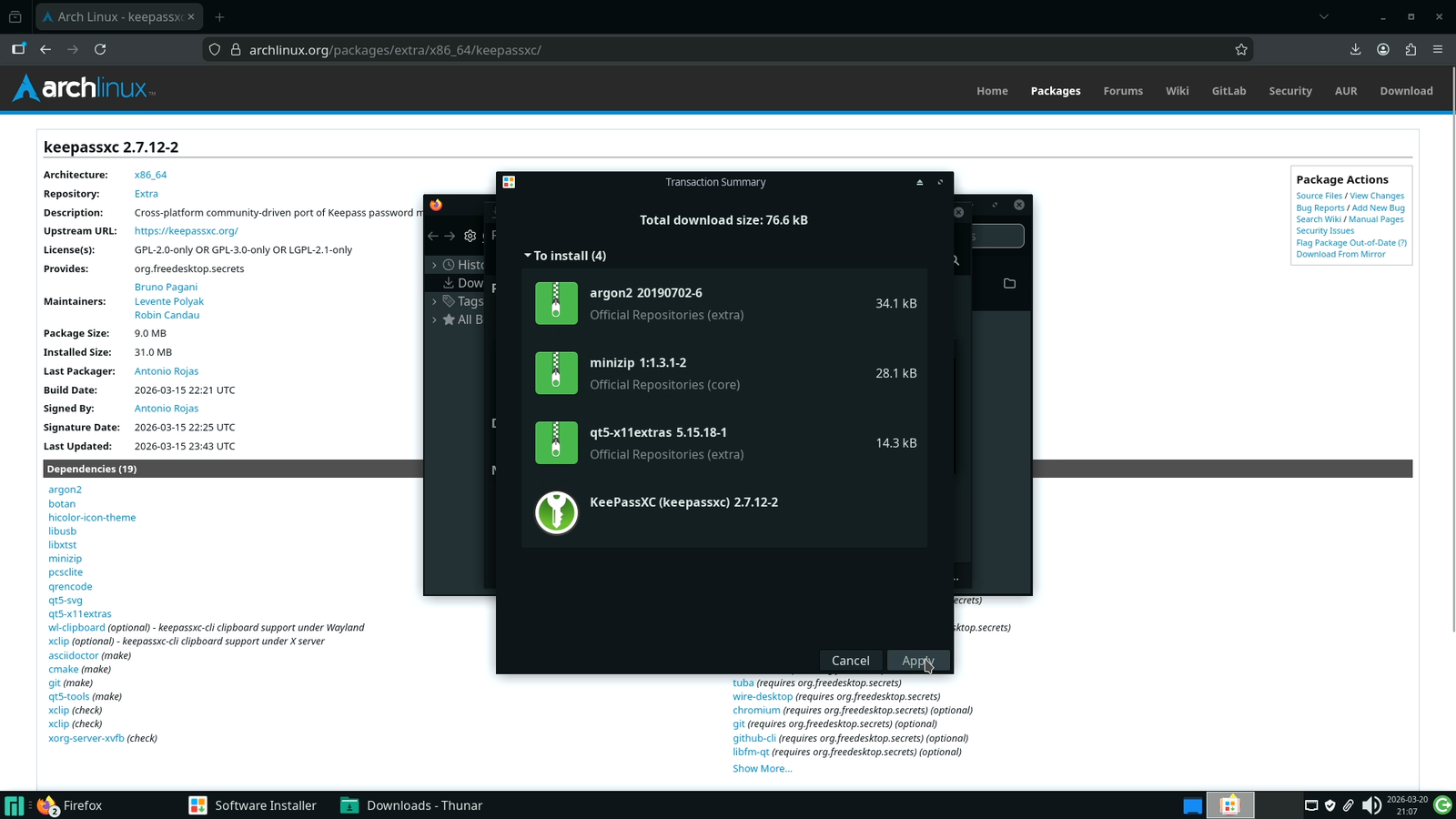
Long Story short, if you ask, “Can I install .pkg.tar.zst packages via Graphical Interface?” Then the Short answer is: Mostly No.
Arch Linux and most of its derivatives treat .pkg.tar.zst files just as compressed archives, rather than as installer files. So double-clicking one will do nothing more than open it in an archive manager. And this is applicable over almost all popular Arch based distros, be it Garuda Linux, EndeavourOS, or currently the most popular GNU/Linux distro, CachyOS.
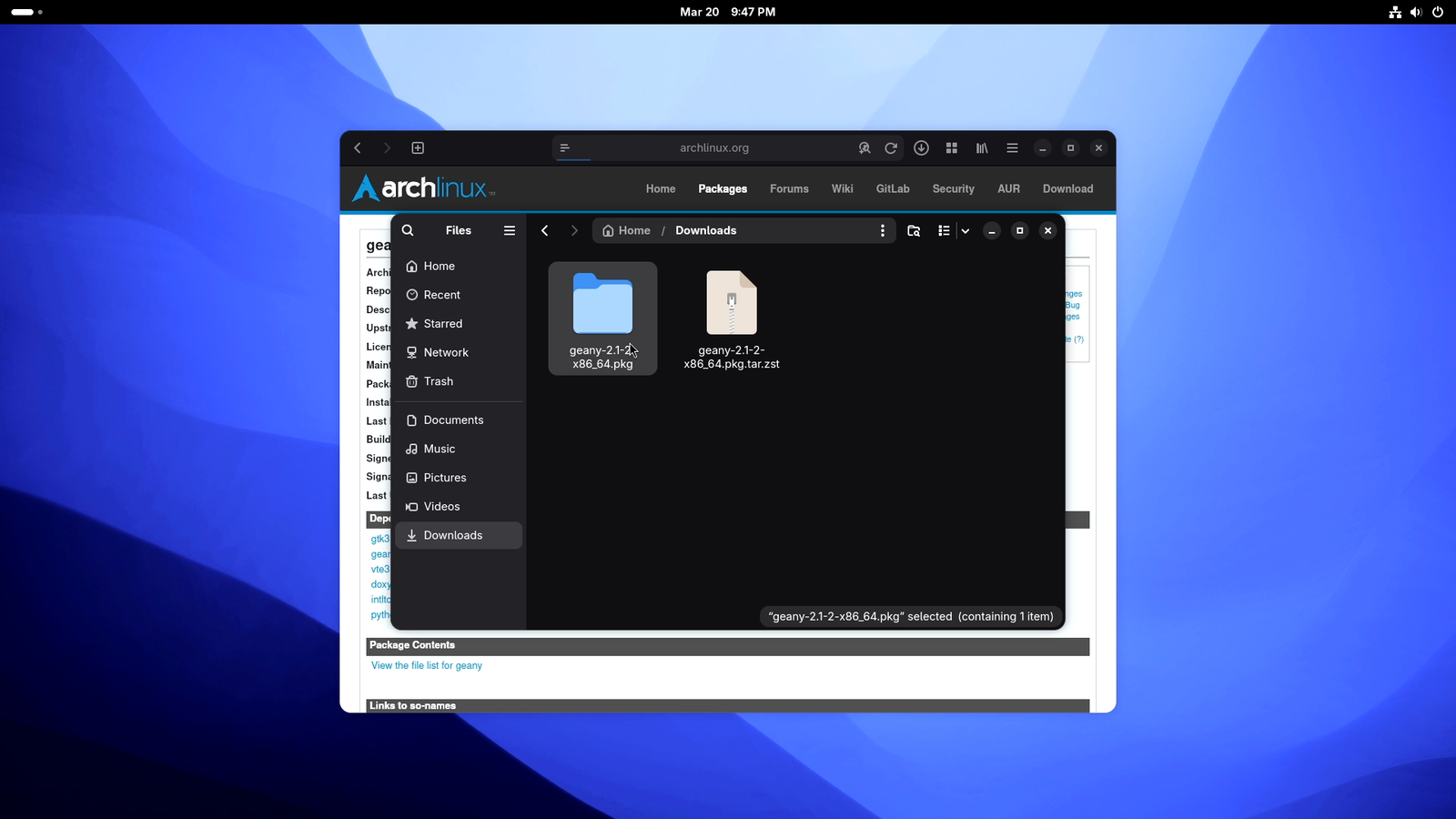
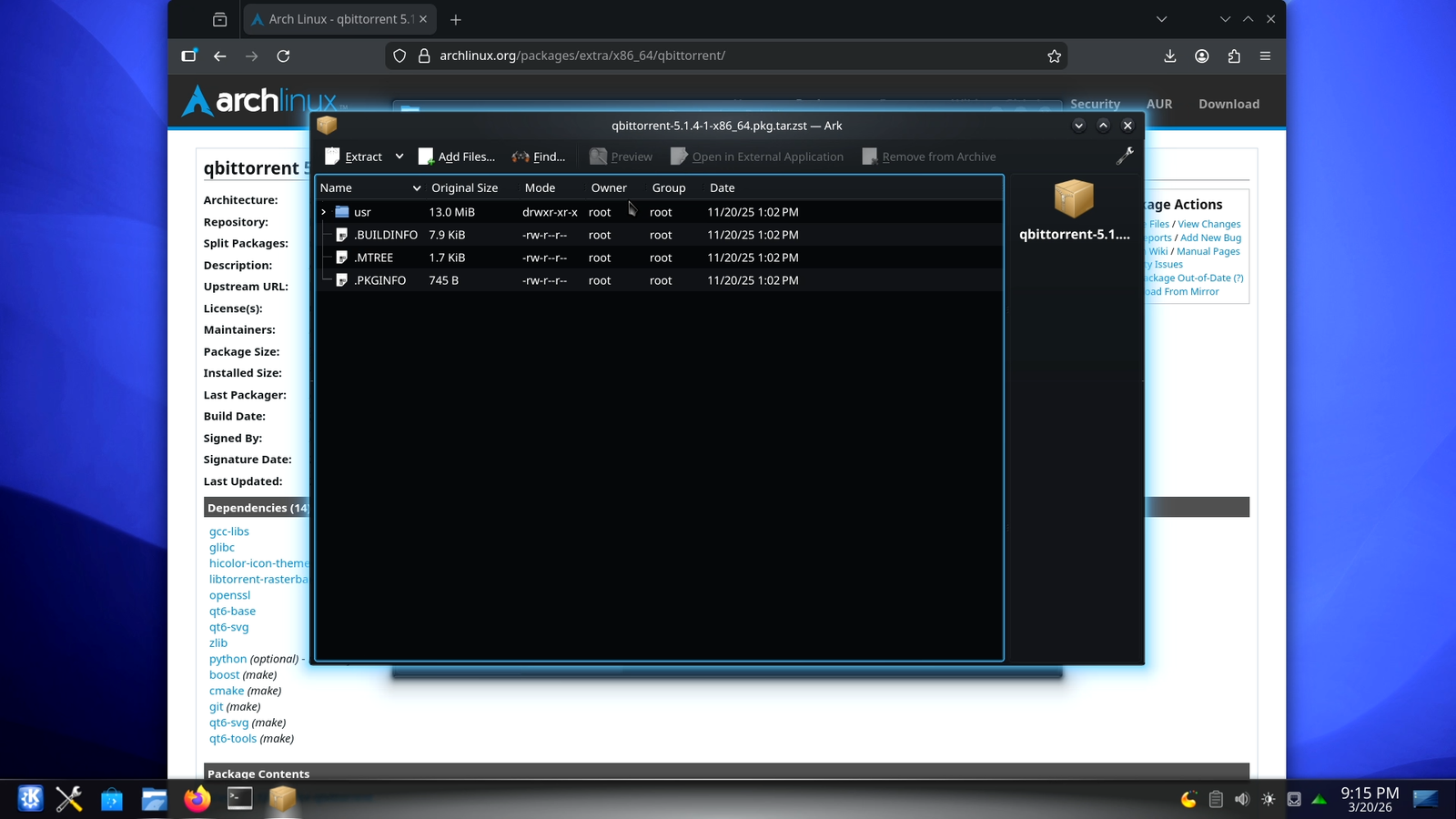
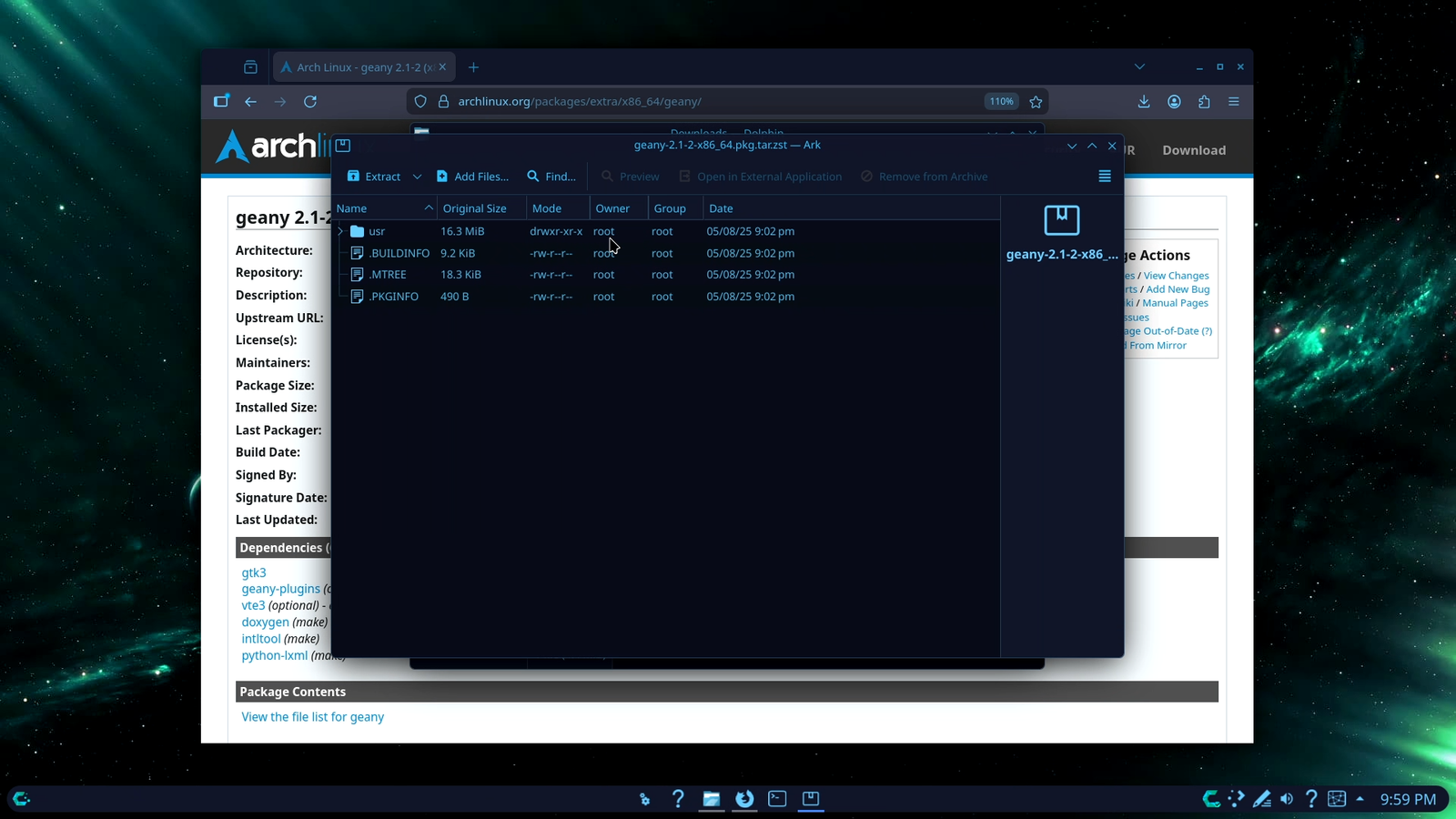
But do not think that this is a bug or an oversight. Rather, it is a thoughtful design. Arch-based distros are intentionally minimal and targeted at users who are generally comfortable in a terminal. So shipping a GUI installer would only add bloat, which the project’s philosophy specifically avoids.
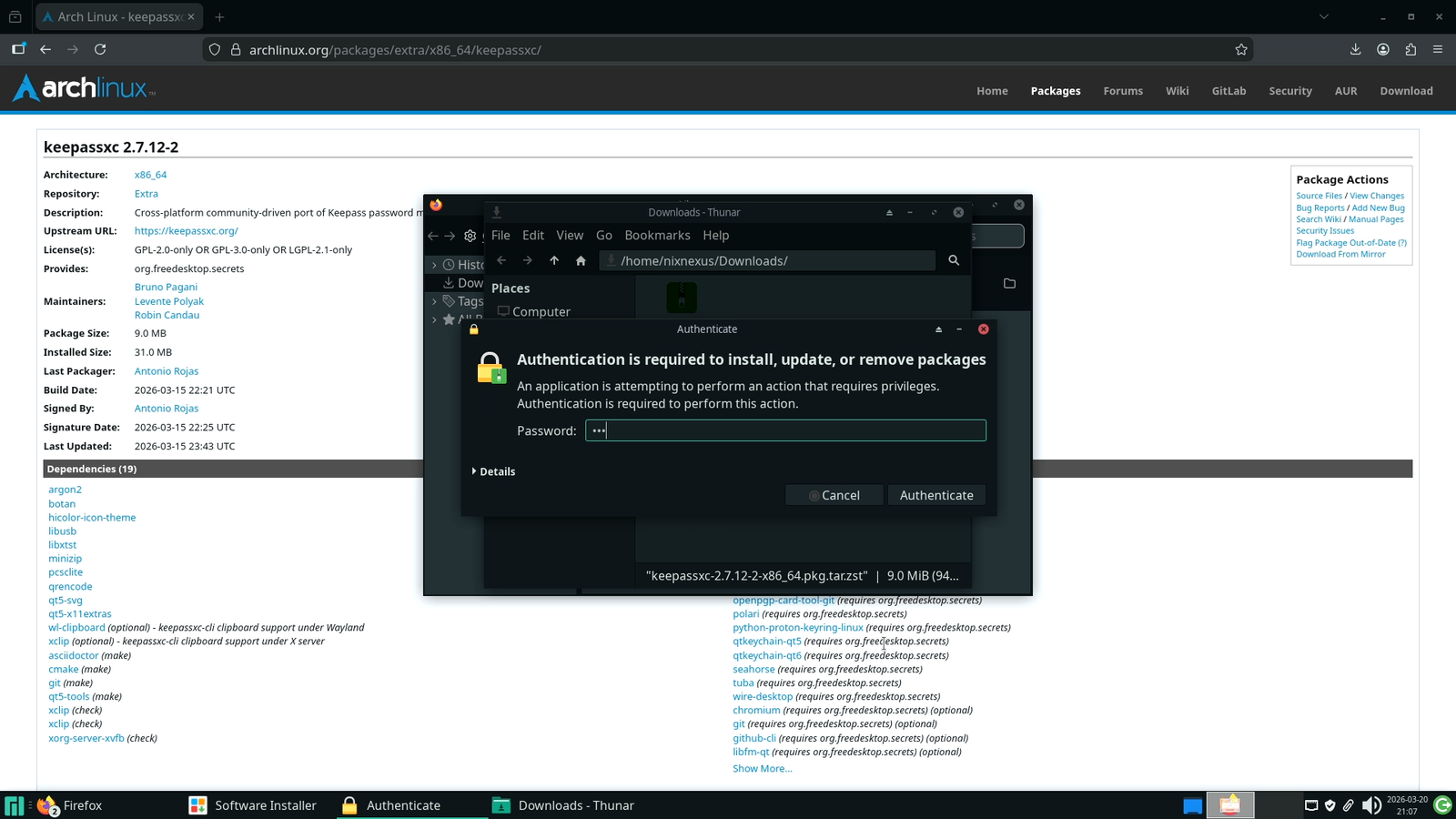
However, there is also one exception, Manjaro, which comes with the GUI helper tool called Pamac over the default Pacman Package manager. And with Pamac, you can install .pkg.tar.zst packages just by double-clicking them. So if you are on Manjaro, this function works fine. But for everyone else, Terminal is the way to go.
Managing .PKG.TAR.ZST packages Using Command Line Interface (CLI)
To install the .pkg.tar.zst package through the command line:
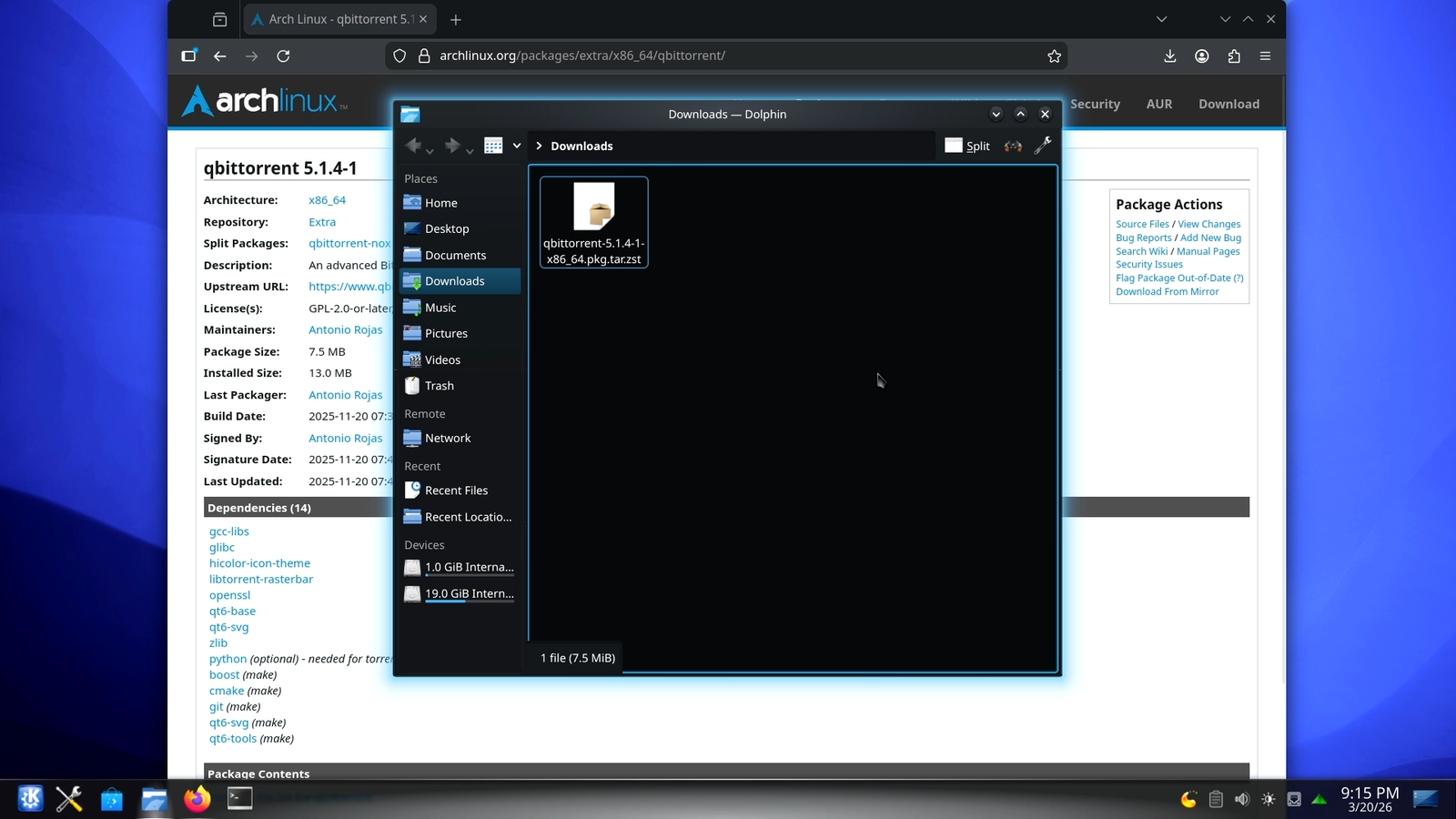
- Open your file manager
- Go to your “Downloads” directory.
- Right-Click and select “Open Terminal Here”.
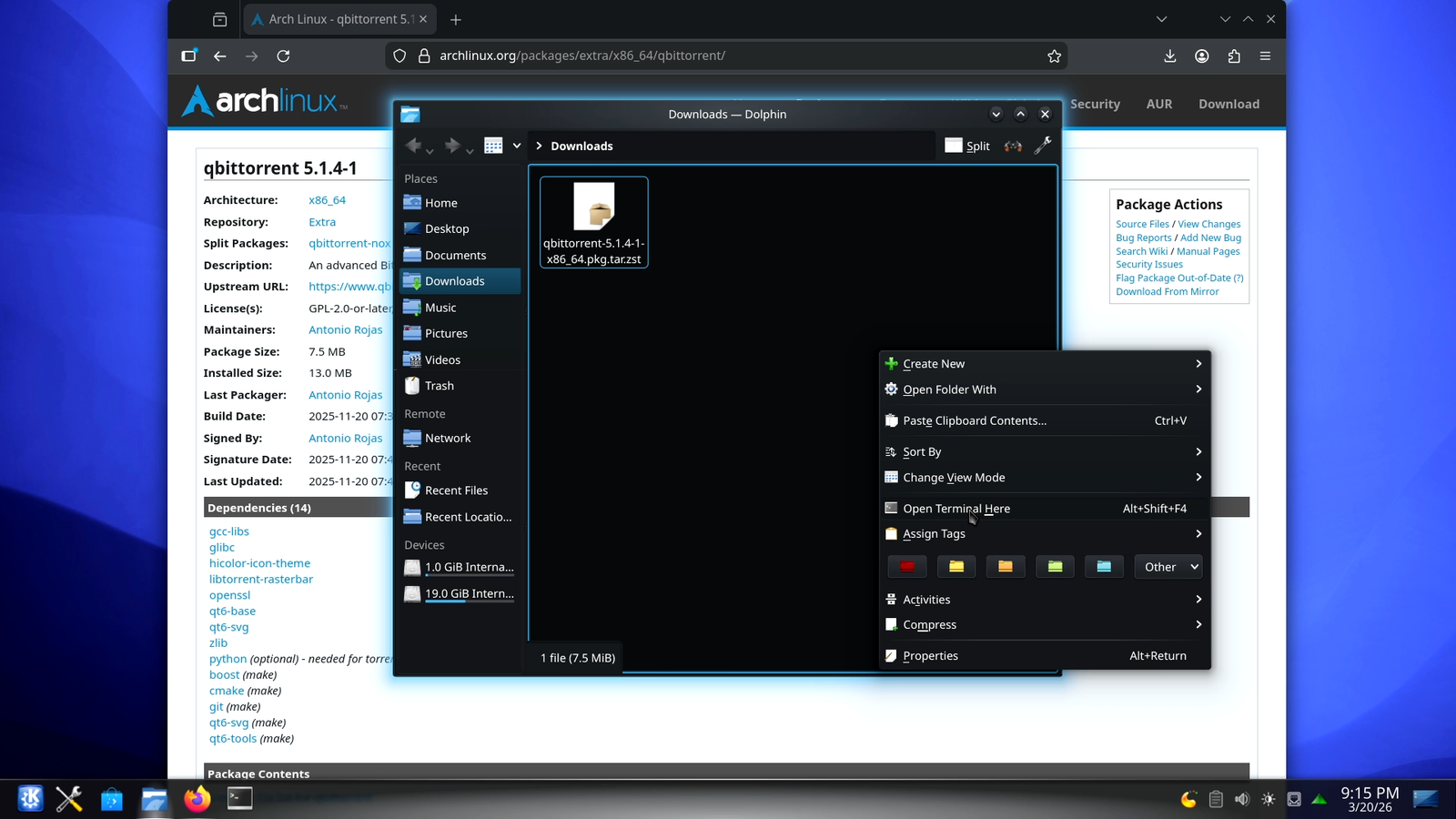
Then use this below terminal command:
sudo pacman -U ./package-name.pkg.tar.zst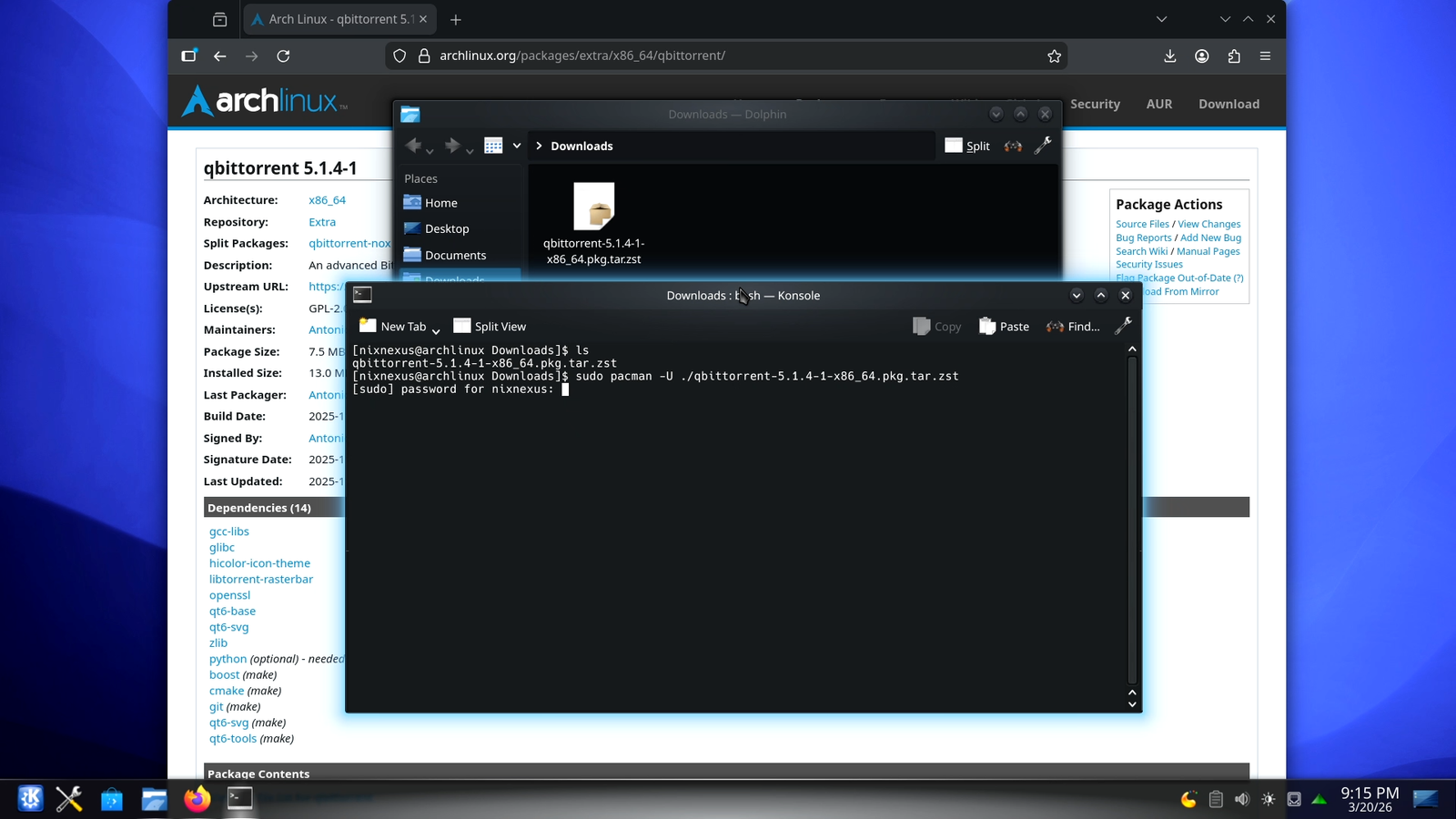
Note: During installation, the package name has to match exactly, along with its extension. So either copy and paste the package name after the forward slash (./) or else use the “Tab” button to autocomplete.
Then hit enter and authenticate when prompted, and within a few minutes, the app will be installed in your system.
And to uninstall the package, use this command:
sudo pacman -R package-name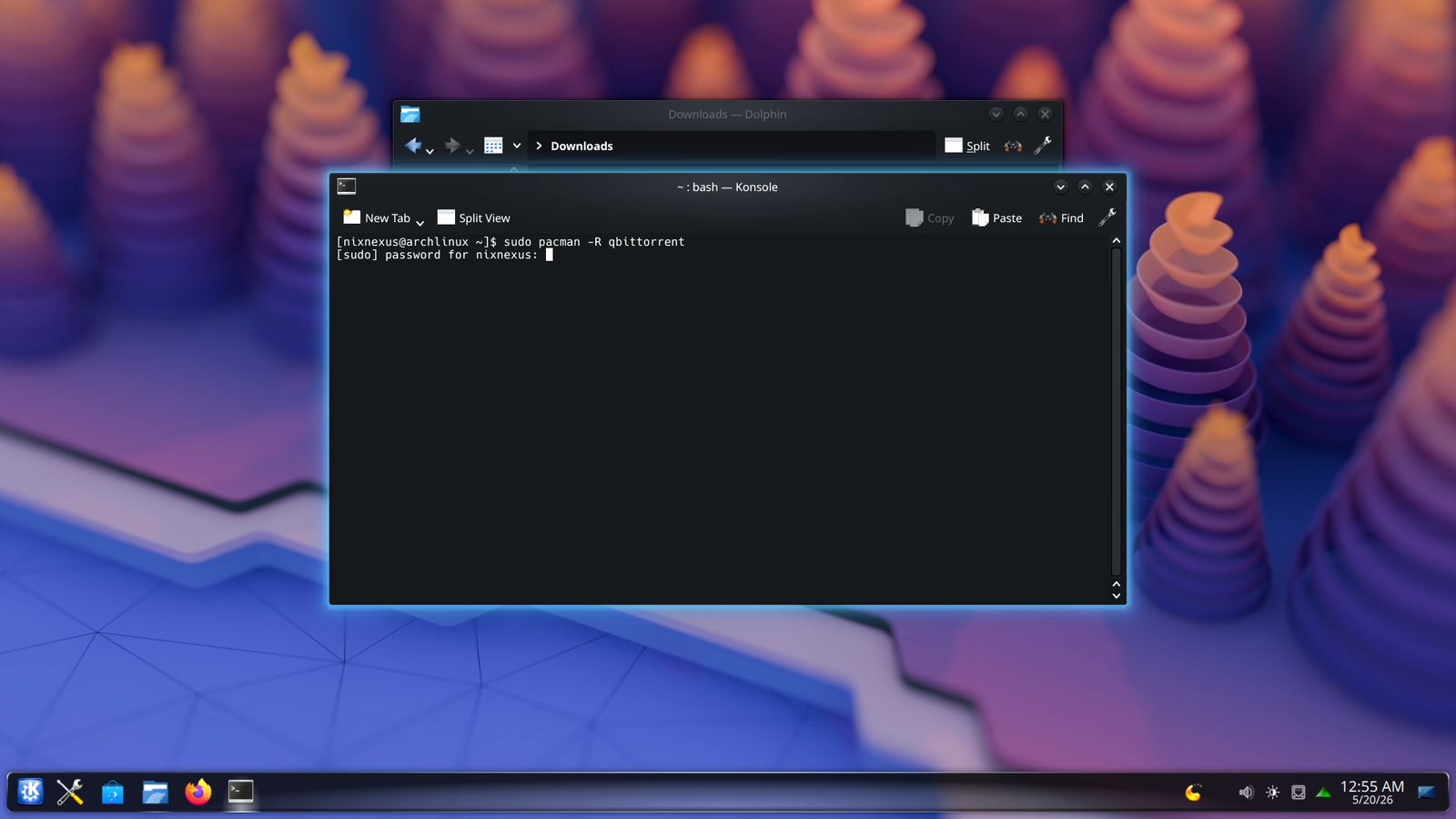
And as always, during uninstallation, just type the actual package name (without the extension) and that will remove the package from your system.
Conclusion
Binary packages on Linux may feel unfamiliar at first, but once you understand how each format fits its distro family, where to download them safely, and how to install or remove them properly, the entire process becomes straightforward.
Now you have everything you need to install .deb, .rpm, and .pkg.tar.zst packages confidently across Debian, Fedora, and Arch-based systems. Start exploring, try a few packages, and you’ll get the hang of it faster than you expect.
If you run into issues or discover tips that others might find helpful, feel free to reach out on our social platforms. And if you want an even simpler approach to software management on Linux, check out our guide on “How to Install Apps and Software on Linux With GUI App Stores & CLI“ - it is the most beginner-friendly method among all.
Frequently Asked Questions
Q: What is the Linux equivalent of a Windows .exe file?
A: Linux does not have a direct equivalent of the .exe file. Instead, it uses binary packages like .deb for Debian/Ubuntu based systems, .rpm for Fedora/Red Hat based systems, and .pkg.tar.zst for Arch Linux based systems. These are closer in structure to the Windows .msi format.
Q: Can I use a .deb file on Fedora, or a .rpm file on Ubuntu?
A: No. Linux binary package formats are not interchangeable across distribution families. A .deb file only works on Debian or Ubuntu based distros, .rpm only on Fedora or Red Hat based distros, and .pkg.tar.zst only on Arch based systems.
Q: Where should I download .deb, .rpm, and .pkg.tar.zst packages safely?
A: Use official distribution repositories. For .deb packages, go to packages.debian.org. For .pkg.tar.zst packages, go to packages.archlinux.org. For .rpm packages, use the trusted third-party aggregator rpmfind.net, which lets you filter by distribution and architecture.
Q: What is the terminal command to install a .deb, .rpm, or .pkg.tar.zst file?
A: For .deb: sudo apt install ./package-name.deb | For .rpm: sudo dnf install ./package-name.rpm | For .pkg.tar.zst: sudo pacman -U ./package-name.pkg.tar.zst. The ./ prefix is essential, it tells the package manager to look for a local file instead of searching the online repository.
📑 If you enjoyed this article, you may also like our guide on:
🎬 Prefer watching? Here’s the detailed video:
💬 Engage With The Community:
🔀 Share this Article: