NixNexus - Your Guide to everything FOSS2025-10-12T11:24:40+05:30NixNexushttps://nixnexus.orgWhat to Do When Windows 10 Support Ends: 4 Solutions ExplainedNixNexushttps://nixnexus.org/what-to-do-when-windows-10-support-ends-4-solutions-explained/2025-10-11T13:59:00+05:30
The countdown is almost over. On October 14th, 2025, free security support for Windows 10 will officially end. For over a billion people, this is a crisis. It means no more security patches, no bug fixes, and no technical support.
Your computer, the one that works perfectly fine today, will be a security liability tomorrow. Not because it stopped working or broke down, but because Microsoft decided so! And it’s not the first time Microsoft has done this. They killed Windows XP when 70% of the world was using it. Then it happened with Windows 7, then Windows 8.1, and now Windows 10. I don’t think it will be the last. This is a never-ending cycle of greed, the true face of monopoly.
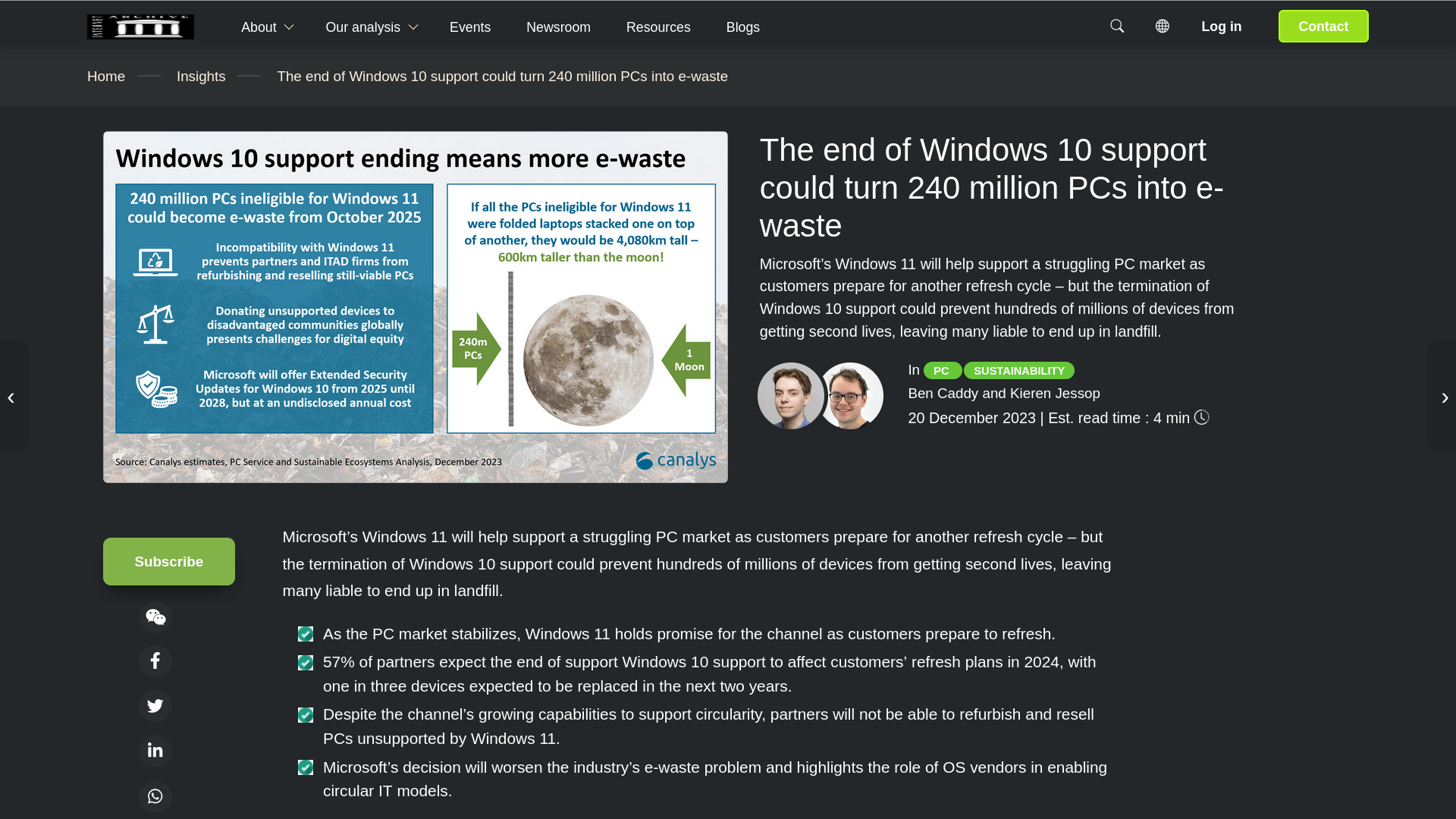
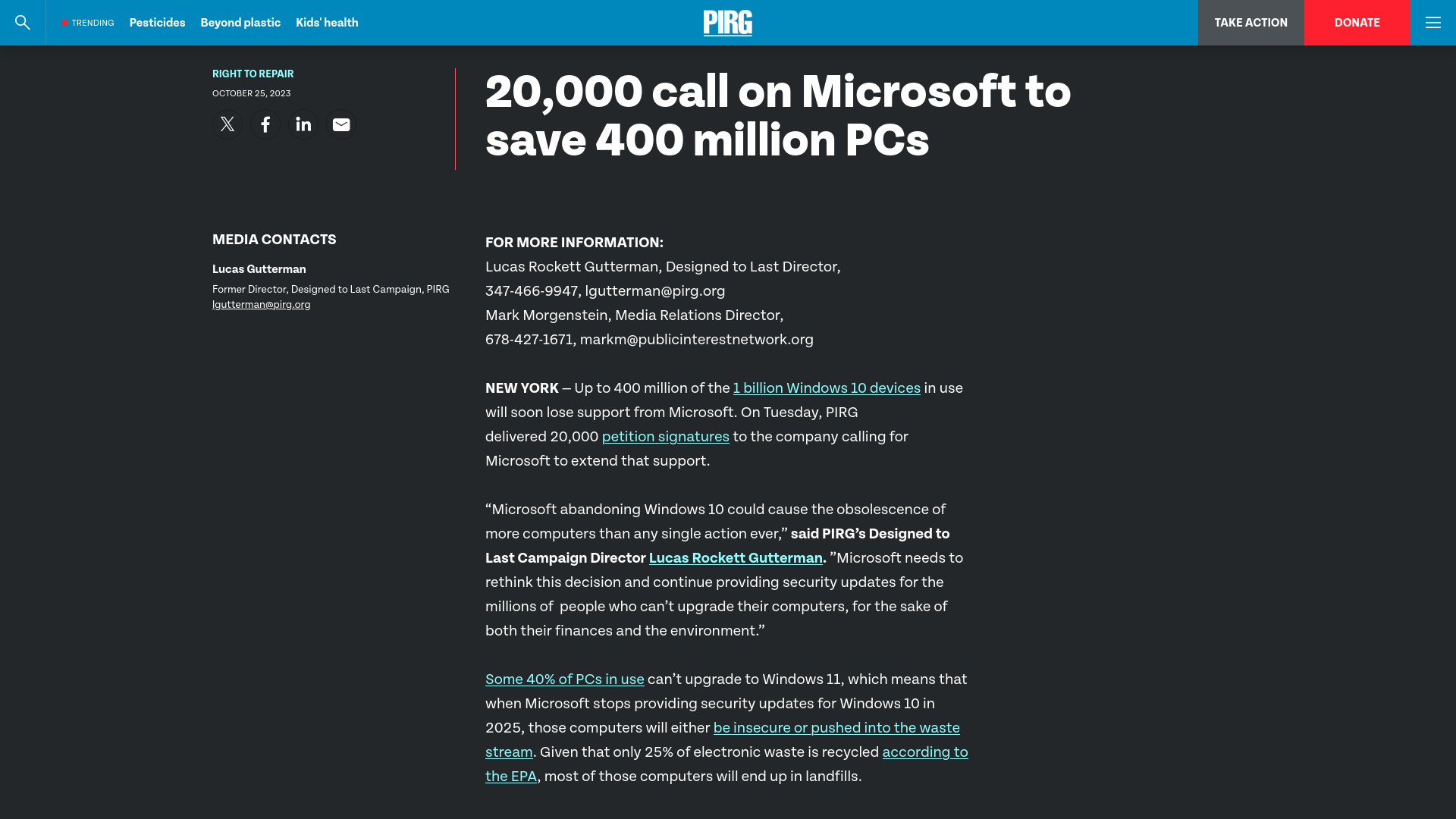
And look at the irony! Microsoft chose October 14th, 2025, a date that perfectly coincides with International E-Waste Day. According to Canalys, a leading technology research and advisory group, Microsoft is actively pushing an estimated 240 million PCs into premature obsolescence. The Public Interest Research Group (PIRG) suggested an even higher number, estimating that 400 million actively used systems will go into the e-waste pile on the very day the world is trying to recycle.
I’ve been on this journey since 2023. It’s the very reason I switched to Linux and started writing about free and open source software. My move to Linux was forced by the TPM 2.0 requirement for Windows 11. I refused to dump my perfectly good hardware just to satisfy Microsoft’s new hardware mandate. And you don’t have to either. Your older hardware is still viable. You just need something that respects its longevity.
So, here are your options, broken down from worst to best:
1. The Risky Workarounds
1.1 - Do Nothing and Go Offline
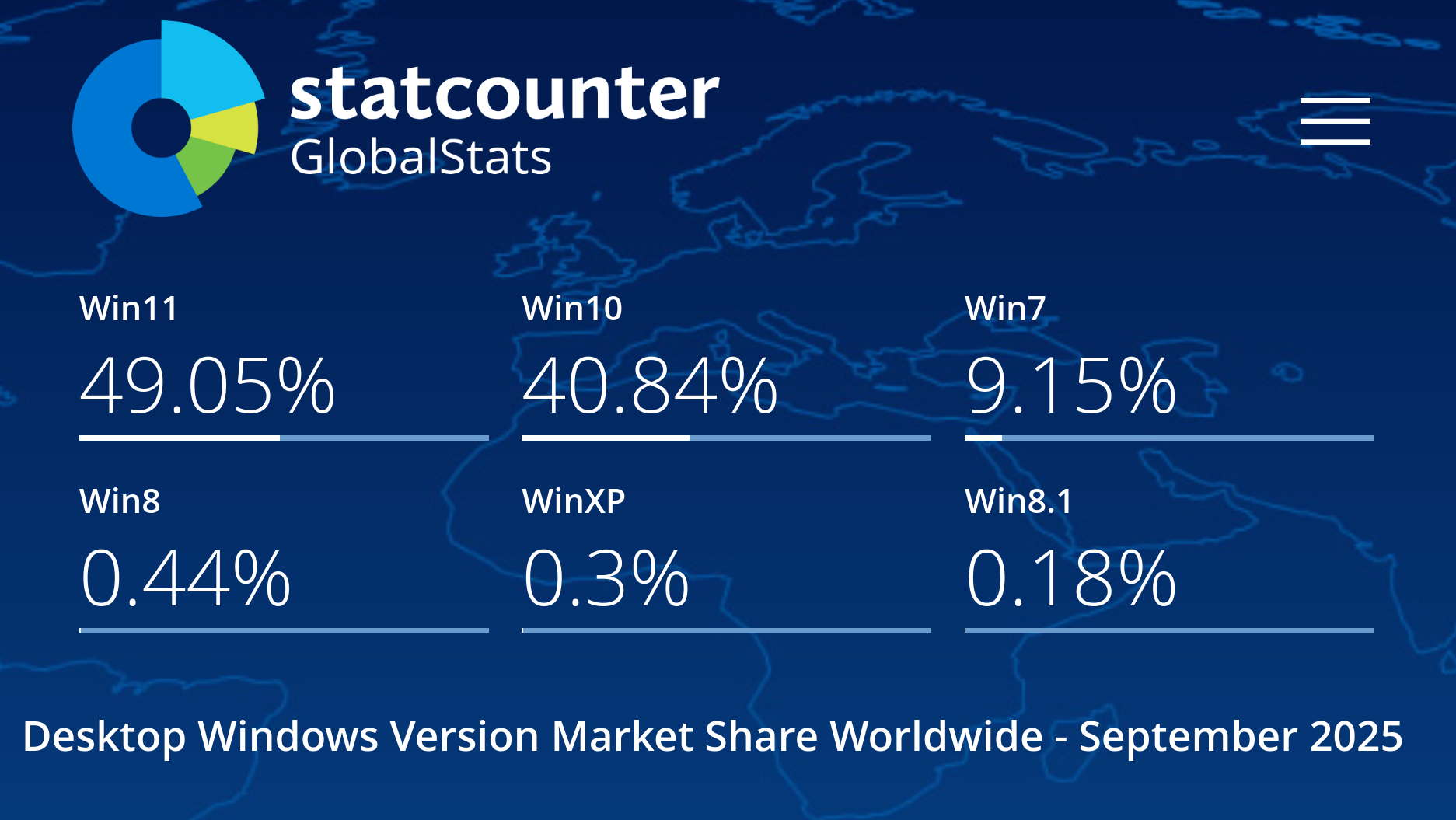
The easiest and simplest thing you can do is, Do Nothing. Just because Microsoft is killing Windows 10 support doesn’t mean your computer suddenly stops working. Even today, more than 10 percent of Windows users are running obsolete versions like Windows 8.1, 7, and XP. So you can definitely keep using Windows 10, but the moment you connect to the internet, you’re exposed. You might think, Why would anyone bother to attack me? But in this day and age, everything on the internet is a target. So this cannot be a long-term solution, unless you’re only using your PC for word processing.
1.2 - Install an Unofficial Windows 11 Version
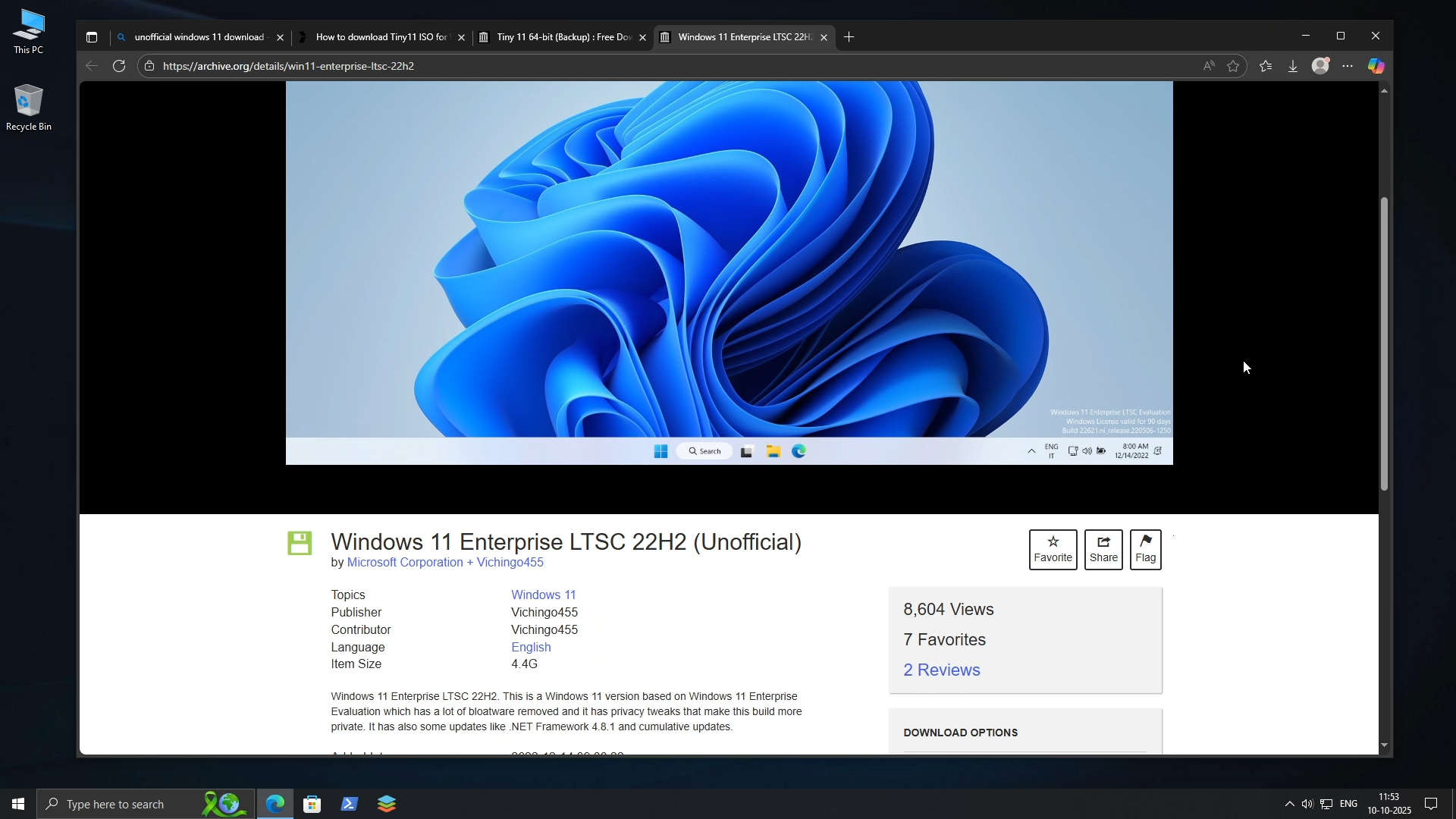
Next option, which I do not recommend, is to install an unofficial version of Windows 11. Yes, tools do exist to bypass the TPM check. But these are unofficial installs that Microsoft actively discourages. Even if you succeed in installing an unofficial Windows 11, Microsoft clearly states you won’t receive security updates. You would have to run these versions with disabled security features, potentially making your system even more unstable and vulnerable.
1.3 - Buy and Use Third-Party Security Patches
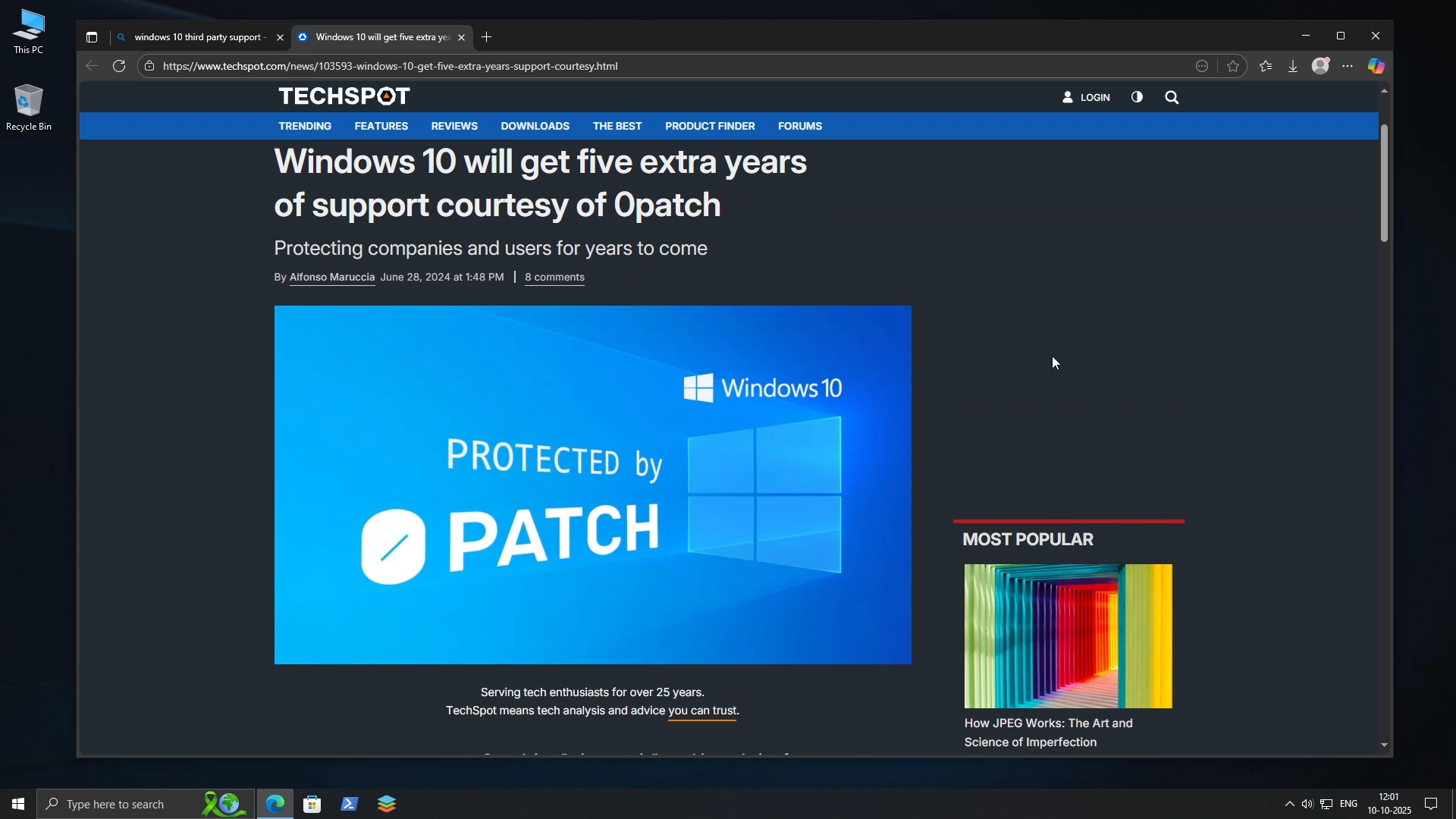
Then there are a few companies which are promoting that they’ll release security patches for Windows 10, but here is the catch: you’ll have to blindly trust an unknown company and the code they’re sending to your system. In my opinion, third-party patches are just a gamble with your system’s security. If anything goes wrong, there will be no one to blame but yourself.
2. The Temporary Fix: Microsoft’s Paid Solution
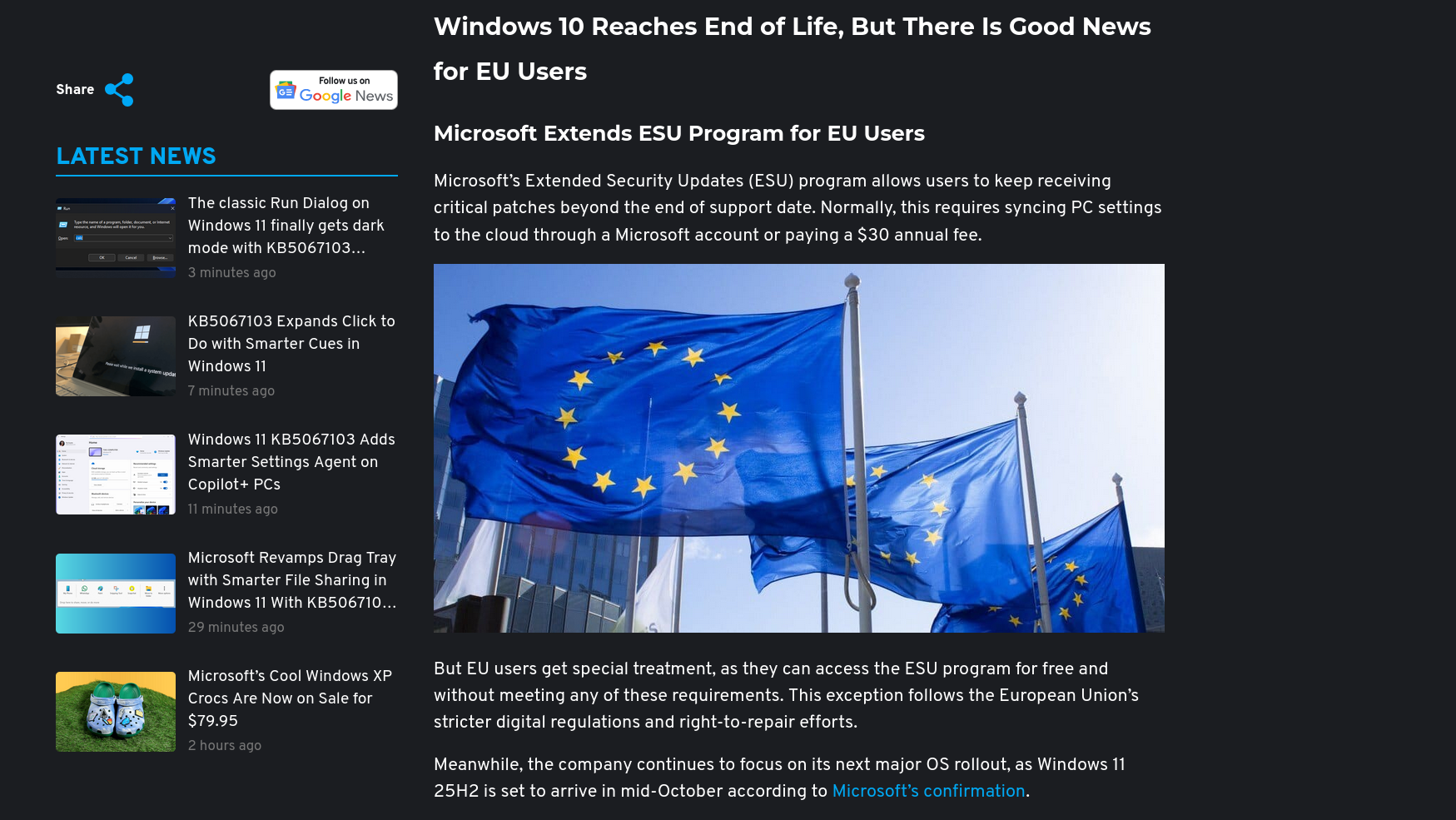
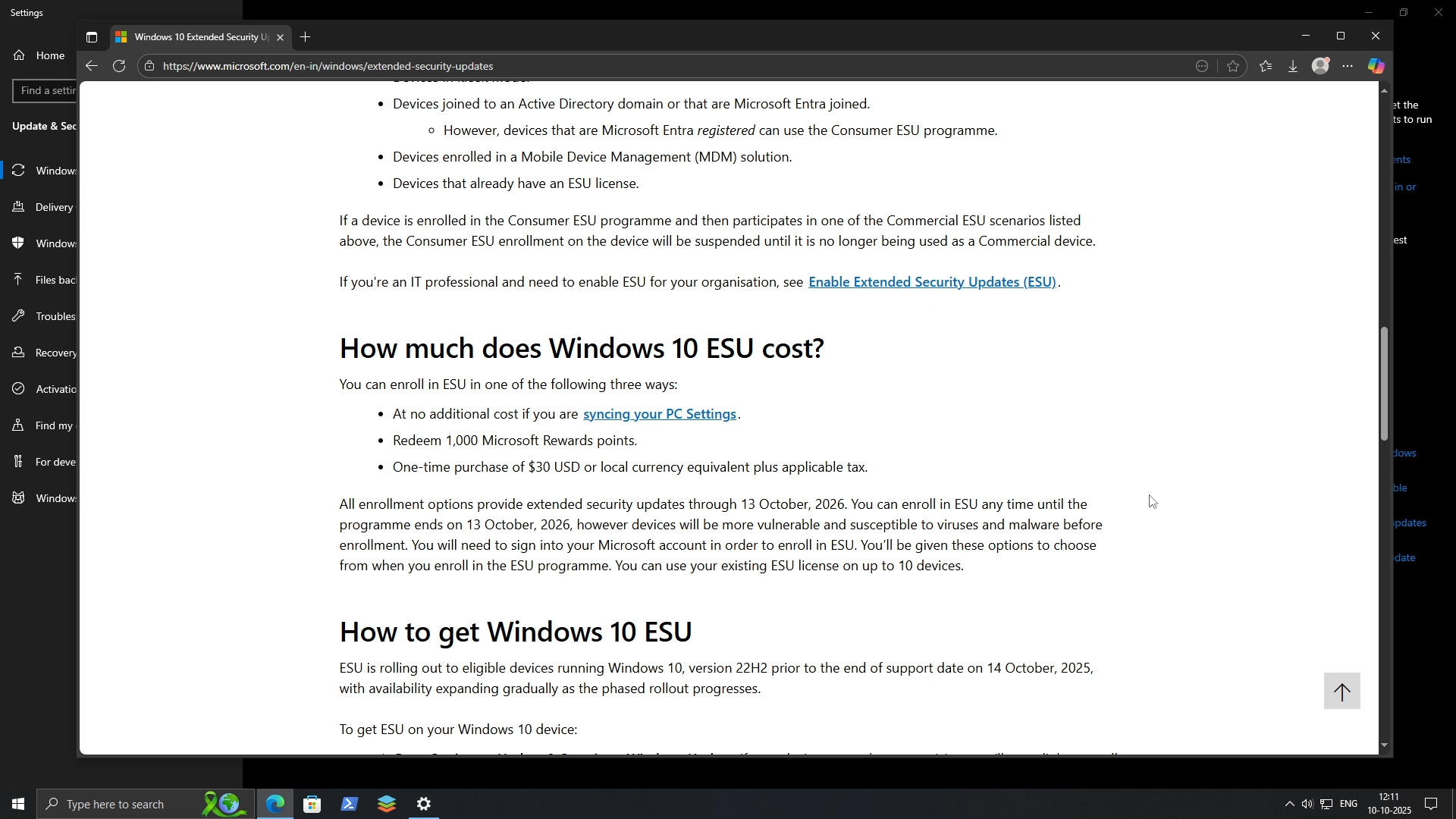
After a lot of backlash, especially in Europe, Microsoft was forced to offer one year of Extended Security Updates in the European Union and European Economic Area free of cost! This is a huge win for those users, but it’s a paid, temporary fix for everyone else, which confirms this whole situation is only about profit, not security. Microsoft announced they’ll provide customers the option to receive security updates for Computers enrolled in the Extended Security Updates Program, but only for a maximum of three years. You can enrol in ESU in one of three ways:
No. 1 - A one-time purchase of $30 USD or equivalent in local currency, plus applicable tax.
No. 2 - Redeem 1,000 Microsoft Rewards points, which most people don’t have.
No. 3 - At no additional cost if you’re syncing your PC settings, which means your files, themes, settings for installed apps, and Wi-Fi information. And we all know for what purpose Microsoft wants your personal information.
These Extended Security Updates are just a way to delay the inevitable.
3. The Hybrid Approach: Use Both Windows And Linux
3.1 - Use Windows 10 with a Linux Virtual Machine (or Vice Versa)
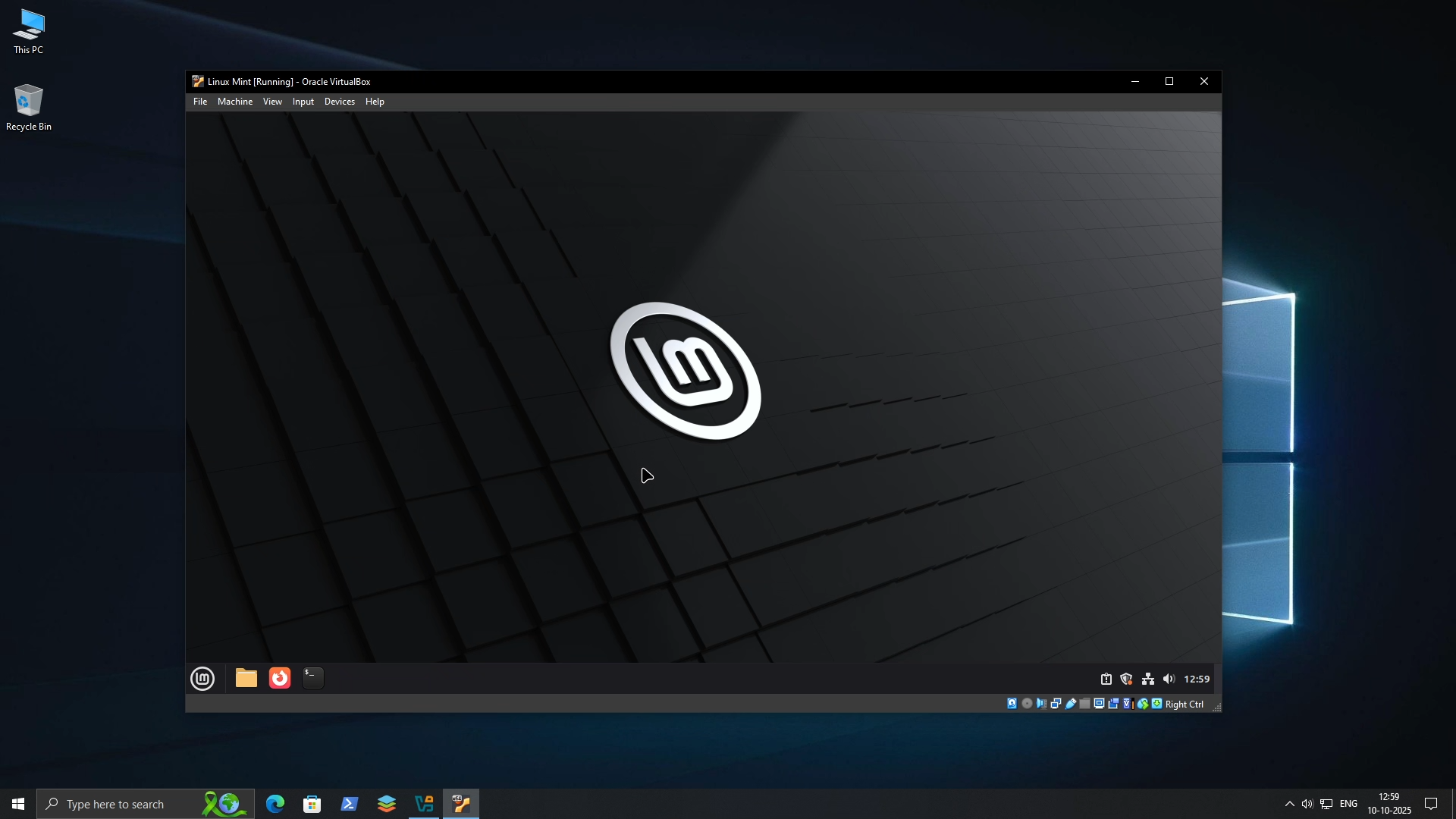
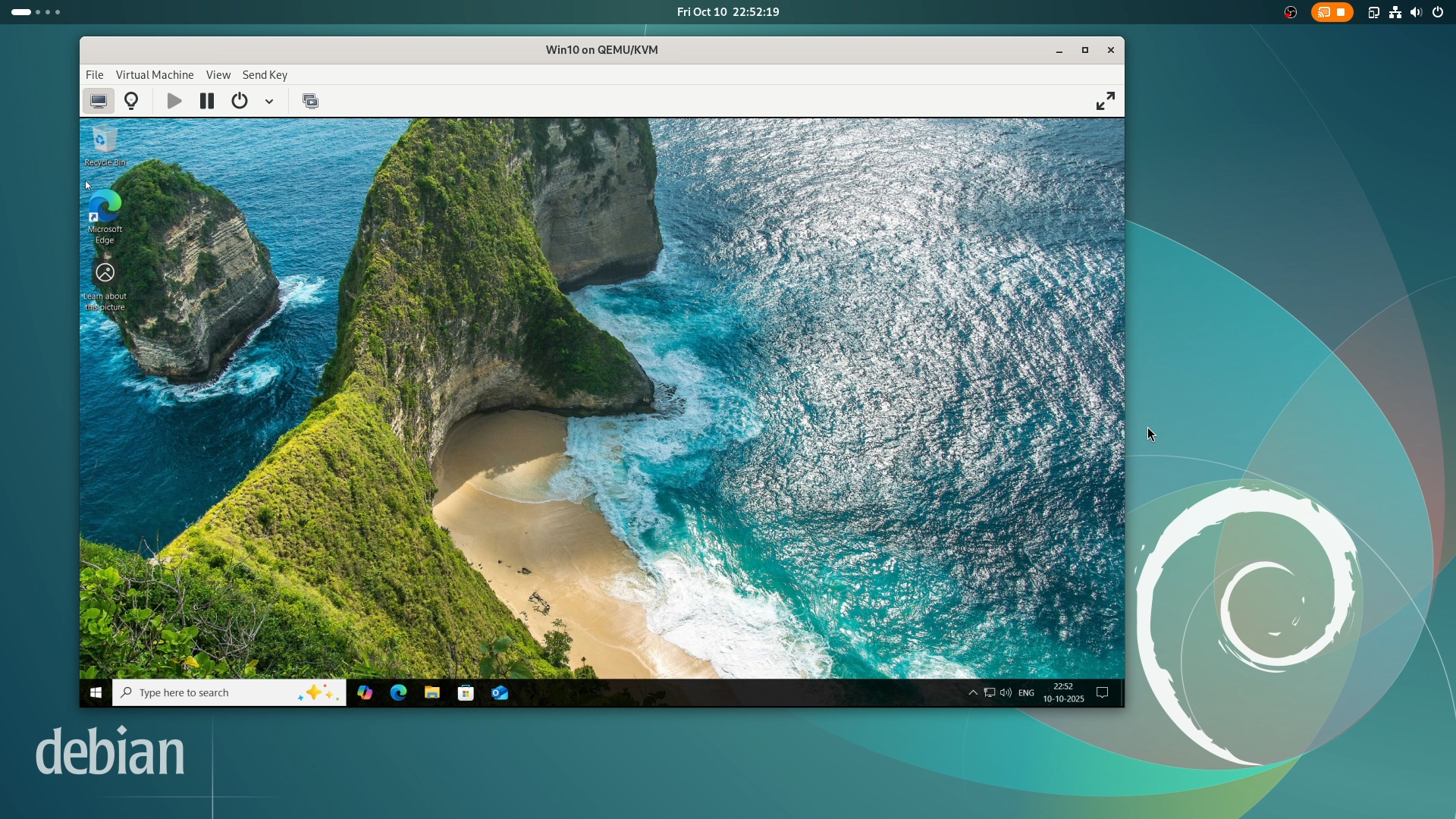
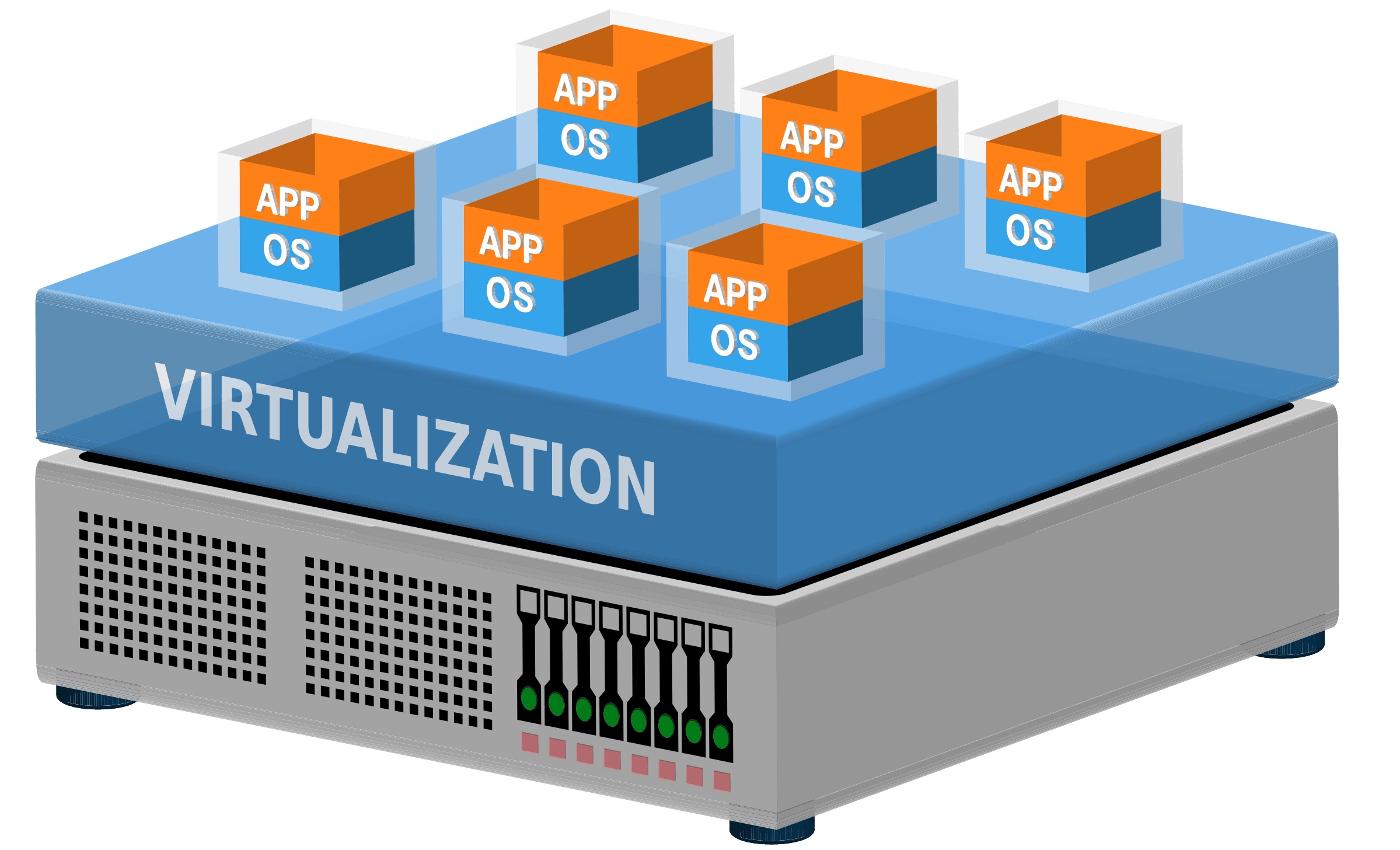
Through a Hybrid method, you can keep using your Windows 10 system as is, but you should never use it for any online activity. Instead, use a Linux virtual machine for all your browsing, banking, and online tasks. Or you can do the opposite: run a completely offline Windows 10 as a virtual machine inside a Linux host. This way, you contain the security risk, as the Linux host becomes your shield.
3.2 - Dual Boot Linux with an Offline Windows 10
Or else you can dual-boot a Linux distro with an offline Windows 10; the same principle applies here too, where you’ll use Linux for all your online activities like browsing and banking, and use Windows 10 to run Windows-only applications in offline mode.
4. The Permanent Fix: Fully Migrate to Linux
This final option is my official recommendation, which is fully migrating to a Linux-based system. I understand that a few days isn’t much time to learn a new operating system, but it is certainly enough to install a modern, secure, and free one. Linux is actively maintained, runs faster and better on older hardware, and gives you free security updates for as long as your system lives, no planned obsolescence, no artificial limitations.
With Linux, you’re not just buying time; you’re buying your freedom.
Take Action Now
This deadline is indeed a security threat, but it’s also an invitation to a better world of computing. If you want to know exactly how easy it is to make the switch and which Linux distro is right for you, explore the resources available on this site about getting started with Linux.
Remember, Microsoft doesn’t own your computer; you do. Don’t throw away your PC on International E-Waste Day. Migrate to Linux.
]]>
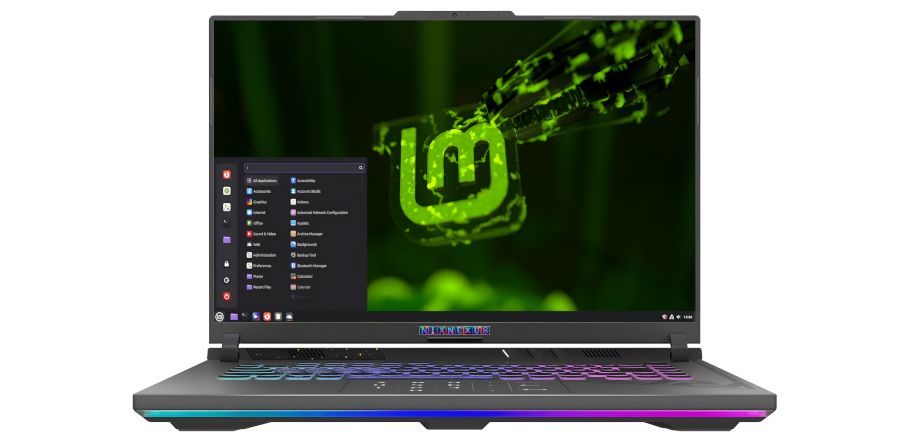
Linux Mint 22.2 "Zara" - A Complete ReviewNixNexushttps://nixnexus.org/linux-mint-222-zara-a-complete-review/2025-09-29T20:21:00+05:30Linux Mint is one of the most popular and widely used desktop Linux distributions in the world, trusted by millions of people every single day. Alongside Ubuntu, it is often regarded as one of the most influential Linux projects ever created, especially for everyday desktop users. Many consider it as one of the best alternatives to Microsoft Windows and Apple MacOS, thanks to its familiar layout, stability, and ease of use.
Linux Mint work flawlessly right out of the box on both desktop and laptop computers. And it comes fully equipped with a carefully chosen set of applications that cover the needs of most users.
Linux Mint deliver a modern, elegant, and comfortable operating system that strikes the perfect balance between power and simplicity. It’s designed to be intuitive for newcomers while still offering flexibility and depth for experienced users.
In early September of 2025, Linux Mint added a new chapter with the release of version 22.2, codenamed “Zara.”. This is a Long-Term Support release, built on the rock-solid foundation of Ubuntu 24.04 LTS, and it will receive updates and official support until 2029, making it a safe and reliable choice for the years ahead.
Official Website And ISO Download Process
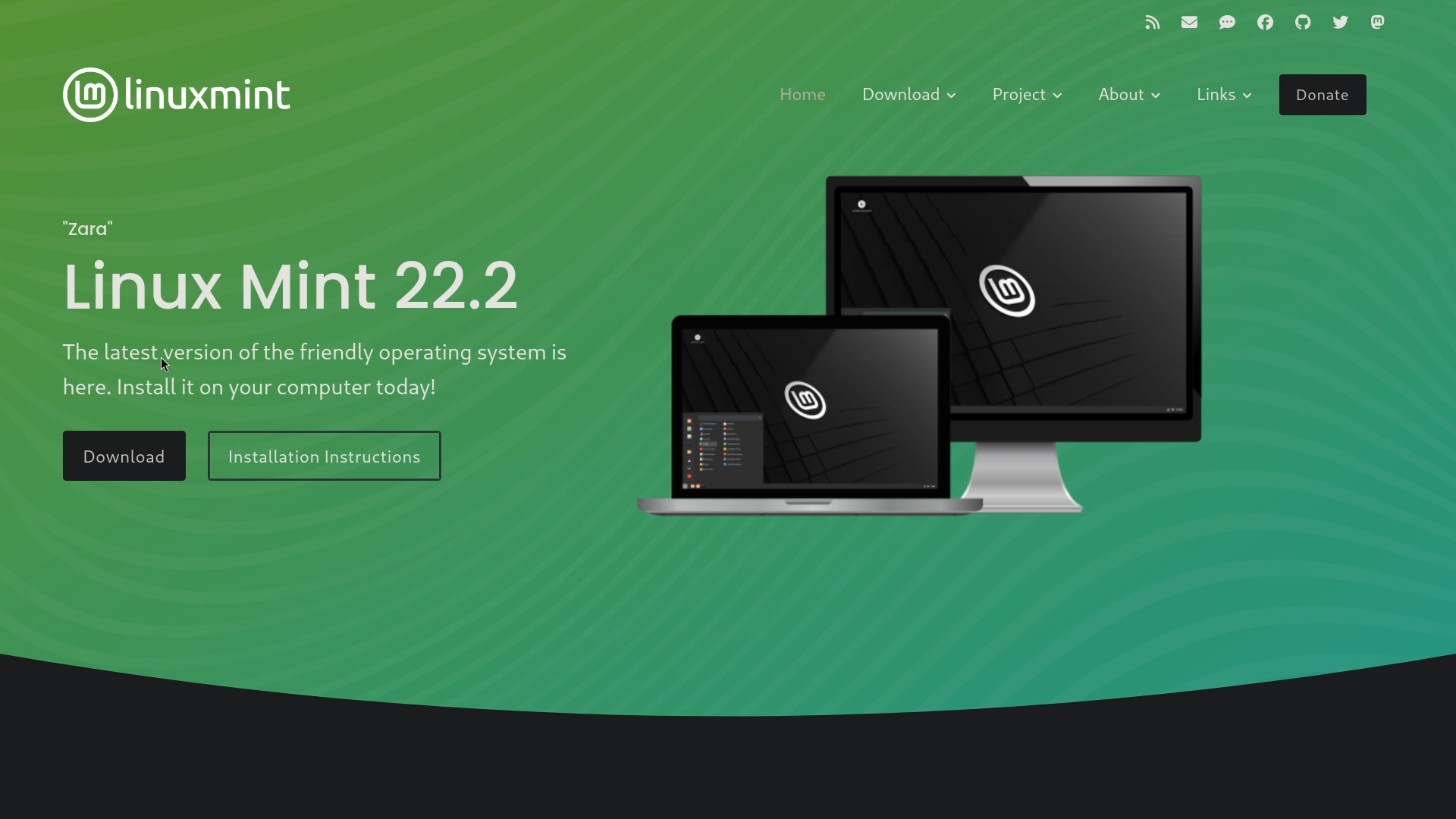
The official website is clean, elegant, and simple to navigate, making it beginner-friendly from the very first click. The download section, the about section and other important information and links are neatly organised, meaning visitors will be able to find whatever they are looking for very easily.
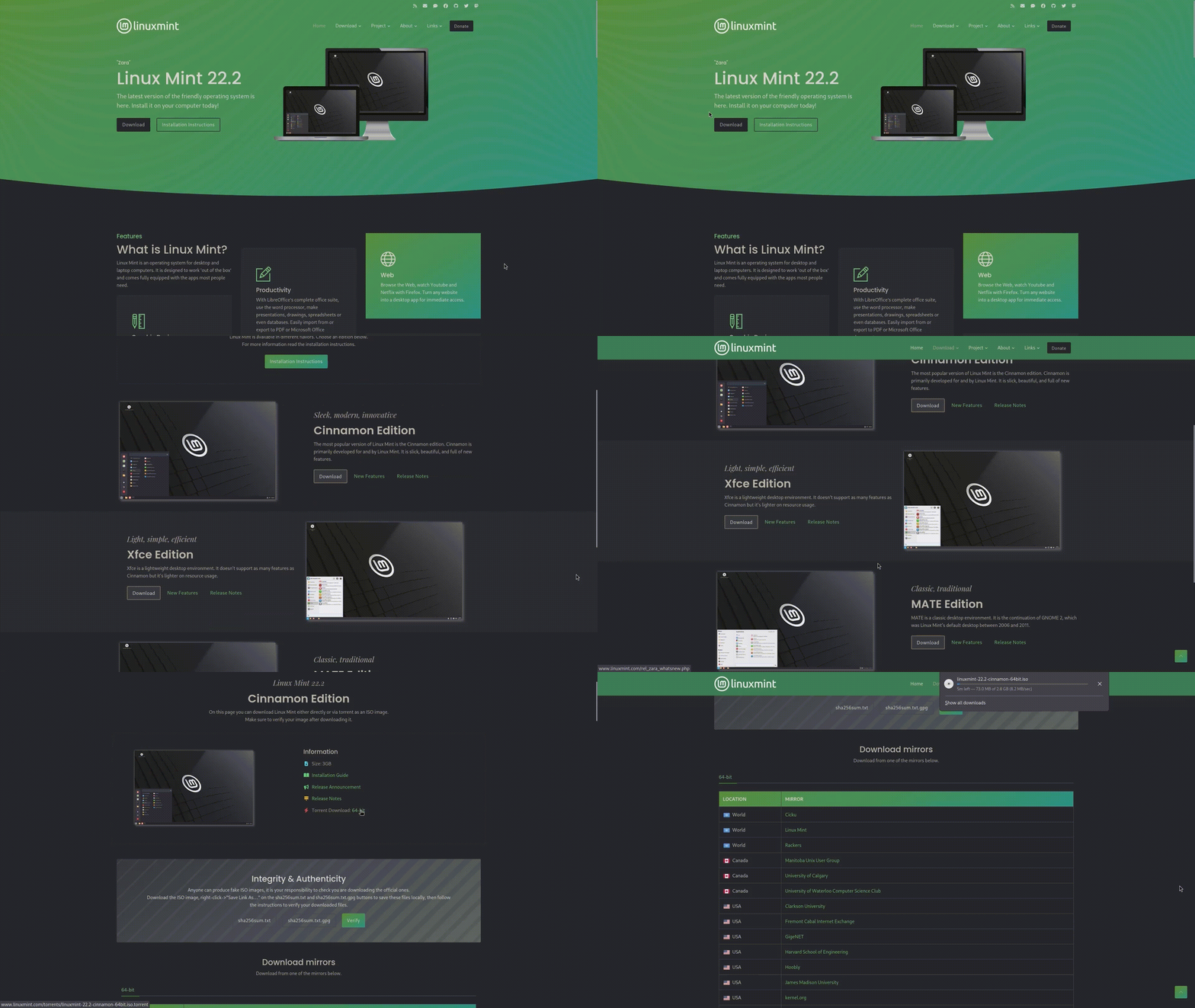
The downloading process for the Linux Mint installation ISO is a cakewalk as always, because as soon as you land on their website, the first thing you will see is the bold “Download” button of the Latest release. And when you click on that “Download“ button, it will take you to the Main Downloads page, where you can choose Linux Mint with your preferred Desktop environment. Linux Mint officially offers three different editions, namely Cinnamon, Xfce and Mate, who has their own respective Download page, Features page and Release Note page.
Again, clicking these respective download buttons will take you to their separate Download page, where you can download the ISO via torrent or through their official download mirrors. After the downloading process is completed. All you have to do is create a Bootable USB drive, using programs like Rufus or Ventoy, and boot into the Live USB drive.
By the way, one important detail to note is that Linux Mint only support 64-bit hardware, so you cannot install it on a 32-bit machine.
Installation Experience
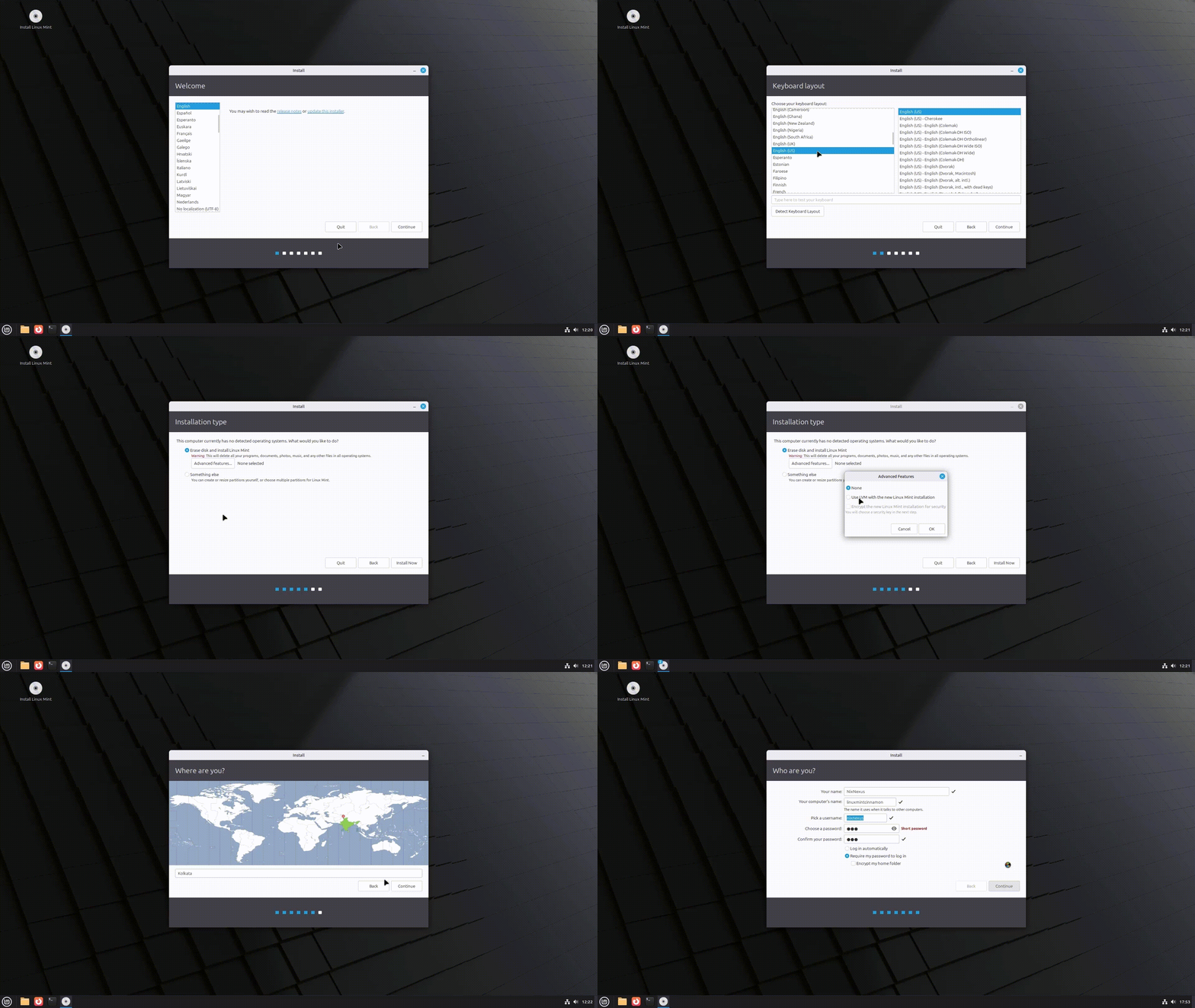
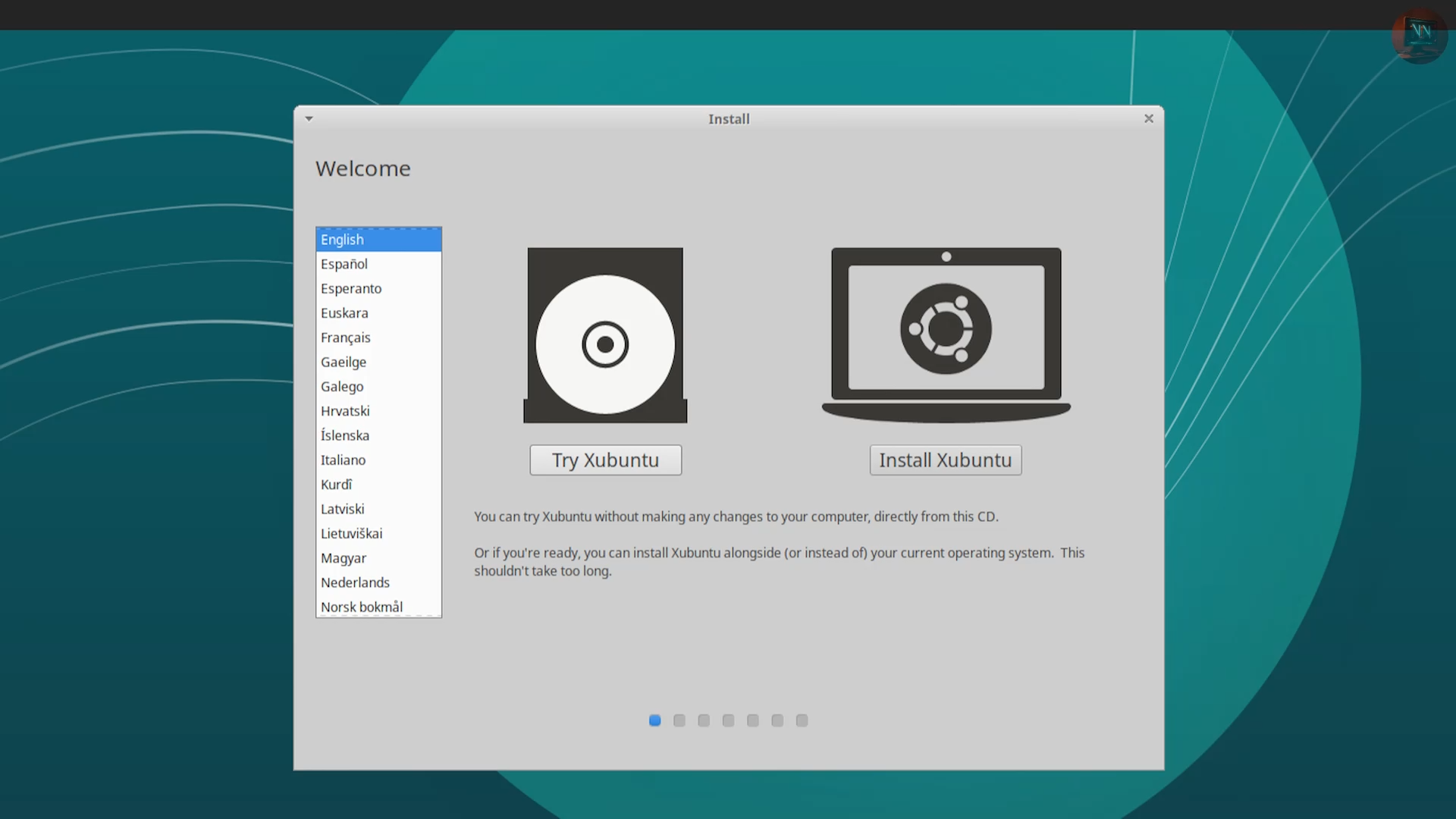
The installation of Linux Mint Zara is a fairly simple and beginner-friendly process, which is consistent across all three editions. It begins with a fully functional Live environment, which allows you to explore, experiment, and test the system without making any changes to your hard drive.
The actual installation process is managed by the Ubiquity installer, a simple tool that only requires you to answer seven basic questions, like language selection, keyboard layout, disk partitioning, user creation, disk encryption, and a few others. Once these are set, the installation proceeds quickly and efficiently.
In fact, no matter which edition you choose, Linux Mint Zara typically installs in just 8 to 9 minutes, making it one of the fastest and smoothest installation experiences among desktop Linux distributions.
Out-of-the-Box Experience with Desktop Environment & User Interface
Linux Mint 22.2 is available in three editions: Cinnamon, a homegrown but flagship desktop environment; and Mate and Xfce, both slightly customised by the Mint team for a consistent experience.
Visually, all three editions look simple yet elegant and appealing. The icons, themes, and fonts are all consistent, well-chosen and complement each other very well.
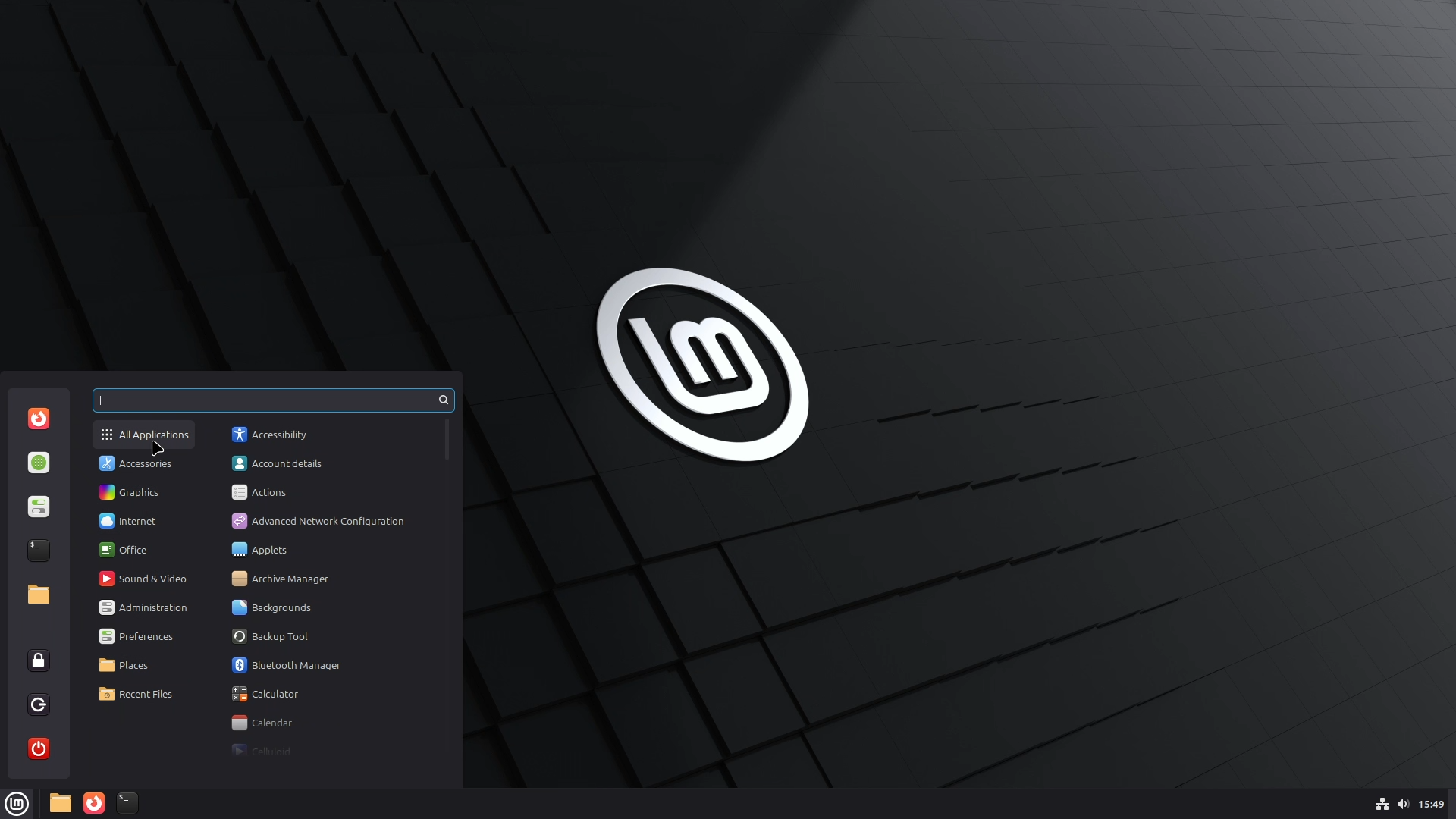
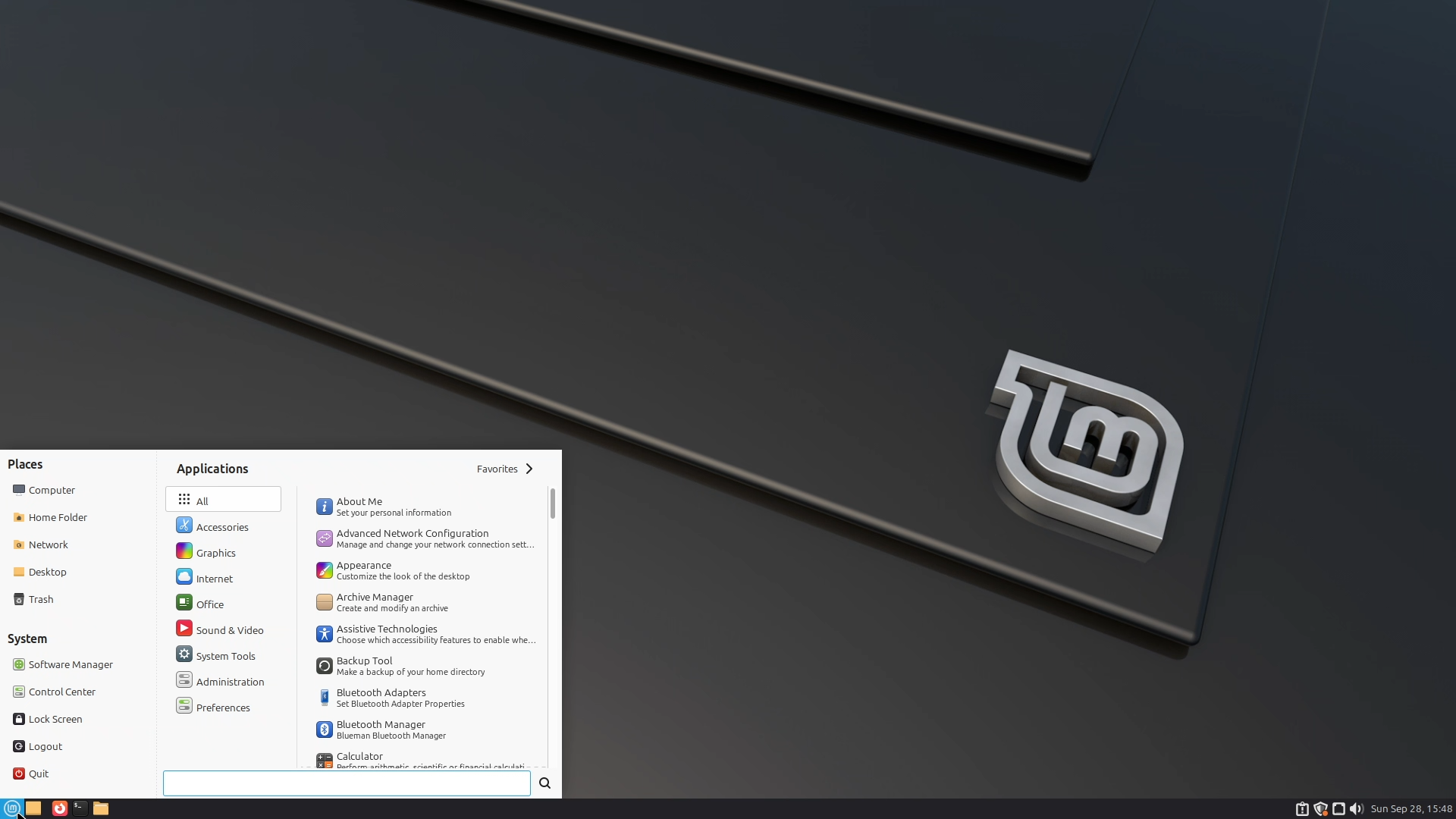
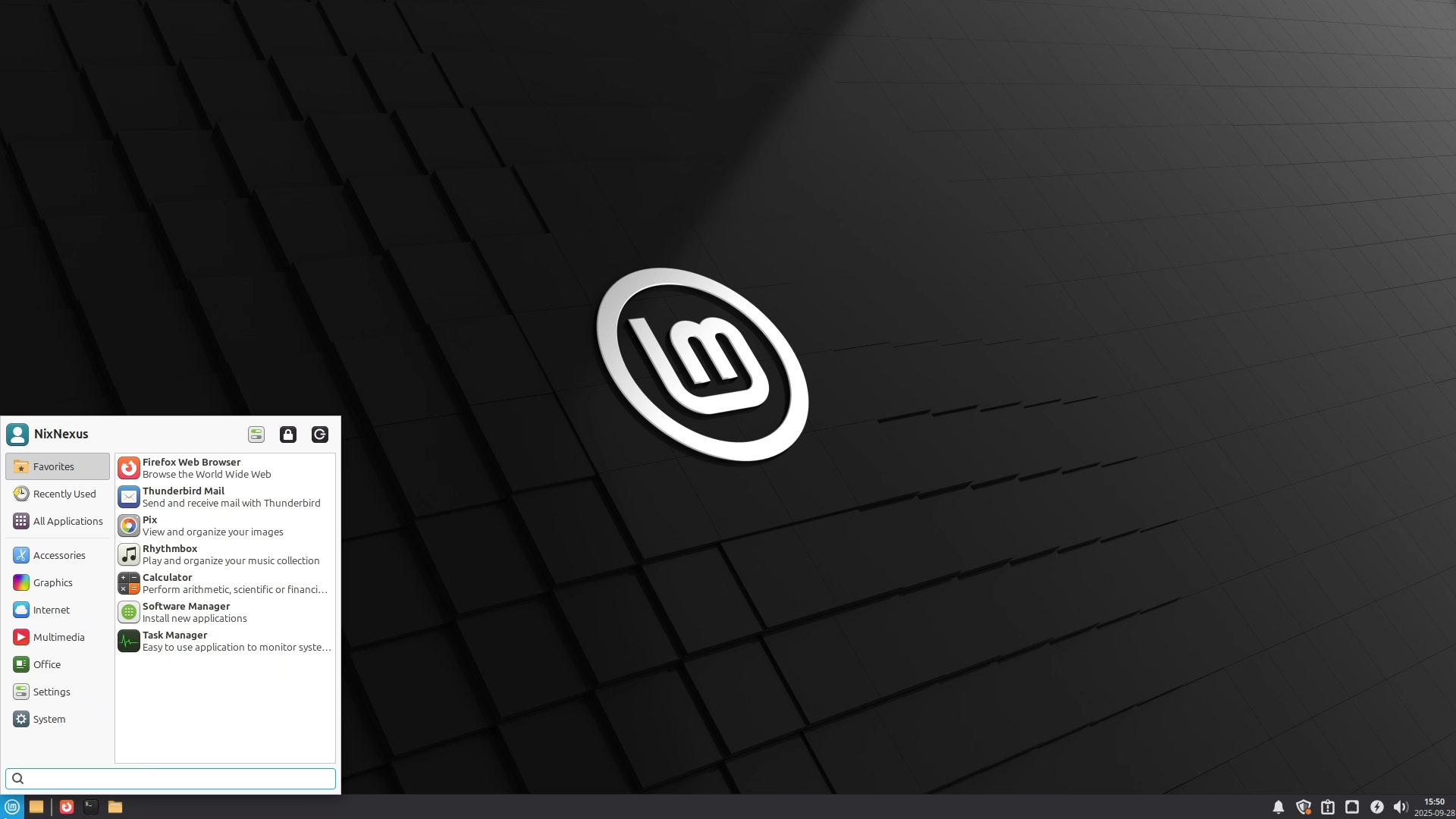
The user interface is intuitive and beginner-friendly, making everyday tasks like connecting to the internet, managing files, adjusting display settings, or changing the desktop background effortless. The Start Menu is well-organised into categories across all editions, so even new users, especially those switching from Windows, can quickly find what they need, without any confusion or hassle.
Software, Package & Update Management
Linux Mint Zara comes preinstalled with a wide range of useful applications. Like Celluloid, for watching videos and movies, Firefox, for securely surfing the web, LibreOffice, for productivity tasks, and Web Apps, for turning any website into a desktop application.
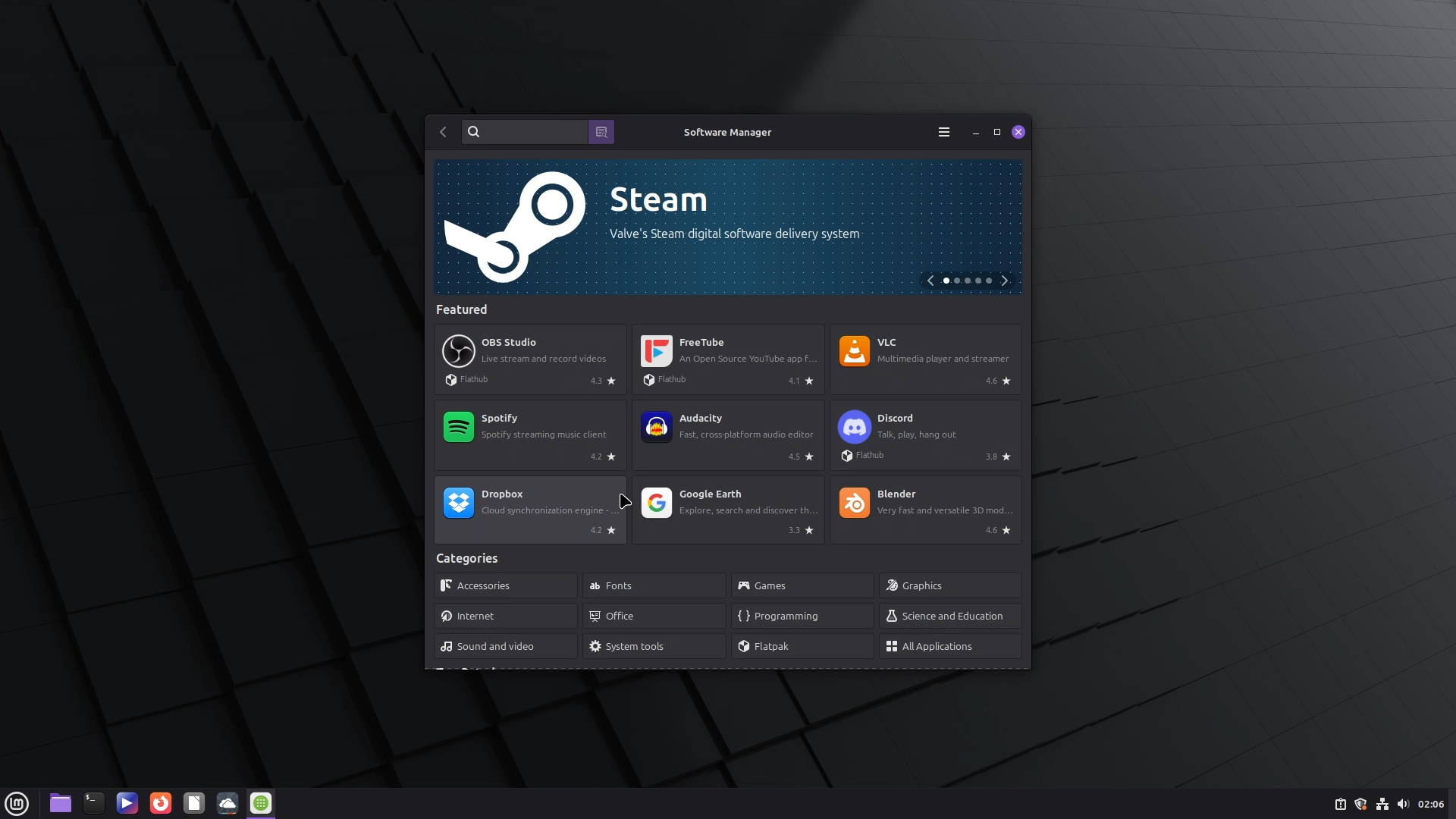
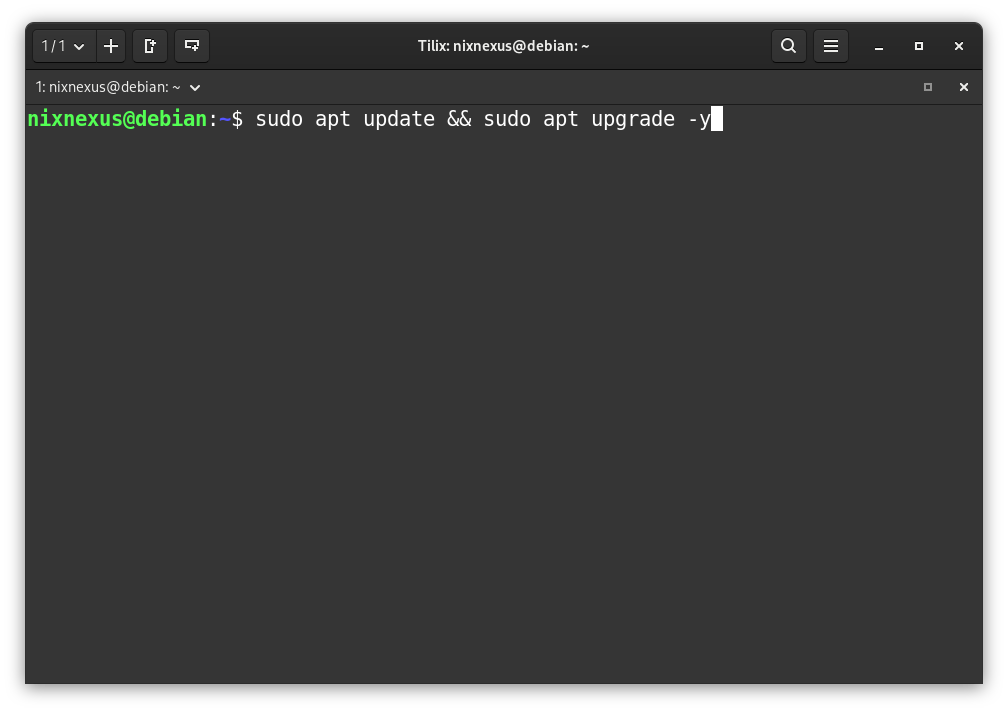
For additional software, Linux Mint offers a fast, reliable, and well-stocked Software Manager. It also supports modern universal packaging formats like Flatpak and AppImage. And as Linux Mint is based on Debian and Ubuntu, it also provides support for the “apt“ package manager, meaning you will have one of the largest libraries of software that you will ever need.
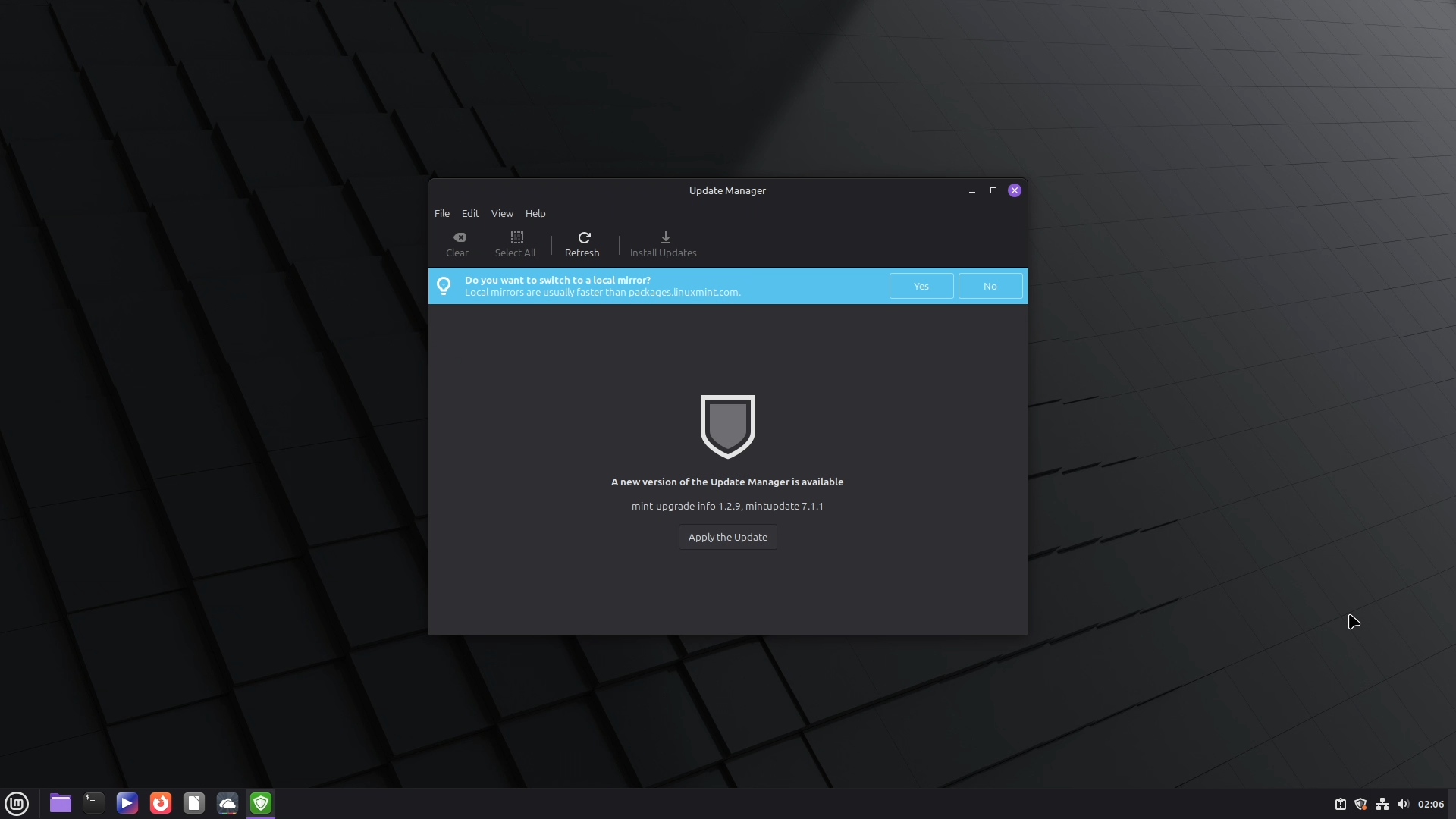
Plus, the built-in Update Manager in Linux Mint makes maintaining your system effortless, where, in a few clicks, you can update and upgrade the system, take snapshot backups, or even change your system’s kernel.
New Included Features
Linux Mint 22.2 has introduced several refinements and fresh features. It now ships with Linux kernel 6.14, along with an improved login screen with blur effects and user avatars.
The Sticky Notes app has been redesigned with rounded corners for a cleaner look. Hypnotix now supports Theatre Mode and Borderless Mode for distraction-free viewing, along with performance boosts. A completely new XApp called Fingwit enables fingerprint authentication for login, running sudo commands, and accessing admin apps. Under the hood, LibAdwaita now works seamlessly with theming and is supported by Mint-Y, Mint-X, and Mint-L themes. The XDG Desktop Portal XApp introduced support for accent colours, which is consistent across Cinnamon, MATE, and Xfce editions. On top of this, XApps and artwork received multiple improvements for an overall polished experience.
Performance, Stability & Hardware Usage
Linux Mint Zara, like its predecessors, feels very Snappy, Smooth, and stable. Applications launch quickly, and you will rarely feel any lag while multitasking. And I have never experienced any crashes, glitches, or bugs during my testing.
The Boot-up and shutdown timings are also quite fast; on a fresh virtual machine install, all the Linux Mint editions boot up within 8 seconds and shut down in just 6 seconds.
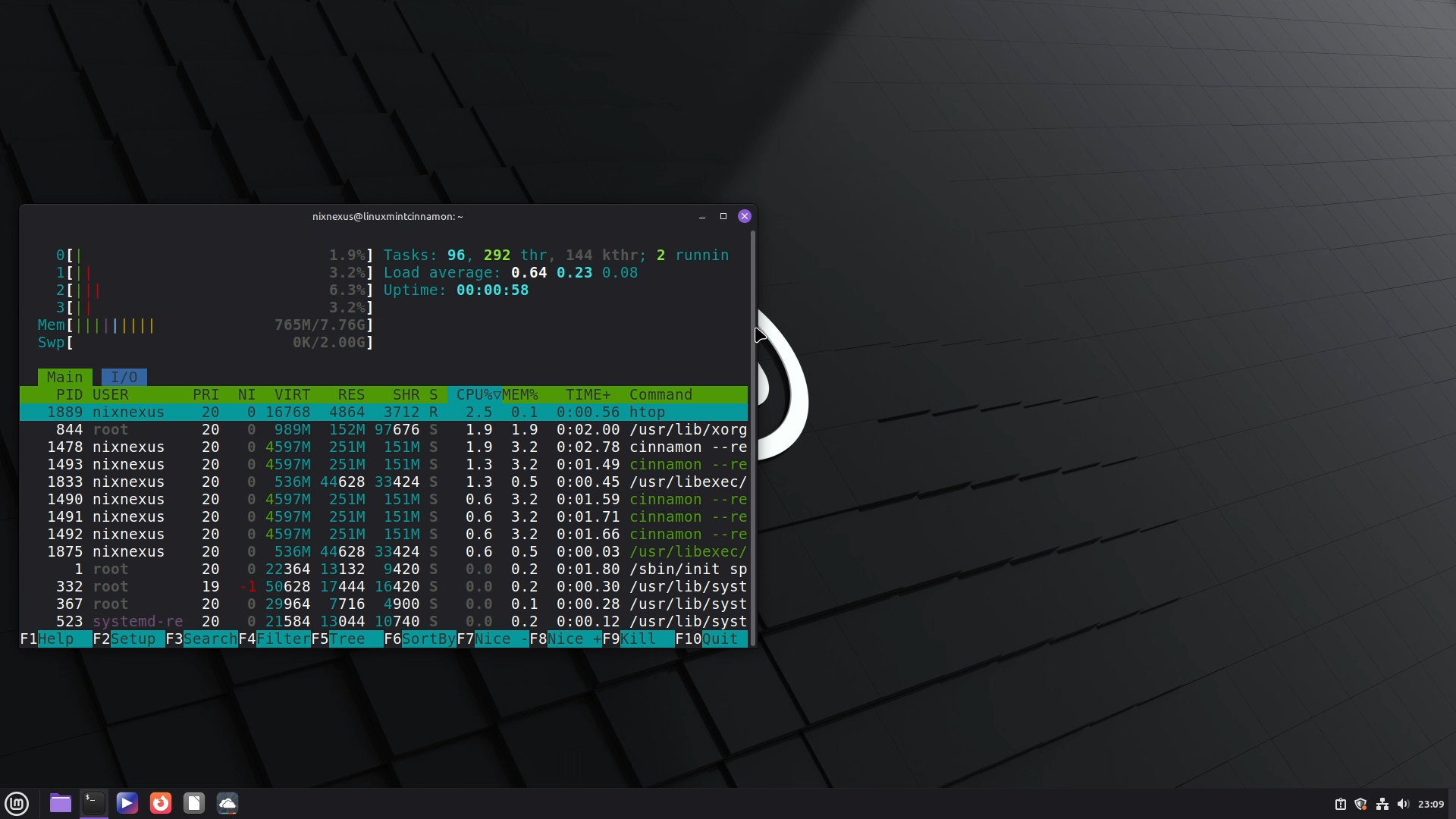
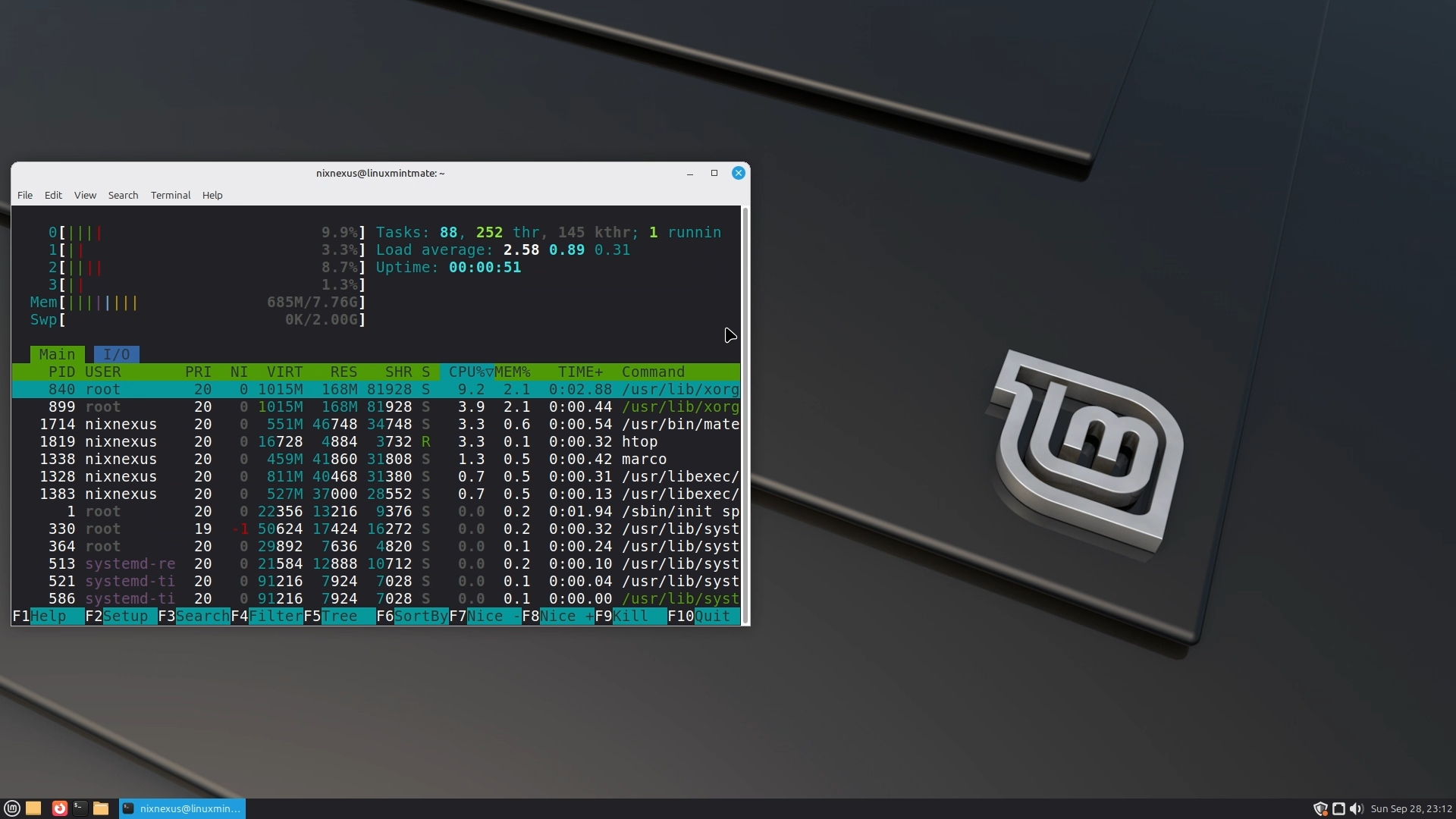
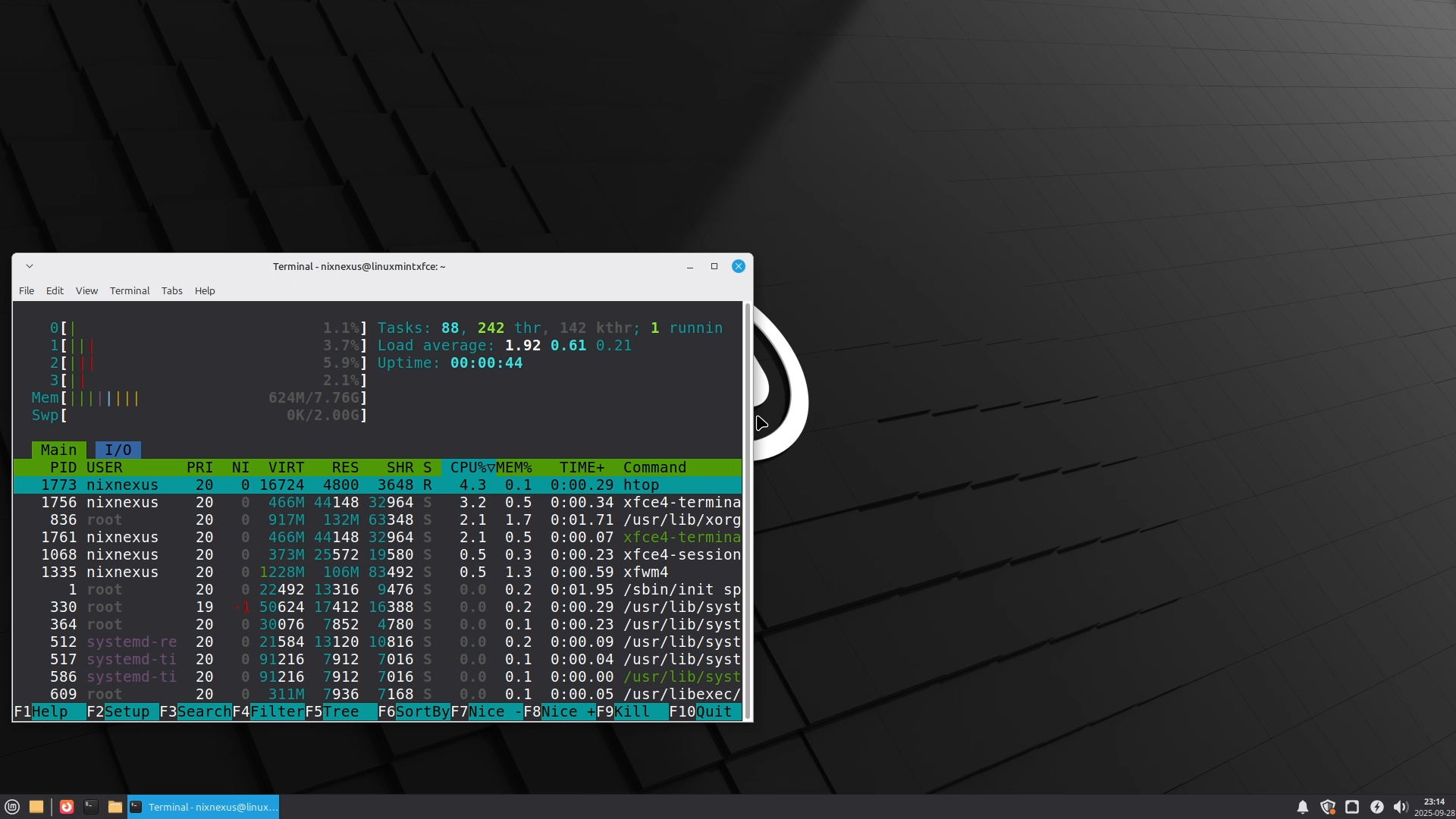
At idle, the average system load, in all three editions, stays under 1% and the Memory usage in the Cinnamon Edition hovers between 750-760 MB, in the Mate Edition it is between 690-700 MB and in the Xfce Edition it lies between 650-660 MB, proving how efficient and lightweight Linux Mint really is.
Community & Support
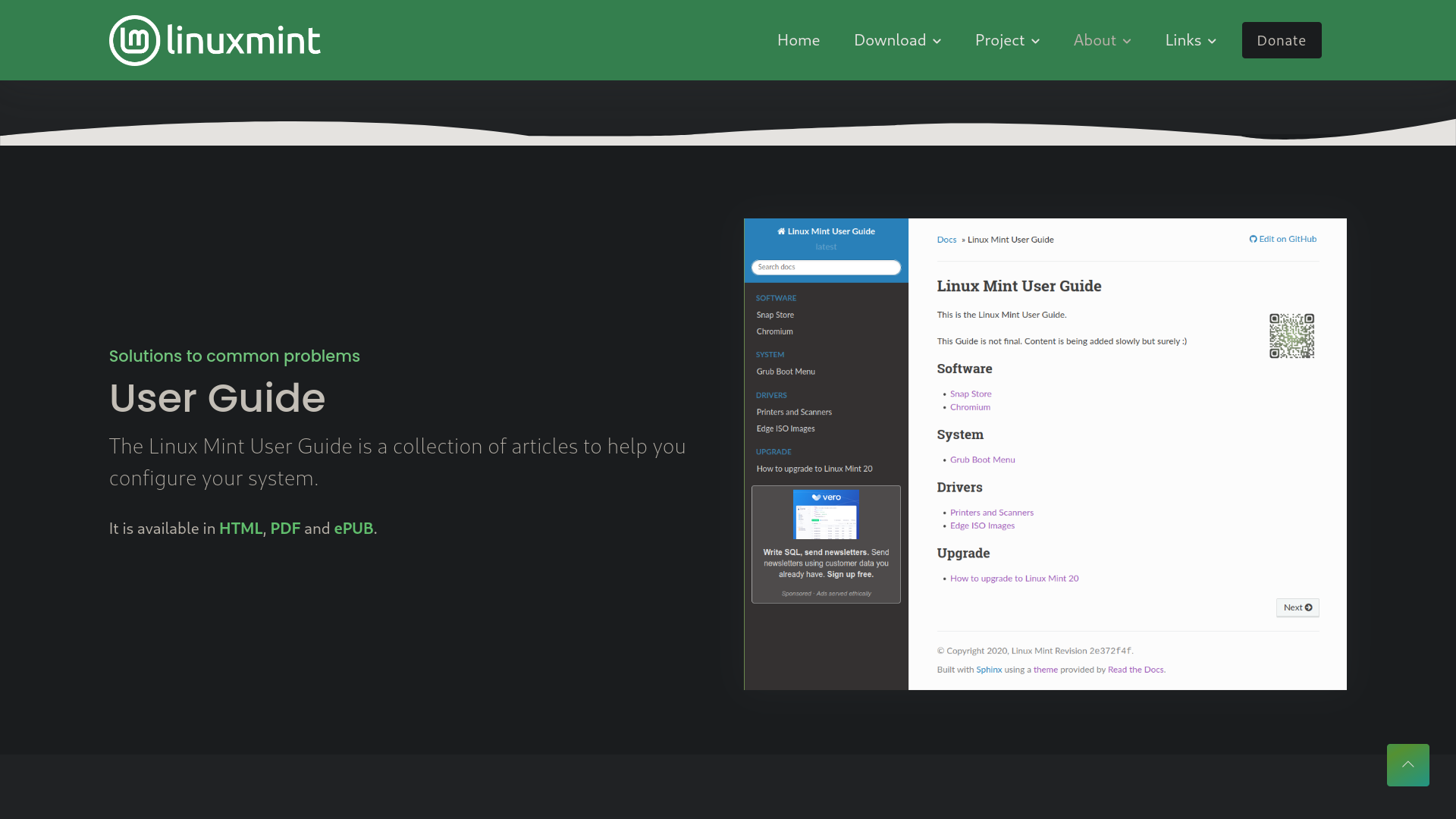
The official Linux Mint documentation is both comprehensive and easy to follow, which is divided into five sections. Namely - Installation Guide, User Guide, Troubleshooting Guide, Developer Guide, and Translation Guide. In addition, the project maintains a strong presence on platforms like Facebook, Twitter, Mastodon, and GitHub, where users can share problems and find solutions.
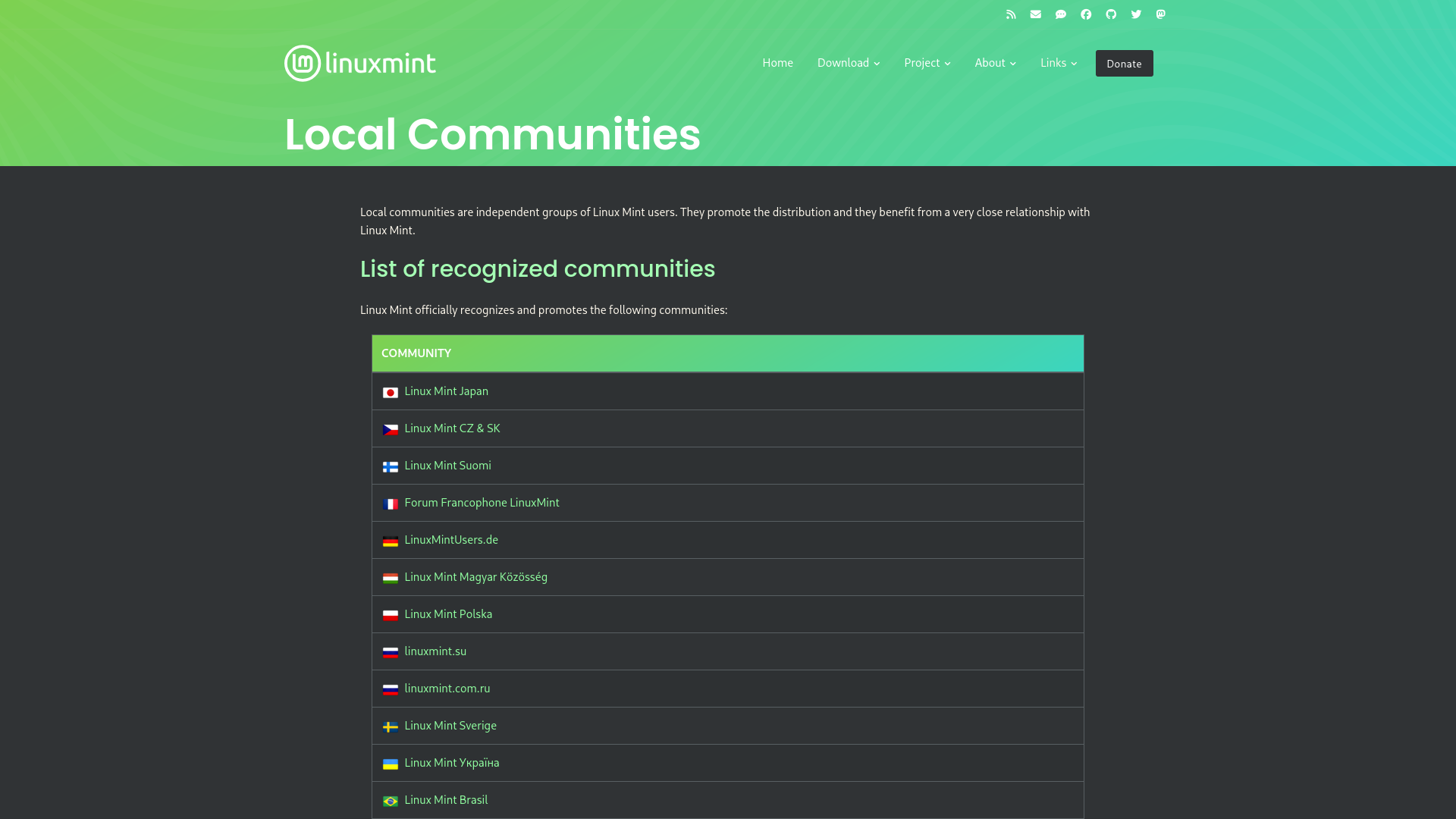
And complementing this, Linux Mint has its large and vibrant global community, supported by numerous smaller local groups around the world. On top of that, official spaces like the Linux Mint Forum, Subreddit, Discord server, and IRC channels make it easy to connect with other users, ask questions, and receive timely support.
So, Who is Linux Mint Intended For?
Linux Mint is a user-friendly Linux distribution known for its simplicity, stability, and out-of-the-box experience. It comes bundled with essential software, multimedia codecs, and powerful tools like Update Manager, Timeshift Backup Manager, and a Driver Manager, making it an excellent choice for beginners and everyday users.
Featuring three different desktop environments, which all provide a familiar, Windows-like interface, Linux Mint ensures that users transitioning from other operating systems can quickly adapt without a steep learning curve.
While Linux Mint prioritises stability over bleeding-edge updates, its strong global community, rich documentation, and customisable desktop make it a reliable choice for both newcomers and experienced users.
]]>
I Thought Linux Was Free. I Was So WrongNixNexushttps://nixnexus.org/i-thought-linux-was-free-i-was-so-wrong/2025-07-01T17:05:00+05:30
What is the first thing that comes to your mind when you think of Linux? Open Source and Free, isn’t it? Free from restrictive licenses, free to customise, free to modify, and free to share.
But what if I told you that most Linux distributions are not as free as you might think? The answer might surprise you. But that is the truth. According to GNU and FSF, most of the popular Linux distributions do not make the cut. Arch, Debian, Fedora, Ubuntu, Linux Mint, OpenSuse, Slackware, and so many others, but none of them qualify as a Complete Free And Open Source Distribution.
Because according to GNU and FSF, when we talk about free software, we are not just talking about free of cost. Here, “Free” means freedom, Freedom of everything. Freedom of Usage, Freedom to modify, and Freedom to share software without any restrictions.
Now, if you’re not familiar with GNU and the Free Software Foundation (FSF), here’s a quick breakdown. The GNU Project was launched in 1983 by Richard Stallman with the goal of creating a completely free and open source operating system, and it eventually developed many key components, including the GNU Compiler Collection (GCC), the GNU Core Utilities, and the GNU C Library (glibc), which, when combined with the Linux kernel, which was separately developed by Linus Torvalds, form the now widely used GNU/Linux operating systems. To further support his initial mission of software freedom, Stallman also founded the Free Software Foundation (FSF) in 1985. The FSF is a nonprofit organisation that promotes free software and fights against proprietary restrictions, and it remains the main sponsor of the GNU Project. Together, GNU and FSF have played a crucial role in shaping the modern landscape of open computing.
Free Distro Guidelines & Why GNU Don’t Endorse Most Popular Distros
The GNU Project and the Free Software Foundation have set clear guidelines for what constitutes a truly free or ‘libre’ operating system. Here’s a brief summary:
A free system distribution must be complete, self-hosting, and rely only on free tools and software. All practical-use information, which includes software, documentation, and fonts, must be provided in source form under a free license. The system must avoid steering users toward nonfree software, exclude nonfree firmware, and maintain functional integrity by removing such components when found. Trademarks and non-functional data are acceptable if they don’t restrict copying, redistributing or overall functionality. Documentation must avoid recommending nonfree software, and patent concerns are generally disregarded. The distribution must have no DRM, back doors, or spyware, and developers must commit to promptly fixing mistakes. Active maintenance, clear reporting channels for nonfree software issues, and distinct naming to prevent confusion with nonfree distributions are required. Lastly, distributions should promote software freedom, educate users about the use of free software, and avoid misleading terminology as well.
As a result of this strict guideline, many popular Linux distributions are not endorsed by GNU and the FSF, because they fail to follow the Free System Distribution Guidelines (FSDG). Not only this, as per GNU, almost all the popular distributions fail to follow the guidelines in at least two important ways mentioned:
1. These Distributions lack a clear policy, to include only free software or remove nonfree software when found, and even the few with policies are not strict enough.
2. The kernel that these distributions distribute, which is usually the Linux kernel, most of the time, contains proprietary and closed-source firmware.
Why It is Important & Why Optionally Free Is Not Enough
Many people will find these set guidelines to be extreme, because for ordinary users convenience is the most important thing. People want their Wi-Fi and Graphics Card to work out of the box. They want support for their hardware. But according to the GNU and the FSF, when a Linux distro includes nonfree software, it creates two major problems:
1. It Encourages Nonfree Software Use, because if it’s included, users are more likely to use it without questioning its impact on their freedom.
2. It Misleads the Community, because it shifts the focus from freedom to convenience and sometimes compromise.
According to GNU and the FSF, Nonfree distribution often present their inclusion of nonfree software as a feature, undermining efforts to prioritise freedom. And that’s not just bad for individual users. It’s bad for the entire free software movement, and most importantly, Optionally Free Is Not Free at all. Distros that let users choose only free software are better than those that don’t. Because Most people don’t realise the importance of avoiding non-free software and might not pick the free one as their first option.
However, GNU and the FSF also add an important point at the end. They add - That the distros with nonfree software can be recommended privately to experienced user who usually supports free and open-source software, but openly they will only endorse the distros that completely avoid including or suggesting nonfree software to ensure users aren’t inadvertently led to installing or using it.
For GNU and FSF it’s critical that people choose a distribution that not only values convenience but also upholds the core principles of freedom, because a truly free operating system always ensures that users aren’t unknowingly compromising their freedom for short-term ease. They’re not saying that you shouldn’t use your favourite distro. But they want you to understand the trade-offs and make an informed choice.
List of Completely Free GNU/Linux Distributions
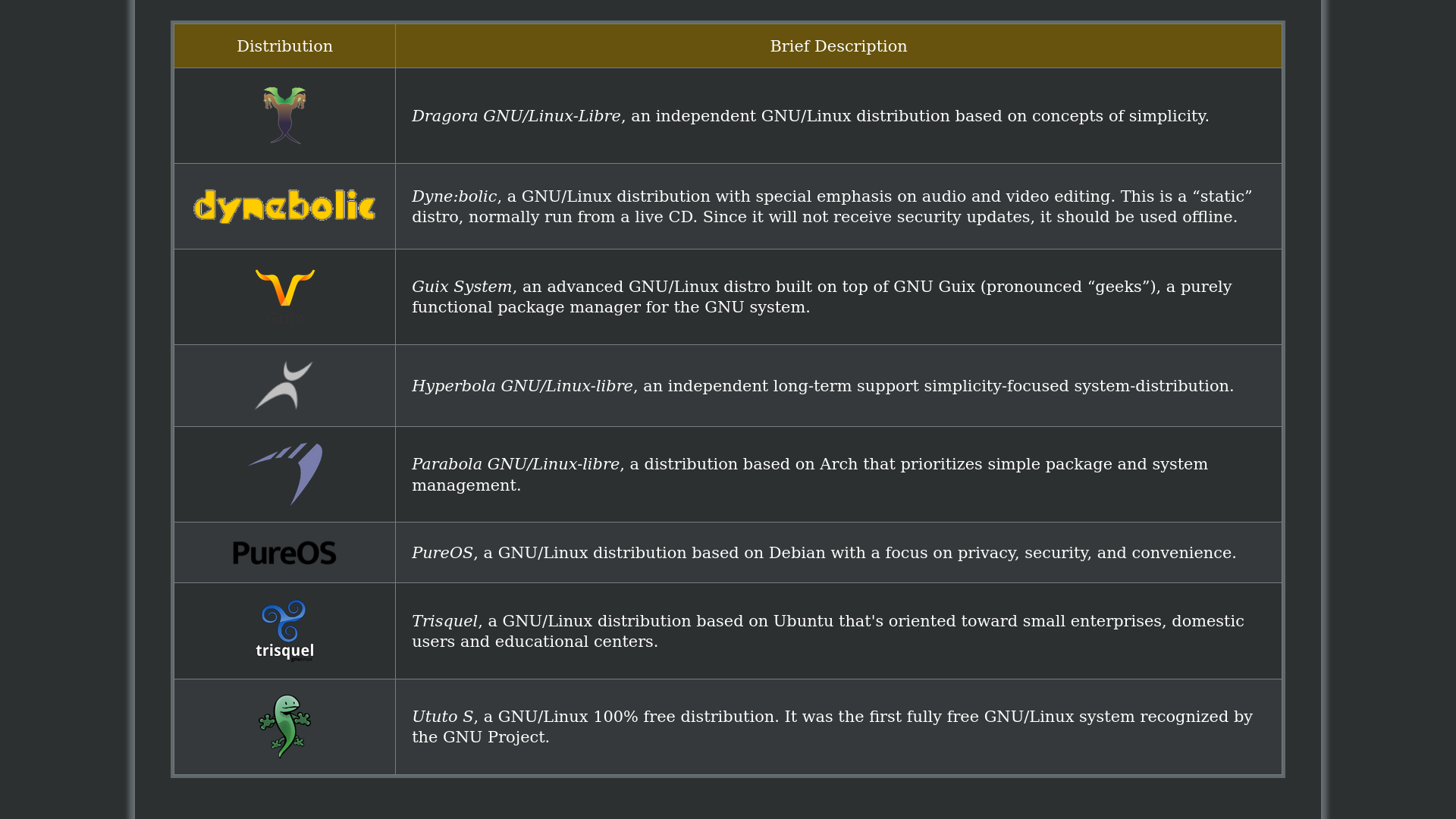
After all this information, many might wonder: If mainstream distros don’t fully respect these values, then which ones can be trusted? So for this GNU Project and FSF have compiled a list of fully free distributions that meet their strict standards. The GNU Project lists eight distros that can be used for PCs and workstations, but after some research and testing, I have narrowed it down to just five. I’ve omitted three distros, namely: Ututo, Dynebolic, and Dragora GNU/Linux-Libre. and the reason being:
- Firstly, Ututo is a discontinued Distro with its last update received way back in February 2017. Which is very unfortunate because Ututo was the first fully free GNU/Linux system recognised by the GNU Project.
- Secondly, Dynebolic is a static distro, meaning it will not receive any security updates, and therefore it is recommended only to run from a live CD, and
- Finally, Dragora GNU/Linux-Libre, I excluded it because it is simply impossible to install. No matter how many times I tried on different physical machines, virtual machines, using both the GUI and manual installation, I could not get it to work. Unfortunately, the official website also does not have any detailed written instructions for the installation process, and even the screenshot-based guide I found did not help much.
Therefore, I have chosen to focus on the remaining five distros from the list.
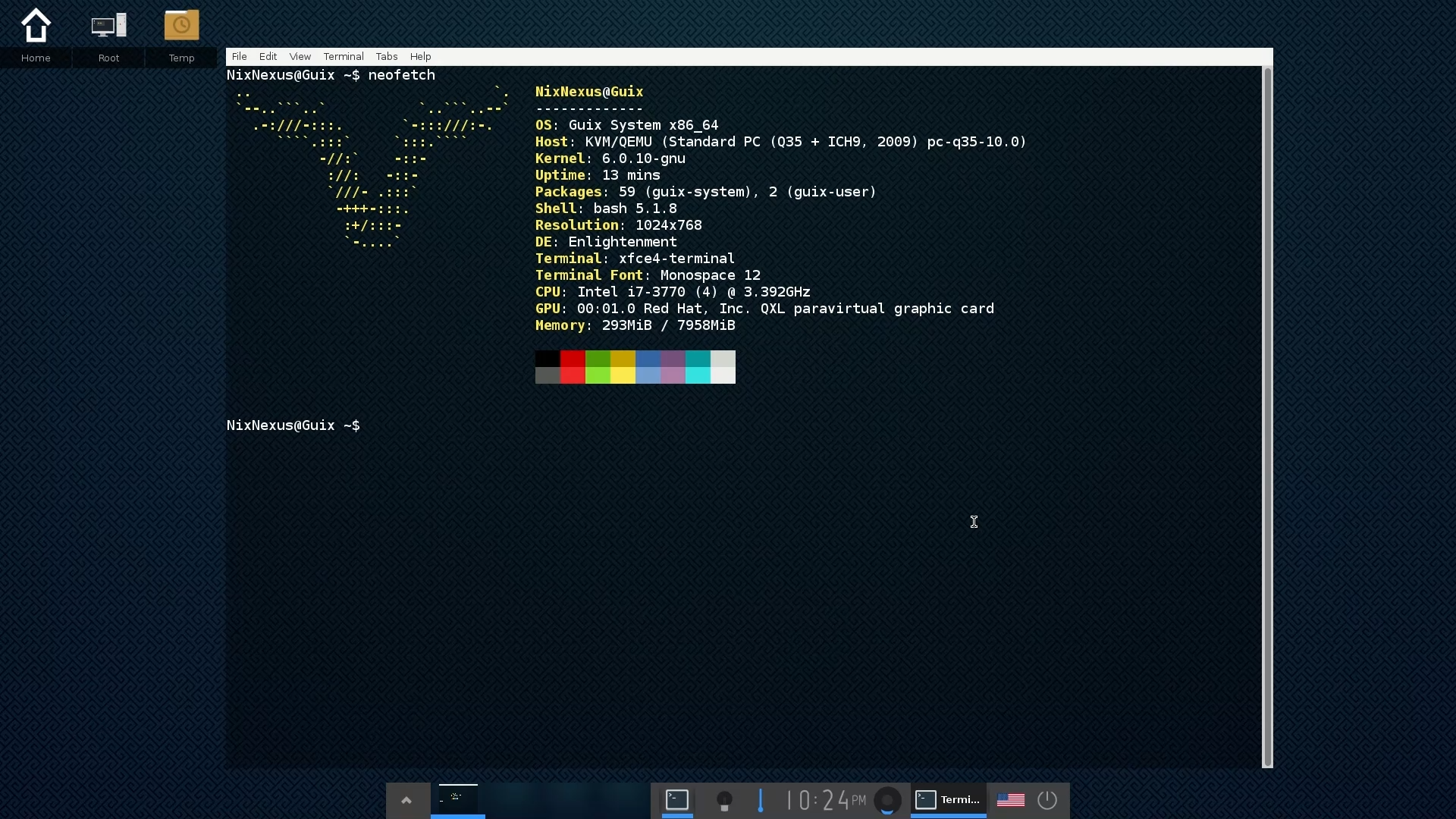
1. Guix System
Guix is an interesting Linux distribution that stands out for its unique combination of a full-fledged OS and a powerful package manager. Built entirely with the Guile Scheme programming language, Guix offers an advanced, hackable, and highly customizable environment that appeals to developers and power users.
At the heart of Guix is its revolutionary package manager, which brings cutting-edge features such as transactional upgrades, rollbacks, and reproducible build environments. Unlike traditional package managers, Guix allows for user-level package management without requiring root permissions. This means users can install, upgrade, or remove software entirely within their user space, making it a great choice for those who want fine-grained control over their system.
One of the key benefits of Guix is its focus on freedom and transparency, resulting in its commitment to free software also extending to Guix’s package definitions, which are reproducible, allowing users to verify that what they receive is identical to what was built.
Guix’s design also avoids the traditional Filesystem Hierarchy Standard (FHS), instead relying on symlinks and a store to manage software installations. As a result, this architecture enables the simultaneous use of multiple versions of a package without conflicts, while also allowing for easy rollbacks to previous configurations. Users can even have multiple isolated environments (profiles) for different versions of software or specific projects.
However, Guix is not without its challenges. The learning curve is steep due to its unconventional approach and its focus on Scheme, which may not be familiar to all users. But despite these hurdles, Guix remains an excellent choice for those who value freedom, control, and flexibility. Its advanced features, like stateless configuration, package transformations, and the ability to manage a system entirely through declarative configuration files, make it an ideal platform for both developers and users who want a fully customizable, reproducible, and hackable Linux experience.
2. Hyperbola GNU/Linux-libre
Hyperbola GNU/Linux-libre is a unique, community-driven operating system that prioritises freedom, privacy, and security. Built from scratch, it combines the package management system of Arch Linux with Debian’s security patching while strictly adhering to the GNU Free System Distribution Guidelines (FSDG). At its core, Hyperbola features the Linux-libre kernel, a version of Linux completely free from any proprietary garbage. Hyperbola is designed for those who value software freedom. Hyperbola offers a minimal, long-term support (LTS) distribution that follows the Keep It Simple Stupid (KISS) philosophy.
Unlike Arch Linux, which follows a rolling-release model, Hyperbola provides fixed releases, based on Arch snapshots, ensuring stability while incorporating essential security updates. And instead of systemd, Hyperbola opts for OpenRC, aligning with its goal of simplicity and transparency.
Hyperbola offers support for both 32-bit and 64-bit architectures, making it an excellent choice for users who want to revive older hardware without sacrificing modern security practices.
The installation process is similar to Arch Linux’s hands-on approach, meaning users have to follow an online installation guide. And like Arch, the base system is intentionally minimal, providing only essential GNU command-line tools and leaving users free to install their preferred applications and desktop environment via the pacman package manager.
Hyperbola is ideal for users who value digital sovereignty and are willing to trade convenience for complete control over their computing environment. Its unconventional approach to blending Arch’s customisation with Debian’s security makes Hyperbola a fascinating choice for free software advocates, minimalists, and privacy-conscious users alike.
3. Parabola GNU/Linux-libre
Parabola GNU/Linux-libre is a distribution that exemplifies the principles of software freedom, offering a completely libre alternative to mainstream Linux distributions. Built upon the foundation of Arch Linux, Parabola retains the flexibility, rolling-release model, and simplicity of Arch while strictly adhering to the Free Software Foundation’s (FSF) Free System Distribution Guidelines (FSDG). Meaning, Parabola replaces all non-free software found in Arch Linux with libre alternatives and ensures that all packages adhere to strict licensing standards.
Parabola is compatible with Arch Linux and shares its robust package management system, Pacman. This allows users to access a vast repository of free software while maintaining the rolling-release model that provides the latest updates without the need for periodic reinstallation. However, unlike Arch, Parabola does not support the Arch User Repository (AUR) because it contains proprietary and non-free software. Instead, Parabola users rely on officially maintained repositories that guarantee software freedom.
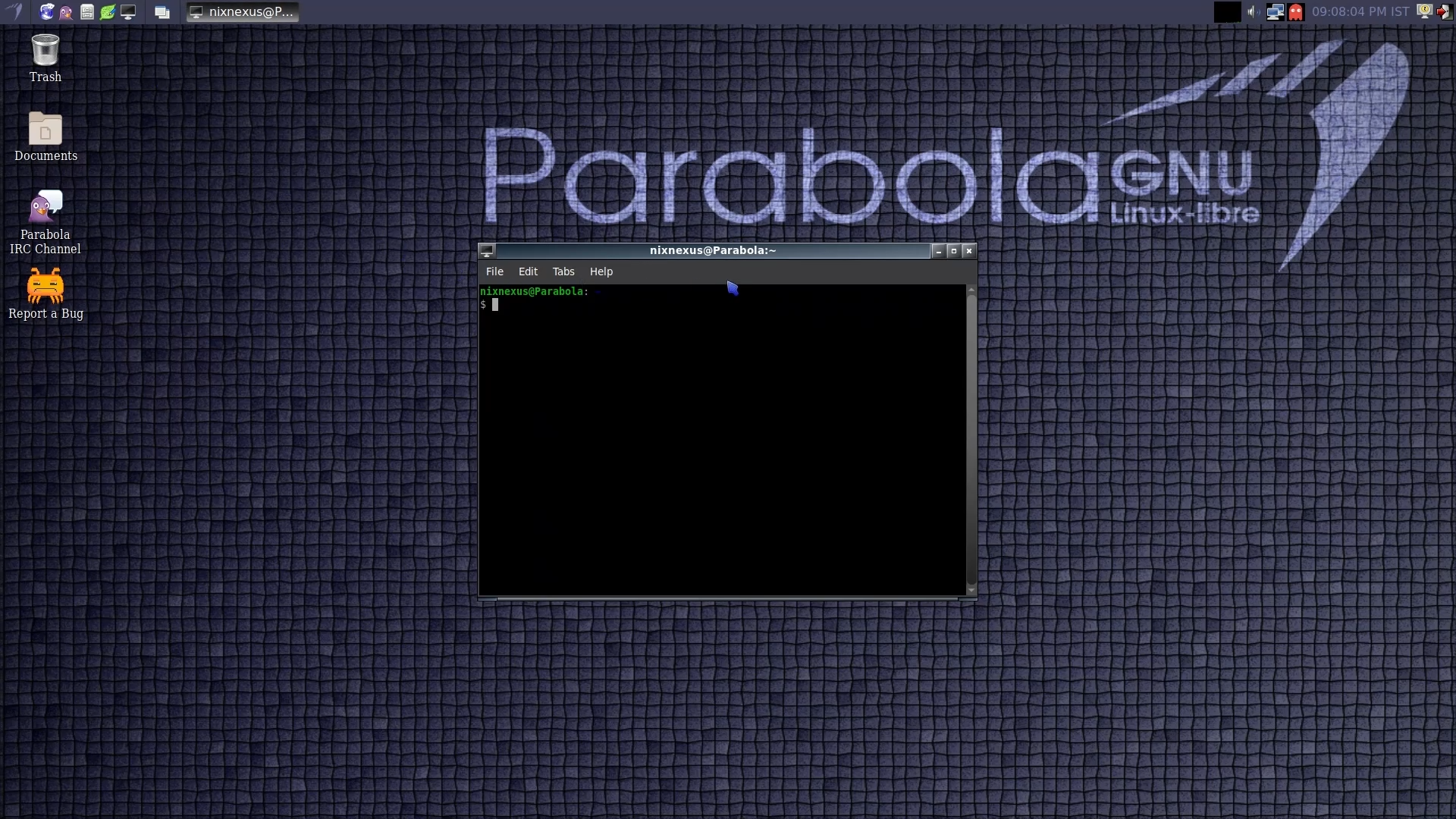
The distribution supports multiple architectures, including ARMv7 and 32-bit and 64-bit versions of the x86 architecture, making it versatile and suitable for various hardware configurations. Like Hyperbola, Parabola also follows the Arch Linux installation model, requiring users to manually configure their systems through a command-line interface and offering a minimalistic base system that allows them to install their preferred desktop environments and software packages. However, for those who prefer a more user-friendly setup, Parabola also provides experimental images with a graphical installer, featuring the LXDE desktop environment.
While both Hyperbola and Parabola GNU/Linux-libre require some technical expertise to set up and maintain, both of them provide a highly customizable and ethical computing experience, and their hands-on approach ensures that users will be able to build their system according to their own needs.
4. Trisquel
Trisquel GNU/Linux is a free and open-source Linux distribution that prioritises user freedom by offering a completely libre (free) operating system. Built on Ubuntu, Trisquel removes all proprietary software, including non-free firmware, drivers, and applications, making it a strong choice for those who value privacy, security, and the principles of free software. It adheres to the guidelines set by the Free Software Foundation (FSF), ensuring that users only have access to software that respects their rights.
Trisquel offers several editions to cater to different user needs. The standard edition, which comes with the MATE desktop environment, is a user-friendly option for general use. For those with older hardware, the Trisquel Mini edition features the lightweight LXDE desktop, ensuring compatibility with netbooks and low-resource systems. The Triskel edition, featuring the KDE Plasma desktop, provides a more feature-rich environment for users who prefer a modern, versatile interface. Additionally, the Trisquel Sugar TOAST edition is tailored for educational purposes, featuring the Sugar learning environment designed for children.
The latest version, Trisquel 11.0 “Aramo,” continues the tradition of offering a clean, free software experience with an emphasis on security, stability, and user-friendliness. Released in March 2023, it is based on Ubuntu 22.04 LTS and includes long-term support, ensuring updates and security patches until 2027. The system includes the Linux-libre 5.15 kernel, which removes all proprietary components, along with Abrowser (a privacy-focused rebranding of Firefox) and Icedove (a rebranded Thunderbird). The inclusion of the latest software updates, such as Plasma 5.24.7 for the Triskel edition and improved support for ARM64 and PowerPC hardware architectures, further highlights the distribution’s versatility.
In conclusion, Trisquel GNU/Linux stands as a leading example of a fully free operating system. Its commitment to privacy and user freedom, combined with its polished, lightweight environment, makes it an ideal choice for those who seek a secure and ethical computing experience.
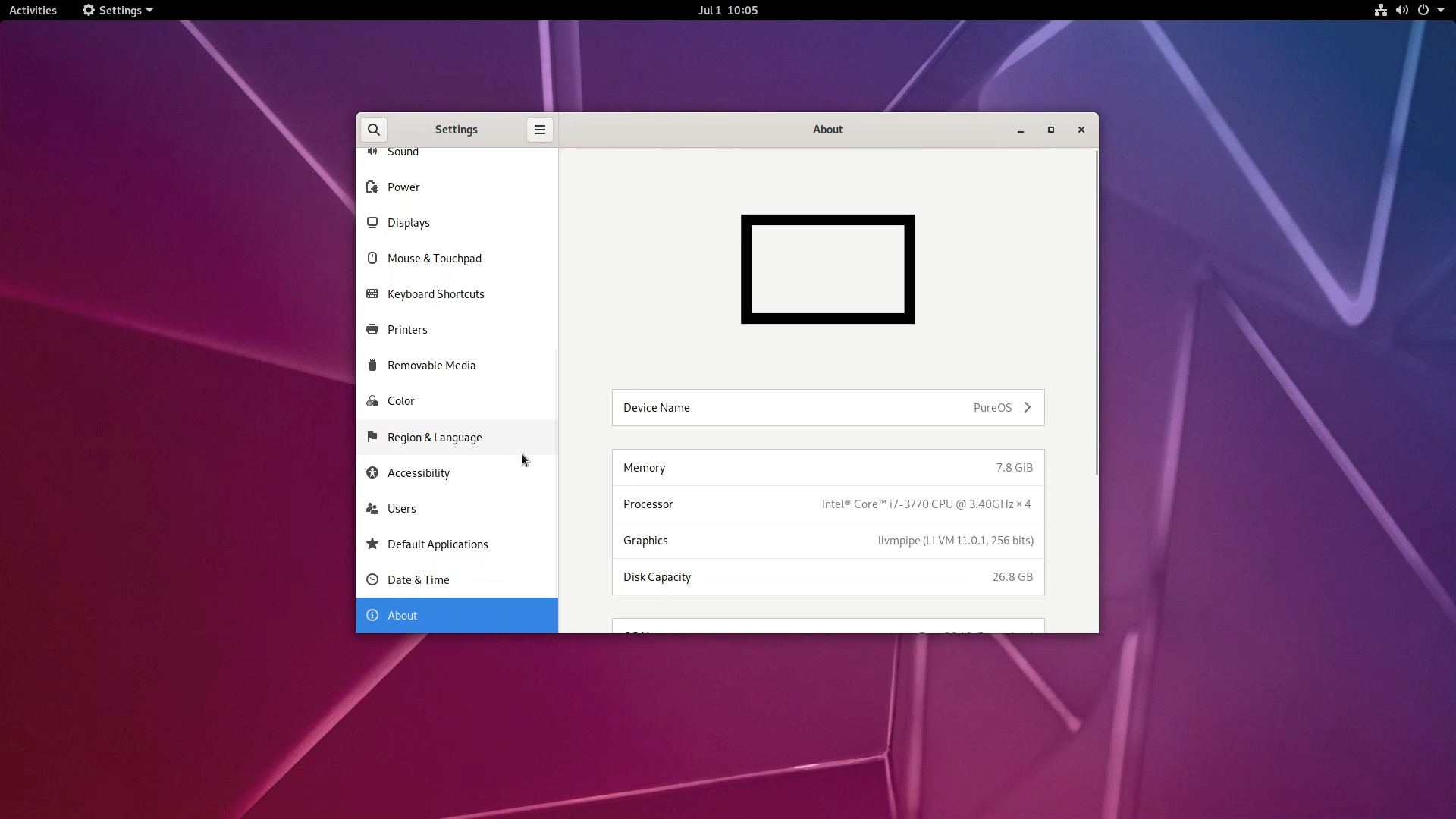
5. PureOS
PureOS is a Linux distribution created by Purism, a company dedicated to providing open-source, privacy-focused technology. Built as a rolling release distribution based on Debian’s testing branch, PureOS offers a blend of cutting-edge privacy tools and a commitment to free software. It is designed to be fully auditable, ensuring that users can independently verify the security and privacy of their system. This makes it ideal for individuals or enterprises seeking to protect their digital life, as well as developers interested in a robust, open-source platform.
One of the distinguishing features of PureOS is its focus on convergence, meaning that the same operating system runs seamlessly across different devices, from desktops to laptops and even smartphones. Purism’s goal is to create a unified experience where apps and data work consistently, regardless of whether the user is on a desktop or mobile device. This vision is facilitated by PureOS’s use of adaptive design principles, particularly through the GNOME desktop environment and support for KDE Plasma Mobile on the Librem 5 smartphone.
PureOS also prioritises user privacy and security; it encrypts the whole system, by default, and with features like the inclusion of only free and open-source software, making it a trusted choice for privacy-conscious users. The default browser, PureBrowser, is based on Mozilla Firefox and is tailored for increased security. Furthermore, PureOS integrates privacy-focused services such as DuckDuckGo as the default search engine, minimising data collection by third parties.
In summary, PureOS is an ambitious and privacy-respecting Linux distribution that aligns well with Purism’s vision of freedom and security. Its focus on convergence and free software makes it an exciting choice for those looking to unify their computing experience across devices.
Conclusion
All 5 of these mentioned distros are way more than just any regular operating systems; they are truly a commitment to digital freedom, ensuring that every piece of software included is 100% free. Their developers strictly follow the Free System Distribution Guidelines (FSDG), which means they reject anything that compromises software freedom, whether it’s nonfree applications, programming platforms, drivers, firmware, games, or even proprietary manuals and documentation. If any nonfree software ever makes its way in, then that is purely by mistake, and the developers are committed to removing it as soon as possible.
However, this unwavering commitment to free software does come with some trade-offs as well. Without proprietary drivers and firmware, users with certain hardware, particularly wireless cards and proprietary graphics drivers, that rely on closed-source code may face compatibility challenges. Workarounds do exist, but they require extra effort.
But for those who value digital autonomy, these distros stand as a testament to the Free Software Movement. These distros are a bold and principled choice, best suited for those who prioritise ethical computing over convenience. By eliminating all nonfree components, they ensure a fully customised and optimised system, free from any proprietary control. While they might seem daunting for newcomers, they offer one of the most reliable, polished, and user-friendly experiences in the world of fully free computing. They set the gold standard for software freedom, designed not just to function, but to embody a philosophy of user empowerment.
]]>
Myth & Reality Of Beginner-Friendly Linux DistrosNixNexushttps://nixnexus.org/myth-and-reality-of-beginner-friendly-linux-distros/2025-01-15T23:39:00+05:30
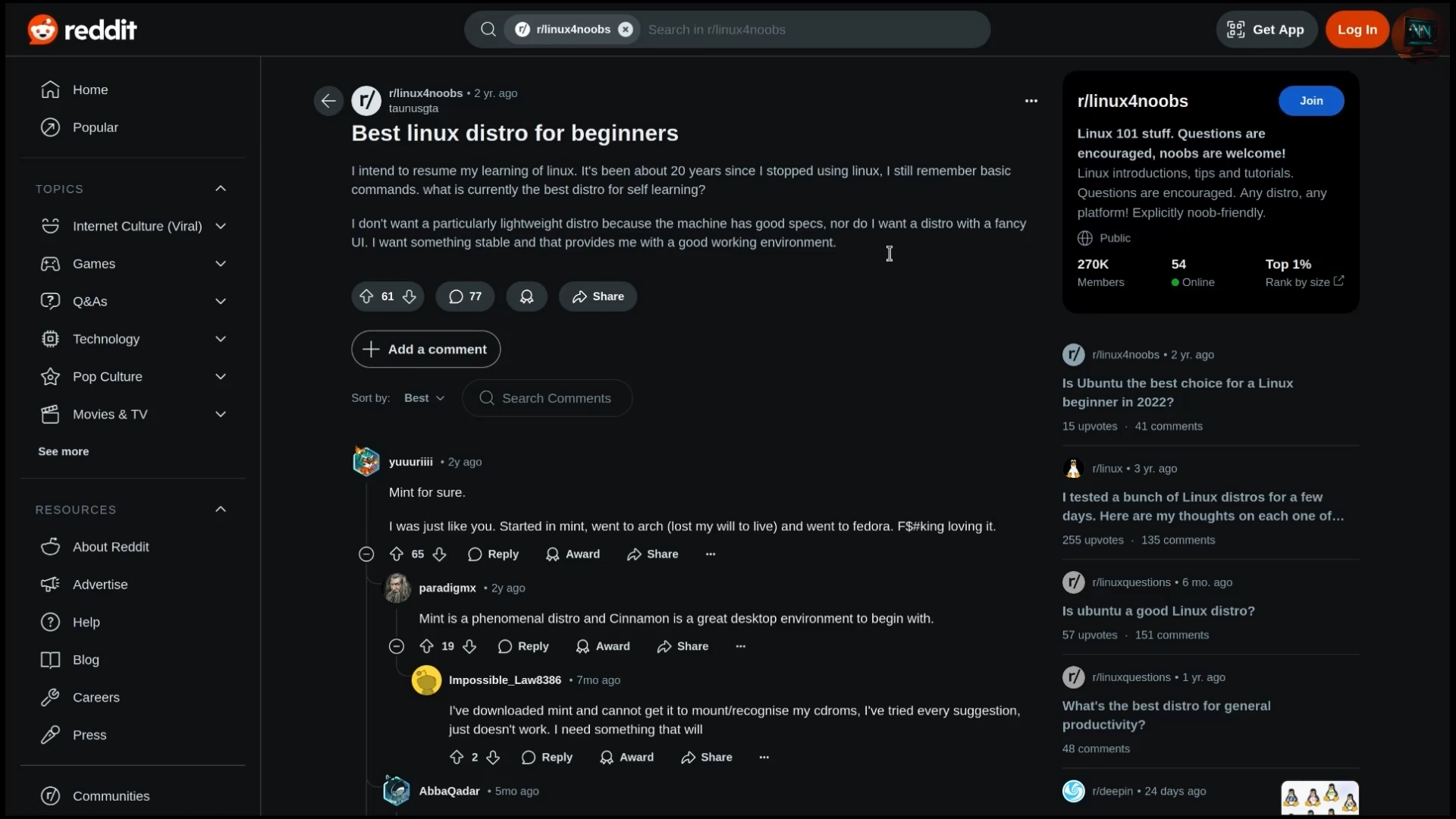
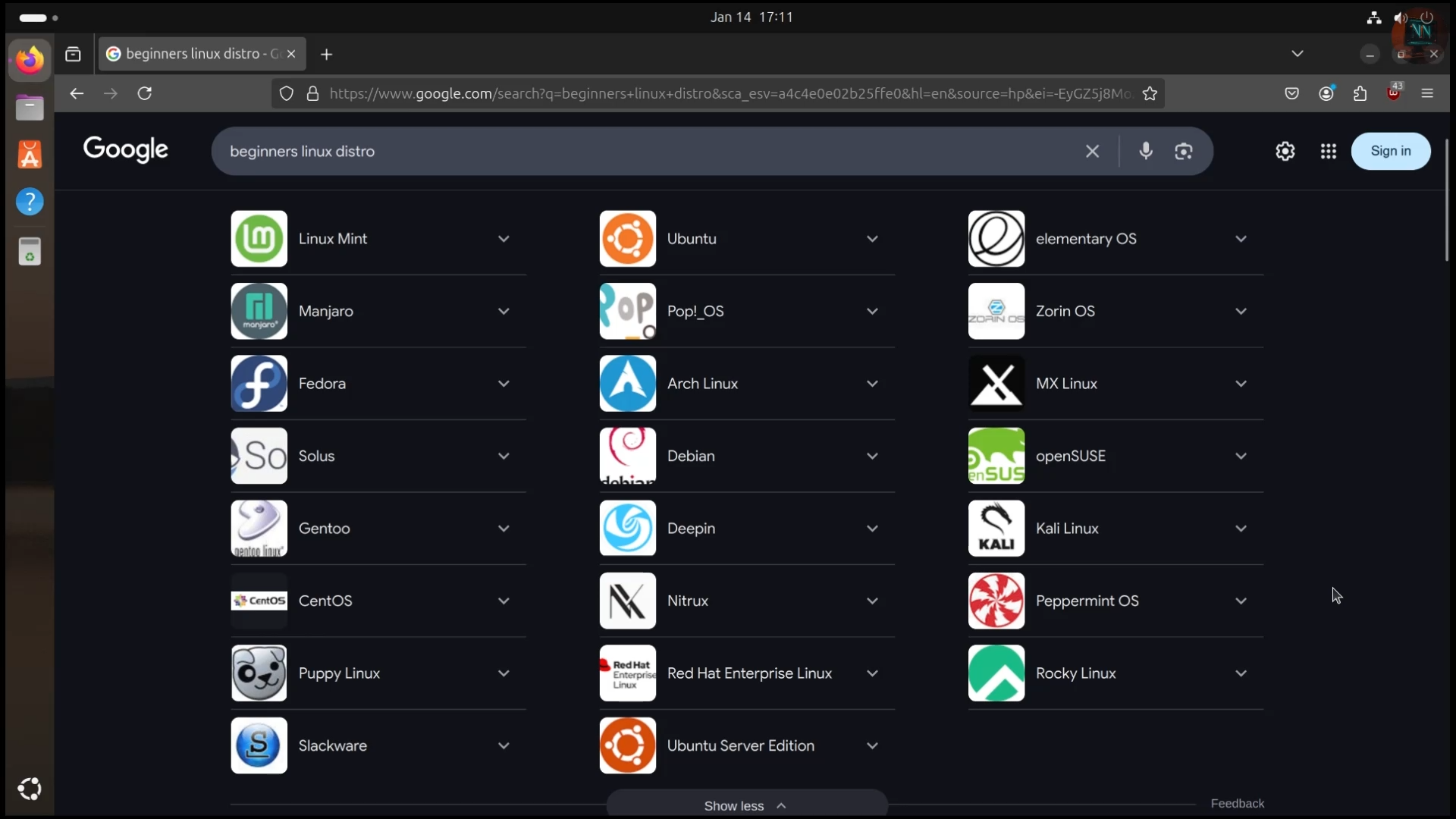
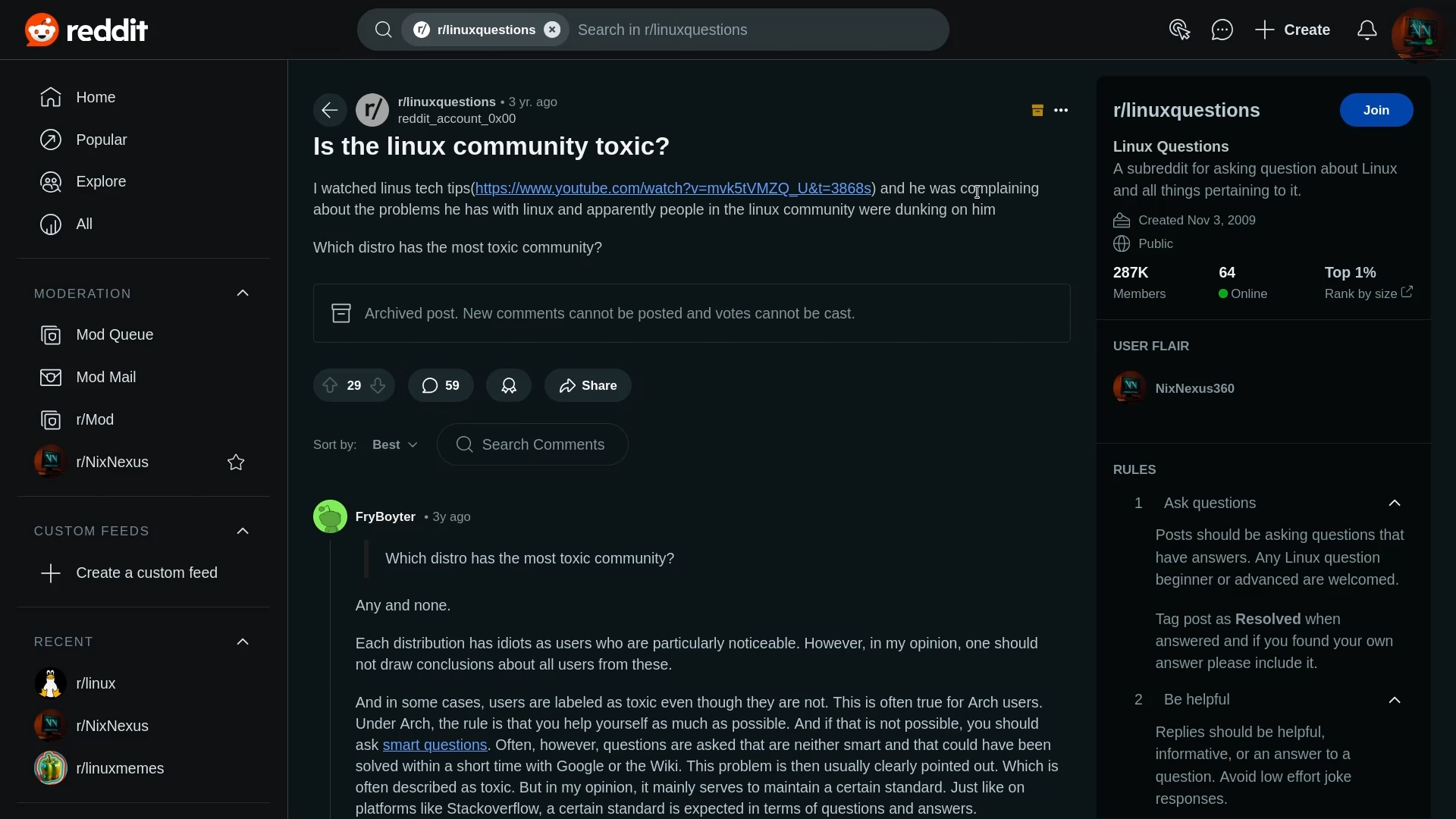
If you go to any Linux Forum or subreddit, you’ll find countless debates where some users are promoting certain distros as the best for beginners, while others try to dismiss them.
So the Question is: Why are some Linux distributions labelled “beginner-friendly” while others are not? Why are Ubuntu, Linux Mint, Manjaro and ZorinOS labelled as “beginner-friendly Distros” while Arch and Gentoo are regarded as for Pros?
If you have also found yourself caught in the middle of this discussion, don’t worry, because you are not alone.
Some Linux Users praise one distro while others try to tear it down, and a few insist, “X distro is the best, and everything else is garbage.
But let’s pause for a second. Why are we fighting over which distro is better? In reality, all these distributions are part of the same family. Under the hood, they’re all GNU/Linux. What truly varies is the out-of-the-box experience, not the core system itself. What you can do in Linux Mint can also be done in Fedora. If Ubuntu has a particular look and feel, you can replicate the same in OpenSUSE. And while Arch comes as a rolling-release distro by default, you can make Debian do the same.
So What Actually Makes a Distro “Beginner-Friendly”
Let’s address this elephant in the room first: What does the term “beginner-friendly distro” even mean? In simple words, it means that these distributions are designed with newcomers in mind and they are tailored to mostly cater to or attract beginners. But does that mean advanced users can’t use these distros? Of course not! Anyone can use them, and there are plenty of examples available where advanced users claim that they use Ubuntu, and on the other hand, there are lots of users who started their Linux journey with Arch Linux back when they were beginners. Consequently, I believe that the number of criteria truly defining a Linux distribution as ‘beginner-friendly’ is quite limited.
And among them, without a doubt, the First criterion is - Simplified Installation
Distributions like Ubuntu or Linux Mint, the pioneers of so-called beginner-friendly distros, feature streamlined installers that guide you through the process, step-by-step, making it easy to get started. You’re not expected to know about disk partitioning, boot loaders, or command-line tools.
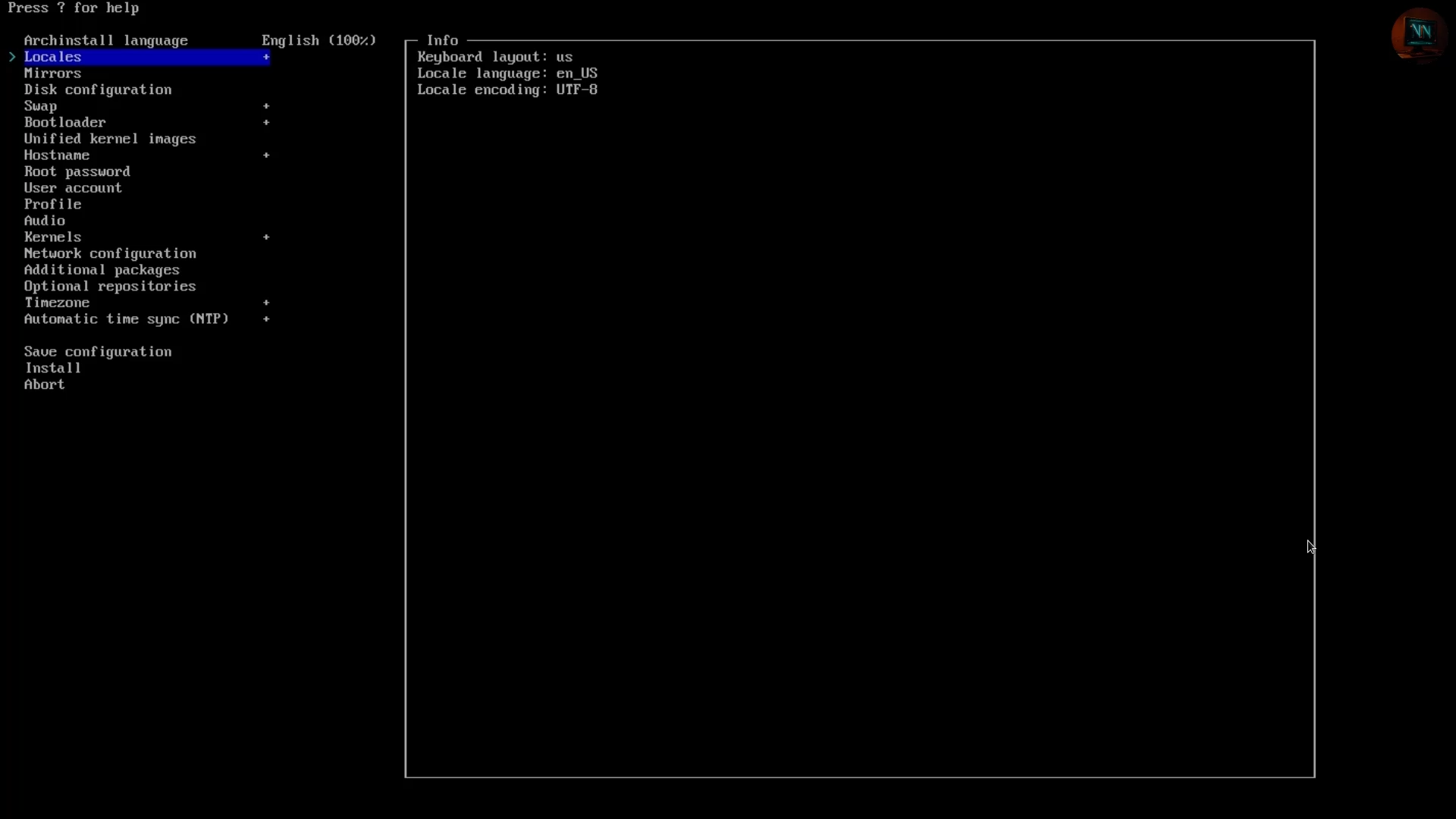
Compare this with Arch Linux or Gentoo. These distros assume you have a certain level of comfort with the command line interface and system configuration, therefore offering you more control rather than a guided installation process. But does it mean their installation process cannot be simplified? Absolutely not! With tools like Archinstall, installing Arch Linux has become very straightforward, even for beginners. Additionally, there are countless guides and tutorials available that demonstrate how you can install Arch Linux using the user-friendly Calamares Installer.
Then moving on to the Second point, which is - Out of the Box Experience
Linux distros like Manjaro, ZorinOS, or PopOS typically come with pre-installed software and codecs, allowing you to start browsing the web, watching videos, or creating documents right away. These distros are designed to be easy to use for new users.
On the other hand, advanced distros often provide a blank slate, giving you full control to customise and build your system exactly how you want it. However, installing software and applications in these advanced distros is also straightforward. You can easily access the built-in software centre of the distro and begin downloading the applications you need.
The Next point you can consider is - User Interfaces
For example, just go to your web browser and open the Distrowatch Homepage and look at the top three Popular Distros, which are Linux Mint, MXLinux and EndeavourOS; all of them come out of the box with easy-to-use desktop environments like Cinnamon, XFCE or KDE Plasma, which feel familiar to users coming from a Windows or MacOS background. They’re designed to be intuitive and easy to navigate.
Comparing that to any advanced distro, they just don’t offer you a default desktop environment, but they give you the option to choose anything you want.
Finally, another major factor is - Community and Support
Now, Popular Distros, which are often termed as Beginner-friendly distros, come with large active communities and extensive documentation, making it easier for newcomers to find assistance. For instance, Ubuntu and Linux Mint forums are renowned for their depth and accessibility.
But does this mean that “advanced” distros are lacking in community support? Not at all. Ask any seasoned Linux user, and regardless of the distro they use, they’ve likely relied on the Arch Wiki from time to time. Which, without a doubt, is one of the best Linux documentation resources available on the web.
Do these Ever-Lasting Debates Even Matter?
So now, if you ask me, do these debates over Beginner Friendly Distros Even Matter or not? Then I would say the answer is both Yes and No at the same time.
Yes, It Matters, because, first and foremost, these distros, which are specifically designed for New Linux Users, are incredibly helpful. They act as guides, leading these users by the hand through the exciting, yet sometimes daunting, world of Linux.
Secondly, I truly believe that every distro has its place in the ecosystem. For me, it’s like choosing between democracy and authoritarian rule; no system is perfect, but having choices makes all the difference. What works best for one person might not work for someone else, and that’s okay. No matter what they choose, it will still be better than what the two big proprietary ones have to offer.
And I also think It Does Not Matter because no matter what Linux distro you’re using, fundamentally, you are using a variation of GNU/Linux. They all share the same core, support similar software, and uphold the same open-source principles.
While they may differ in kernel versions, desktop environments, and package managers, these differences can be largely circumvented. With sufficient effort, you can customise any Linux Distribution to function and appear in a manner that suits your preferences.
This Debate Actually Hurts the Community
In reality, I think that fighting over which distro is better often scares away newcomers. Imagine being excited to try Linux, only to see people arguing in forums or comment sections about trivial issues. This creates unnecessary barriers for those who want to learn and explore.
So it would be my humble request to the Linux community: Please stop fighting about which distro is superior. Instead, let’s focus on helping newcomers find their footing. Let’s guide and support new users instead of gate-keeping. After all, we’re all here because we love Linux.
Instead of arguing, we should celebrate the diversity of the Linux ecosystem. It’s this variety that makes Linux so powerful. There’s something for everyone, whether you’re a beginner or a seasoned professional.
And my Message to New Linux Users will be: First of all, welcome to Linux and don’t let the debates scare you away. Remember, no matter which distro you choose, you’re part of the same incredible community. Don’t worry too much about finding the “perfect” distro. Start with any popular distro you like. Now, Why Should you start with a popular distro? Because if you stumble upon any issues, you’ll be able to find solutions very easily. And as you gain confidence, you can explore other distros and customise your experience. Remember, the journey is what makes Linux exciting. The things you’ll learn on one distro will also work on another.
]]>
Use LIBREHUNT & DISTROCHOOSER to find Your Perfect Linux DistroNixNexushttps://nixnexus.org/use-librehunt-and-distrochooser-to-find-your-perfect-linux-distro/2024-12-14T00:59:00+05:30
Hello Friend.
If you have ever searched the web using the term ‘Best Linux Distro,’ you have probably been hit with a flood of options — Ubuntu, Fedora, Arch, Mint, Pop!-OS, and the list goes on.
But why are there so many Distros? Why is it so complicated?
That’s because, unlike Windows or MacOS, Linux doesn’t have ‘One Default Version.’ There are literally hundreds of Linux distributions, each designed with a unique purpose. Some are beginner-friendly, like Ubuntu and Linux Mint. Others, like Arch and Gentoo, cater to power users who want complete control. Then there are distros for privacy, gaming, lightweight systems, and so on. It’s no wonder that many users feel lost, and while this option to choose is empowering, for beginners, it can be overwhelming. Along with that, if you ask someone for advice, they might reply with ‘Just install Arch’ or ‘go with Fedora or Ubuntu’, but the problem is, what works for them might not work for you. Everyone’s needs, hardware, and experience levels are different.
So to help you with this issue, two amazing websites were created, which were designed to simplify your distro search. These tools help to narrow down options based on your personal preferences, ensuring you find the perfect Linux distro tailored to your needs.
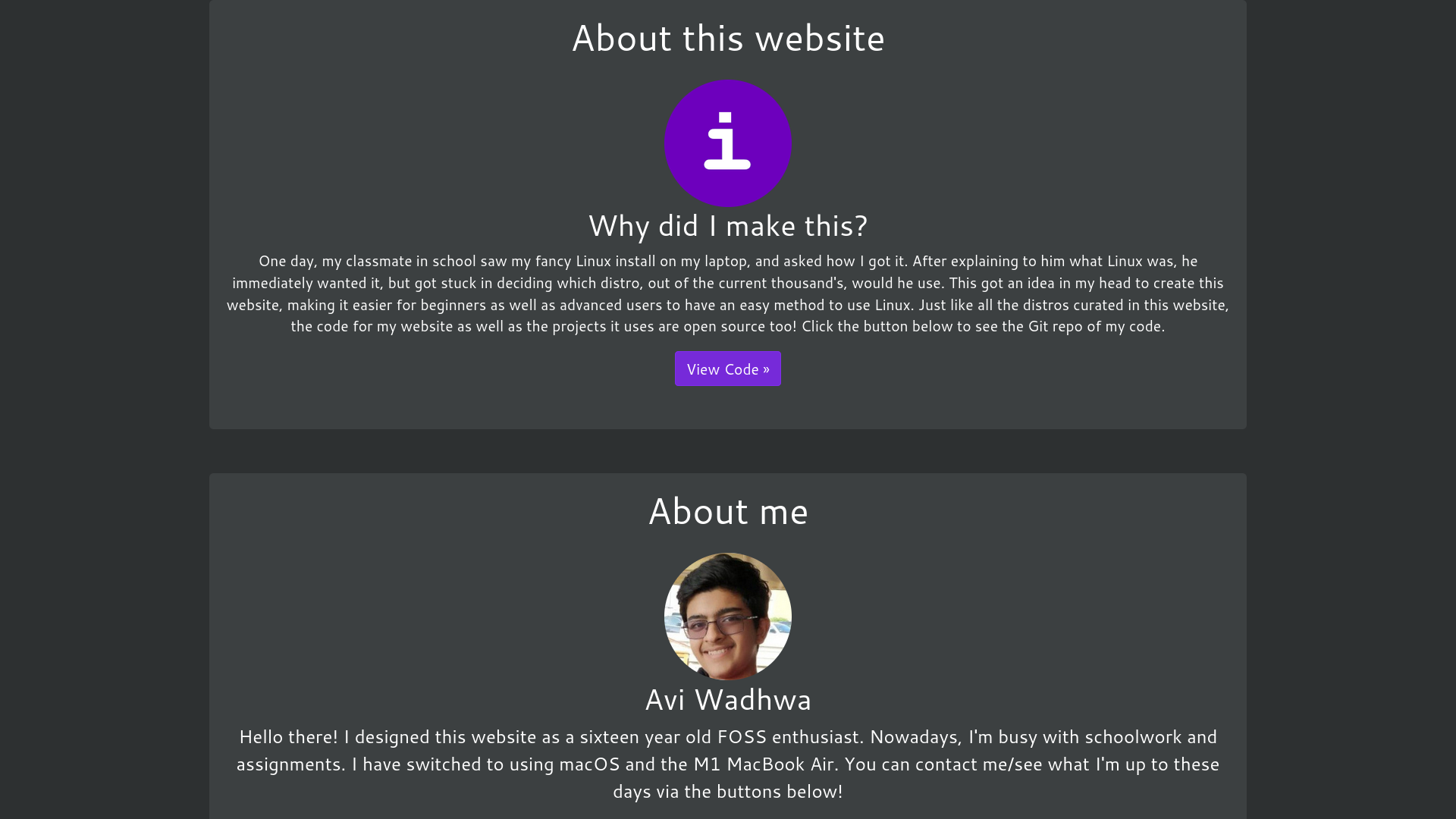
Our first website is LIBREHUNT.ORG. It is a sleek and beginner-friendly platform created by Indian Linux enthusiast Avi Wadhwa. According to Avi, “One day, a schoolmate saw my fancy Linux install on my laptop and asked how I did it. After I explained what Linux is, my friend immediately wanted it as well, but he struggled to decide which distro to start with due to the overwhelming number of options. This incident inspired me to create this website to help beginners and advanced users easily find their ideal Linux distribution.”
So, how does LIBREHUNT achieve this? LIBREHUNT assists users in choosing a Linux distribution based on their needs, determined by their answers to various objective questions.
LIBREHUNT Walk-Through
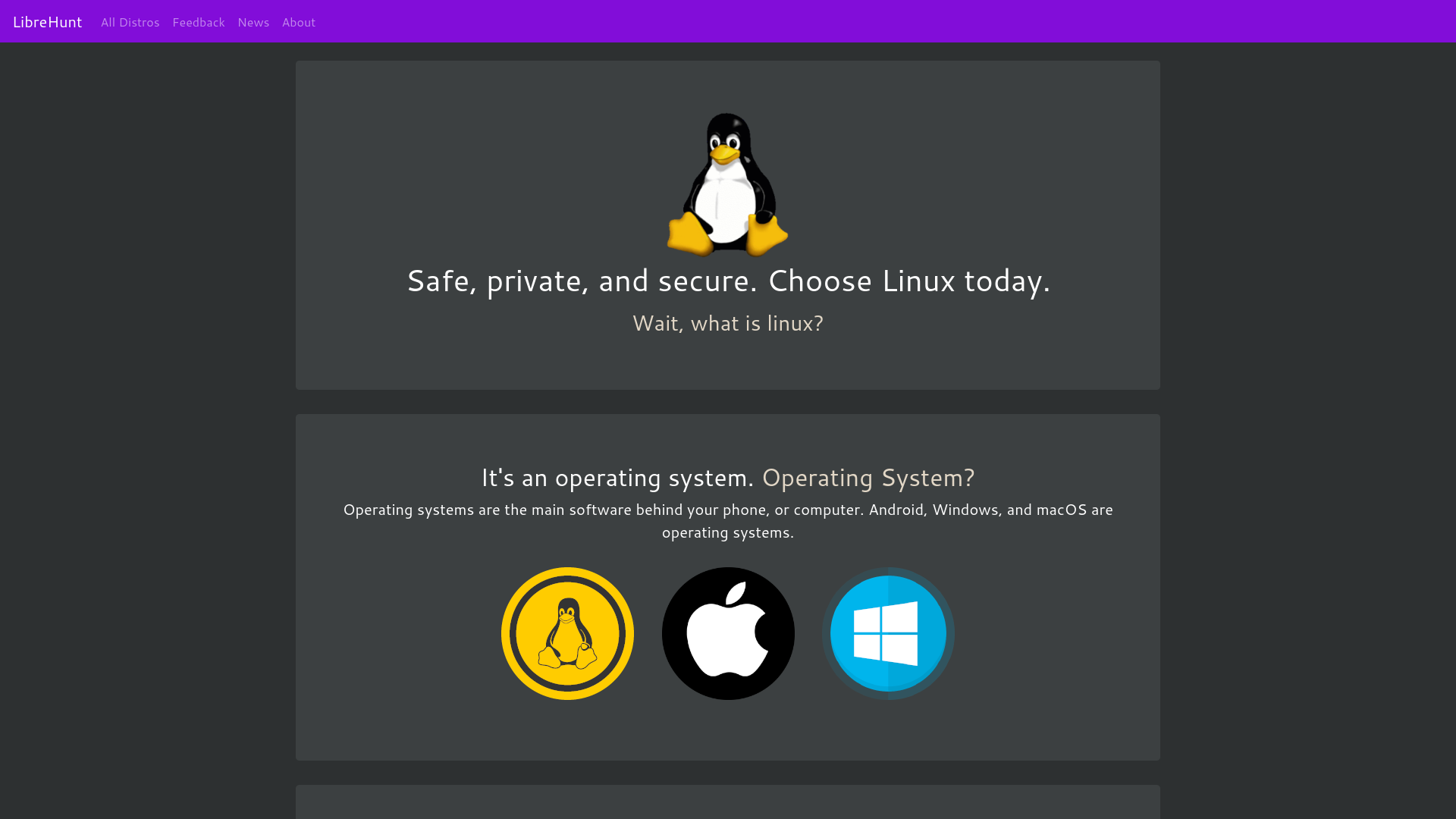
When you first land on the LIBREHUNT homepage, you will find basic information about what an operating system is, how Linux differs from other operating systems, and why you should choose Linux over Windows or MacOS. Additionally, it includes information about the main characteristics of Linux, such as security and privacy, lightweight nature, openness, and excellent customisation options.
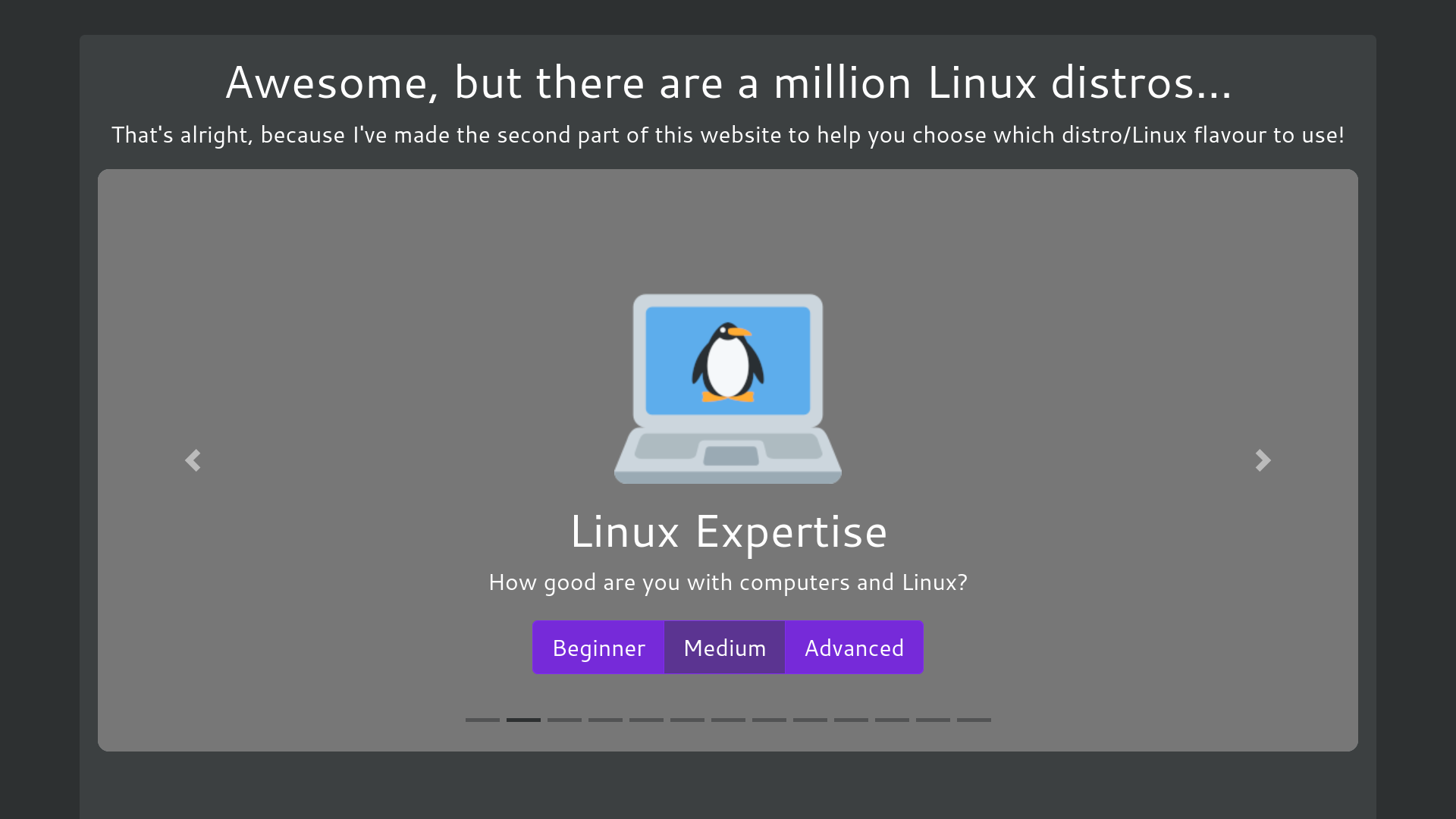
At the bottom of the page, you will find the tool to help you find your perfect Linux distro. The test consists of 11 questions covering topics such as use case, Linux expertise, hardware architecture, support, method of installation, software, and operating system updates. According to LIBREHUNT:
- You can skip questions at any time.
- You can change your answers whenever you wish.
After completing the questions, LIBREHUNT’s algorithm will suggest several options from a curated list of 45 distros.
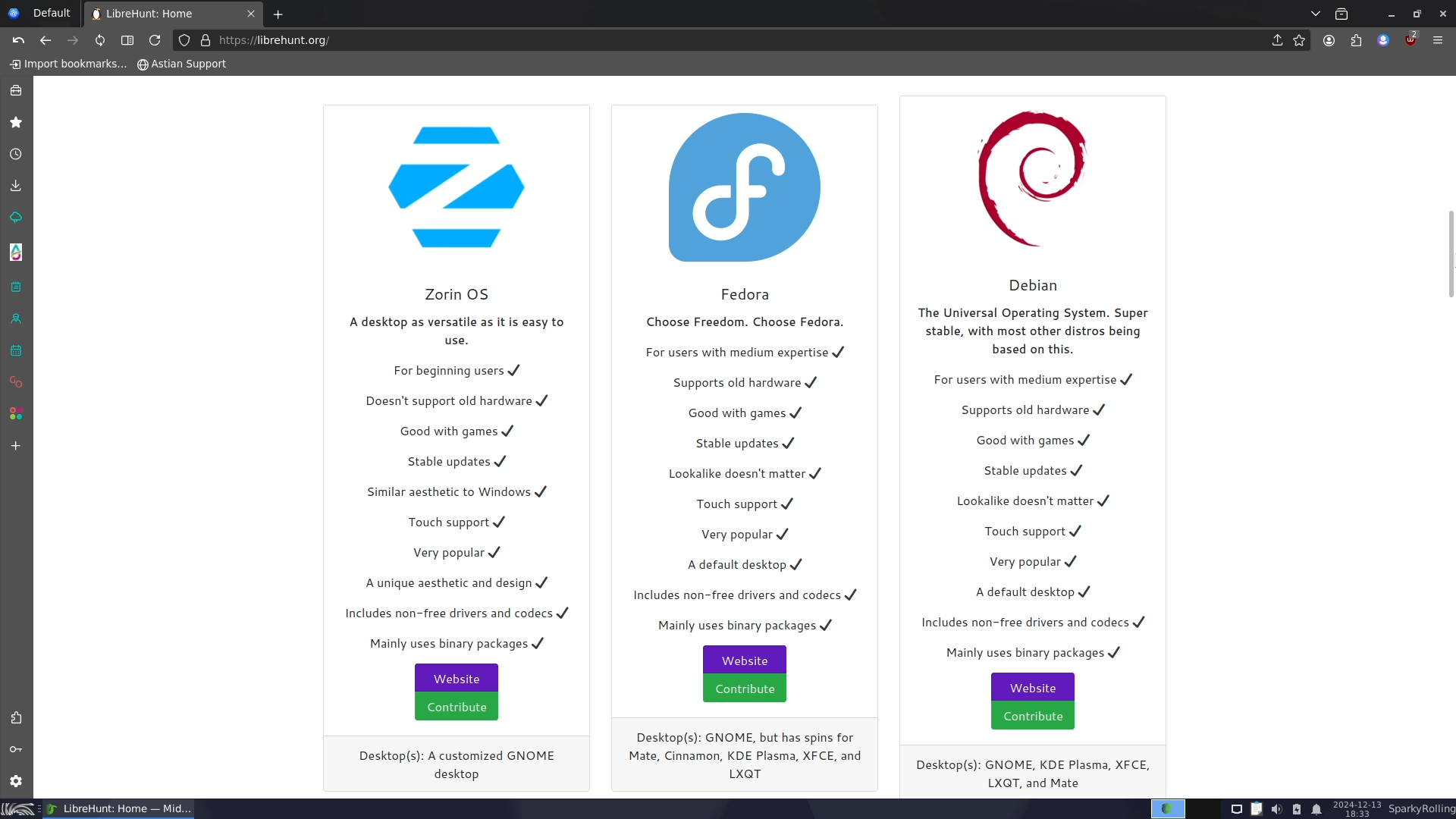
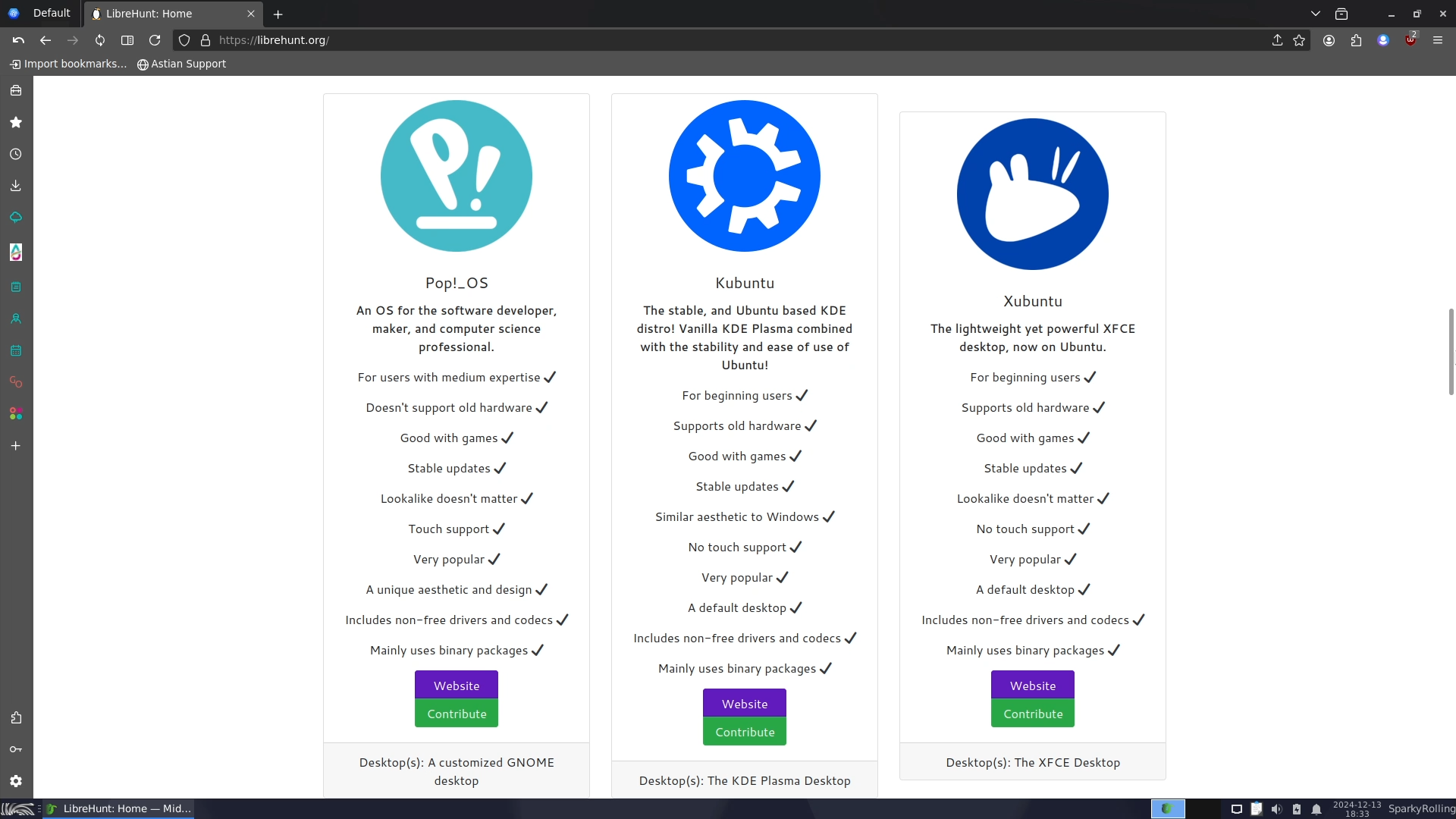
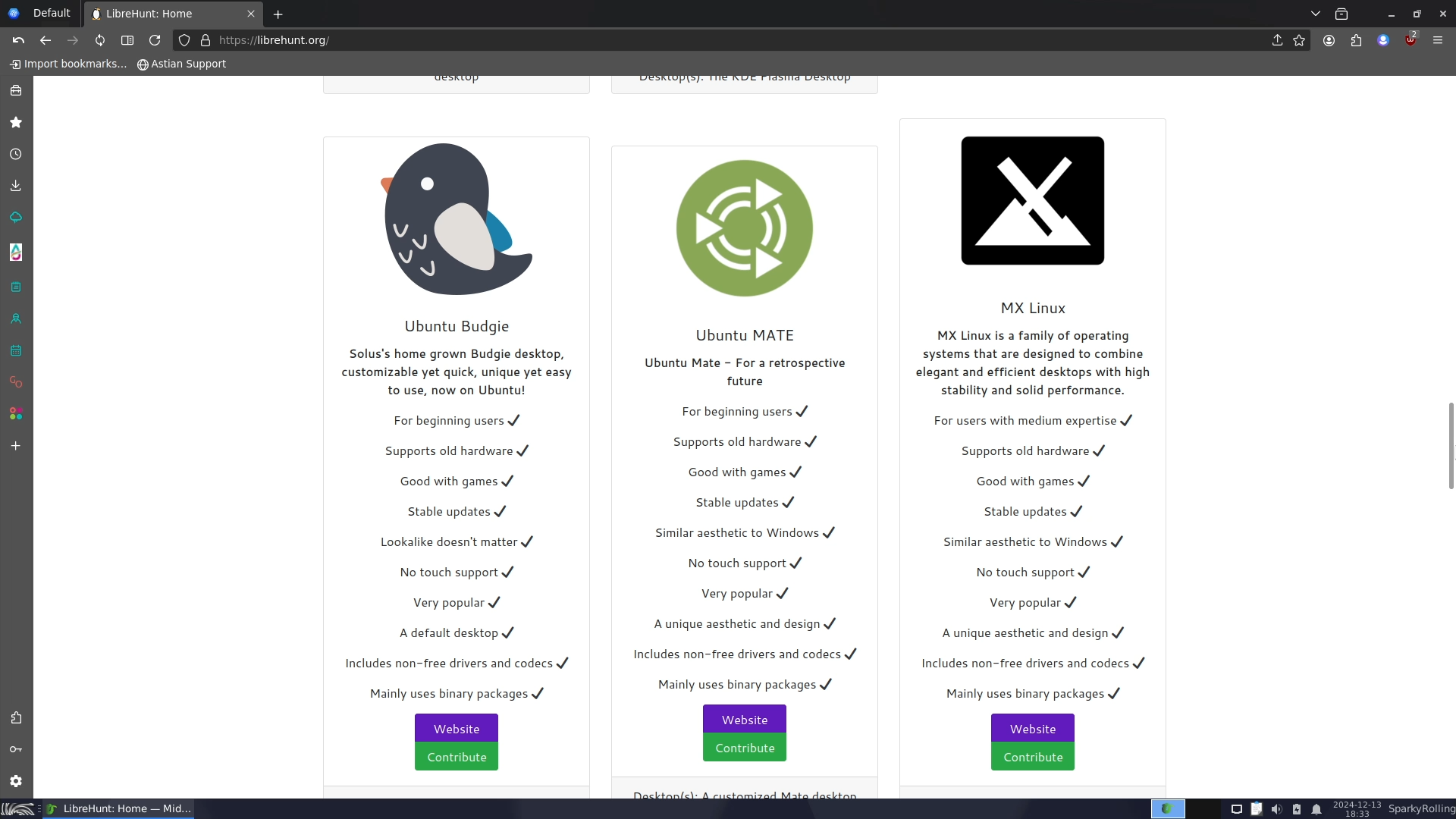
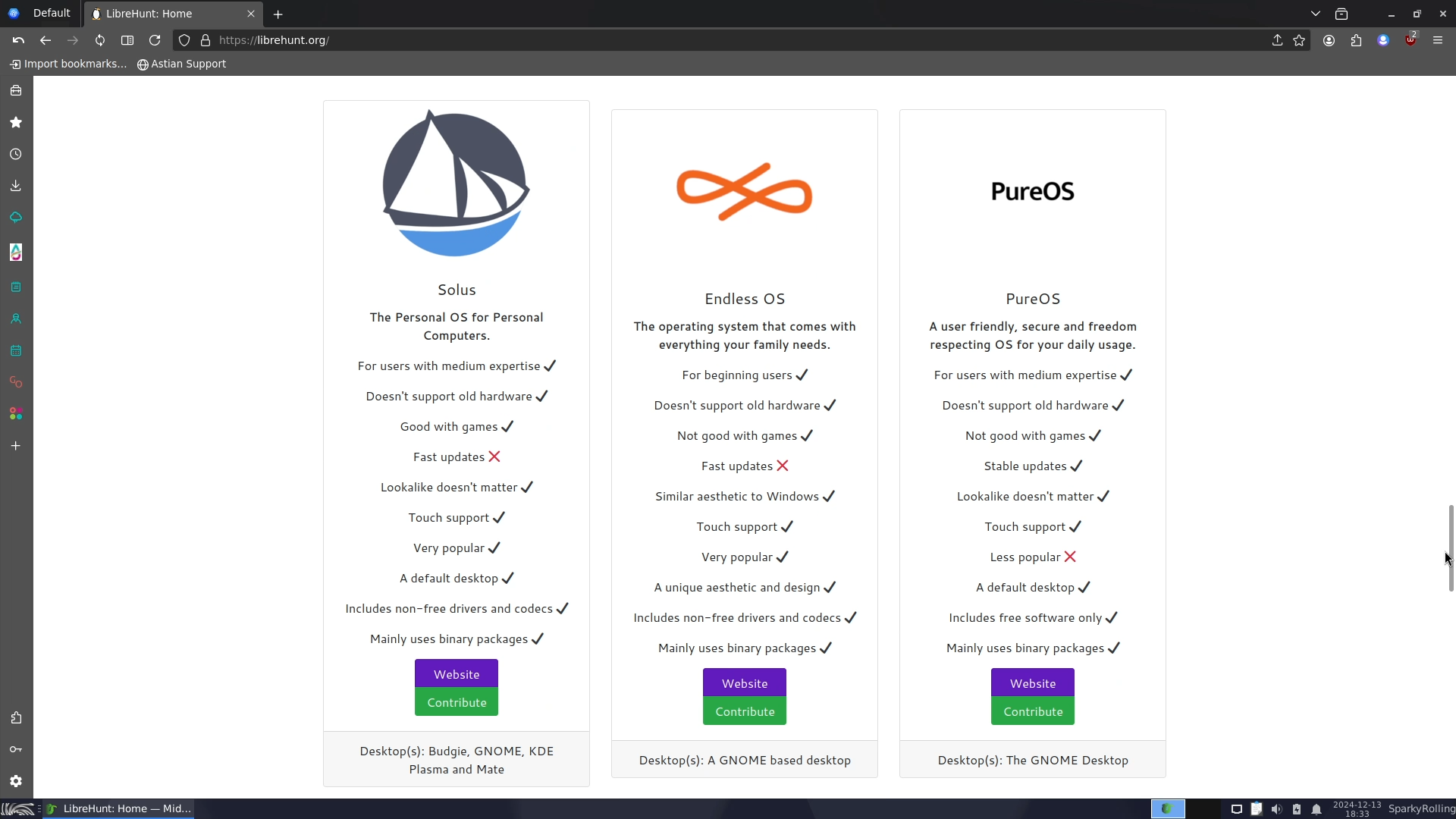
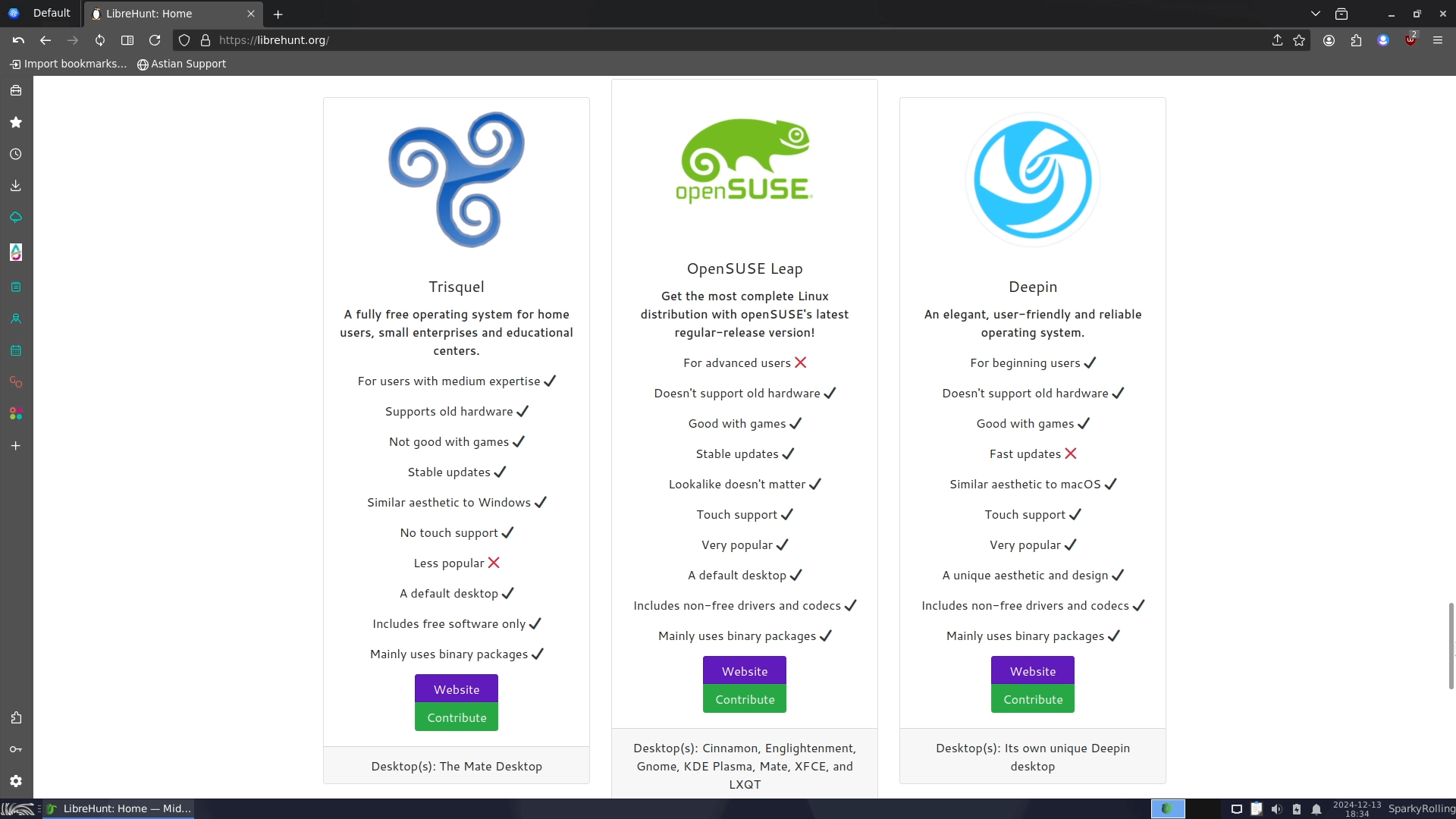
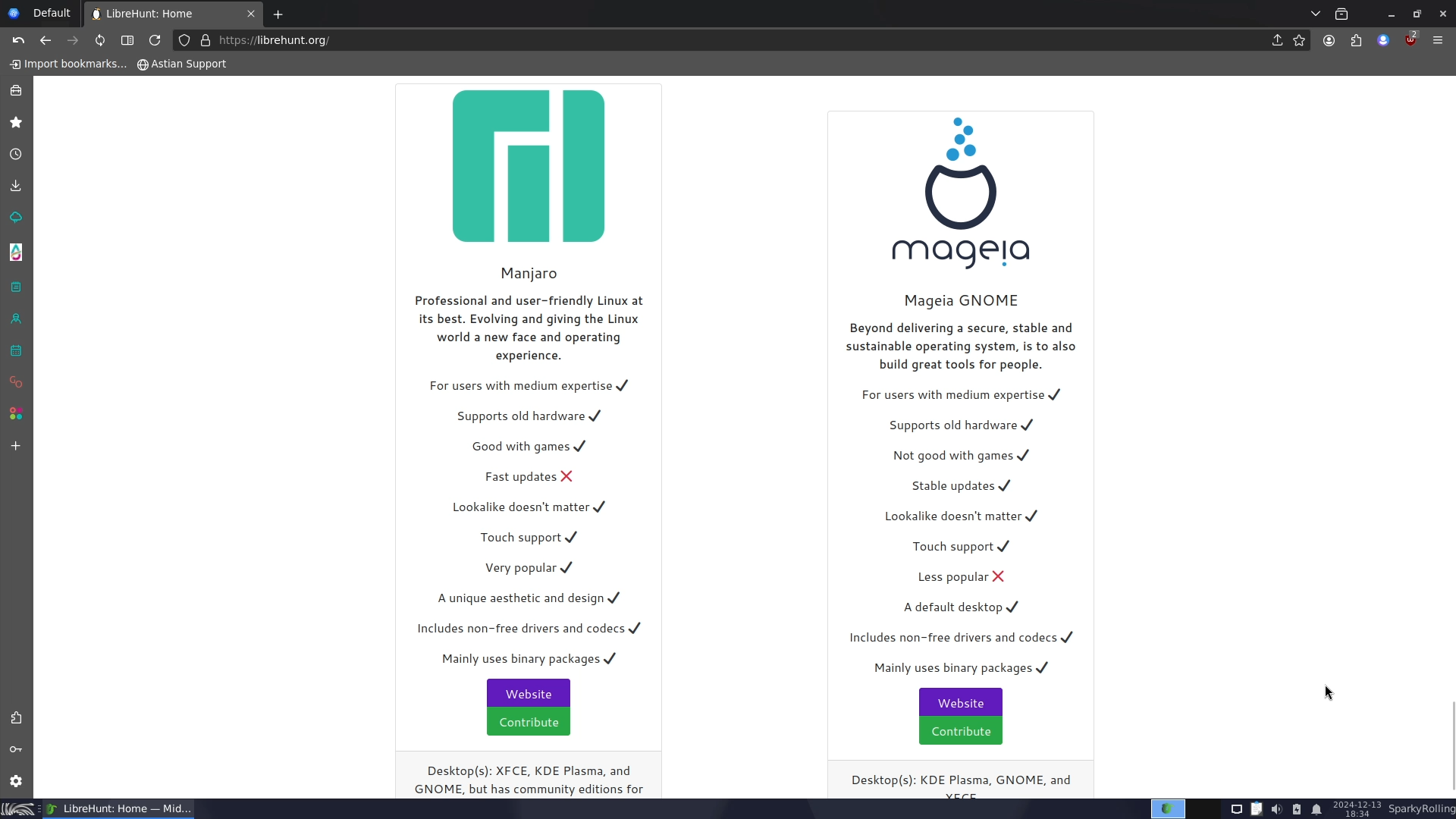
Screenshots of LIBREHUNT Test
My Experience with LIBREHUNT
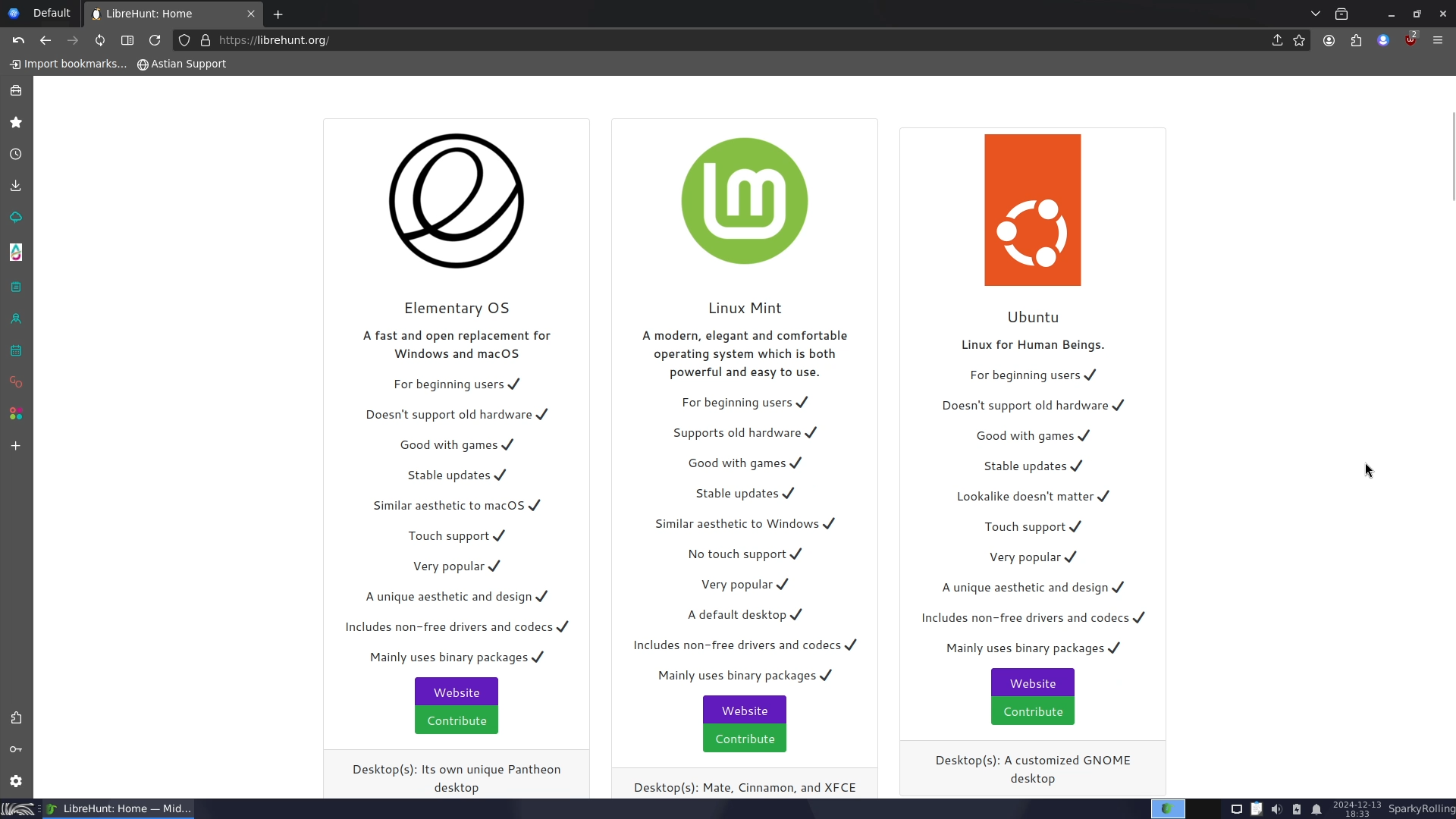
After I completed the test, the first three suggestions given to me were Elementary OS, Linux Mint, and Ubuntu. All of them are excellent choices for beginners: Elementary and Mint are both based on Ubuntu, which in turn is based on Debian—definitely great options for new users.
Following these were Zorin OS, Fedora, and Debian in positions four, five, and six, respectively. Zorin is ideal for anyone switching from Windows, while Fedora is the favourite of Linus Torvalds, the creator of the Linux kernel. Debian is my personal favourite distro, and most popular Linux distros trace their roots back to it.
Next on the list were Pop!_OS, Kubuntu, Xubuntu, Ubuntu Budgie, Ubuntu MATE, and MX Linux, all from the Debian-Ubuntu family. Additionally, there was Solus, a very stable independent distro and the creator of the Budgie desktop environment.
Following these suggestions were Endless OS, an immutable distro, and PureOS and Trisquel, which are both pure GNU/Linux distros. Then, there was OpenSUSE Leap, another great distro, though it may not be ideal for beginners, and Deepin, which is visually appealing but is heavy on system resources and originates from China, so it’s not recommended for everyone.
Finally, Manjaro, a beginner-friendly distro from the Arch branch, and Mageia Gnome rounded out the list.
Without a doubt, LIBREHUNT.ORG suggested great options for any Linux user. I highly recommend the first 12 options to any beginner, as they are excellent starting points.
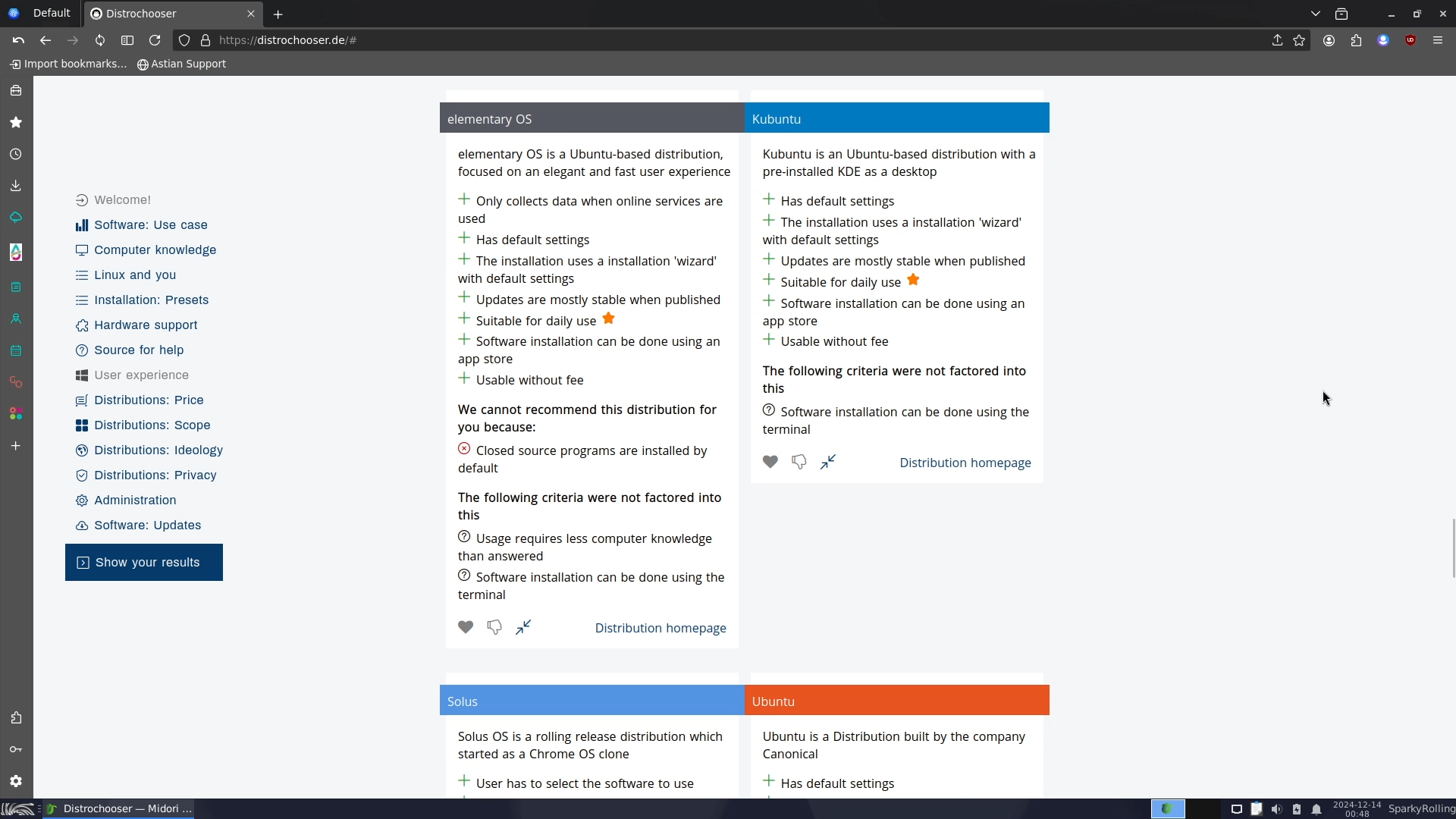
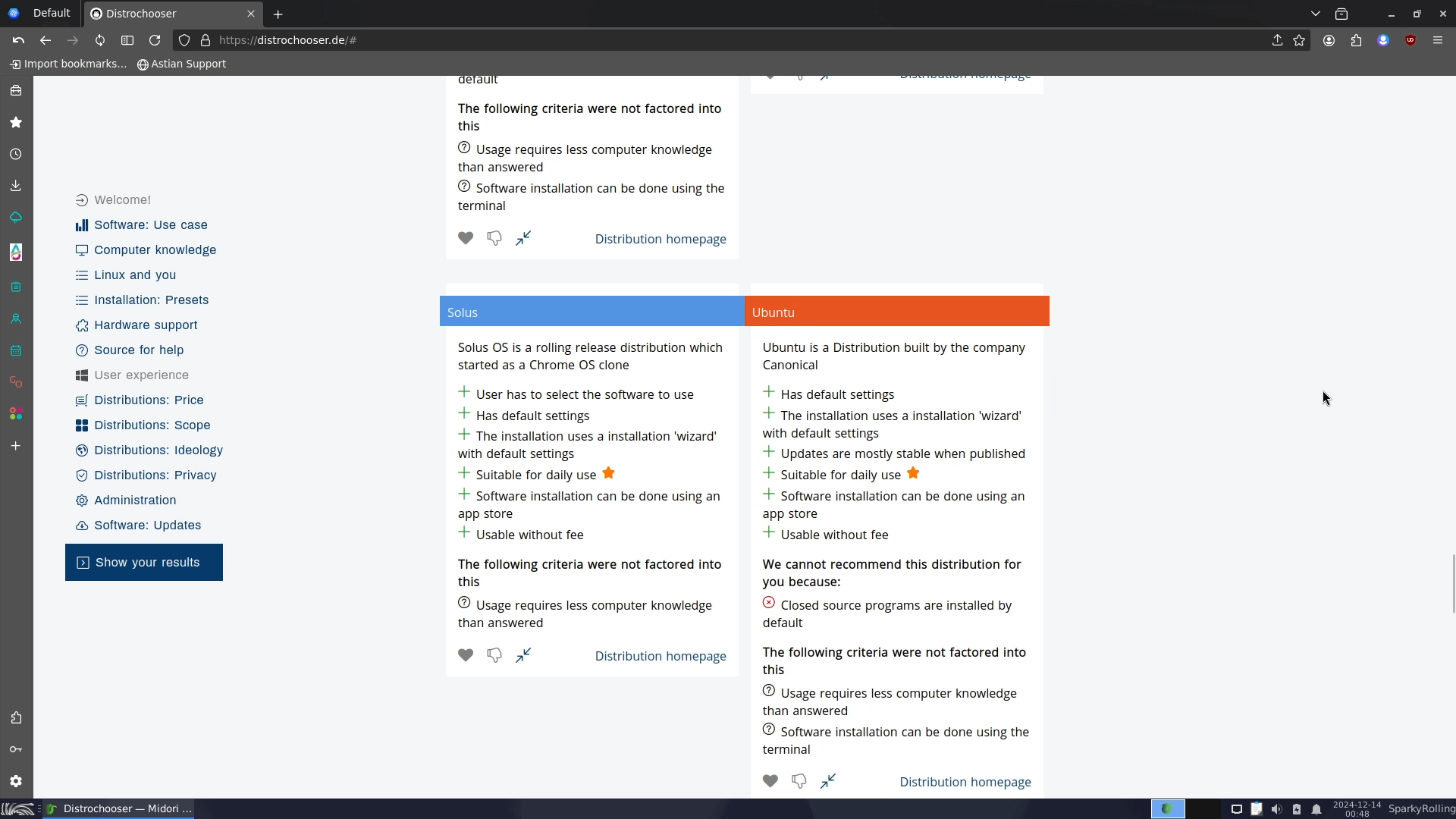
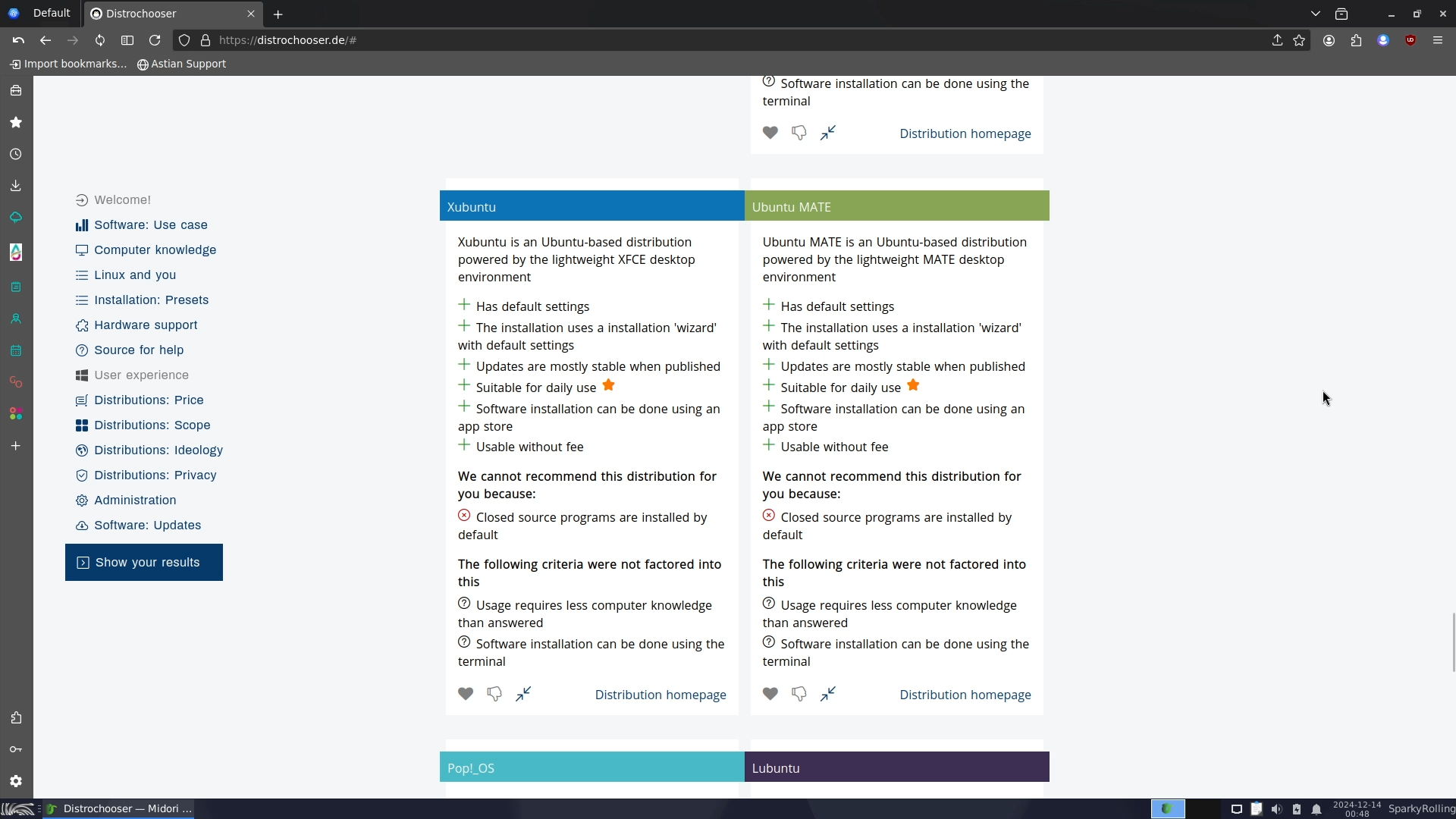
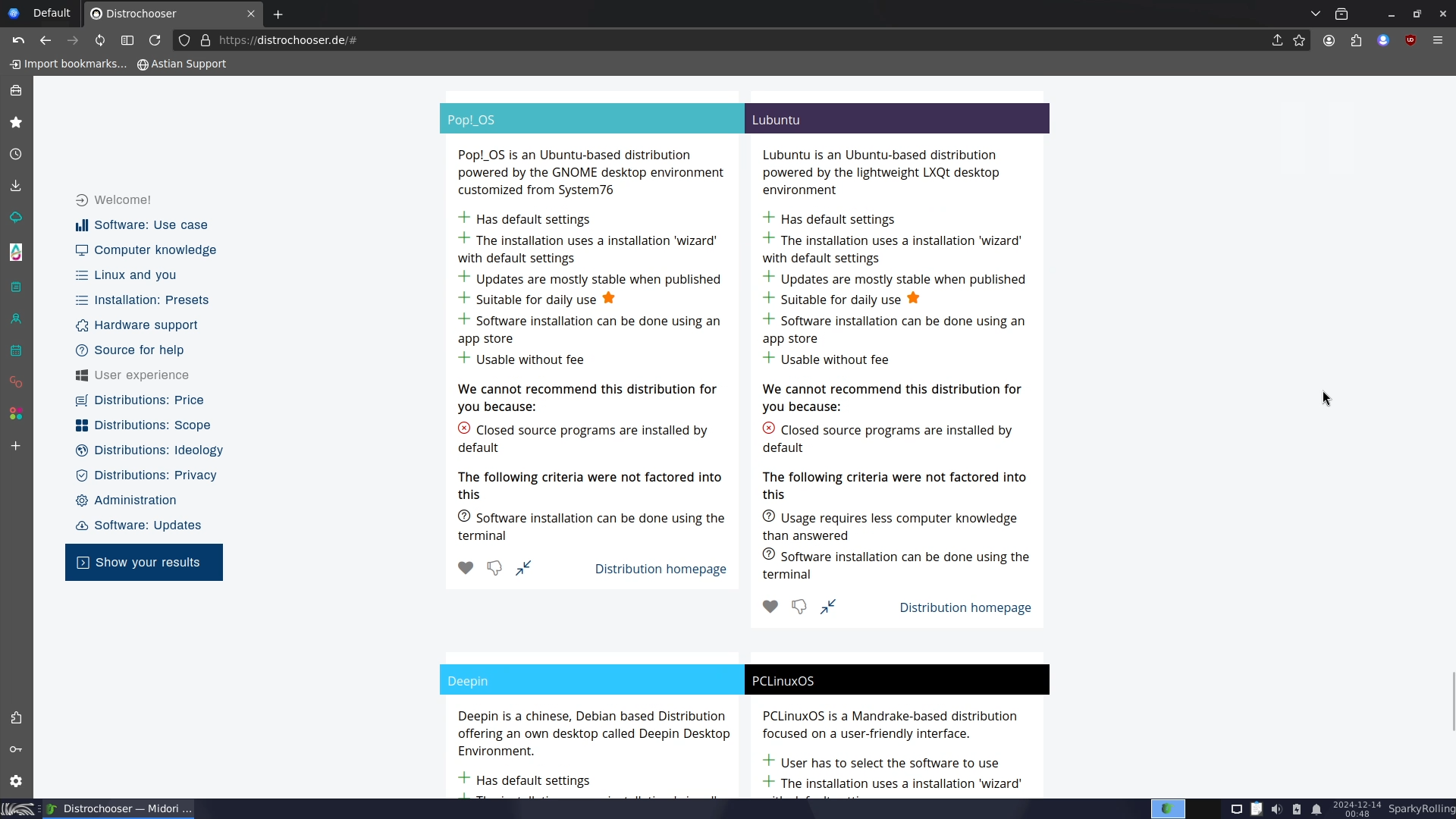
DISTROCHOOSER was created by German programmer Christoph Müller, and as the name suggests, its goal is similar to LIBREHUNT’s. However, DISTROCHOOSER takes a more refined approach to finding your ideal Linux distro by drilling down into more detail and allowing for multiple answers.
DISTROCHOOSER Walk-Through
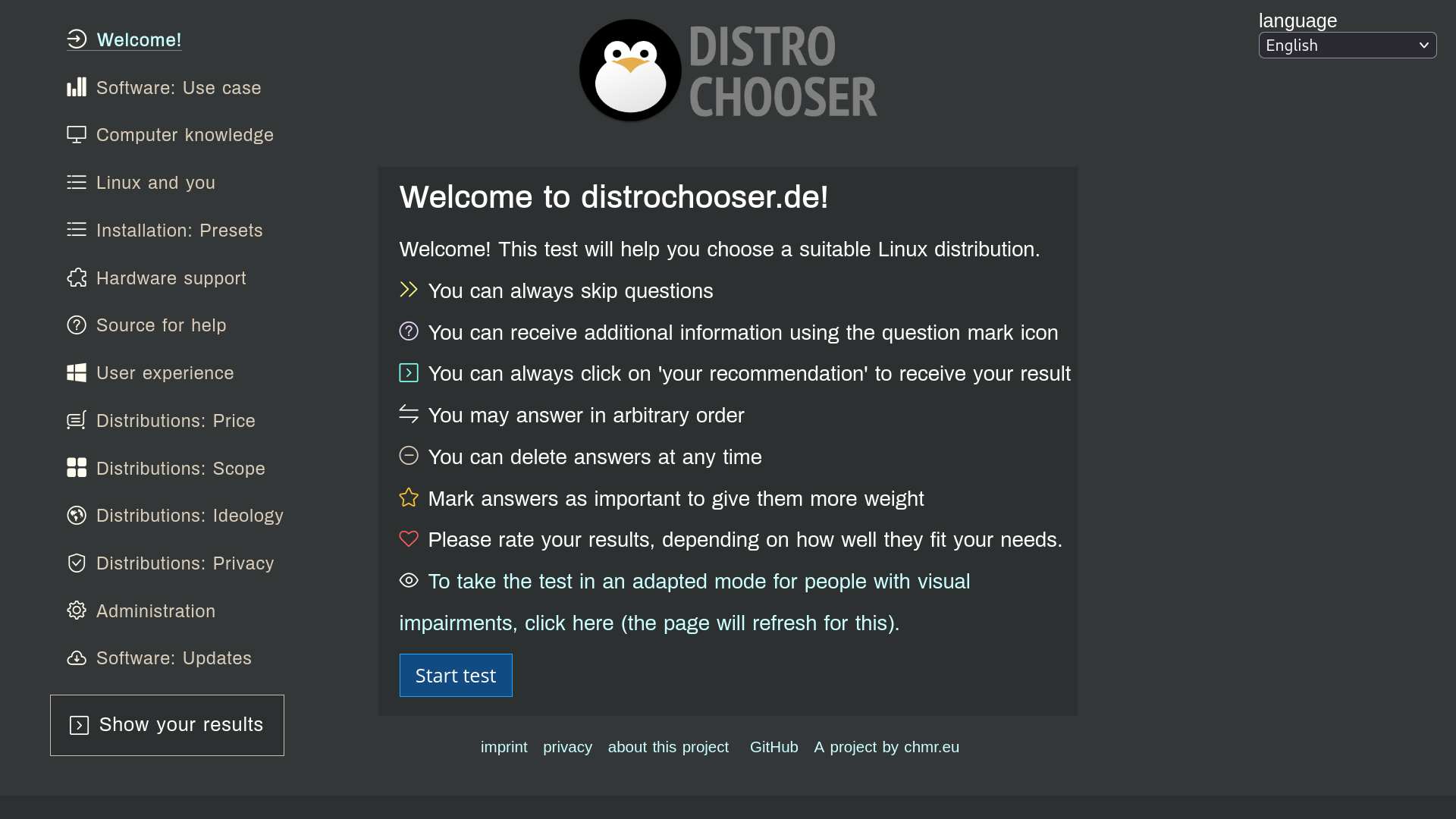
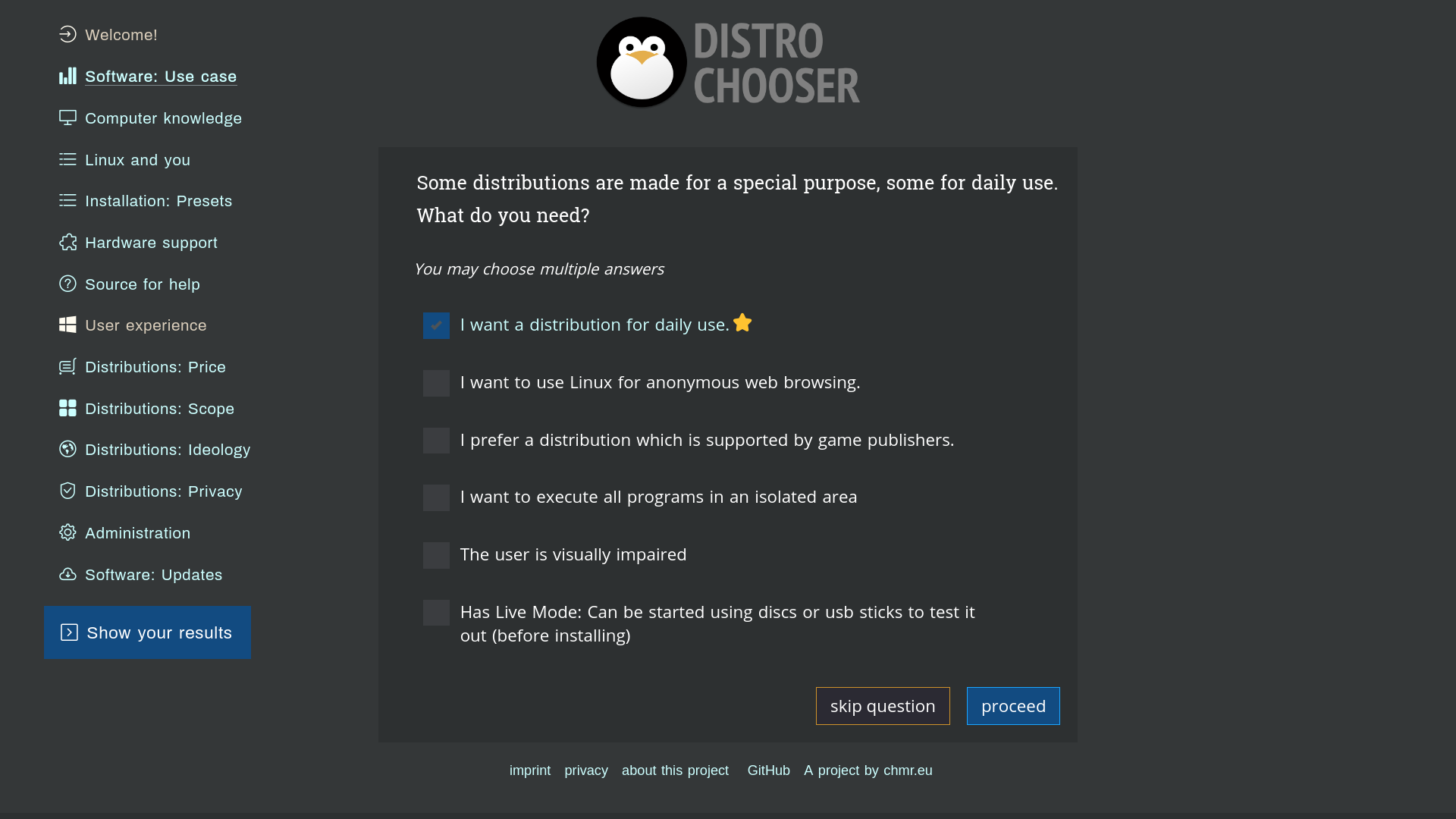
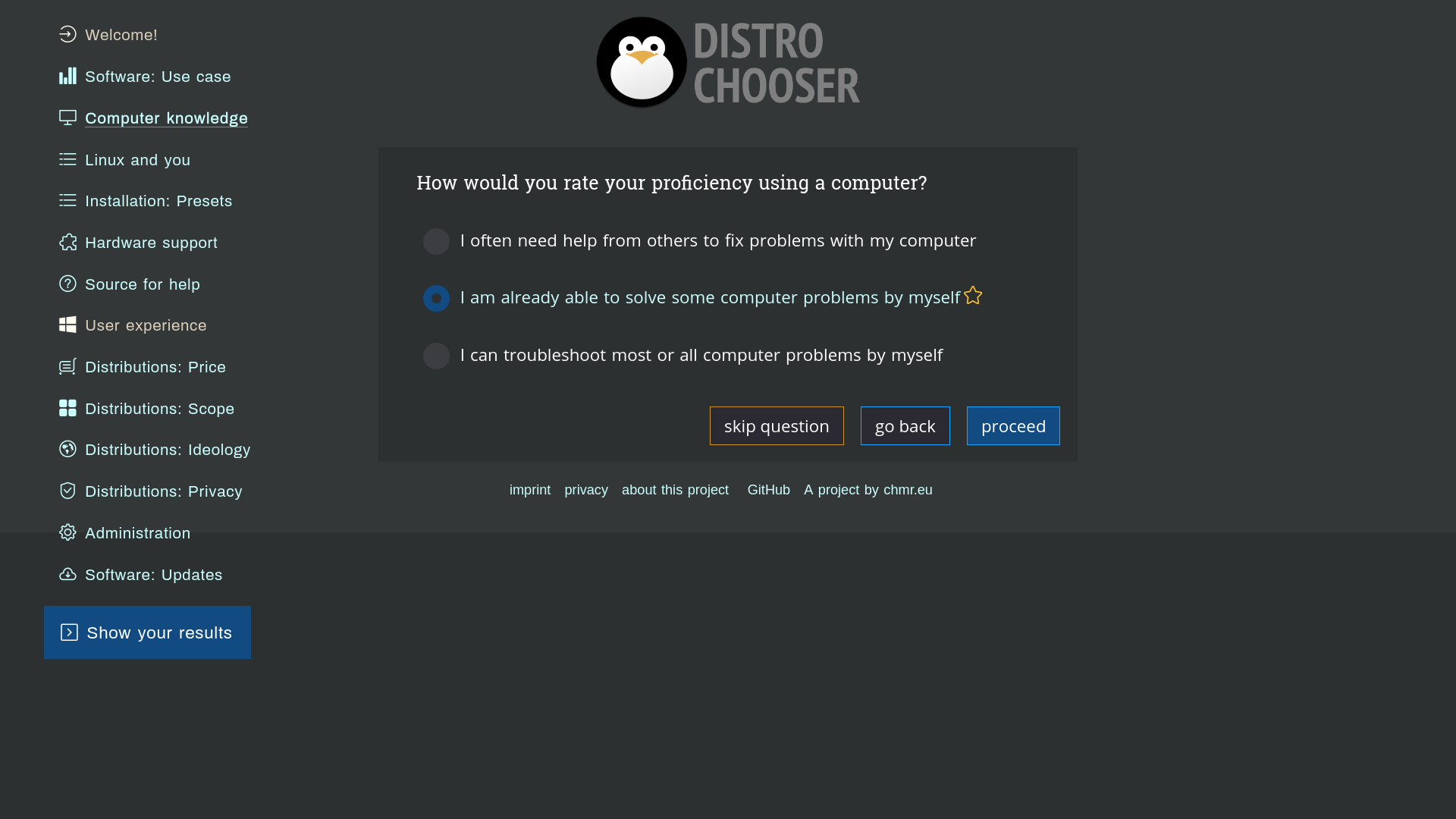
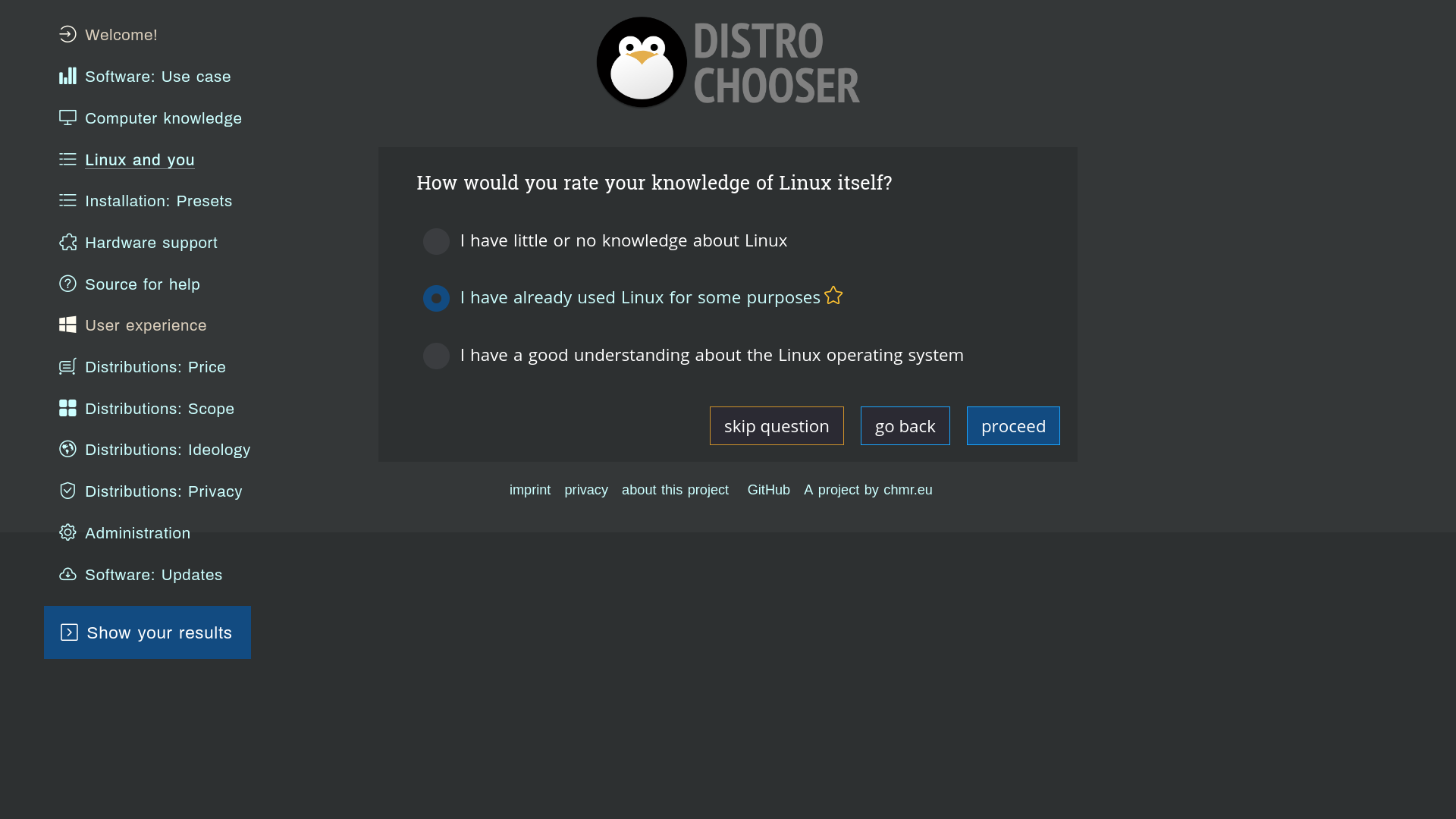
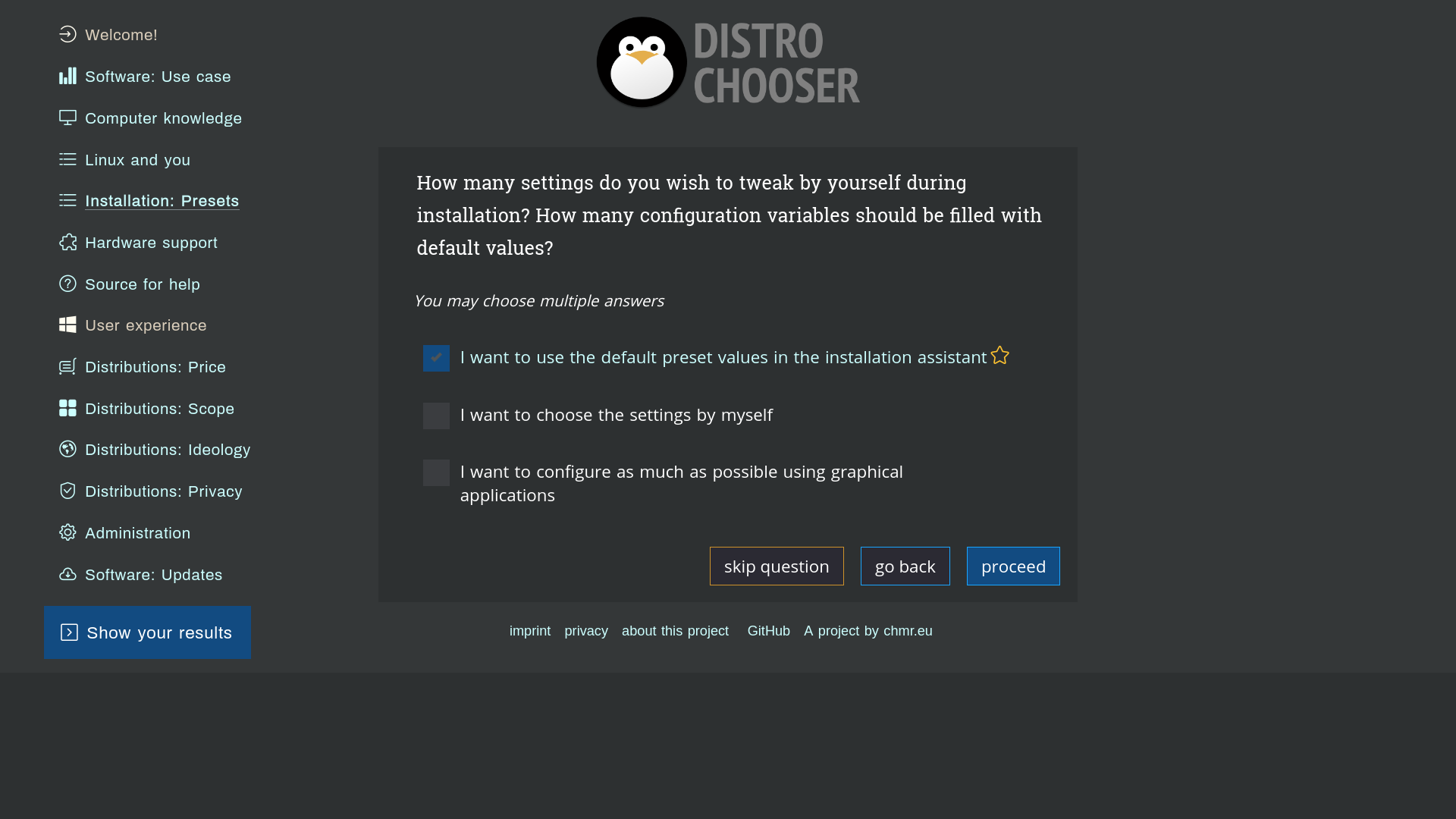
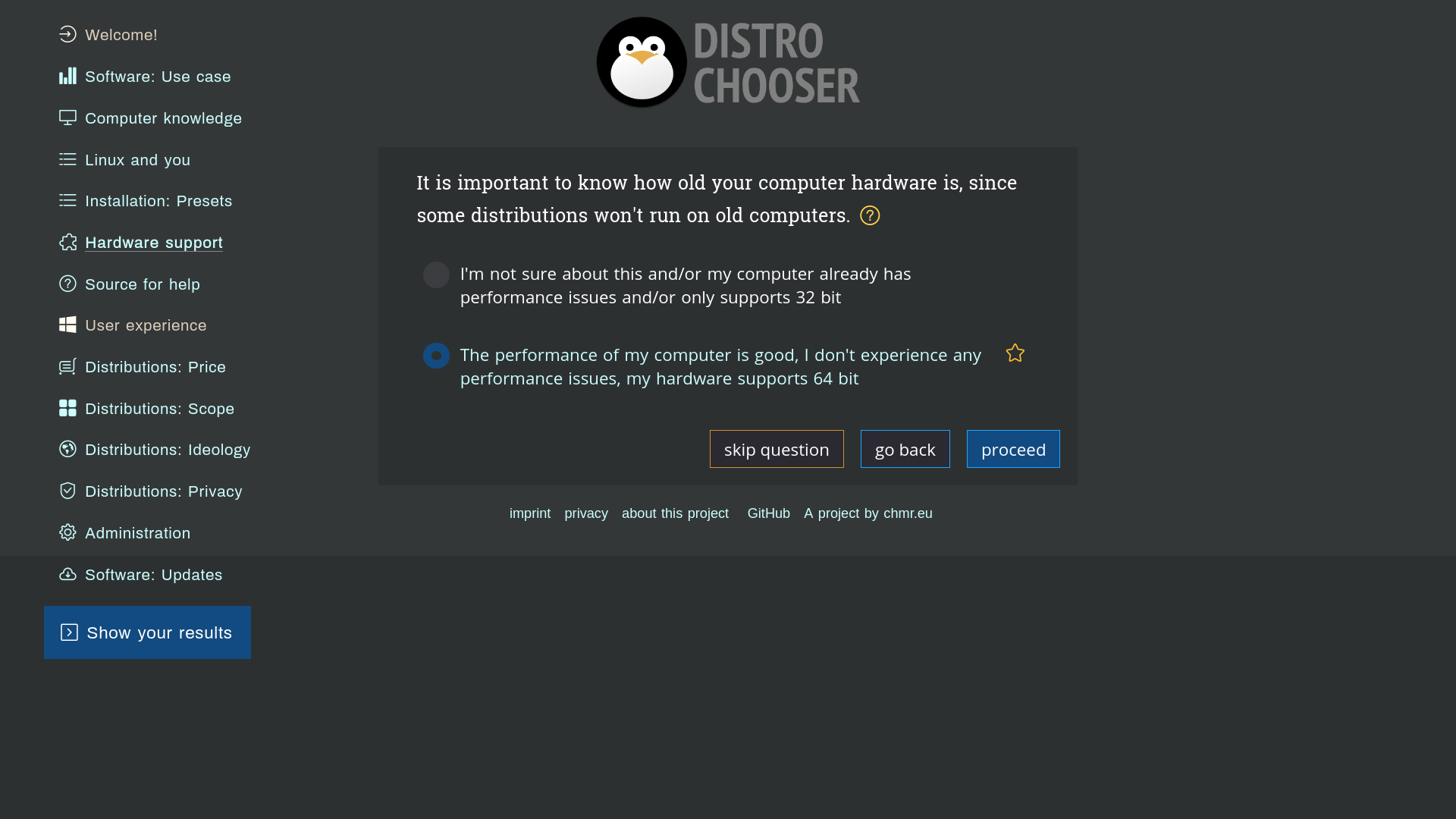
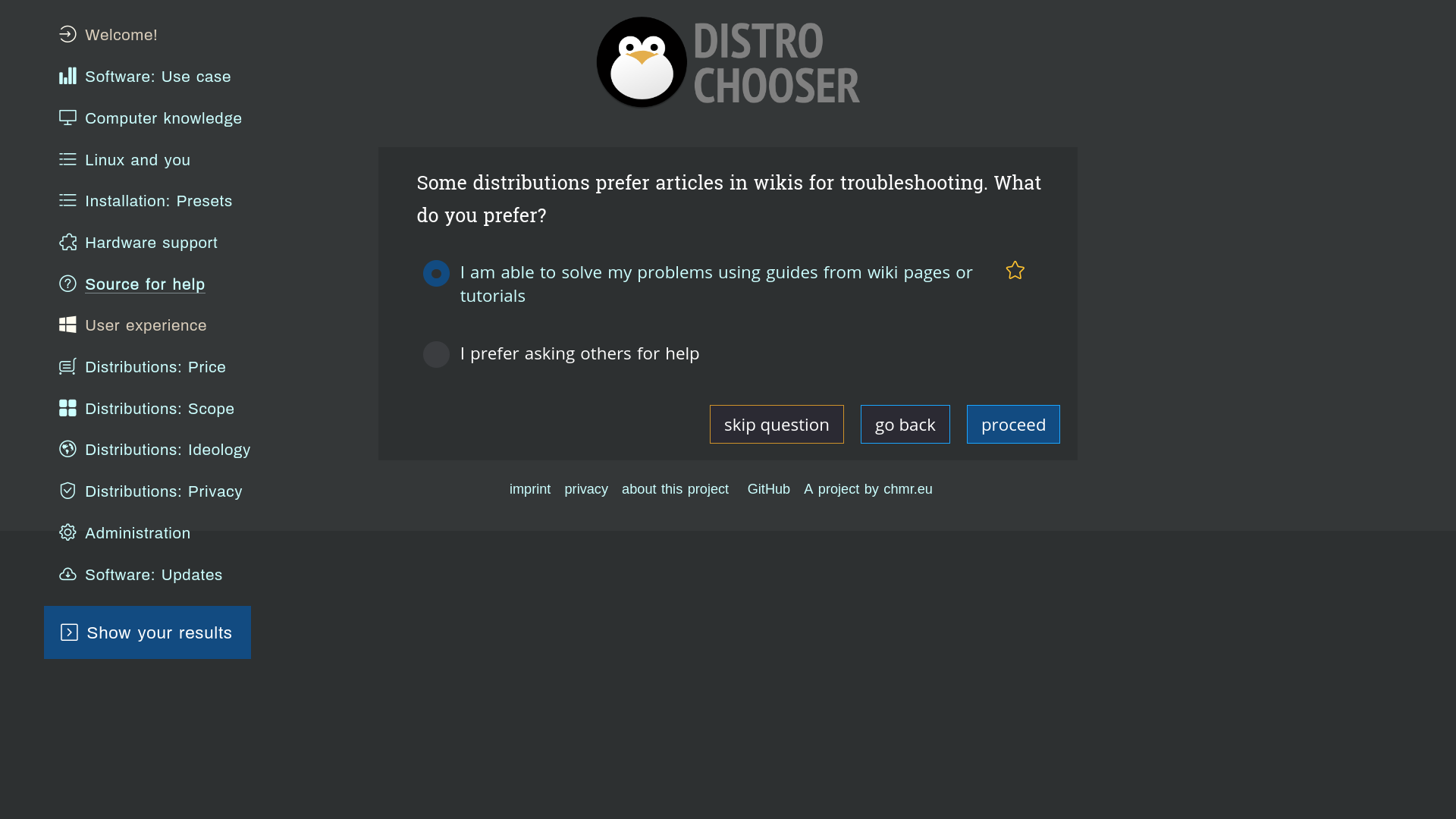
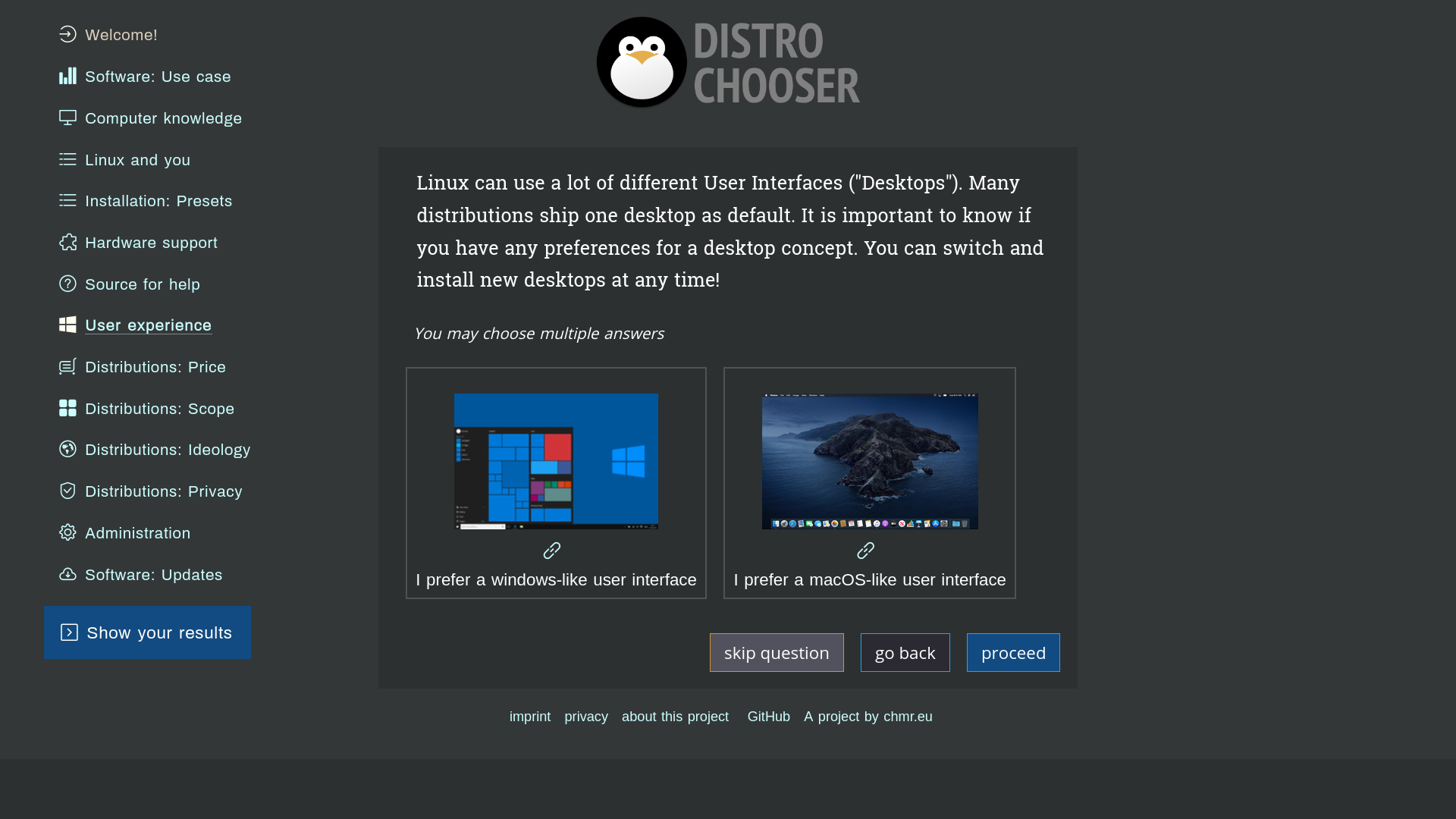
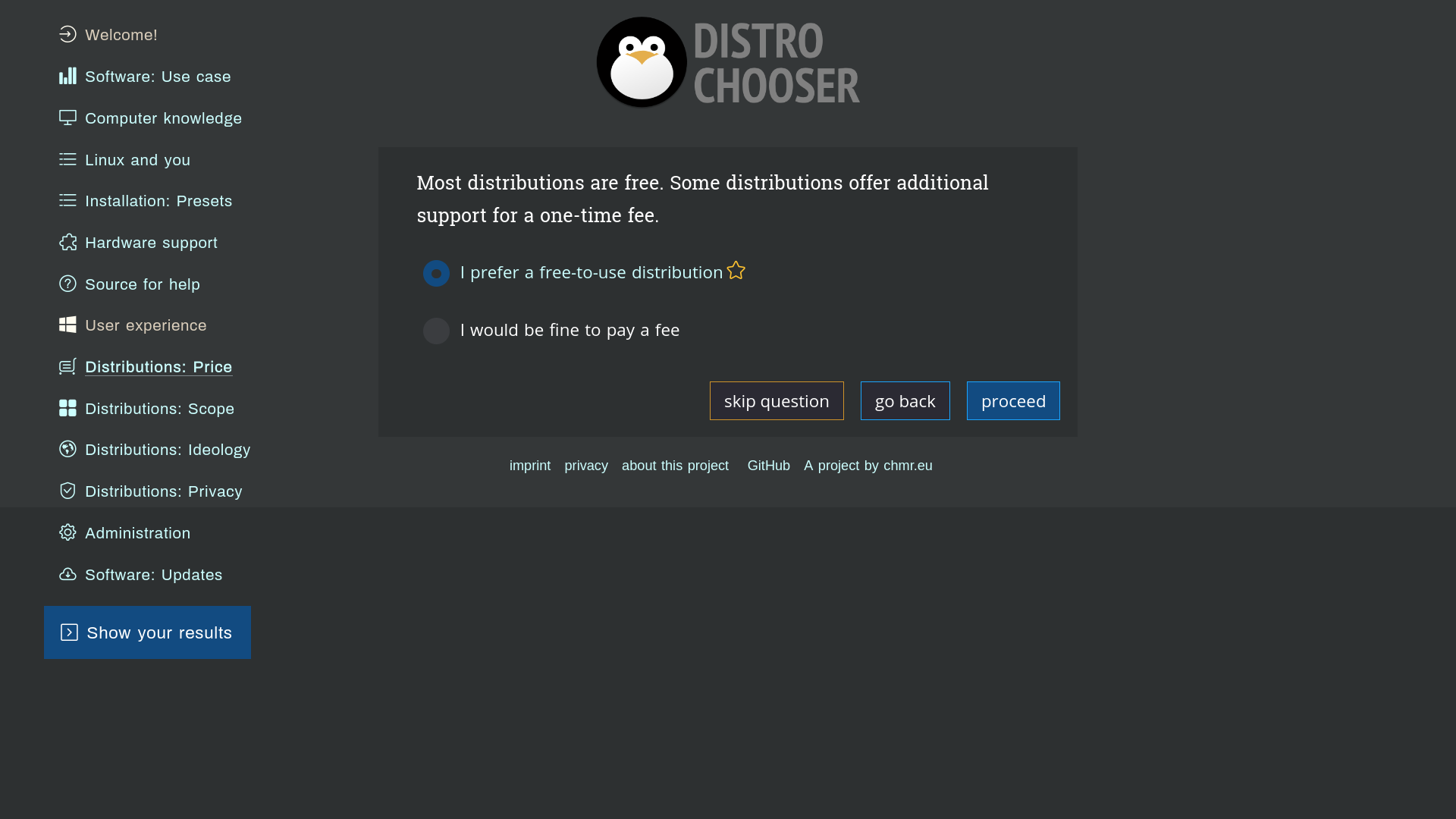
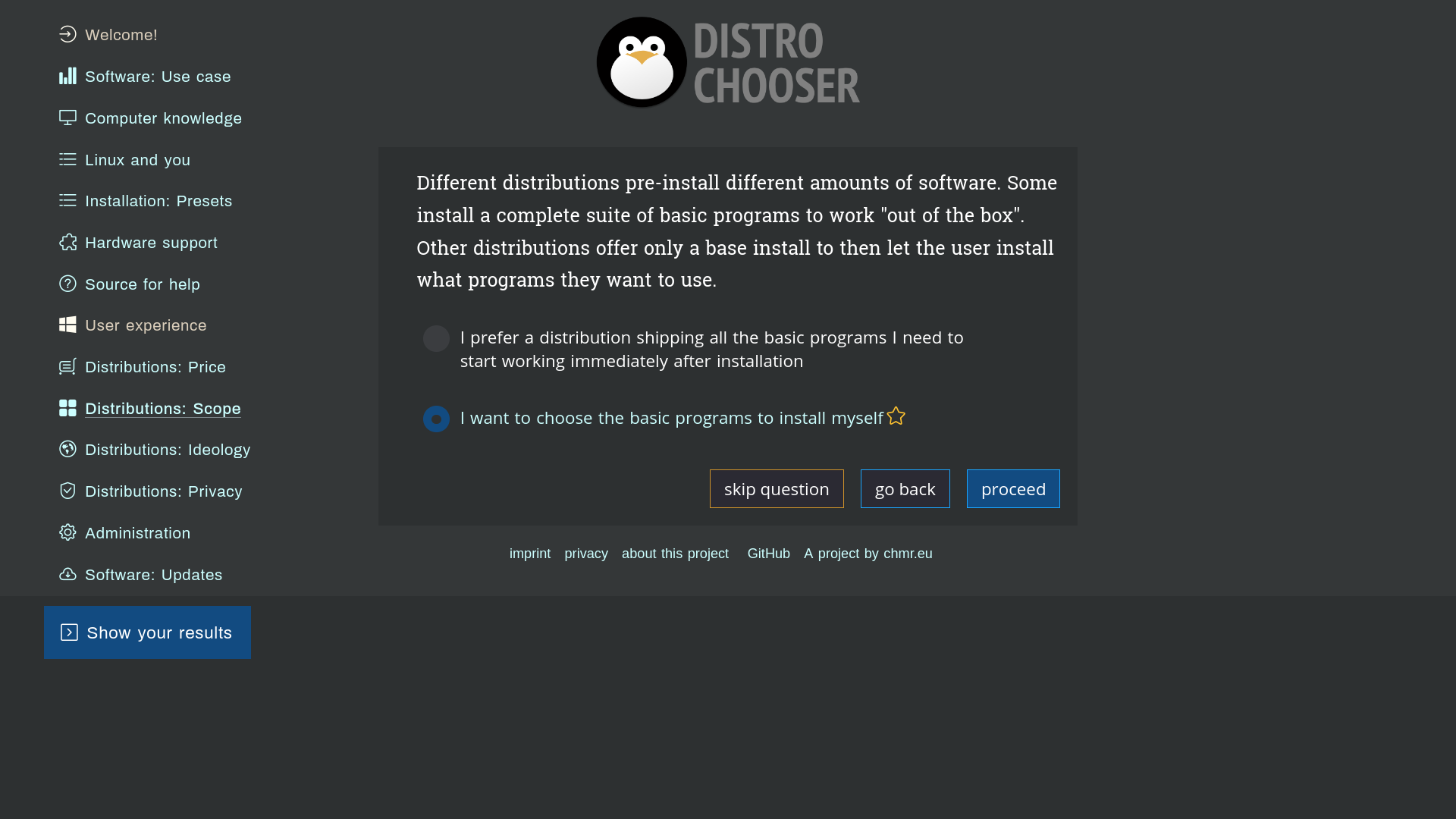
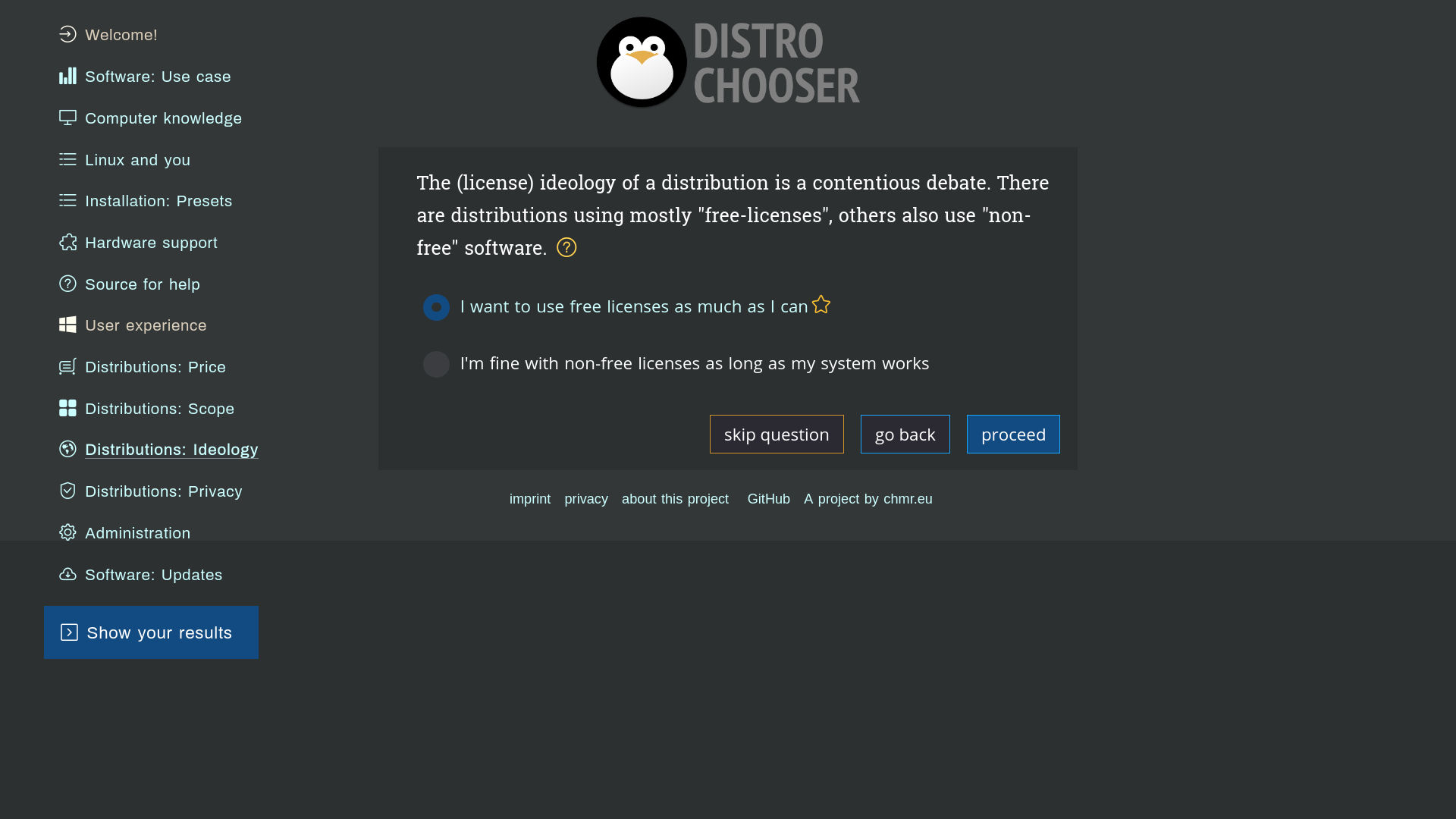
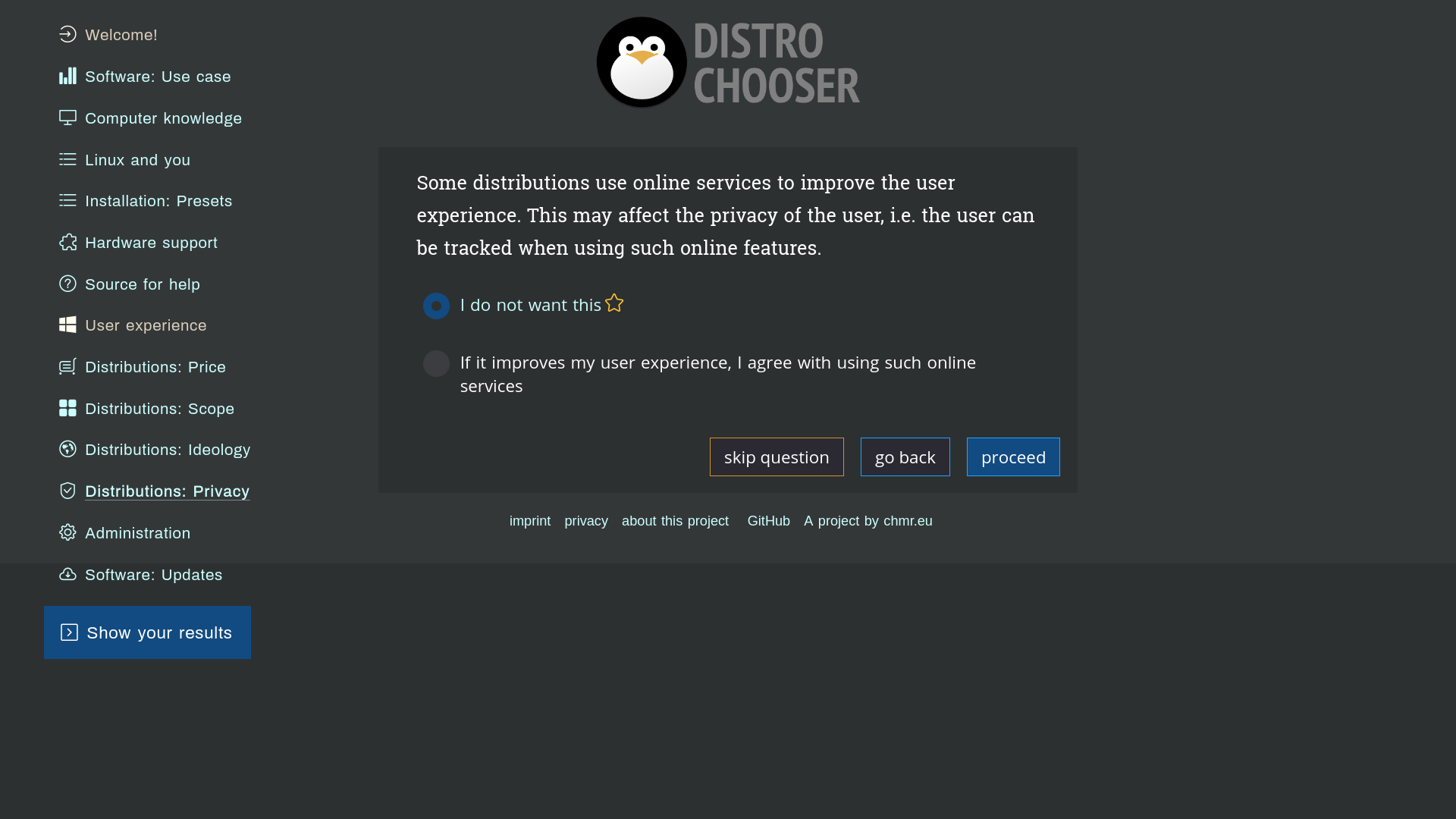
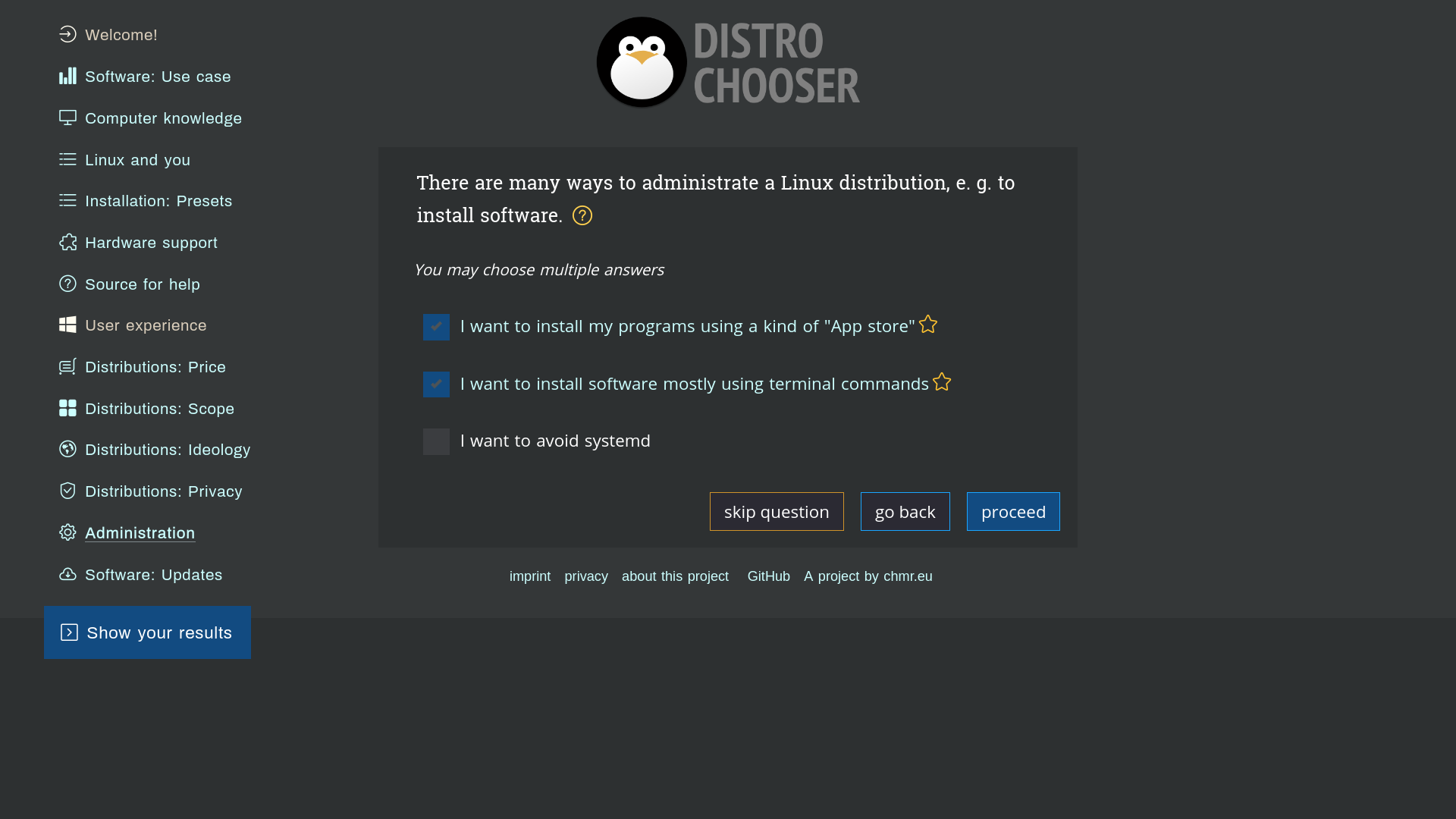
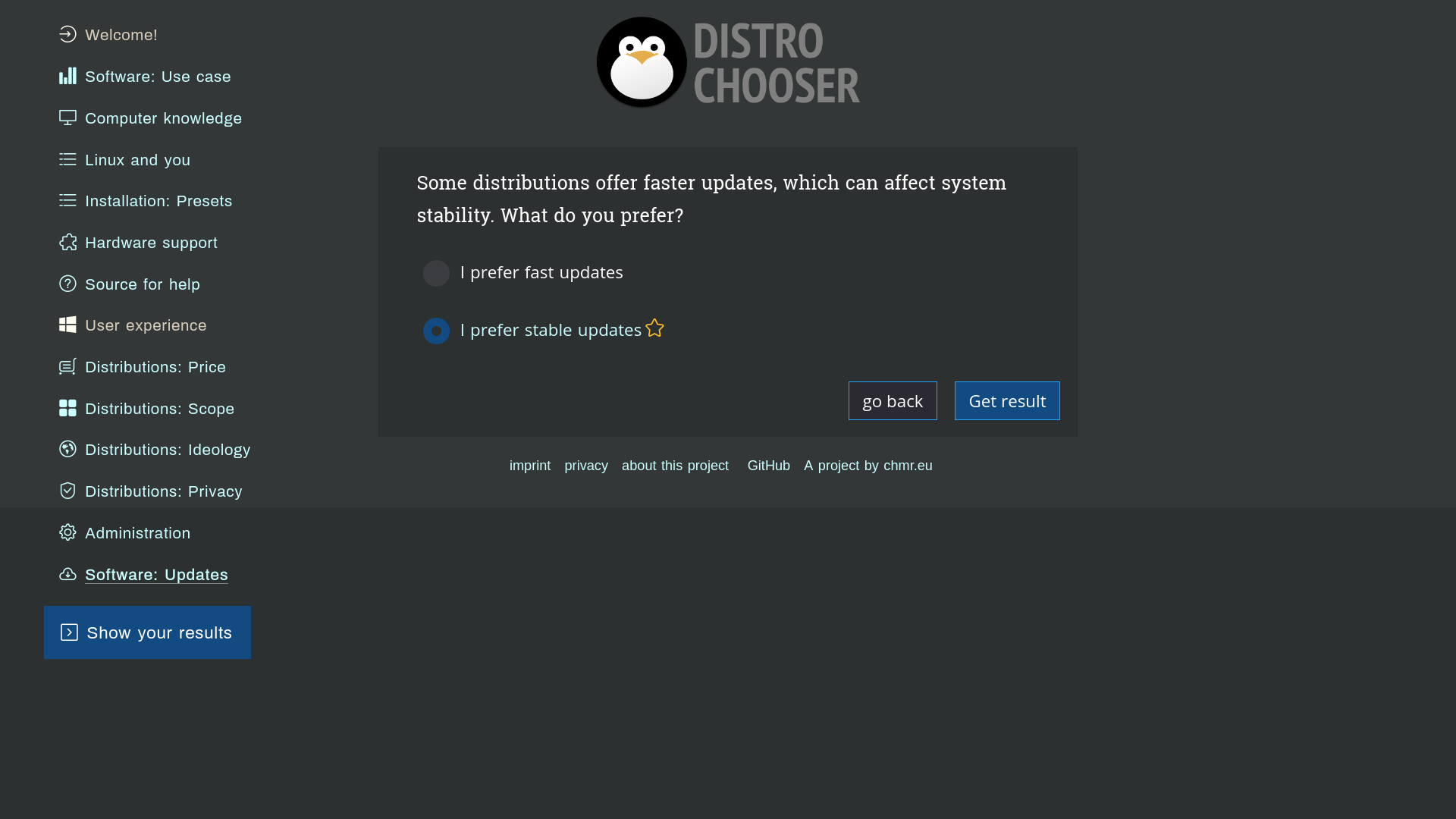
The DISTROCHOOSER homepage is very simple. There is a menu on the left side that leads to the question section. In total, there are 13 questions covering topics such as use case, computer knowledge, Linux knowledge, OS installation presets, hardware and software support, user experience, price, and privacy.
In the middle section, you will find instructions stating that:
- You can skip questions at any time.
- You can change or delete your answers whenever you wish.
- You can receive additional information by clicking on the question mark icon.
- You can mark answers to give them more weight or importance.
- You can click on ‘Show your results’ to finish the test and receive your personalised recommendations.
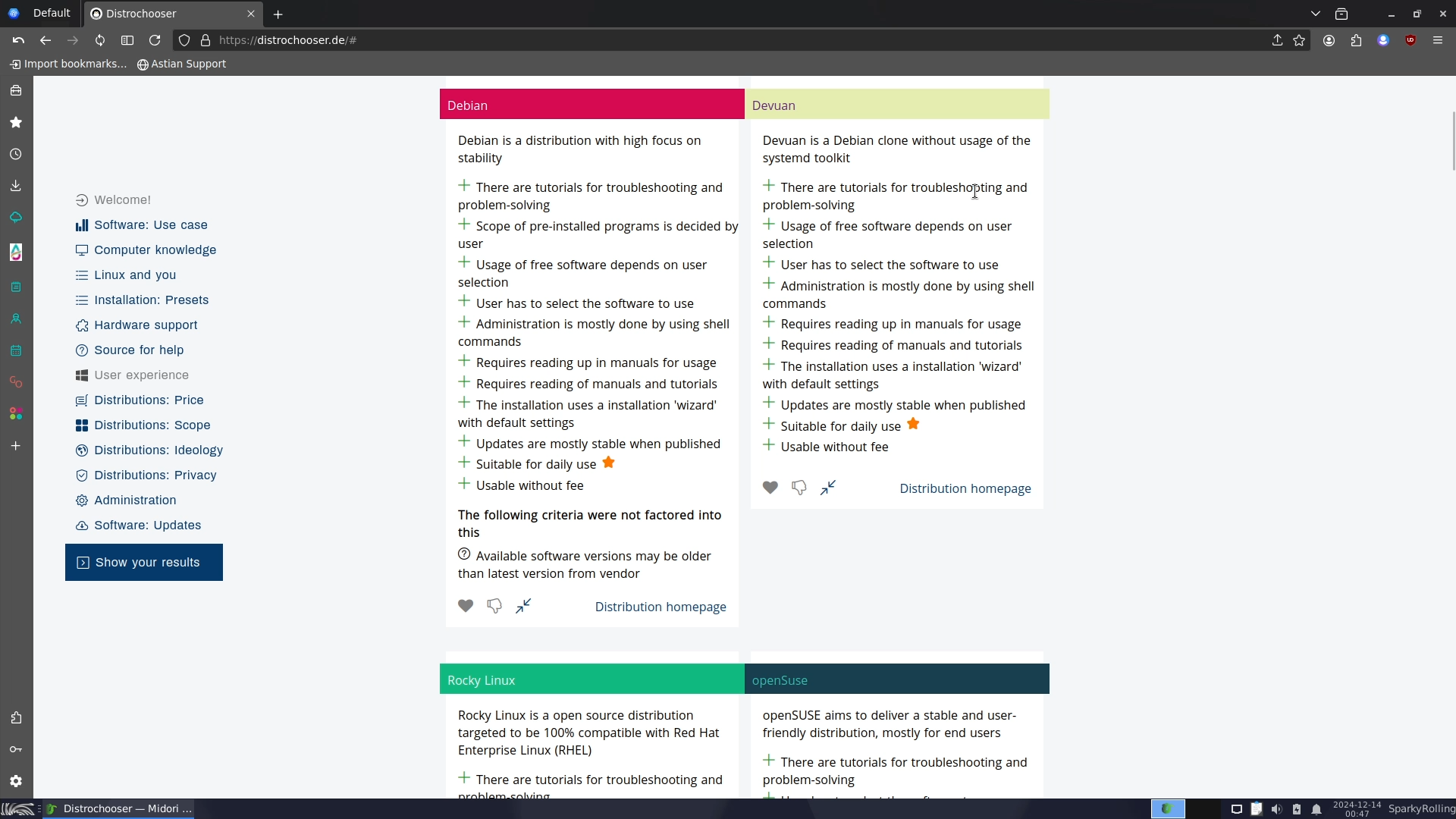
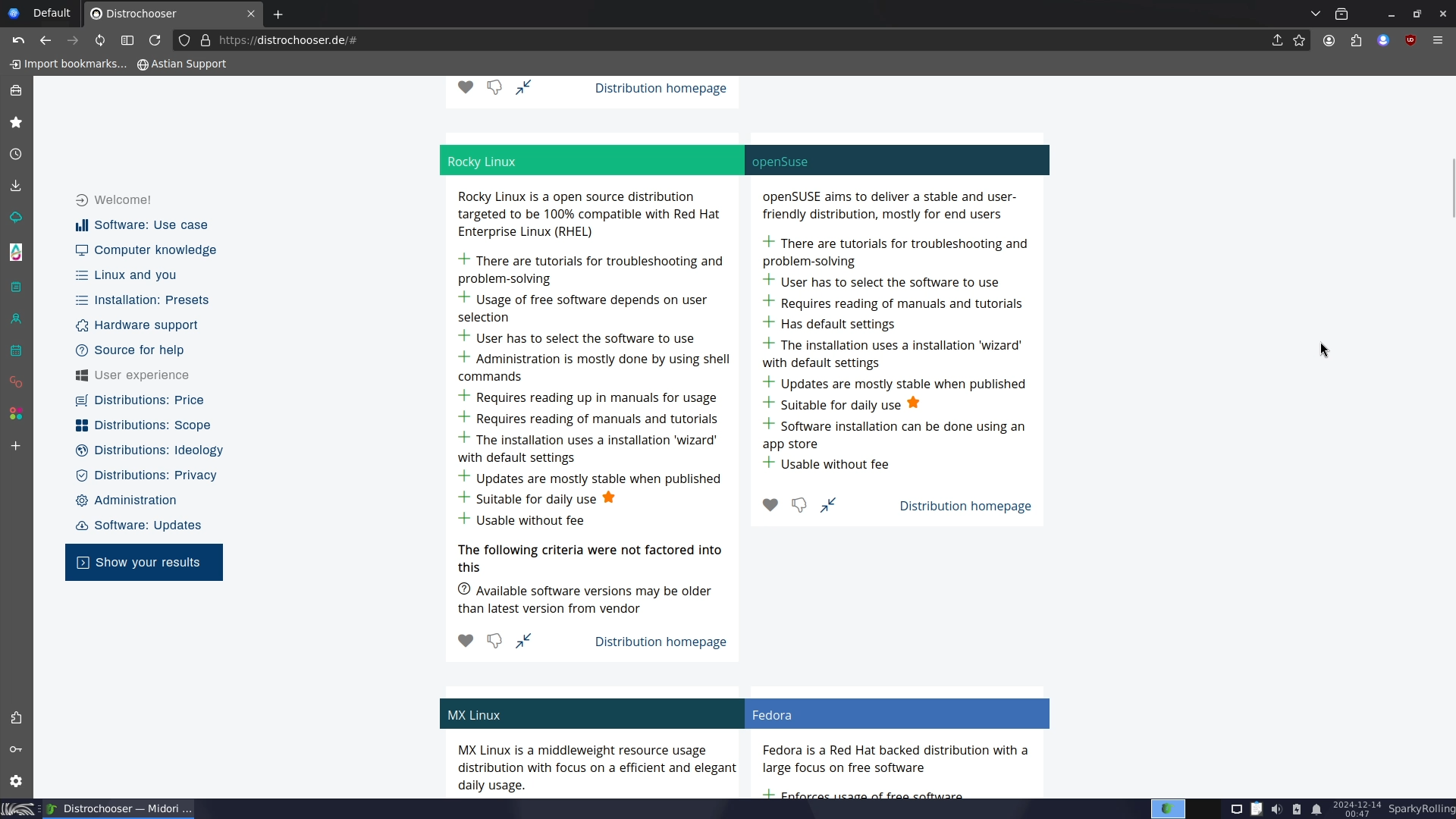
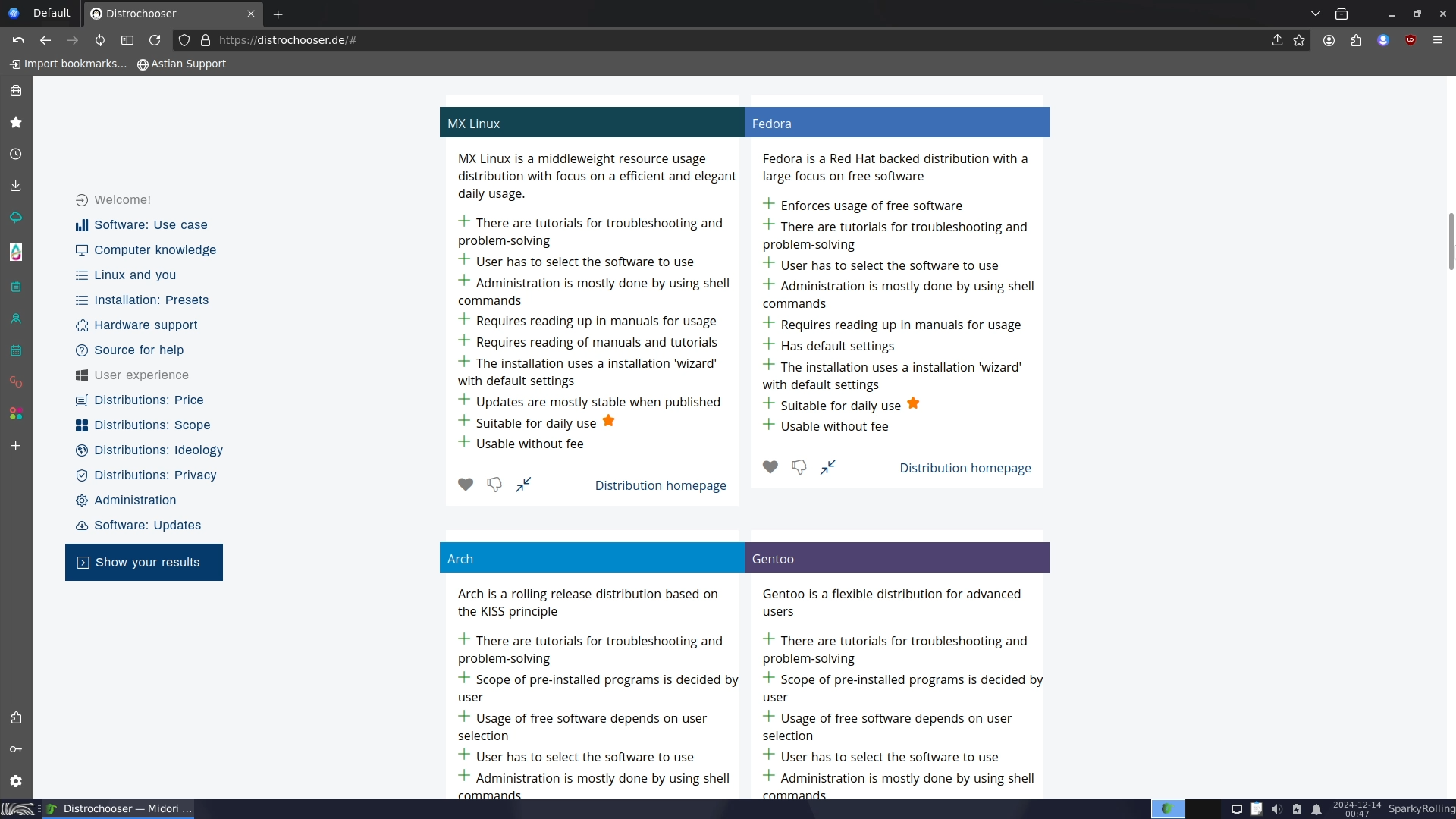
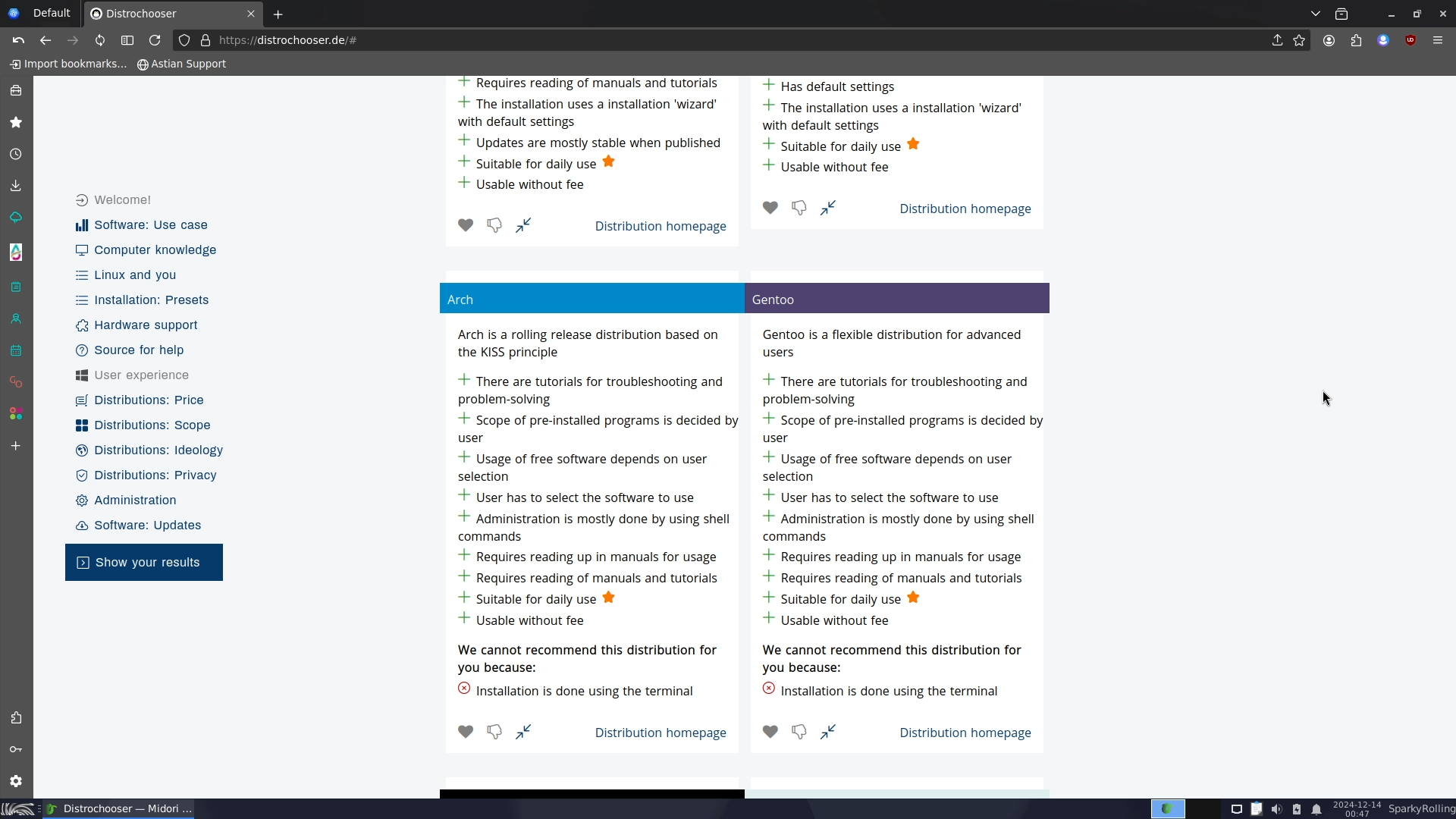
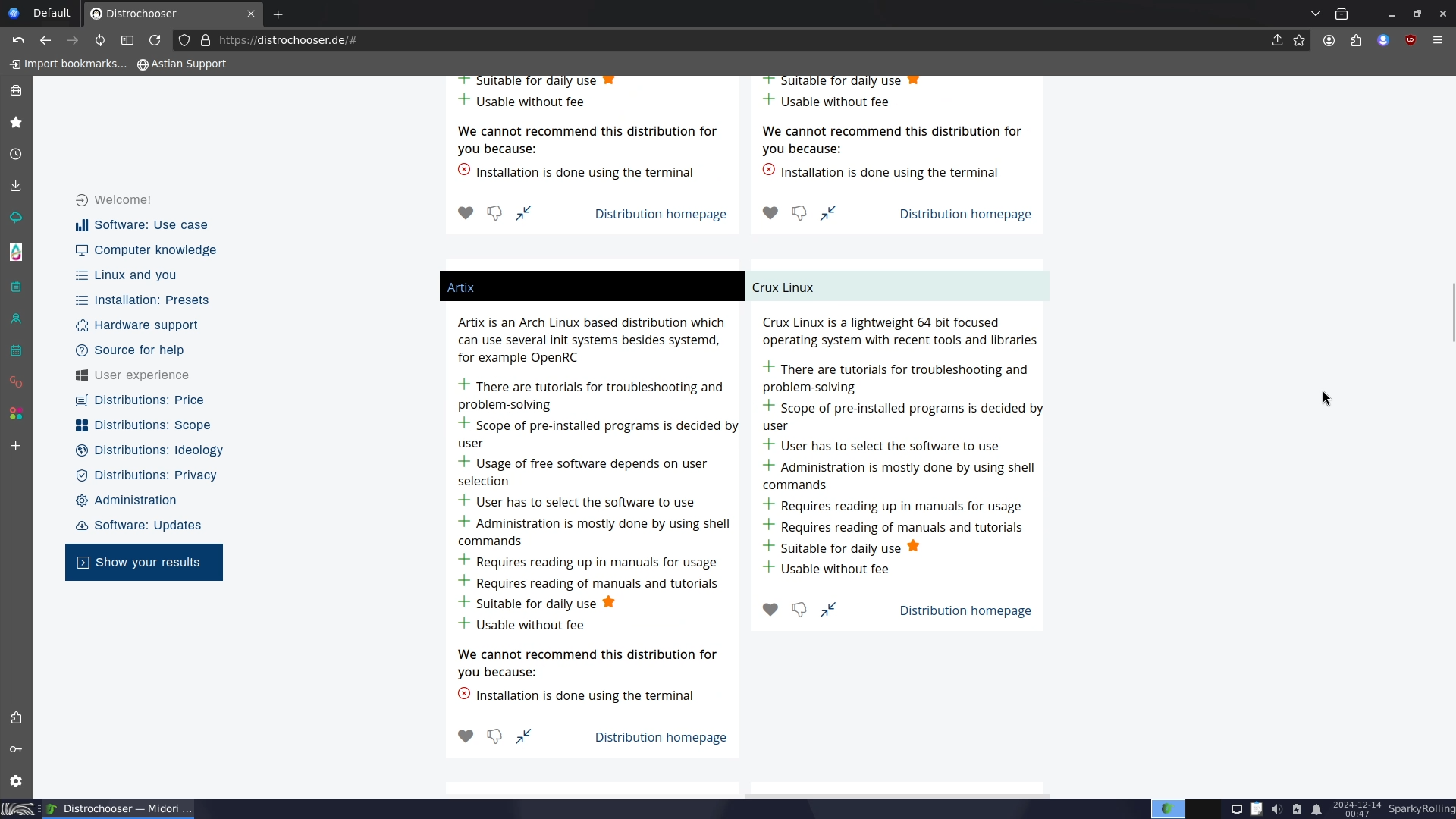
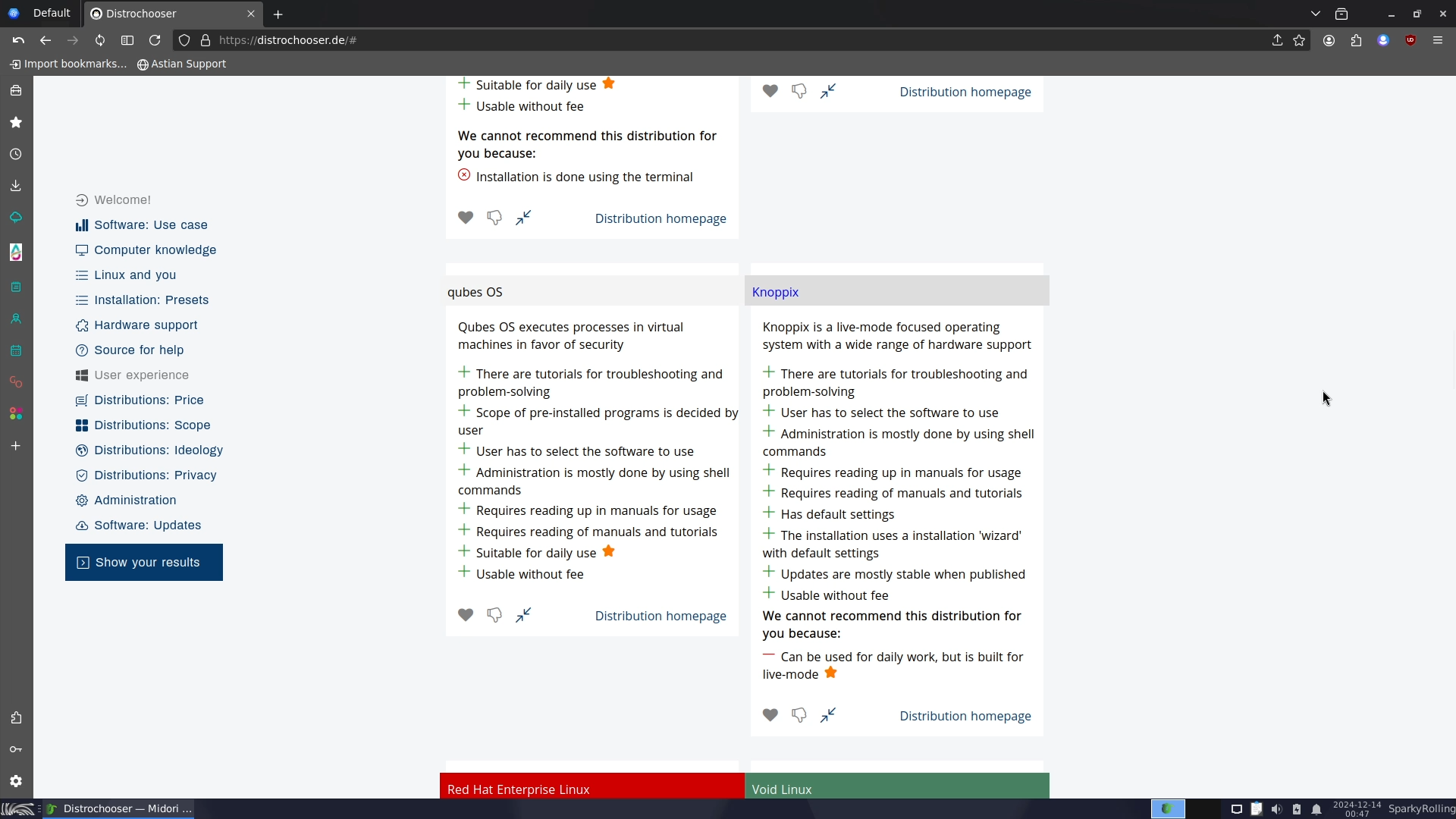
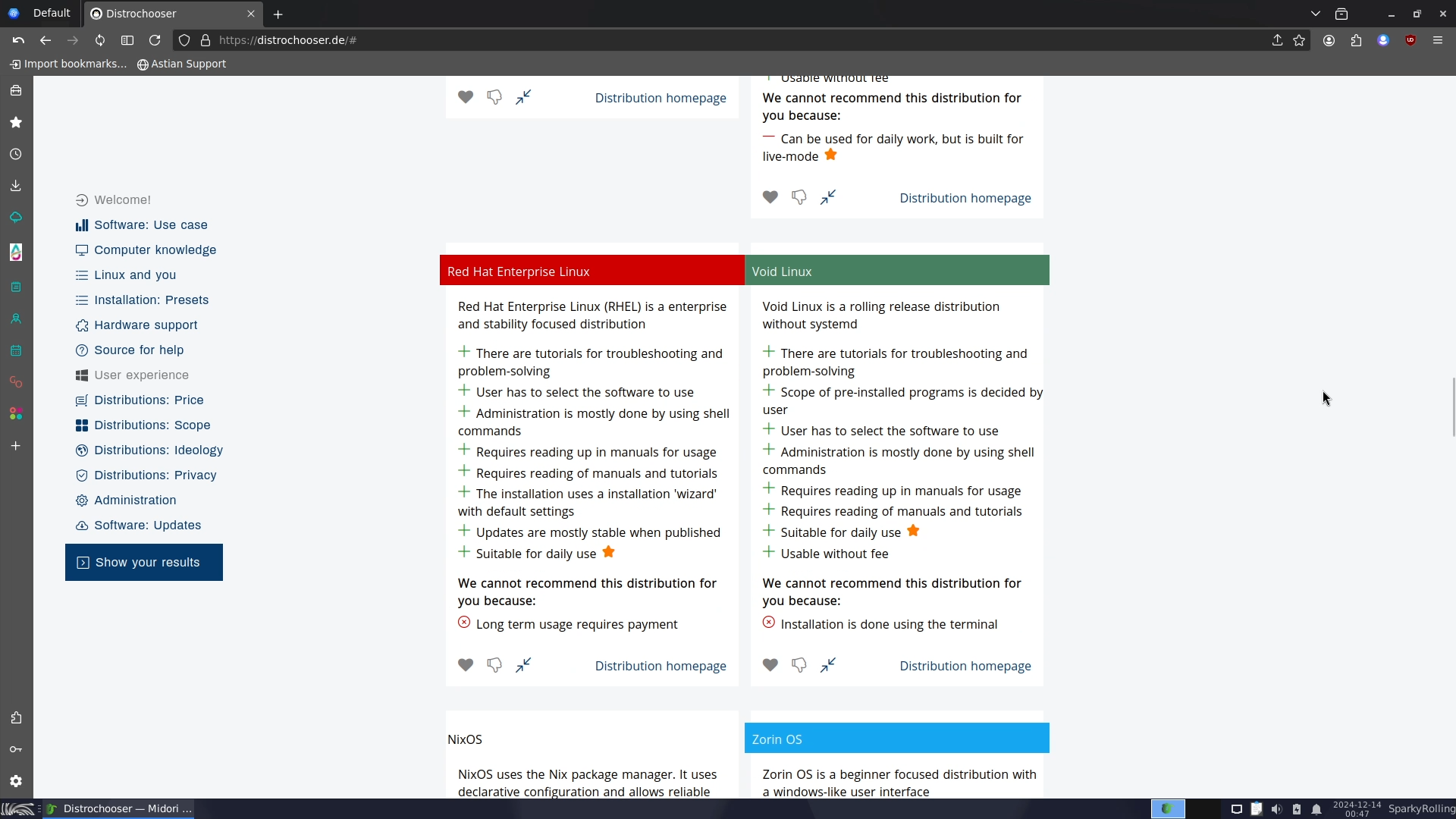
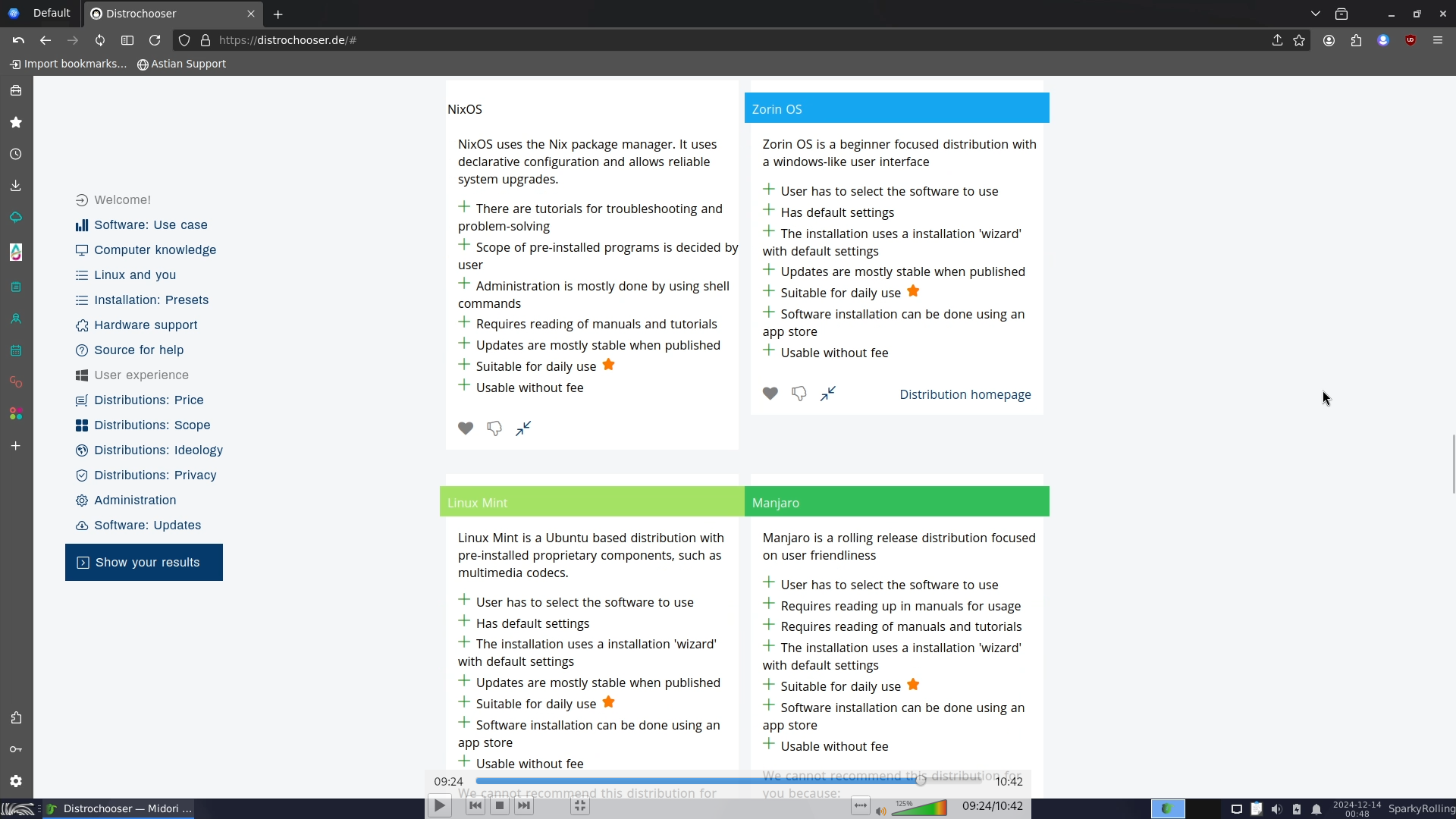
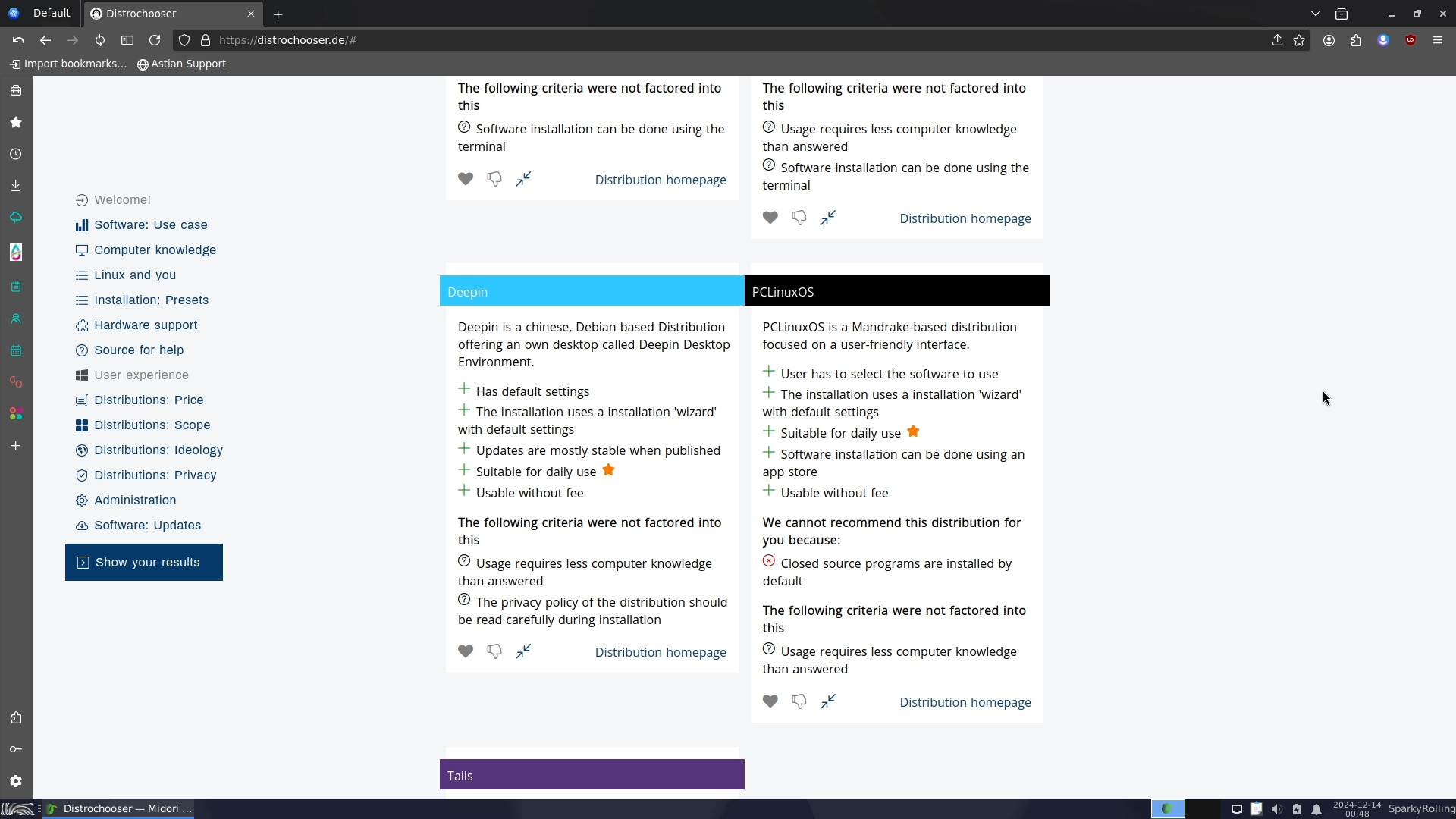
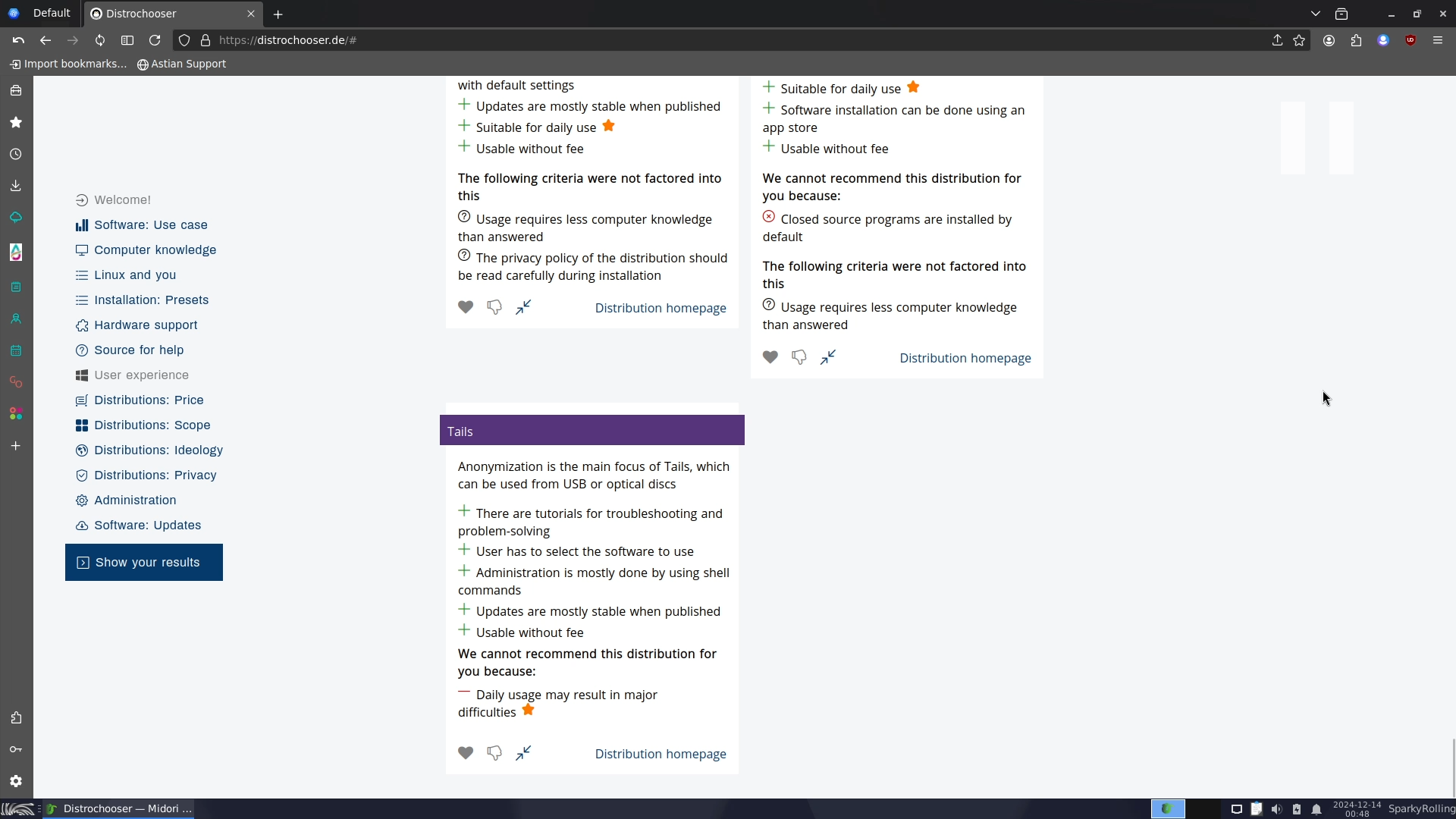
Screenshots of DISTROCHOOSER Test
My Experience with DISTROCHOOSER
Upon completing the test, the first result I received was Debian. Next was Devuan, which is essentially Debian without SystemD. In third and fourth place, I was recommended Rocky Linux, based on Red Hat (or you could say Fedora), and then OpenSUSE—both great distros, though not recommended for beginners.
Next, I got MX Linux and Fedora, both of which are excellent options and highly recommended. Then came Arch and Gentoo, both of which are among the best Linux distros available, but they are not recommended for beginners. Following these were Artix and Crux Linux, again not suitable for beginners.
Then, I received Qubes OS, which is a fantastic choice for those looking for increased security and privacy, but for a normal user, it’s too much hassle.
However, it then suggested some distributions that are not recommended for beginners, including Knoppix, Red Hat, Void Linux, and NixOS. These are better suited for advanced and highly advanced users. Finally, the list included Deepin, PCLinuxOS, and Tails.
Overall, I had mixed feelings about the recommendations provided by DISTROCHOOSER because it began with some beginner-friendly options, all of which are great choices for new users.
But then it also included some distributions that would be challenging for those just starting out.
So now if you ask me - Which One Is Better?
Then, in my opinion, if you are completely new to the world of FOSS and Linux, then LIBREHUNT would be your best option because it is dead simple and easy to use, and in my testing, I think the answers were more organised than what I got from DISTROCHOOSER. But on the other hand, the benefit of DISTROCHOOSER is that it lets you really dial into your specific requirements and needs; therefore, it would be better for those who have moderate knowledge of computers and operating systems. But in the end, I will encourage you to try both of them! Because if you find one or two common distro recommendations on both sites, then you have probably struck gold, and that’s a good place to begin.
But again, I will also remind you that the beauty of Linux is that you’re not locked in. You don’t have to fit a mould or adapt to the operating system you’re using. Linux can adapt to you, whether that’s right out of the box or by your own hand. And I’m pretty confident you’ll find a satisfying and comfortable Distro by using these two awesome tools.
]]>
Thinking of Linux? Use These Free Apps FirstNixNexushttps://nixnexus.org/thinking-of-linux-use-these-free-apps-first/2024-11-20T19:24:00+05:30
If you’re reading this article, that means you’re probably curious about switching from Windows to Linux. But maybe wondering, ‘Where do I even start?’ So, what if I tell you there is one step toward Linux that often doesn’t get enough attention, but it can make all the difference. All you have to do is switch to Free and Open-Source Software (a.k.a FOSS) while using Windows.
Yes, that’s right! Switching to Linux isn’t just about learning a new operating system; it’s about becoming comfortable with a whole new way of working and with a new set of applications. The best part is, you can start right now on your Windows machine by trying out some great free and open-source programs.
These are the exact free and open-source applications that you would use on Linux; therefore, you will already know your way around once you make the switch. Plus, it is a lot less intimidating to try these apps one at a time instead of diving into an entirely new ecosystem all at once.
And the benefits don’t stop there! Besides easing your transition to Linux, FOSS offers big advantages. First, it’s free, so you’re saving money right away. But it’s not just about the cost; FOSS gives you more control over your software. There are no ads, no data tracking, and you have the freedom to customise the programs if you want. Using FOSS is also a way to support a global community that believes software should be accessible to everyone.
Don’t underestimate these free and open-source programs just because they’re free. These tools are powerful, widely used, and available across platforms. The skills you build using them on Windows will carry over to Linux, making the transition smoother and more enjoyable.
Examples of Basic Tools for Day-to-Day Tasks
1. Browsers – Alternative to Microsoft Edge
Firefox: If you’re not already using Firefox, give it a try! It will give you a sense of what browsing on Linux feels like, familiar and fast. Firefox is a fast, secure, and highly customisable web browser with a strong focus on user privacy. It’s one of the most widely used open-source browsers and is available across all platforms. With features like Enhanced Tracking Protection and a vast library of extensions, Firefox provides a secure browsing experience that respects your privacy.”
Brave: Brave is a privacy-focused browser that blocks ads and trackers by default, giving you faster and more secure browsing. Built on Chromium, Brave offers the same performance as Chrome but with enhanced privacy features. It’s available on all major platforms, meaning you can get used to it while using Windows.
2. Note-Taking Apps – Alternative to Microsoft OneNote / Notion
Joplin: Joplin is an open-source note-taking and to-do application designed to help you organise your ideas, notes, and lists. It supports markdown, encryption, and synchronisation across devices via services like Dropbox and Nextcloud. Joplin is a great FOSS alternative to apps like Evernote, and it’s perfect for users who want full control over their notes and privacy.
3. Text Editor – Alternative to Microsoft Notepad
Notepad++: Notepad++ is a highly versatile text and source code editor that offers powerful features like syntax highlighting, multi-document editing, and search functionality. It’s lightweight yet capable, making it ideal for everything from quick note-taking to programming. Notepad++ is a favourite among developers and power users who need a flexible, high-performance text editor. Though Notepad++ is not available on Linux, a similar application called NotepadQQ can instead be used on Linux.
4. PDF Reader – Alternative to Adobe Acrobat
SumatraPDF: SumatraPDF is a lightweight, open-source PDF reader for Windows. Known for its simplicity and speed, it supports formats like PDF, ePub, MOBI, and more. SumatraPDF is an excellent choice for users who want a straightforward, fast-loading PDF reader without unnecessary features or bloat.
Okular: Okular is an open-source document viewer developed by KDE, supporting a wide range of formats, including PDF, ePub, DjVu, and images. It offers advanced features like annotations, form filling, and text extraction. Okular is a great choice for users who need a powerful, flexible document viewer that’s available on both Windows and Linux.”
5. Media Player – Alternative to Windows Media Player
VLC Media Player: VLC Media Player is a powerful, open-source media player that can handle nearly any audio or video format. With built-in codecs and advanced playback options, VLC is highly versatile and works across platforms. It’s perfect for anyone looking for a reliable, ad-free media player with extensive customisation and streaming capabilities.
MPV: MPV is a minimalist yet powerful media player known for its high performance and ability to handle a wide variety of media formats with ease. It has a simple interface but supports extensive customisation and powerful features through scripting, making it a favourite among advanced users.
6. Productivity & Office Suites – Alternative to Microsoft Office
LibreOffice: LibreOffice is a comprehensive, free office suite that includes tools similar to Microsoft Word, Excel, and PowerPoint. It offers excellent compatibility with Microsoft Office formats and includes six main applications: Writer, Calc, Impress, Draw, Base, and Math. LibreOffice is a great choice for users who want a robust, fully-featured office suite that works seamlessly on both Windows and Linux.
OnlyOffice: OnlyOffice is a versatile office suite designed for productivity and collaboration. Compatible with Microsoft Office formats, it includes tools for word processing, spreadsheets, and presentations. It’s a great choice for users who want to switch to FOSS but still need compatibility with MS Office files.
7. Image Editing & Graphics Design
GIMP: GIMP or GNU Image Manipulation Program is a powerful, open-source graphics editor for tasks like photo retouching, design, and image composition. Known as a top free alternative to Photoshop, GIMP offers advanced tools, layers, and customizable brushes for professional-quality work. It’s cross-platform and completely free, making it a great choice for designers and photographers wanting high-quality editing on any operating system.
Inkscape: Inkscape is a powerful, open-source vector graphics editor, perfect for tasks like logo design, illustrations, and creating scalable artwork. It offers advanced features such as node editing, path operations, and support for various file formats like SVG. Inkscape is a great FOSS alternative to Adobe Illustrator, providing professional-grade tools for designers and artists on both Windows and Linux.
Krita: Krita is a professional-grade digital painting and illustration program loved by artists. It’s especially popular for creating concept art, illustrations, and comics. With a robust toolset and user-friendly interface, Krita is a powerful alternative to Photoshop or Corel Painter, and it runs smoothly on Linux as well as Windows.
Scribus: Scribus is a desktop publishing application that’s ideal for designing brochures, posters, and magazines. It offers features similar to Adobe InDesign and is frequently used for professional-quality layouts. Scribus supports various publishing standards, making it a go-to tool for anyone interested in print design.
8. Video Production & Editing
Shotcut: Shotcut is an intuitive video editing software with support for a broad range of formats and resolutions. It’s packed with features like timeline editing, filters, and effects, yet remains user-friendly enough for beginners. Shotcut is a great choice for those new to video editing who want a simple, powerful FOSS option.
Kdenlive: Kdenlive or KDE Non-Linear Video Editor is a comprehensive video editing program with powerful tools for cutting, arranging, and editing video clips. It supports a wide range of video formats and offers advanced features like keyframe animation, effects, and transitions, making it a fantastic alternative to proprietary video editors.
Blender: Blender is an all-in-one 3D creation suite that’s widely used for 3D modelling, animation, sculpting, and even video editing. Its extensive toolset and high-quality output make it a favourite in industries like game design and film production. Blender’s flexibility and cross-platform availability mean you can learn it on Windows and continue seamlessly on Linux.
HandBrake: HandBrake is a powerful, open-source video converter that lets you rip and compress videos into different formats. With a wide variety of presets and customisation options, it’s a popular tool for reducing video file sizes, converting formats, and optimising videos for different devices.
9. Audio & Music Production
Audacity: Audacity is a popular audio editor and recording tool that is simple yet powerful. It allows you to record, edit, and mix audio files, offering features like noise reduction, EQ, and effects. Audacity is commonly used for tasks like podcast production, music editing, and general audio cleanup.
LMMS: LMMS or Linux Multimedia Studio is a digital audio workstation (DAW) designed for music production. It includes a wide array of tools, including MIDI support, synthesisers, and a piano roll editor. LMMS is excellent for creating electronic music and is compatible with many popular VST plugins, making it a fantastic alternative to FL Studio or other paid DAWs.
10. Package Managers on Windows
Alright, now let’s dive into something that might sound intimidating to most Windows users, but it can be really helpful, which are Package Managers. Package managers are very common in Linux, but there are also similar tools that you can use on Windows. Here are the best examples:
Winget: Winget or Windows Package Manager CLI is Microsoft’s official package manager for Windows, offering a convenient way to install, update, and remove software from the command line. With a growing repository of apps, Winget provides a streamlined solution for Windows users looking to automate software management tasks.
Chocolatey: Chocolatey is another popular package manager for Windows that simplifies software installation and management from the command line. It offers thousands of packages, making it easy to install, update, and uninstall apps with a single command. Ideal for developers and power users, Chocolatey streamlines the process of keeping your software up-to-date.
Scoop: Scoop is a command-line package manager for Windows designed to install and manage programs without requiring admin permissions. It’s particularly useful for installing developer tools and open-source software, keeping everything organised and easily accessible. Scoop’s minimalist approach makes it ideal for users who want lightweight package management.
Using package managers might sound intimidating at first, but they can make software installation a lot faster once you get the hang of it. And getting familiar with command-line tools is a great step toward feeling at home on Linux.
Conclusion
These programs cover a lot of what most people use daily, and they’re just the tip of the iceberg in the Free and Open Source Software ecosystem. Getting into the open-source mindset is the key part of the Linux experience, so starting with FOSS on Windows is like taking a practice run in a familiar environment. Plus, by getting to know them now, you’re essentially previewing a big part of the Linux experience. So, give them a try!
]]>
Linux 101 : A Beginners Guide To LinuxNixNexushttps://nixnexus.org/linux-101-a-beginners-guide-to-linux/2024-10-30T23:39:00+05:30
Hello Friend!
Changing your Long-term Windows Operating System to a New one, particularly Linux, can sometimes seem a daunting and difficult task. But don’t be afraid! Here I will show you an easy roadmap for a smooth and successful transition to Linux.
But first of all, let’s address the biggest Question in your mind -
Why should You consider Linux over Windows? Is it even necessary?
So, I would say, YES. You must consider Linux because it offers a unique experience compared to Windows or MacOS. It should be the perfect fit for you if you consider:
- Security, the open-source nature of Linux makes it inherently secure. Vulnerabilities are quickly identified and patched by the community.
- You can also consider Linux for Customisation. Linux lets you personalise your desktop environment to your Choice. Be it the Themes, icons, or layouts – everything is entirely up to you!
- If you consider Lightweight Operating System. Then Linux runs efficiently on any given Hardware, even on older machines, making it a sustainable choice.
- Cost-effectiveness can be another big considering Factor. Linux is completely free to use and redistribute.
- And finally, if you like Open-source philosophy, then you can embrace the collaborative spirit of the Linux community and contribute to it if you wish as well!
So, if the Concept of Free and Open Source, Computer Security and OS Customisation intrigues you, or if you simply just want an alternative to your current Operating System, then join us today,
as we are breaking down this transition process into easy, manageable steps. So first things first:
1. Choosing Your Flavour: Explore the Land of Distributions
Think of Linux distributions, or distros for short, as different flavours of the same operating system. There are literally hundreds of Linux distributions to choose from. Some distributions can be tough to use for beginners, but most of them are very easy. Popular beginner-friendly options include:
- Ubuntu, a User-friendly and widely supported Distribution, making it a great starting point for any beginner.
- Then there is Linux Mint, which is based on Ubuntu; it offers a familiar interface to Windows users with additional tools and customisation options.
- You can also go for Pop!-OS, a sleek and modern distro also built on Ubuntu, but perfect for those who value aesthetics and Gaming.
- Last but not least, you can also use Manjaro, a beautiful and modern distro built on Arch, the most bleeding-edge distro out there.
These are just my favourite picks, but there are Hundreds of beginner-friendly options out there, like Zorin OS, Elementary OS, or NobaraOS, you can choose any one of them. For more information, you can also check out this post on Top Beginner-Friendly Linux Distros.
Most Linux Distros offer live versions as well, so you can even try them without installation. So give them a shot, delve into the Linux desktop environment. It might feel different at first, but the core principles are similar. The taskbar, application menus, and file explorer function similarly to other operating systems.
A quick Tip for you is: Research about these distros in Sites Like DistroWatch and LibreHunt, or visit their websites to see which one resonates with you, visually and functionally.
2. Learn the Basic Linux Commands
Linux offers a powerful Command-Line Interface (terminal) for every user. So even beginners can benefit from them. Don’t worry, what you do with a CLI can also be done with a user-friendly graphical interface, but knowing a few basic commands can be a huge gain.
To help you get started, we will explore a few essential Linux commands for File & Folder management. So let’s start with
- pwd: “pwd” stands for PRINT WORKING DIRECTORY. The “pwd” command is used to display your Current working Directory, meaning the directory you are currently in. Now the question is, what is a Directory? So, if you have used Windows, think of it as “A Folder”. All directories are separated by a / (forward-slash) sign. The root directory is represented by the first / (forward-slash), and the last directory named is your current working directory. By default, Linux shows the /home/User Directory.
- second command we have is ls : “ls” stands for LIST. The “ls” command is used to list files in the Current Directory.
- then we have cd : “cd” stands for CHANGE DIRECTORY. The “cd” command can be used to navigate to any given directory, be it a parent directory and its subdirectories, or move all the way back to the root directory.
- talking of directories, then we have mkdir & rmdir commands: “mkdir” & “rmdir” stand for MAKE DIRECTORY and REMOVE DIRECTORY. With the “mkdir” command, you can create an empty directory or folder, and with the “rmdir” command, you can remove or delete an empty directory.
- and for files you can use cp, mv & rm commands: “cp” Stands for COPY, with this command you can make a copy of any file. “mv” Stands for MOVE with this command you can move any file from one to another directory, it is like the “Cut-Paste” function on Windows and “rm” stands for REMOVE or DELETE and as usual with the help of this command you can remove or delete any file.
- then touch, echo & cat commands are also very useful: The “touch” command is used to create a new empty file. It is mostly used to create text files. The “echo” is slightly different from the “touch” command. It enables you to add text to the file at the same time that you create it. And finally, we have “cat”, which stands for CONCATENATE. This command displays the contents of one or more files in the terminal, without opening the file for editing.
- and last but not least, we have man & clear commands: “man” Stands for MANUAL, with this command you can open a manual page of any command, what you have to do is write “man” followed by the command, that’s it. In the Manual or “man” page, you will find the syntax and various ways to use a command, and when you are all done, just enter the “clear” command, and it will clear the terminal screen, and finally use the exit command to close the terminal screen.
Learning these basic commands will help you navigate your files and folders more efficiently, so give them a try.
3. Package Managers: Your Software Hub
Forget downloading software from websites! Where you can easily click on a Malicious Link. On Linux, we use package managers to install, update, and remove software securely and conveniently. These package managers offer a vast library of applications, be it productivity tools or games, you will find all in there.
4. Embrace the Power of Customisation:
One of the biggest advantages of Linux is its customisability. Most desktop environments allow you to change themes, wallpapers, and even layouts to suit your preferences. With this wealth of customisation options, you can make your desktop truly yours. So experiment with different settings and layouts to create a workspace that reflects your personality and enhances your productivity.
5. Open-Source Alternatives: A World of Possibilities
While some proprietary software may lack direct Linux versions, the open-source community has also created a vast library of alternatives that are often just as powerful as the proprietary ones. There is usually an open-source alternative waiting to be discovered. For example:
- If you need a powerful Office suite, LibreOffice is the way to go. It offers powerful word processing, spreadsheet, and presentation tools, just like Microsoft Office. But if you have fallen in love with your MS-Office’s layout, then OnlyOffice is the Perfect choice. It not only mimics the layout of MS-Office, but is also compatible with all the MS-Office document formats.
- For Image Manipulation, you can unleash your creativity with GIMP, a feature-rich alternative to Photoshop. Then there are Inkscape, Krita, and many more.
- And finally, if you want to showcase your Video editing skills or want to produce quality Videos, then using Kdenlive can be a great option, or you can use Shotcut, which is my preferred choice. It’s true that you won’t be able to create a Hollywood movie with them, but still, they are good alternatives to Adobe Premiere Pro.
Then there are also websites like “AlternativeTo.Net“ which are dedicated to finding open-source alternatives for your favourite software.
So, take control of your digital life! And start your Linux journey today – believe me, you won’t regret it!
]]>
Best Linux Distros for Beginners: Easy & User-FriendlyNixNexushttps://nixnexus.org/best-linux-distros-for-beginners-2024/2024-06-21T12:30:00+05:30
For any beginner, choosing the right Linux distribution can be a daunting task, and anyone can get confused when it comes to picking the correct distribution out of the vast number of available options. But here’s the thing: Linux is not that complex at all. In reality, each Linux distro caters to specific needs, and for beginners, finding that right fit is really important. But fear not! There are fantastic beginner-friendly distros that will offer you a smooth transition from Windows or MacOS.
Here we will share with you our top 5 picks, focusing on topics like user-friendliness, community support, software availability, and hardware compatibility. We’ll also discuss the unique strengths of each distro, helping you choose the perfect launchpad for your Linux adventure! Starting with the easiest pick, we will explore more versatile options that caters not only to beginners but also seasoned Linux users.
5. Zorin OS: A Beginner’s Gateway to Linux
So, starting with Number 5 we have Zorin OS. Those who are looking to explore the world of Linux but feeling intimidated by its technical reputation, Zorin OS can be a welcoming solution. Built on the stable and secure foundation of Ubuntu, Zorin OS is an easy-to-use operating system designed specifically with beginners in mind.
One of the key strengths of Zorin OS is its user-friendly interface. Zorin OS understands the needs of Windows users. Its impeccable user interface design mirrors the familiar layout of Windows, providing a sense of comfort during the transition. This comforting familiarity eliminates the need to spend hours learning entirely new ways to navigate your computer.
Moreover, Zorin OS offers different editions to cater to a variety of needs. The Lite version is perfect for older hardware, ensuring smooth operation on less powerful machines. The Core version provides all the essential features for everyday tasks, while the Pro version (available for a small fee) offers additional software and customisation options for power users. There’s even an Education edition specifically tailored for use in schools, highlighting Zorin OS’s commitment to accessibility.
Zorin OS boasts a beautiful and clean aesthetic, making it one of the most visually appealing Linux distributions available. Additionally, the built-in “Zorin Appearance” tool allows for easy customisation of the desktop environment, letting users personalise the look and feel of their system.
With Zorin OS users get a vast software repository with over 60,000 packages available for installation. These packages come from the Ubuntu repositories, ensuring users can find the applications they need for work, creativity, or entertainment. And for those who still rely on some Windows software, Wine compatibility allows users to run certain Windows applications directly on Zorin OS.
With its focus on user-friendliness, multiple editions, extensive customisation options, and robust software availability, Zorin OS stands out as a perfect gateway for beginners venturing into the world of Linux.
4. MX Linux: A Lightweight Powerhouse for Everyone
Next up, at number 4, we have MX Linux. For users seeking a user-friendly and efficient Linux experience, MX Linux is an excellent choice. Built upon the rock-solid foundation of Debian, MX Linux prioritises both ease of use and a powerful set of features. Its consistent position at the number one spot for the past 5 years, with the highest number of hits per day on ‘Distrowatch’, underscores its widespread appeal and reliability.
At its core, MX Linux leverages the renowned stability and vast software repository of Debian. This ensures not only a smooth and reliable system but also grants access to a plethora of applications. MX Linux also eliminates the need for bulky installation media as it can easily be booted from a live USB or CD, allowing you to test drive the operating system before committing to a full installation.
As an open-source operating system, MX Linux offers complete control and customisation. It comes preloaded with a comprehensive selection of software, including essential tools like LibreOffice, Firefox, and GIMP, eliminating the need for a lengthy post-installation software hunt. Additionally, its preloaded applications are all natively built, ensuring optimal performance and compatibility.
One of MX Linux’s most impressive qualities is its ability to strike a commendable balance between being lightweight and feature-rich. It runs smoothly even on older hardware, making it a breath of fresh air for those with less powerful machines. This focus on efficiency is complemented by a user-friendly interface, making it an excellent choice for beginners venturing into the world of Linux.
3. Pop!-OS: A Friendly Playground for Gamers, Creators, and Beginners
Taking the 3rd spot on our list is Pop!-OS. Pop!-OS stands out as a Beginner-friendly operating system designed with gamers, content creators, and Linux newcomers in mind. Developed by System76, a company known for its high-quality Linux computers, Pop!-OS leverages the rock-solid foundation of Ubuntu with a layer of polish that makes Linux more fun and accessible.
Pop!-OS excels at striking a balance between user-friendliness and control. The installation process is a breeze, guiding new users through the setup with ease. For those accustomed to Windows or MacOS, the sleek and intuitive COSMIC desktop environment, which is a refined version of GNOME, will feel familiar and welcoming. Pop!-OS has built-in support for Flatpaks, which allows for easy installation and management of a vast array of applications, and for those who crave ultimate efficiency, Pop Shell, a powerful tiling window manager, provides granular control over your workspace, allowing you to optimise your workflow like a pro.
Pop!-OS has also gained a well-deserved reputation among Linux gamers because back in the day, setting up NVIDIA drivers on Linux was a nightmare, but Pop!-OS changed that with pre-installed drivers, offering a seamless gaming experience right out of the box.
Security is another major strength of Pop!-OS. User privacy is a top priority, with full disk encryption, secure boot, and automatic security updates working tirelessly in the background to safeguard your system and data.
But Pop!-OS doesn’t stop at the present. System76 is actively shaping the future of Pop!-OS by crafting a brand new COSMIC desktop environment written entirely in Rust. This promises a faster, smoother, and less resource-intensive experience compared to the current version.
Pop!-OS might not be the most cutting-edge distro, but its focus on user-friendliness, stability, and built-in features like pre-configured NVIDIA drivers make it a compelling choice for both beginners and experienced users. Whether you’re a seasoned gamer or a new computer user, Pop!-OS is a fantastic launchpad for your Linux journey.
2. Ubuntu: A User-Friendly Gateway to the World of Linux
The battle for the top spot was close, but coming in at a strong number 2, it is Ubuntu. Ubuntu stands as a towering figure in the world of Linux distributions. Its longevity, user-friendliness, and wealth of features have cemented its place as one of the best choice, particularly for newcomers.
The story of Ubuntu began with a clear mission: to make Linux more approachable than its predecessors, and it achieved remarkable success in this endeavour, streamlining the installation processes and offering a welcoming environment for new Linux users. This focus on accessibility is a major reason why Ubuntu became synonymous as “The Default Linux Distribution” for many years.
Ubuntu’s defining strengths lies in its ease of use and vast software repository. As a free and open-source operating system, Ubuntu offers a plethora of advantages. Users get the freedom to customise and modify the system to their liking, which fosters a sense of ownership and control. Unlike any other GNU/Linux distro, Ubuntu also comes in various Official “flavours“ known as derivatives, each flavour is tailored to cater to specific user needs. These derivatives offer unique desktop environments and pre-installed software packages, allowing users to choose the version that best aligns with their preferences. The Ubuntu Software Repository acts as a virtual library containing countless programs readily available for installation and management.
Ubuntu also takes Security very seriously. Features like AppArmor and a default-enabled firewall work tirelessly to safeguard user data and system integrity. This focus on security makes Ubuntu a reliable choice for everyday use. Ubuntu was among the pioneer Distro which started maintaining a consistent release schedule, providing users with new versions every six months. These frequent updates ensure access to the latest security patches and software improvements. And for those seeking stability, Ubuntu offers Long Term Support (LTS) versions released every two years. LTS releases receive ongoing security and software updates for a period of five years, providing long-term peace of mind for users.
But above all Ubuntu’s greatest strengths lies in its large active community. In-fact, Ubuntu has the biggest Community, compared to any other distros. This community comprises both users and developers dedicated to providing support and contributing to the ongoing development of the operating system. This supportive network ensures that users have access to a wealth of resources and assistance when needed.
However, the journey of this once undisputed king of Linux Distribution, hasn’t been without its share of controversy. While its historical significance in making Linux accessible cannot be denied, Some argue that its focus has shifted away from users to more towards commercial interests. Another big issue with Ubuntu is its prioritisation of Snaps, a package management system which is not yet accepted by the Linux community, while dropping out-of-the-box support for Flatpaks, which has become a more widely embraced package management system.
Despite these criticisms, Ubuntu still boasts undeniable strengths. The combination of user-friendliness, a vast software library, excellent hardware compatibility, and a supportive community makes Ubuntu an outstanding choice for both beginners and experienced users. This ease of use, coupled with its versatility through various desktop flavours, allows users to explore the world of Linux without feeling overwhelmed by technical complexities. Whether you’re a home user, a seasoned professional, or simply curious about Linux, Ubuntu offers a compelling and accessible entry point for your Linux journey.
1. Linux Mint: A User-Friendly Bridge to the World of Linux
And finally, in the coveted number 1 spot, we have Linux Mint. In our Opinion, Linux Mint is now the best Linux distribution for everyone. Most Importantly, Mint has emerged as a champion option for beginner Linux users, offering a polished and approachable experience to Linux.
Linux Mint has carved a niche for itself as a user-friendly Linux distribution, particularly for beginners transitioning from Windows. With its intuitive interface, pre-installed tools, and strong community support, Mint offers a smooth and familiar experience for newcomers to the Linux world.
Linux Mint prioritises ease of use. It delivers a complete “out-of-the-box” experience, meaning users can start using the operating system immediately after installation, with essential tools pre-bundled. This eliminates the need for complex configuration processes, making it ideal for those unfamiliar with Linux.
For users accustomed to Windows, Linux Mint offers a welcoming environment. Its interface, particularly the Cinnamon edition, shares various design elements with Windows, making the transition less intimidating. Additionally, Mint comes pre-installed with familiar applications like media players and web browsers, further easing the transition process.
While Linux Mint excels at catering to beginners, its appeal extends beyond that. The Cinnamon desktop environment, despite being feature-rich, is also lightweight, making it suitable for older or less powerful machines. Additionally, Mint offers two other editions, with MATE and XFCE desktop environment, which prioritise even greater resource efficiency for users with older hardware.
Stability is another cornerstone of the Linux Mint experience. New versions are released every six months, adhering to a rigorous testing process to ensure a bug-free experience. For users who prioritise system uptime and reliability, this focus on stability is a major advantage.
Though Linux Mint is based on Debian & Ubuntu, still it has carved its own path within the Linux landscape. It is carrying the torch that was once lighted by Ubuntu itself, which is making Linux more approachable, but Unlike Ubuntu, it has opted out of Snaps, and embraced Flatpaks. This decision reflects Mint’s commitment to user choice and control over their systems. Additionally, Linux Mint also boasts a large and active community of users and developers. This community provides invaluable support for newcomers, offering forums, tutorials, and troubleshooting assistance.
In conclusion, Linux Mint stands out as an excellent option for those considering a switch to Linux. Its user-friendly interface, pre-installed tools, vast software repository, and supportive community make it a smooth and familiar stepping stone into the world of Linux. Whether you’re a complete beginner or a more experienced user, Linux Mint has something to offer everyone.
Go Pick Your Favourite Distro
So my friend, If you’re ready to take the plunge into the exciting world of Linux, it’s time to choose your launchpad. Go pick your distro, and unlock the doors to a world of endless possibilities.
And before we wrap up, remember, that the world of Linux is vast and diverse, offering something for everyone. Whether you’re a complete beginner or an experienced user, there’s a distro out there waiting to be your perfect match.
]]>
How to Switch from Windows to Linux (Beginner’s Guide)NixNexushttps://nixnexus.org/how-to-switch-from-windows-to-linux-beginners-guide/2024-04-26T00:39:00+05:30
Switching from Windows to Linux is an exciting move, but it can feel daunting if you’re not prepared. Whether you’re ready for a full transition or just testing the waters, having the right tools and strategies will make your journey smoother. Here’s a step-by-step guide to ensure that your switch from Windows to Linux is comfortable, risk-free, and tailored to your pace.
1. Back Up Your Data: Prioritise Safety!
Before embarking on your Linux journey, one essential step cannot be overlooked: backing up your data. While transitioning to Linux is thrilling, unforeseen issues during installation or data transfer can occur. Losing important files like documents, or personal photos is a nightmare you would rather avoid. Backing up ensures your data remains safe, no matter what happens.
Whether you’re trying out Linux or fully switching, mistakes can happen—especially if you’re new to the environment. Opt for a physical external hard drive for a reliable backup, or use cloud services like Google Drive, Dropbox, or OneDrive for easy access from any device. For extra security, consider both options.
Pro Tip: Follow the 3-2-1 Rule. Have three copies of your data: two on different local devices (such as your computer and an external drive) and one offsite (like cloud storage). This strategy guarantees your data is safe, even if something goes wrong during the transition.
2. Use Virtual Machines: A Safe Sandbox
If you’re hesitant about fully committing to Linux right away, virtual machines (VMs) provide a great alternative. Using virtualisation software like Oracle VirtualBox (open-source) or VMware Workstation (free for personal use), you can run Linux inside your current operating system.
Virtual Machines allow you to test Linux’s features, apps, and configurations without making permanent changes to your main setup. It’s like having a sandbox where you can make mistakes, experiment, and learn without the worry of damaging your existing system. This is especially useful if you want to try different Linux distributions before deciding which one suits your needs.
3. Explore with Live USBs: Linux On-the-Go
If you want more hands-on experience with Linux without installing it? A Live USB is your answer. This is a bootable USB drive containing a fully functional Linux distribution, allowing you to test out Linux directly from the USB without making any changes to your system.
Not only does a Live USB offer a practical way to explore Linux, but it’s also perfect for troubleshooting hardware. You can check if your machine is compatible with Linux or run specific applications without making permanent modifications. Best of all, most Linux distributions offer this feature, so you can easily experiment with different options on the go.
4. Consider Dual Booting: Ease into Linux Gradually
For a more in-depth Linux experience without fully giving up your current OS, dual-booting is a fantastic option. Dual-booting allows you to install Linux alongside your existing operating system, letting you choose between the two at startup.
This method gives you the best of both worlds—you can dip your toes into Linux without losing access to the familiar environment of your current OS. As you grow more comfortable with Linux, you can transition gradually, relying less on your old system until you’re ready to make the switch completely. It’s a thoughtful way to ease into the Linux ecosystem while still having the safety net of your original operating system.
5. Start with User-Friendly Distributions
Linux comes in many flavours, known as distributions (or distros), and choosing the right one can make or break your experience. If you’re new to Linux, it’s best to start with beginner-friendly distros like Ubuntu, Linux Mint, Zorin OS, or Elementary OS. These distributions offer intuitive interfaces and are designed with user experience in mind, making the transition smoother for users accustomed to Windows or MacOS.
All of these options are based on Debian, which is known for its stability and extensive community support. Additionally, these distros have robust documentation and forums, making it easier to troubleshoot any issues you encounter along the way.
6. Join the Linux Community: You’re Not Alone!
One of the most remarkable aspects of the Linux ecosystem is its community. The Linux community is filled with enthusiasts and experts who are eager to help, share knowledge, and support newcomers. Don’t hesitate to get involved!
Here are some excellent resources:
- Distro-Specific Forums: Each Linux distro has its own dedicated forum, where you can find answers to questions specific to that distribution.
- Reddit Communities: Active Linux-related subreddits, like r/Linux and r/Ubuntu, offer a great place for discussions, troubleshooting, and tips.
- Official Documentation: Most Linux distributions come with thorough official documentation that covers installation, configuration, and troubleshooting.
Being part of a community can make your transition to Linux easier and more enjoyable, as you’ll always have someone to turn to when you encounter roadblocks.
So Are You Ready for the Linux Adventure?
Now that you’ve got these essential strategies in your toolkit, you’re well on your way to making a smooth and informed transition to Linux. The open-source nature of Linux means that it offers endless possibilities for customisation and exploration, and with the right approach, you’ll soon find your groove.
Whether you’re dipping your toes in with virtual machines, getting hands-on with Live USBs, or diving deeper with dual-booting, Linux welcomes all levels of curiosity. So go ahead, experiment fearlessly, and see where the Linux journey takes you!
]]>
Why Linux is the Best Choice for Your Personal ComputerNixNexushttps://nixnexus.org/why-linux-is-the-best-choice-for-your-personal-computer/2024-03-28T22:40:00+05:30
Operating systems form the backbone of our digital lives, powering everything from personal computers to enterprise servers. But have you ever wondered which operating system truly puts you in control. Among the popular choices which are Linux, MacOS, and Windows, each has its unique strengths and features. But what truly sets them apart?
Here we have compared these three operating systems, exploring their design, features, and user experience. Whether you’re a curious beginner or a seasoned tech enthusiast, this guide will help you understand why Linux stands out as the best choice for personal computing.
Cost: Freedom vs. Hidden Costs
One of the most appealing aspects of Linux is its cost. Most GNU/Linux distributions are completely free to download and use. While some premium distros, like Red Hat Enterprise Linux, charge a fee, their costs are far below than those of proprietary operating systems.
Windows follows a freemium model, you can download and use it for free, but Microsoft collects telemetry data, which were often sold to often sold to advertisers. MacOS, on the other hand, is tied to Apple’s pricey laptops and computers. But with GNU/Linux, not only is the Operating System free, but so are most of its applications, ensuring financial as well as privacy freedom.
File Systems: Organising Data Differently
Windows uses a drive-based system (C:, D:, etc.) for storing and managing files. But MacOS and Linux, which are inspired by UNIX, use a hierarchical directory structure. Here, everything is treated as a file, including devices like USBs, and everything is organised under a single root directory.
This unified approach enhances efficiency and simplicity, making Linux and MacOS particularly intuitive for developers and tech enthusiasts.
Shells: The Power of Command
Linux and MacOS share a common feature: Bash (Bourne Again Shell) as their default shell, enabling powerful command-line interactions. Windows, however, uses its own shell, called PowerShell with a different syntax. For users who prefer working in a terminal environment, Linux offers unparalleled flexibility with various shell options beyond Bash, such as Zsh and Fish.
Package Managers: Streamlined Software Management
Package managers are tools that simplify software and package installation, removal and updates via terminal commands. Linux distros and MacOS include these tools by default. For instance:
- Debian-based distros use APT
- Arch-based distros use **Pacman,
- Fedora-based distros use DNF,
- MacOS employs Homebrew.
Windows lacks a native package manager, though third-party options like Winget and Chocolatey are available.
The robust ecosystem of Linux package managers ensures seamless software management tailored to your needs.
Customisation and Ease of Use: Unlimited Potential
While Windows and MacOS focus on user-friendly interfaces, Linux strikes a unique balance between accessibility and customisation. Distros like Ubuntu and Linux Mint rival Windows and MacOS in ease of use, while advanced users can enjoy unparalleled customisation.
From choosing desktop environments to tweaking system behaviour, Linux empowers you to craft a computing experience that’s entirely your own. This flexibility makes it an ideal choice for tinkerers and power users alike.
User Interfaces: Command Line vs. GUI
Linux excels with its dual-interface approach, offering both a powerful command-line interface (CLI) and intuitive graphical user interfaces (GUI). This versatility caters to a broad audience:
- Beginners can rely on the GUI,
- Advanced users can leverage the CLI for speed and precision.
Windows and MacOS primarily rely on GUIs, limiting flexibility for users who wish to delve deeper into system management.
Software Compatibility: Bridging the Gap
Windows remains the go-to OS for software compatibility, with MacOS closely following its trail. Whereas Linux has struggled in this area, but that’s mostly in the past, because the landscape is changing rapidly.
- Open-source alternatives like GIMP (image editing) and LibreOffice (Office/productivity) rival proprietary software.
- Tools like Wine and Bottles allow users to run some Windows applications on Linux.
The Linux community continues to innovate, making it easier than ever to find or adapt software for any task.
Hardware Compatibility and Flexibility
Apple’s MacOS benefits from its tight hardware and software integration, delivering optimised performance. However, this comes at a cost, both financial and in terms of hardware choice. Apples’s hardware are relatively expensive, and hardware choice are theirs, not yours.
But in this field, Linux offers unmatched flexibility, capable of running on nearly any hardware and architecture. This includes distros designed for older machines, breathing new life into outdated PCs, or be it Servers or Super computers, Linux can cover it all. Windows, in this regard, provides a middle ground, but its high resource demands often make it less suitable for low-end devices.
Security and Stability: Linux Leads the Way
GNU/Linux is widely regarded as the most secure and stable Operating System. Its open-source nature allows developers worldwide to identify and fix vulnerabilities swiftly. This transparency fosters trust and innovation.
MacOS, while secure, is susceptible to targeted attacks. And Windows, being the most widely used Operating System in the world, attracts the majority of malware and is considered the least secure, among all.
Community and Support: A Global Network
Linux’s greatest strength lies in its community. Enthusiasts, developers, and users collaborate globally to share knowledge and improve the free and open source ecosystem. From forums and wikis to YouTube tutorials, support is always available.
This vibrant community-driven ethos stands in stark contrast to the corporate-centric support models of Windows and MacOS, making Linux a welcoming space for learners and experts alike.
Why Choose Linux?
Opting for Linux isn’t just about switching operating systems; it’s about embracing a philosophy of freedom, collaboration, and innovation. Whether you’re captivated by its customisability, inspired by its community, or drawn to its open-source ethos, Linux offers a transformative computing experience. Windows and MacOS tries to lock you in, but Linux sets you free.
Stepping into Linux is an invitation to learn, explore, and grow. The possibilities are endless, and the community is ready to guide you in every step of the way. Where the only question remains is “Are you ready to make the leap or not?”
]]>
Linux Explained: History, Philosophy, and Modern ImpactNixNexushttps://nixnexus.org/linux-explained-history-philosophy-and-modern-impact/2024-03-28T00:09:00+05:30
Whenever we think of an operating system, the first names that often come to mind are Microsoft Windows or Apple’s macOS. However, Linux, an open-source powerhouse, is frequently overlooked. Yet, Linux is the foundation of many operating systems, and its impact extends far beyond the tech community. With its rich history, diverse distributions, and innovative philosophy, Linux deserves more spotlight.
What is Linux (or GNU/Linux)?
Unlike proprietary systems like Windows or MacOS, Linux (more precisely GNU/Linux) isn’t a standalone operating system. Instead, it’s a combination of the GNU tools and utilities and the Linux kernel. Together, they form the foundation for countless open-source operating systems we use today.
But what exactly is GNU? And why is the kernel so important? Let’s break it down.
The GNU Project: Freedom in Software
GNU, a collection of free software and utilities, was initiated by Richard Stallman in 1983. His mission was to create a free version of UNIX, which was proprietary Operating System and owned by AT&T at the time. Stallman believed that software should be freely accessible, shareable, and modifiable by anyone. He successfully developed most of the components needed for an operating system—except for one critical piece: the kernel.
The Linux Kernel: The Heart of the System
In 1991, a Finnish computer science student named Linus Torvalds took on the task of building a kernel, the core of an operating system responsible for interacting with hardware and managing essential tasks like memory and file systems. The Combination of Torvalds’ kernel and Stallman’s GNU utilities, formed the foundation of GNU/Linux.
These projects were united by the powerful principle of open-source software. Open-source means anyone can view, modify, and share the code. This collaboration has allowed Linux to evolve into a secure, stable, and powerful system that is free for anyone to use.
Key Principles of GNU/Linux
The essence of Linux lies in its four key freedoms:
1. Freedom to run the program for any purpose.
2. Freedom to study and modify the program’s source code.
3. Freedom to redistribute copies of the original program.
4. Freedom to share modified versions of the program.
These freedoms have led to a system that is continuously improved by developers worldwide. Linux is a cornerstone of modern computing, especially in critical sectors like finance, government, and technology.
The Power of Open Source: Stability, Security, and Collaboration
One of the major advantages of GNU/Linux is its open-source nature. Thousands of developers and organisations around the globe contribute to its improvement, leading to unparalleled stability and security. Bugs are quickly spotted and fixed, and the system is constantly evolving thanks to the collective effort of its user community.
Because of this, Linux has become a preferred operating system for servers, cloud infrastructure, and even supercomputers. Its security and reliability have earned it a reputation for excellence in environments where uptime and data protection are critical.
Linux Distributions: The Many Flavours of Linux
The beauty of Linux lies in its versatility. When we refer to “Linux,” we’re often talking about Linux distributions or distros, complete packages that combine the Linux kernel with various software and utilities. These distros can vary greatly in features, usability, and purpose.
Let’s take a quick look at some of the most popular Linux distributions:
- Debian: Known for its stability and security, Debian is one of the oldest Linux distros. It only includes free, open-source software, making it ideal for those who prioritise transparency.
- Ubuntu: Built on Debian, Ubuntu is the most popular Linux distro today, especially for beginners. It focuses on user-friendliness and regular updates, making it a great choice for newcomers.
- Linux Mint: A distro based on Ubuntu, Mint provides a similar experience but includes proprietary software, making it more media-friendly.
- Fedora: Sponsored by Red Hat, Fedora is at the forefront of free software and innovation, often serving as a testing ground for cutting-edge technology.
- Red Hat Enterprise Linux (RHEL): A commercial distro used by large enterprises, RHEL is based on Fedora but offers long-term support and stability for mission-critical environments.
- Arch Linux: For those who love total control, Arch is the way to go. Lightweight, minimal, and flexible, Arch is designed for advanced users who want to build their OS from the ground up.
Linux’s Business Model: A Community-Driven Powerhouse
The beauty of Linux is that it’s free and open to everyone. Organizations like the Free Software Foundation and Linux Foundation ensure that the project remains non-commercial. Donations and memberships from tech giants like Google, IBM, Intel, and Samsung keep the foundation going, as these companies largely benefit from Linux’s technological advancements.
While Linux is free for individual users, some distros offer paid support models for businesses. For example, Red Hat offers a subscription-based service to corporations, providing enterprise-level support and updates.
Why Linux Dominates Servers but Not Desktops
Today, Linux powers most servers and runs on the majority of smartphones through Android. It’s also the operating system of choice for supercomputers and IoT devices.
However, Linux still trails behind Windows and MacOS when it comes to desktop use. This gap exists mainly due to Linux not being pre-installed on most consumer computers and the steeper learning curve associated with some distros. But things are changing. As user-friendly distros like Ubuntu and Linux Mint become more polished, Linux is becoming more accessible to everyday users.
Conclusion: Linux - A Philosophy as Much as an OS
Our journey through Linux reveals more than just an operating system—it’s a philosophy rooted in freedom, collaboration, and innovation. From the visionary efforts of Richard Stallman to the tireless work of Linus Torvalds, Linux embodies the power of open-source development.
As we continue our exploration of operating systems, remember that Linux is more than just software. It’s a movement that continues to shape the future of computing, one line of code at a time.
]]>
Linux Just Hit 4% Of The Desktop OS Market ShareNixNexushttps://nixnexus.org/linux-now-has-4-of-the-desktop-os-market-share/2024-03-21T21:59:00+05:30
If you are a long time Linux Enthusiast, you might have known the fact that Linux was actually developed to be a desktop operating system. Back in the early 1990s, commercial desktop Operating System options were limited and costly, placing them out of reach for many consumers. While Linux Initially gained popularity among the tech peoples, but unfortunately it faced challenges competing with dominant players like Microsoft and Apple in the desktop market. As a result, Linux became relegated to a niche choice for a select group of users. However, major corporations like IBM recognised Linux’s potential, leading to its adoption in business environments and academic research settings.
But now recently, Linux has started gaining popularity again, and in the meantime has achieved a big milestone. According to StatCounter, which a website that tracks the market share of web browsers, operating systems, and search engines, as of February 2024 Linux for the first time has gained 4.03% of the desktop Operating System market share. So, this begs the question - Is Linux finally breaking out of the shadows and becoming a mainstream contender and Most importantly Is 2024 actually the year of Linux?
Before we get too excited, it’s essential to address two crucial questions. Firstly, how did StatCounter collect this data? StatCounter gathers desktop OS usage statistics from tracking codes installed on over 1.5 million global websites, generating over 5 billion monthly page views. However, it’s important to note that this data isn’t directly sourced from end-users. Secondly, how reliable is this data? StatCounter acknowledges that it may revise its data within 45 days of publication, meaning we’ll have to wait until May 2024 to assess whether Linux’s market share remains consistent or not. But as a Linux enthusiast, I’m hopeful that Linux’s trajectory will continue upward, outpacing both Windows and MacOS.
Setting aside speculation, let’s examine the evidence. There’s no denying that Linux’s market share has steadily increased in recent years. Looking back over the past five years, the growth is significant: in February 2019, Linux held a mere 1.58% market share, which climbed to 3% by June 2023, and now surpasses the 4% mark. Steven Vaughan-Nichols, Senior Editor of ZDNet.com, identified five key factors driving this growth.
1. Microsoft’s evolving priorities
One of the biggest contributors to the growth of Linux is likely the stringent hardware requirements of Windows 11 forced by Microsoft. When Windows 11 launched, Microsoft made it mandatory for computers to have support of TPM Version 2.0, which many did not have, including Myself; users without this hardware had to remain on Windows 10 which was released back in 2015 and on May 2021, Microsoft also announced that they will end the support of Windows 10 by October 2025.
Apart from this Windows 11 mess-up, you can also see that Microsoft is not any more concerned about Windows the Desktop Operating as these days Microsoft’s biggest profits comes from its Azure cloud Service and Software-as-a-Service (SaaS) Programs, particularly Microsoft 365.
2. Expansion of Linux gaming
Steam is the most popular gaming platform in the world and with the advent of Steam Deck, Steam OS and Proton, Gaming scene for Linux has changed completely, Gamers slowly but steadily are adopting Linux as their daily driver as more and more Games are getting native Linux Support. Linux Distros such as Nobara OS and Garuda Linux are created completely keeping Gaming and Gamers in Mind.
3. Improved user-friendliness of Linux
Even now, you’ll find people who insist that Linux is hard to use or master. True, if you want to be a Linux power user, Linux will challenge you. But, if all you want to do is work and play, many Linux distributions are suitable for beginners. For example, Linux Mint, ZorinOS are very simple to use, and it’s a great end-user operating system for everyone and anyone.
4. Finding and installing Software on Linux is easier than ever
While some years ago Software installation on Linux was not that easy, but now containerised application installation programs such as Flatpak, Snap, and AppImage have made it very Simple. For users, that means they get more programs to choose from, and they don’t need to worry about finicky installation details and with the shift towards online computing more and more software vendors are releasing their apps on Linux.
5. Growing popularity in India
This final point is the one which I am most excited to discuss. Steven mentioned that India has gained a large number of Linux user, and I am quoting his words - “In India, Windows is still the number one operating system with 70.37%, but number two is Linux, with 15.23%. MacOS is way back in fourth place with 3.11%. I suspect this is the case because India’s economy is largely based on technology. Where you find serious programmers, you find Linux users.”
As an Indian myself, I’m particularly proud to see my country playing a pivotal role in Linux’s growth. But believe me I am not surprised at all to see this result because In countries Like India or you can take the whole Indian Subcontinent for this context. Here not every one can afford an Apple PC or Laptop and buying a New computer every year is not a norm and PC for us is like an asset, and I am saying this for the majority of the people even though there are people who can afford new and shiny hardware now and then but not everyone. So when Microsoft forced the TPM version 2.0 for Windows 11. This result was bound to happen as most us Indians have “Jugaad” mentality, showcasing our resourcefulness and adaptability.
Now, addressing the most important question, “Is 2024 the year of Linux?” Then I think Despite this growth, we remain far from any sort of Year of the Linux Desktop, where Linux is the dominant desktop OS. There’s plenty of debate over why; but for example, as per Linux founder Linus Torvalds, Lack of a standardise desktop that goes across all Linux distros has held back Linux adoption on the desktop. But believe me, if Microsoft continues to move away from the core customer, maybe we will have a year of the Linux desktop! And I am eagerly waiting to see that.
]]>
7 Reasons Why I Ditched Windows for LinuxNixNexushttps://nixnexus.org/7-reasons-why-i-ditched-windows-for-linux/2024-01-24T17:47:00+05:30
Hello, Friend!
As a Computer enthusiast. I’ve always been fascinated by Linux and the Free and Open Source movement. However, for me the true turning point came in late 2021, when I fully embraced Linux specifically, Debian as my daily driver. At the time, I was working at a company that ran entirely on Linux, and it was a pivotal moment in my technological exploration.
Although I still used Windows on my personal machine, I spent most of my day on Linux at work. This experience allowed me to compare both the operating systems up close, and the more I used Linux, the clearer it became that the supposed “downsides” were mostly myths. So, here are the seven main reasons why I ultimately made the switch from Windows to Linux.
1. Cost-Effectiveness: Linux is Free!
One of the biggest advantages of Linux is that it’s completely free. Unlike proprietary operating systems like Windows, that often require expensive licenses and Mac which is tied to expensive Apple hardware, most Linux distributions (or “distros”) are available for download at no cost. Even in the case of paid distros, like Red Hat Enterprise Linux, you’re paying for support and services, not for the Operating System itself.
When you install any Linux distribution, essential software like browsers, office tools, and utilities come preinstalled, saving you additional costs that you might incur on other platforms. And while Windows 10 may now be free to download from Microsoft’s official website, there’s a hidden cost: your data.
As the saying goes, “If you’re not paying for the product, then you are the product.” In Windows’ case, your personal data is monetised for advertising and sold to third-party companies. With Linux, you don’t have to worry about that.
2. Open Source, Security, and Privacy
Compared to closed-source systems like Windows, where only in-house developers handle security issues. Linux is open-source, which means anyone can access, view, and modify its code. This transparency allows a global community of developers to inspect the code for bugs or vulnerabilities, making it inherently more secure.
On top of that, Linux doesn’t require antivirus software, which can be costly and resource-intensive on Windows. The package management systems in Linux, like APT, Pacman, and Yum, and trusted repositories ensure that software installations are safe and reliable.
And when it comes to privacy, Linux is the clear winner. It doesn’t collect your data and it does not have built-in trackers, advertising, or spyware like some other Operating Systems.
3. Lightweight and Versatile
Linux is incredibly lightweight and can run on almost any hardware. Whether you’re using a modern machine or an older, slower computer, there is a Linux distro that will fit your needs.
For instance, to install Windows 10 or 11, your hardware must meet certain high minimum requirements. But with Linux, even an old PC can be revived and perform efficiently. Its lightweight design ensures that Linux runs faster and more smoothly than Windows or MacOS. Additionally, its modular structure allows you to remove unnecessary components, further enhancing performance.
4. Customisation and Choice
One of the things that I love most about Linux is the sheer level of customisation it offers. Linux isn’t a one-size-fits-all operating system, it gives you the freedom to choose from a vast number of distributions and desktop environments, depending on your needs.
Whether you’re looking for a user-friendly distro like Ubuntu or Linux Mint, a more enterprise-focused OS like Red Hat, or a DIY option like Arch Linux or Gentoo, there’s something for everyone.
You can also choose your desktop environment, from sleek and modern ones like GNOME and KDE, to lightweight environments like XFCE or LXQT. This freedom lets you create a computing environment that’s perfectly tailored to your tastes.
5. Stability and Reliability
If you’ve ever faced unexpected crashes or freezes on Windows, you’ll appreciate the stability Linux offers. Linux is built on a monolithic kernel, which provides a stable foundation for the Operating System. Its modular design means you can select only the components you need, reducing the chance of crashes or performance issues.
One of Linux’s biggest strengths is the control it gives users over their systems. With Windows, you’re often at the mercy of automatic updates or bloatware that you never asked for. Linux, on the other hand, lets you control every aspect of the operating system.
You decide when and how to install software, whether or not to update your system, and which components to include or remove. This flexibility is perfect for anyone who wants their computer to function exactly the way they want it to, without forced updates or intrusive software.
7. Documentation and Community Support
Lastly, Linux has one of the best support systems you’ll find anywhere. Because it’s open-source, there is a huge amount of documentation and community support available. Whether you’re troubleshooting a problem or looking for tips to customise your system, you’ll find comprehensive guides, forums, and wikis to help.
The Linux community is passionate, helpful, and always eager to share knowledge. If you run into any issues, you can be sure there’s someone in the community who has already faced it and can guide you through a solution.
So there you have it—these are the seven reasons that led me to make the switch from Windows to Linux. Do you have reason too? If Yes. Then what are you waiting for?
]]>
Embracing the Open Source Revolution: My Journey from Windows to LinuxNixNexushttps://nixnexus.org/embracing-the-open-source-revolution/2023-12-18T01:05:00+05:30
Hello, Friend!
What will you do if the computer you’ve trusted for years suddenly became ‘obsolete’. Not because it stopped working, but because a company decided so? That’s exactly what pushed me to leave Windows behind and look for other options. Yes, I want to share my personal journey transitioning from a long-time Windows user to embracing the vast world of Open Source, culminating in my switch to Linux.
A Life in the Windows Ecosystem
For years, I navigated the digital landscape using a succession of Windows operating systems: from Windows XP to Windows 7, and finally to Windows 10. Each version had its own charm, offering familiarity and reliability that made them hard to part with. However, the recent developments from Microsoft made the change seem inevitable.
On May 10, 2021, Microsoft announced that support for Windows 10 would officially end on October 14, 2025. This meant no more security updates, bug fixes, or technical support — and it reinforced a clear shift towards their new Windows 11 operating system.
The Windows 11 Controversy
With the roll-out of Windows 11, came a controversial requirement: a TPM version 2.0 chip in our motherboards. For those unfamiliar, TPM stands for Trusted Platform Module, a crucial component for ensuring device integrity and security. Initially, Microsoft claimed that Windows 11 would not function on devices without this chip. However, they later clarified that it could operate with the older TPM 1.2 module, allowing many users to install it on their existing hardware with a few tweaks.
Yet, even with this workaround, Microsoft warned that using unsupported hardware posed significant security risks, as it may prevent users from receiving critical updates and fixes.
A Turning Point
As someone who had grown comfortable with the Windows ecosystem, this sudden shift forced me to reconsider how technology integrates into my life. I own two ageing desktop computers and an old laptop that still serve their purpose well. However, the realisation that these reliable companions could no longer run the latest Operating System simply due to the absence of a TPM chip ignited a pivotal decision in my mind. Suddenly, Microsoft felt more like an “Evil Corp,” pushing me towards the Open Source movement and Linux.
Discovering Linux
Let me clarify: I’m not entirely new to Linux. I’ve dabbled with various distributions in virtual environments out of curiosity. The philosophy of the Open Source movement always fascinated me, but it wasn’t until 2021 — during my work experience at a company that relied heavily on Linux — that I seriously considered making the switch. The efficiency of Linux, especially on older hardware, was astounding. Faced with the limitations imposed by Windows, I began to see Linux as not just an alternative but a superior choice.
The Appeal of Linux
Linux stands out as a free and open-source operating system. Its source code is available for anyone to modify and distribute, providing a level of customisation and security that Windows cannot match. One of the most compelling aspects of Linux is its vibrant community, constantly working to enhance the operating system and ensure its growth.
For me, Linux isn’t just another option; it’s a superior solution. Its rock-solid stability makes it the backbone of numerous cloud services, servers, and supercomputers. Did you know that 97% of servers and over 90% of the world’s supercomputers operate on Linux? Even Microsoft runs its Azure cloud services on Linux. Plus, let’s not forget about Android — an operating system built on the Linux kernel that dominates the mobile market.
Changing Trends
The landscape is shifting, even in the desktop sector. Statistics show that at the start of the previous decade, Windows controlled a staggering 93.76% of the market share, while Desktop Linux held a mere fraction. Nevertheless, the tides are turning, and more users are discovering the advantages of Linux.
In conclusion, my transition from Windows to Linux has been a liberating journey. The move has not only allowed me to extend the life of my older hardware but also introduced me to a community and philosophy that truly values freedom and collaboration. If you’re contemplating a similar change, I encourage you to explore the endless possibilities that Linux and the Open Source community have to offer. Embrace the revolution — you might just find it’s the best decision you ever make!